No Rate Limit AI for Privacy-First Users: GreenCube

If you want AI without usage caps, the answer is a locally running desktop app you buy once and own forever. GreenCube is exactly that: a one-time-purchase offline AI that runs entirely on your Windows computer, reads PDFs and images, and answers unlimited queries without ever touching the cloud.
Buy it once at greencube.app/buy and start using it immediately.
Table of Contents
- What does "no rate limit AI" actually mean here?
- Why a local offline AI protects you better than policy ever can
- What to look for before you buy a one-time-purchase offline AI
- GreenCube: what you actually get
- Will it run on your computer?
- How to install GreenCube in about 10 minutes
- How to confirm GreenCube is truly offline
- When local is enough — and when cloud might still help
- Keeping GreenCube private and up to date
- Key Takeaways
- The case for architecture over promises
- GreenCube is yours to own, not rent
- Useful sources
- FAQ
What does "no rate limit AI" actually mean here?
Most search results for this phrase are about cloud API quotas — throttling, token budgets, and request limits that developers hit when calling services like OpenAI. That is not what this article covers.
Here, "no rate limit AI" means a locally installed desktop app that:
- Runs inference entirely on your own hardware, with no internet required
- Requires a one-time purchase and carries a lifetime license
- Needs no account, no login, and no subscription
- Imposes zero usage caps because there is no external server counting your queries
Cloud AI, hosted services, and subscription models are out of scope. If you want local AI models explained from a beginner's perspective, that resource covers the full landscape.
Why a local offline AI protects you better than policy ever can
The privacy argument for local AI is architectural, not contractual. When inference never leaves your device, there is no external server to receive your data, no transmission to intercept, and no company policy to trust or distrust. Privacy researchers frame this as moving from trusting a policy to making exfiltration impossible by design.

Local execution also means constant availability. No network outage, no API downtime, no rate limit imposed by a third party. Your performance depends only on your own hardware. For a student working offline in a library, a teacher handling sensitive student documents, or a freelancer drafting confidential copy, that reliability matters as much as the privacy.
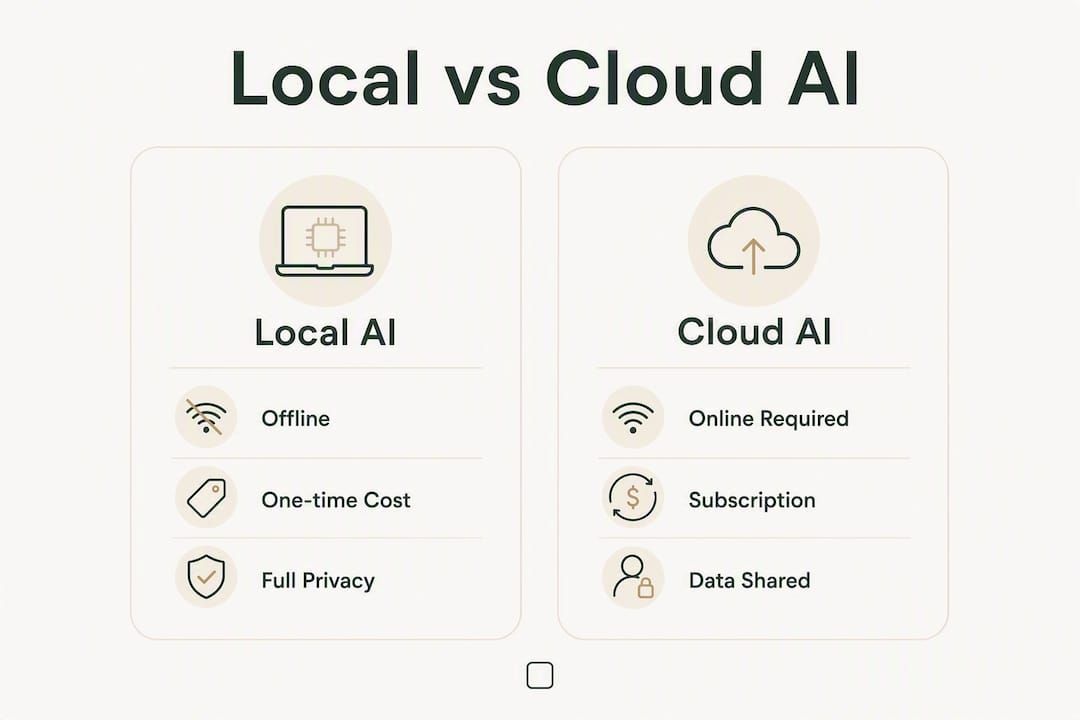
The cost picture is straightforward too. A one-time purchase replaces an open-ended subscription. Heavy cloud AI users paying monthly fees can reach break-even on a local alternative faster than they expect.
Pro Tip: Before trusting any AI app's privacy claims, ask one question: does the app work in airplane mode? If yes, your data is staying local. If no, something is being transmitted.
What to look for before you buy a one-time-purchase offline AI
Appliance-like installers are now the standard for consumer-grade local AI. The friction that used to require technical expertise — model downloads, configuration files, driver setup — is being removed by well-designed frontends. Still, verify these before purchasing:
- Offline inference confirmed: the app runs with no internet connection after install
- No account required: no login, no email, no cloud sync
- Lifetime license: one payment, no recurring fees
- PDF and image support: useful for students, teachers, and professionals handling documents
- Bundled model: no separate model download or configuration step
- Clear update process: updates available without forcing cloud dependency
For trust signals, check the vendor's privacy page for architecture-first language (not just policy promises), confirm OS support matches your machine, and look for a refund policy before buying.
Pro Tip: Students and teachers should prioritize a bundled model over raw feature count. An app that works immediately on a mid-range laptop beats a more powerful one that requires hours of setup.
GreenCube: what you actually get
GreenCube is built for people who want AI that works without configuration. Here is what the app includes:
- Chat: ask questions, draft text, brainstorm — unlimited queries, no token meter
- PDF reading: load a document and ask questions about its contents directly
- Image understanding: analyze photos or screenshots without uploading them anywhere
- Offline inference: the model runs on your machine; nothing is transmitted
- No accounts: open the app and use it — no sign-in, no profile, no cloud sync
- Simple installer: one download, one install, done
Pricing is a one-time purchase. You pay once and own the license permanently. GreenCube currently runs on Windows; a Mac version is in development. Refund and trial details are listed on the purchase page.
On privacy architecture: GreenCube makes no network calls during use. The model runs locally, your conversations stay on your device, and there is no telemetry pipeline sending usage data back to a server.
Will it run on your computer?
VRAM is the single biggest factor in how fast a local AI feels. When a model exceeds available GPU VRAM, inference falls back to the CPU which runs significantly slower, impacting responsiveness — which turns a snappy assistant into a frustrating wait. Here is a practical spec reference:
| Tier | RAM | Storage | GPU/VRAM | Expected experience |
|---|---|---|---|---|
| Minimum | 8 GB | 10 GB free | Integrated graphics, no card | Slow but functional |
| Mid-range | 16 GB | 10 GB free | 4 GB VRAM | Comfortable for most tasks |
| Recommended | 16 GB or more | 10 GB+ free | 8 GB VRAM or more | Fast, responsive |
To check your specs on Windows: open Settings → System → About for RAM, and Device Manager → Display Adapters for your GPU. Right-click the GPU name and select Properties to find VRAM.
If your machine is underpowered, you have options. Scheduling intensive tasks during idle time helps keep data local while mitigating slow real-time interaction — overnight summarization, batch document review — keeps your data local while avoiding slow real-time interaction. For quick questions, even a minimum-spec machine handles short prompts acceptably.
How to install GreenCube in about 10 minutes
The install is a single-click process. No model download, no configuration file, no terminal commands.
- Go to greencube.app/buy and complete the one-time purchase
- Download the installer file from the confirmation page or your email
- Double-click the installer and follow the on-screen prompts (takes under 2 minutes)
- Enter your license key when prompted
- Open GreenCube — the model loads automatically
- Type a question in the chat box, or click "Open PDF" to load a document
Common hurdles and quick fixes:
- Windows SmartScreen blocks the installer: click "More info" then "Run anyway" — this is standard for new software publishers
- Antivirus flags the file: add the installer to your antivirus exceptions list, then re-run
- App opens slowly the first time: the model is loading into memory; subsequent launches are faster
How to confirm GreenCube is truly offline
Offline AI enforces privacy by architecture — no transmissions, no external storage, no training data leakage. But you do not have to take that on faith. Run these checks yourself:
- Airplane mode test: enable airplane mode in Windows (Settings → Network & Internet → Airplane mode), then open GreenCube and ask a question. If it responds normally, inference is local.
- Windows firewall check: open Windows Defender Firewall → Advanced Settings → Outbound Rules. Block GreenCube's executable. If the app still works, it is not dependent on outbound connections.
- Task Manager network monitor: open Task Manager → Performance → Open Resource Monitor → Network tab. Run a query in GreenCube and confirm no network activity appears on the app's process.
- Confirm no account prompt: if the app never asks for an email or login, there is no cloud identity layer.
Security checklist after install:
- Confirm the local API binds to 127.0.0.1 only (not an external IP)
- Check Settings for any telemetry toggle and disable it if present
- Verify model files are stored in a local folder on your drive, not a cloud-synced directory
- Periodically delete conversation history files if you handle sensitive material
Pro Tip: Use the Windows Firewall to block the app's outbound access permanently. If GreenCube keeps working normally after the block, you have architectural proof it is offline — not just a policy promise.
When local is enough — and when cloud might still help
Local AI covers the majority of everyday tasks without compromise. Here is how that breaks down by role:
- Students: drafting essays, summarizing PDFs, explaining concepts — all local, all private, no usage caps
- Teachers: analyzing student documents, generating quiz questions, reviewing lesson plans — sensitive work that should never leave the device
- Creatives: drafting copy, brainstorming, editing — local handles this well on mid-range hardware
- Professionals: summarizing contracts, reviewing reports, drafting emails — local is the right default for anything confidential
Cloud AI may still make sense for one narrow case: very large reasoning tasks that exceed your hardware's capacity. Many professionals adopt a hybrid approach — keeping sensitive documents local and using cloud tools only for non-sensitive, heavy-inference edge cases.
A safe hybrid pattern: draft and analyze confidential documents entirely in GreenCube. For a one-off task that genuinely needs a larger model — say, a complex legal summary — use a cloud tool with a throwaway, non-identifying prompt that contains no personal or sensitive content.
Keeping GreenCube private and up to date
Maintaining a local AI takes occasional attention, but nothing technical. Think of it like keeping your laptop's software current.
- Updates: install updates from the official GreenCube site only. A signed installer from the vendor's own domain is safe; never apply an update from a third-party source.
- Model files: these are the largest files on disk. If storage runs low, check your GreenCube data folder and remove older model versions you no longer use.
- Backups: your conversation history and any saved documents live in a local folder. Back that folder up to an external drive if the data matters to you.
- Driver currency: keep your GPU drivers current via Windows Update or your GPU manufacturer's site. Outdated drivers are the most common cause of slow inference on otherwise capable hardware.
- Support: if an installer or update fails, contact GreenCube support with your OS version, RAM, and GPU model. That information cuts troubleshooting time significantly.
Key Takeaways
A locally installed, one-time-purchase offline AI like GreenCube is the most private, reliable, and cost-predictable option for students, teachers, creatives, and professionals who want unlimited AI access without subscriptions or usage caps.
| Point | Details |
|---|---|
| Who benefits most | Students, teachers, creatives, and professionals handling sensitive documents gain the most from unlimited local use. |
| Hardware reality | VRAM determines speed; CPU fallback can be significantly slower, so mid-range GPU hardware is the sweet spot. |
| Privacy by architecture | Local inference makes data exfiltration impossible by design — no policy to trust, no server to breach. |
| Cost model | One-time purchase replaces open-ended subscriptions; heavy cloud AI users reach break-even faster than expected. |
| GreenCube | Windows app, lifetime license, offline inference, no accounts — buy once at greencube.app/buy and use immediately. |
The case for architecture over promises
The privacy conversation around AI has been dominated by policy language — terms of service, data retention commitments, opt-out toggles. None of that is verifiable by the person using the tool. You cannot audit a cloud server. You cannot confirm a company deleted your conversation. You are trusting a document.
Architecture is different. When a model runs on your machine and the app passes an airplane mode test, the privacy guarantee is not a promise — it is a physical constraint. No transmission happened because no transmission was possible.
What gets underestimated is how much this matters for everyday users, not just security professionals. A teacher uploading student work to a cloud AI is creating a data trail that did not need to exist. A student pasting a draft essay into a subscription chatbot is handing that text to a company's training pipeline. These are not hypothetical risks. They are the default behavior of cloud AI, built into the architecture.
The right response is not paranoia. It is choosing tools whose design makes the problem irrelevant. That is what local, offline AI does — and why the one-time-purchase model matters beyond just saving money.
GreenCube is yours to own, not rent
Most AI tools charge you every month for access you never fully control. GreenCube is the alternative: a one-time purchase that gives you a private, offline AI assistant that lives on your computer and answers unlimited questions — no subscription, no account, no cloud.
For students, teachers, creatives, and professionals who handle anything sensitive, that ownership matters. You pay once, install in minutes, and get a capable AI that works in airplane mode, reads your PDFs, and understands images — all without sending a single character to a remote server.
GreenCube runs on Windows now, with Mac support coming. The price is a one-time payment for a lifetime license. A refund policy is listed on the purchase page so you can buy with confidence.
Get GreenCube at greencube.app/buy and start using it today.
Useful sources
- Privacy Implications of Local vs Cloud AI Inference (Zenodo/Libern) — peer-reviewed analysis of why local inference eliminates the privacy risks inherent in cloud-based AI processing; useful for understanding the architectural argument.
- ASUS: Why you should run AI on your own PC — hardware-focused explainer on local AI performance and the absence of API limits; helpful for understanding the hardware side of the equation.
- Running LLMs locally is harder than it looks — honest account of VRAM constraints and CPU fallback; read this before deciding on hardware.
- Offline AI security: a practical hardening guide — step-by-step verification and hardening instructions for offline AI apps, including firewall and network monitoring checks.
FAQ
What does "no rate limit AI" mean for desktop apps?
It means the app runs inference on your own hardware with no external server counting your queries. There is no usage cap because there is no cloud service to impose one.
Does GreenCube work without an internet connection?
Yes. GreenCube runs entirely offline after installation. Enable airplane mode and it still responds normally — that is the architectural proof of local inference.
What hardware do I need to run GreenCube comfortably?
A mid-range machine with 16 GB RAM and a GPU with 4 GB VRAM handles most tasks well. Below that, the app still works but responses are slower, especially for longer documents.
Is a one-time-purchase AI cheaper than a subscription?
For regular users, yes. A single lifetime license replaces recurring monthly fees. Heavy cloud AI users often reach break-even within a few months of switching to a local alternative.
Can I verify that GreenCube is not sending my data anywhere?
Yes. Enable airplane mode, then run a query. If it responds, no network connection was used. You can also block the app in Windows Firewall and confirm it keeps working — architectural proof, not a policy claim.
Recommended
- No Setup AI: Private, Offline, One-Time Purchase
- Best Microsoft Copilot Alternatives for Privacy in 2026
- Top 3 Offline AI Solutions: Ollama Alternatives 2026
- Best Poe Alternatives in 2026: Top AI Platforms Compared
Your own AI, on your own PC
GreenCube runs on your computer: no usage limits, no subscription, works without internet. €9.99, paid once.
Get GreenCube