
Local AI models run entirely on hardware you own, keeping every byte of data on your machine and off the internet. That single fact changes the privacy calculus completely, and it's why more people are running AI locally in 2026 than ever before.
Quick decision frame:
- Pros: Your data never leaves your device; works offline; no per-token fees after setup
- Cons: Hardware limits what you can run; setup takes more effort than a cloud API; the very largest frontier models still outperform local options on complex reasoning
- Best fit: Privacy-focused users, anyone with steady high-volume workloads, and situations where internet access is unreliable or forbidden
If any of those pros match your situation, keep reading. This guide covers how local AI works, what hardware you need, how to pick a model, and how to run one today.
Table of Contents
- What local AI models really are and how they work
- Local AI vs. cloud AI: how do the tradeoffs actually break down?
- Which workloads are a natural fit for local AI?
- What hardware do you actually need, and what does it cost?
- How do you pick the right model and tooling?
- How to run a local model today: two quick-start paths
- Greencube: a desktop app that removes all the setup friction
- Limitations, risks, and common misconceptions
- Five concrete next steps to experiment safely
- Key Takeaways
- The near-term future of local AI: a perspective
- Greencube is private AI you own outright, not rent monthly
- Useful sources for going deeper
- FAQ
What local AI models really are and how they work
A local AI model processes everything on your own CPU or GPU instead of a remote server. No API call goes out, no data transfers, and the model keeps running even when your Wi-Fi is down.
Every local AI setup has three parts:
- The model file (the weights): a large binary file containing everything the model "knows." Think of it as a very heavy reference book that must sit on your desk before you can read it.
- The inference engine (runtime): software that reads the weights and turns your prompt into output tokens. Common runtimes include llama.cpp, Ollama, vLLM, and LM Studio.
- The hardware: the RAM, VRAM, CPU, and GPU that actually do the math.
The memory constraint is the most important thing to understand. If a model's weights don't fit into your available RAM or VRAM, the runtime spills over to disk, which collapses generation speed from seconds to minutes per token. Models of this scale typically require a significant amount of memory, but quantization techniques can reduce these demands to fit on consumer hardware.
Quantization is the technique that makes consumer hardware viable. Formats like GGUF, GPTQ, and AWQ compress the model weights with minimal quality loss. You trade a small accuracy dip for a model that actually fits. For most everyday tasks, that tradeoff is worth it.

The data flow looks like this: model file → runtime loads weights into memory → your prompt goes in → tokens come out. No cloud hop anywhere in that chain.
Local AI vs. cloud AI: how do the tradeoffs actually break down?
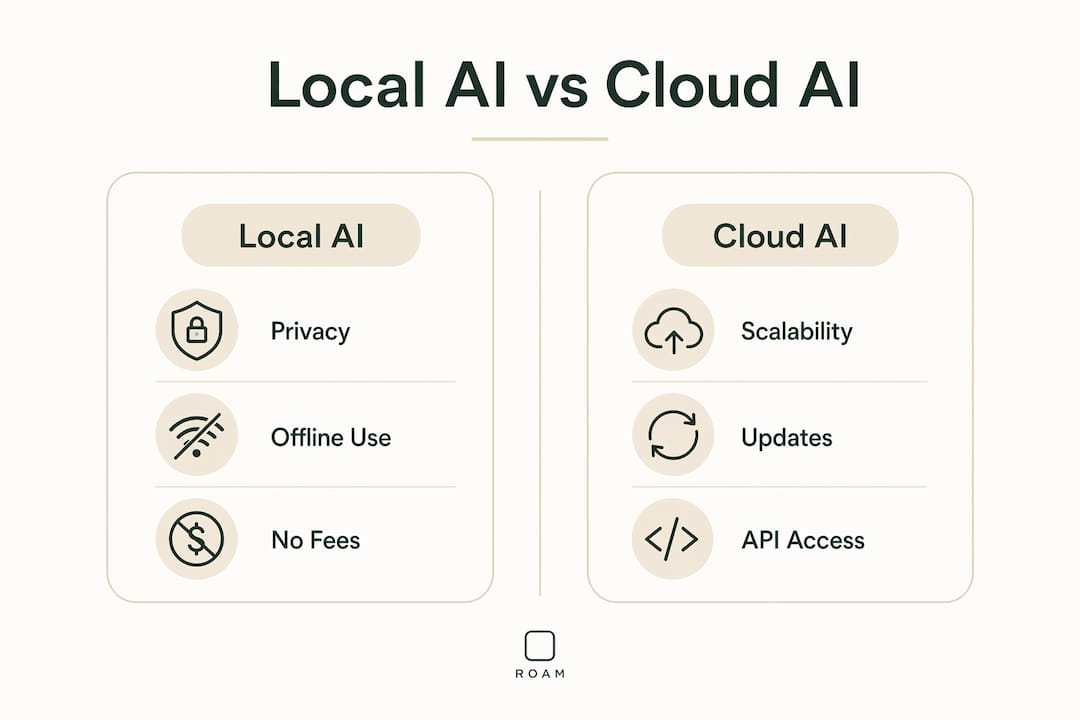
The core tradeoff is privacy and control versus raw capability and scale. Local wins on the first two; cloud still leads on the last two for frontier-level tasks.
Local AI advantages:
- Data stays on your device; no vendor can read, log, or train on it
- Works fully offline; no latency from network round-trips
- No per-token billing; cost is fixed after hardware purchase
- You control the model version; it won't change under you overnight
Cloud AI advantages:
- Access to the largest frontier models (GPT-4o, Claude 3.5, Gemini 1.5) with no hardware investment
- Scales instantly for burst workloads
- Zero maintenance; the provider handles updates and security patches
- Better for rare, hard reasoning tasks that need the biggest models
| Dimension | Local AI | Cloud AI |
|---|---|---|
| Privacy | Data never leaves your machine | Data sent to provider's servers |
| Latency | Near-zero network latency | Depends on connection and server load |
| Cost pattern | Upfront hardware + electricity | Pay-per-token or subscription |
| Capability ceiling | Limited by your hardware | Access to frontier models |
| Maintenance burden | You manage updates and models | Provider handles everything |
Practical scenario mapping:
- Offline transcription of a sensitive meeting → local
- Summarizing confidential contracts on an air-gapped laptop → local
- Frontier-level research synthesis or complex multi-step reasoning → cloud
- Low-volume, occasional queries where you don't want hardware costs → cloud
The pragmatic approach that's become mainstream: use local models for privacy-sensitive and high-volume tasks, and reach for cloud APIs when you genuinely need frontier reasoning. Most people end up doing both.
Which workloads are a natural fit for local AI?
The most successful local workloads are conversational chat, document summarization, PDF question-answering (RAG), code assistance, image understanding, and speech transcription. These tasks don't require the very largest models, and they often involve data you'd rather not send to a third party.
Common use cases with real-world examples:
- Private chat and Q&A: A freelance consultant chats with a local model to draft client emails without any conversation leaving their laptop.
- Document summarization: A lawyer summarizes a 200-page contract on an air-gapped machine; the text never touches the internet.
- Retrieval-augmented generation (RAG): A researcher loads a folder of PDFs and asks questions across all of them. RAG pairs a local model with a local vector search so answers are grounded in your actual documents.
- Code assistance: A developer runs a local code model to refactor proprietary source code without exposing it to a cloud API.
- Image understanding: A small business owner uses a local vision model to describe product photos or extract text from scanned receipts.
- Speech transcription: A journalist transcribes interviews locally using Whisper, keeping source identities private.
- Offline automation: A field technician on a remote site uses a local model to generate reports without cell coverage.
Edge and IoT scenarios extend this further. Local models run on devices like NVIDIA Jetson boards for real-time object detection in manufacturing lines or autonomous vehicle perception pipelines, where cloud round-trips would introduce unacceptable latency.
Open-weight models from 2025 onward handle these everyday tasks well. Where local AI still struggles is novel, multi-step reasoning that benefits from the scale of a 100B+ parameter frontier model.
What hardware do you actually need, and what does it cost?
Start with the memory budget. The model must fit into RAM (for CPU inference) or VRAM (for GPU inference). Here's a practical tier table:
| Model tier | Typical Q4 size | Minimum RAM / VRAM | Example hardware | Approx. USD cost |
|---|---|---|---|---|
| 1–3B (tiny) | ~1–2 GB | 8 GB RAM | Most modern laptops | $0 (repurpose existing) |
| 7–8B (small) | ~4–5 GB | 16 GB RAM or 12 GB VRAM | RTX 3060 (12 GB) desktop | $250 (GPU only) |
| 13–14B (mid) | ~8 GB | 16 GB VRAM | High-end GPUs like RTX 4090 | $500–$700 (GPU only) |
| 70B (large) | ~40 GB | High RAM or multi-GPU setups | High-end workstation | $1,500–$3,000+ |
Consumer GPUs like an RTX 3060 with 12 GB VRAM make 7–8B models comfortably usable at reasonable token rates. That's the sweet spot for most people starting out.
Hardware checklist before you buy or repurpose:
- RAM: 16 GB minimum for comfortable 7B model use; 32 GB gives you headroom
- Storage: at least 50 GB free for a few models (models range from 2 GB to 40+ GB each)
- GPU (optional but faster): 12 GB VRAM handles most popular small models
- Cooling: sustained inference runs the CPU/GPU hard; check thermal headroom
- Power supply: a mid-range GPU adds 150–250W under load
Price bands for a working local AI setup:
- Entry ($0–$300): Repurpose a laptop with 16 GB RAM; run 1–3B models via CPU. Slow but functional.
- Mid ($300–$700): Add an RTX 3060 or 3070 to an existing desktop. Runs 7–8B models well.
- High-end ($1,500–$3,000+): New workstation with an RTX 4090 (24 GB VRAM) or dual-GPU setup. Handles 13–34B models comfortably.
Running local models also draws more electricity than idle browsing. For context on the broader energy cost of AI inference, local setups shift that cost from a data center to your own power bill.
Timeline to first run: Download a quantized model (5–30 minutes depending on size and connection), install a runtime (5 minutes), load the model into memory on first run (30 seconds to 3 minutes), generate your first response (seconds once warm).
How do you pick the right model and tooling?
Pick for your task and hardware first, then check the license. A model that fits your memory budget and handles your specific workload beats a larger, more capable model that swaps to disk.
Decision checklist:
- Context length: How much text does the model process at once? For long documents, you need at least 8K tokens; 32K+ is better for RAG.
- Parameter count: Bigger isn't always better. Right-sized 7–14B models often deliver a better speed/quality/privacy balance than trying to run a 70B model on insufficient hardware.
- Quantization format: GGUF files work with llama.cpp and Ollama; GPTQ and AWQ are GPU-optimized formats. Start with GGUF Q4 variants.
- License: MIT and Apache 2.0 allow commercial use. Some models (like older LLaMA releases) restrict commercial applications. Check before deploying in a business context.
- Language support: Most popular models are English-first; multilingual models like Mistral or Aya handle other languages better.
- Community and tooling: Active model communities mean faster bug fixes, more quantized variants, and better documentation.
The typical toolchain: a model file (downloaded from Hugging Face or a similar hub) + a runtime (Ollama for beginners, llama.cpp for portability, vLLM for GPU throughput) + an optional GUI (LM Studio provides a desktop interface). Ollama is the most common beginner on-ramp because it handles model downloads, runtime management, and a local HTTP API in one command.
Model selection flow: Do you have a GPU with 12+ GB VRAM? Start with a 7–8B GGUF model. CPU only with 16 GB RAM? Try a 3B model first. Need code help? Look for a code-tuned variant (e.g., CodeLlama, DeepSeek Coder). Need image understanding? Pick a multimodal model like LLaVA.
Pro Tip: Test one or two small models on your actual task before committing to a larger download. Benchmark scores from leaderboards rarely predict performance on your specific prompts and data. A 3B model that handles your use case at 30 tokens/second beats a 13B model that crawls at 3 tokens/second on your hardware.
How to run a local model today: two quick-start paths
Choose the non-technical path if you want privacy without touching a command line. Choose the power-user path if you want full control over models, runtimes, and configuration.
Non-technical path (desktop app)
- Download a desktop AI app that bundles the model and runtime (Greencube is one option; LM Studio is another for power users).
- Run the installer; no accounts or API keys required.
- Open the app; the model loads automatically.
- Type a prompt in the chat window and verify you get a response.
- Test with a non-sensitive document or question first.
- Check that no network requests are leaving your machine (Activity Monitor on Mac, Resource Monitor on Windows).
Power-user path (command line with Ollama)
- Install Ollama from ollama.com (one-package installer for Windows, Mac, Linux).
- Open a terminal and run:
ollama pull llama3 - Start a chat session:
ollama run llama3 - Type your first prompt and press Enter.
- Check memory usage with
ollama psto confirm the model loaded into RAM/VRAM. - For a web UI, install Open WebUI on top of Ollama with a single Docker command.
First-session checklist:
- Confirm the model file downloaded completely (check file size against the listed size)
- Verify memory usage stays within your RAM/VRAM budget
- Test a factual prompt and cross-check the answer against a known source (hallucinations happen)
- Keep the runtime process running between queries to avoid cold-start delays on every prompt
Greencube: a desktop app that removes all the setup friction
Greencube is built for exactly the non-technical path described above. It runs entirely on your Windows computer, works offline, and requires no model configuration, no accounts, and no subscription. You install it and it works.
Core features:
- Private chat with a capable local model, fully offline
- PDF reading and document Q&A: load a file and ask questions about it
- Image understanding: describe or analyze images without uploading them anywhere
- One-time purchase, lifetime license; no monthly fees
- No model setup required; the model is bundled and ready on first launch
- Mac version in development
Evaluation checklist for any desktop local AI app:
- Does it run fully offline with no network calls during inference?
- Is setup genuinely one-click, or does it require terminal commands?
- Does it support document and image input, not just text chat?
- Is the pricing a one-time purchase or an ongoing subscription?
Greencube checks all four. For readers who want the privacy benefits of local AI without the toolchain overhead, it's the fastest path from zero to a working private assistant.
Limitations, risks, and common misconceptions
Local AI is not a free lunch. Understanding where it fails helps you adopt it without nasty surprises.
Key limitations and mitigations:
- Out-of-memory crashes: The most common failure. Mitigation: choose a quantized model that fits comfortably within your memory budget, not right at the edge.
- Slow first response (cold start): Loading a 4–8 GB model into memory takes 30 seconds to several minutes. Mitigation: keep the runtime running as a persistent server between queries rather than restarting it each time.
- Hallucinations: Local models confabulate facts just as cloud models do. Mitigation: add retrieval (RAG) for factual work so the model answers from your documents, not from its weights alone.
- Maintenance overhead: Models don't update themselves. You need to manually pull new versions and check for security patches in the runtime. Mitigation: subscribe to the model's release channel and schedule monthly checks.
- License restrictions: Not all open-weight models allow commercial use. Some have restrictions on redistribution or fine-tuning. Check the license on the model card before deploying in a business context.
- Model source trust: Downloading weights from an unverified source carries risk. Stick to well-known hubs and verify checksums when available.
One misconception worth addressing directly: "local" does not mean "secure by default." A local model is only as private as the device it runs on. If your machine is compromised, so is your data. Local AI removes the cloud-provider risk; it doesn't eliminate endpoint security concerns.
For a deeper look at how cloud AI handles your data by comparison, the ChatGPT data training explainer covers what actually happens when you use a hosted model.
Five concrete next steps to experiment safely
The fastest way to form a real opinion about local AI is to run it on a task you actually care about.
- Pick one specific use case before downloading anything. "Summarize PDFs" or "transcribe audio files" is a better starting point than "try AI." A concrete task gives you a clear success metric.
- Check your hardware against the tier table above. If you have 16 GB RAM, a 7B Q4 model is your starting point. If you have 8 GB, start with a 3B model.
- Try a safe, small model first. Download a 3–4 GB GGUF file and run it through Ollama or a desktop app. Don't start with a 40 GB download on your first session.
- Test with non-sensitive data initially. Use a public document or a made-up scenario before feeding the model anything confidential. Verify the output quality before trusting it with real work.
- Evaluate on three axes: speed (tokens per second on your hardware), accuracy (does it get the facts right on your test document?), and privacy (confirm no network traffic during inference).
A good first experiment: paste a long article into the chat and ask for a three-sentence summary. Then transcribe a short voice memo using Whisper locally. Both tasks take under five minutes and give you a concrete sense of what local AI can and can't do on your machine.
Key Takeaways
Local AI models give you private, offline AI on hardware you own, with no per-token fees, but they require upfront hardware investment and realistic expectations about capability limits.
| Point | Details |
|---|---|
| Data stays on your device | Local models process everything on your CPU/GPU; nothing is sent to external servers. |
| Memory budget is the hard constraint | Models around 7 billion parameters in size are commonly used because they balance resource demands and performance, but they require at least 16 GB RAM or 12 GB VRAM to run efficiently without slowdowns. |
| Right-sized models beat oversized ones | 7–14B models offer the best speed/quality/privacy balance for most everyday tasks on consumer hardware. |
| Hybrid use is the practical norm | Use local for private, high-volume tasks; use cloud APIs for frontier reasoning you can't replicate locally. |
| Greencube removes setup friction | For non-technical users, Greencube delivers offline private AI on Windows with a one-time purchase and no configuration required. |
The near-term future of local AI: a perspective
The most underrated shift happening right now is not model quality, but UX. A year ago, running a local model meant wrestling with Python environments, CUDA drivers, and model format conversions. Today, polished desktop apps make the whole thing nearly invisible. Closing that UX gap is what will bring local AI to the mainstream, not the next benchmark score.
What people consistently underestimate is the value of a frozen, stable model. Cloud models update silently. A prompt that worked last month may behave differently today because the provider retrained or fine-tuned the model. With a local model, you own a specific version. It behaves the same way on day one as it does on day 500. For anyone building workflows or automations on top of AI, that stability is genuinely valuable and almost never discussed.
The hybrid approach is already the pragmatic default for people who think carefully about this. Local for the sensitive, the repetitive, and the high-volume. Cloud for the genuinely hard, the rare, and the frontier. That split will probably hold for the next few years as local hardware improves and model efficiency keeps climbing.
One honest caveat: treat every output as a draft that needs a human check. Local models hallucinate. Cloud models hallucinate. The difference is where your data goes, not whether the model is infallible.
Greencube is private AI you own outright, not rent monthly
Most people who want local AI don't want to manage runtimes, download GGUF files, or debug CUDA errors. They want the privacy and the offline capability without the toolchain. That's the gap Greencube fills.
Greencube is a Windows desktop app that runs a capable AI model entirely on your computer. Chat privately, read and analyze PDFs, understand images, all offline, with nothing ever sent to a server. No model setup, no accounts, no subscription. One purchase, and it's yours permanently.
Three things to check before you buy any local AI app:
- Does it run with zero network calls during use? Greencube does.
- Is setup genuinely one-click? Greencube installs and works immediately.
- Is it a one-time cost, not a recurring fee? Greencube is a lifetime license.
If those three matter to you, get Greencube and have a working private AI on your desktop today.
Useful sources for going deeper
Short notes on what each source covers, so you can find the right one for your next question.
- Local AI complete guide (local-llm.net): Covers what local AI is, how runtimes compare (Ollama, llama.cpp, vLLM), and the UX trends making it more accessible. Good starting point for understanding the full stack.
- What is a local LLM (ai-tldr.dev): Explains memory constraints, quantization formats (GGUF, GPTQ, AWQ), and why model size matters for consumer hardware. Read this before buying hardware.
- Running AI locally primer (runlocalai.co): Practical hardware tiers, failure modes, and the hybrid local/cloud workflow. Useful for setting up your first working environment.
- Local AI models guide (Lenovo US): Broad overview of use cases across industries (healthcare, IoT, gaming) and a clear summary of hardware tradeoffs. Good for understanding the application breadth.
- Retrieval-augmented generation (Wikipedia): Authoritative definition of RAG, the technique that pairs a local model with a document search index to reduce hallucinations on factual tasks.
- Greencube: The one-click desktop app for non-technical users who want offline private AI on Windows without any model configuration.
Always check the model license page on Hugging Face before using a model commercially. Licenses vary significantly, and "open-weight" does not automatically mean "free for commercial use."
FAQ
What does "local AI model" mean exactly?
A local AI model runs entirely on your own hardware, with no data sent to external servers. Processing happens on your CPU or GPU, and the model works offline.
What AI model should I run locally as a beginner?
Start with a quantized 7B model in GGUF format (such as Llama 3 or Mistral 7B) via Ollama if you have 16 GB RAM, or a 3B model if you have 8 GB. For a no-setup option, Greencube bundles a ready-to-run model in a desktop app.
Is it better to run AI models locally or use a cloud API?
It depends on your priorities. Local wins on privacy, offline use, and long-term cost for high-volume workloads. Cloud APIs win on raw capability for complex reasoning tasks and require no hardware investment.
What are the four main types of AI models?
The four broad categories are language models (text generation and understanding), vision models (image recognition and generation), speech models (transcription and synthesis), and multimodal models that handle two or more of those modalities together.
How much RAM do I need to run a local AI model?
For a 7B model, you should have at least 16 GB of RAM for comfortable use; an 8 GB machine is suitable for a 3B model. Larger models require more memory, with 13–14B models best run on systems with at least 16 GB VRAM or 32 GB RAM.