Best Laptop AI Assistant for Privacy: Local and Offline
GreenCube is the best laptop AI assistant for privacy-conscious users who want a fully offline experience. It runs chat, PDF reading, and image analysis entirely on your machine, with no accounts, no subscription, and no data ever leaving your device. Three reasons it earns the top spot:
- Fully offline pipeline. Model inference, OCR, embeddings, and document storage all happen locally. Nothing phones home.
- Zero setup friction. No model configuration, no API keys. Install it and it works, even for non-technical users.
- One-time purchase. Pay once, own it forever. No monthly billing, no cloud lock-in.
The honest trade-off: local hardware sets the ceiling. A laptop with limited RAM or no discrete GPU will run smaller models, which means slower responses on large documents. That's not a dealbreaker, but it's worth knowing before you buy.
Table of Contents
- What does "local/offline" actually mean for your privacy?
- Who should use a fully local laptop AI assistant?
- What core features should a local AI assistant include?
- What hardware do you actually need to run this well?
- Privacy and security: how to verify an app is truly offline
- How do you choose the right local assistant?
- Why GreenCube is the recommended pick
- Quick setup: your first 10 minutes after installing
- Limitations and common issues to know about
- Key Takeaways
- Why we built GreenCube this way
- GreenCube: private AI on your laptop, yours to keep
- Useful sources
- FAQ
What does "local/offline" actually mean for your privacy?
"Local" means the entire AI pipeline runs on your laptop: model inference, OCR, text parsing, embeddings, vector indexing, and output generation. If any single step happens in the cloud, your document content is exposed to a third party, even if the rest of the app looks offline.
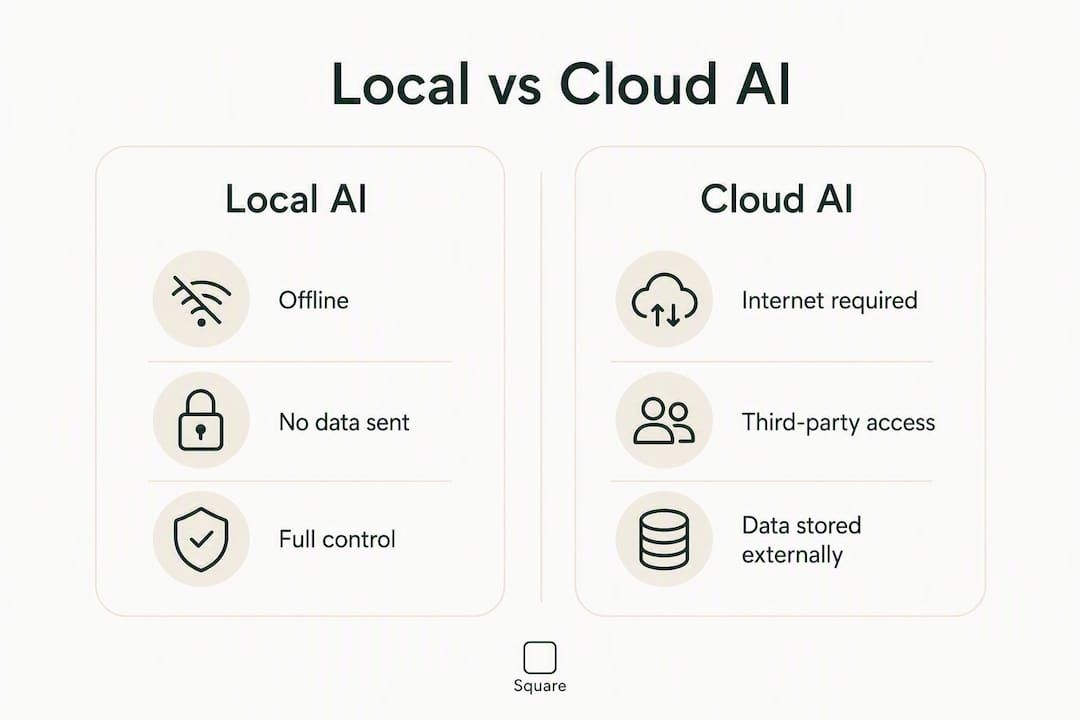
Keeping inference local eliminates the primary privacy and regulatory exposure vectors tied to cloud-based AI: no third-party access, no data transmission, no risk of your content feeding a training dataset.
Watch for apps that claim to be "local" but still make outbound calls. Common weak points include update checks that reveal your IP, remote OCR services for scanned PDFs, and telemetry pings on startup. A genuinely offline app handles all of these on-device, or gives you explicit controls to disable them.
Pro Tip: Disconnect from Wi-Fi during your first run and open a network monitor (Windows Resource Monitor or macOS Activity Monitor). If the app shows zero outbound connections, you have a real offline tool. Any connection to an external IP is a red flag.
Who should use a fully local laptop AI assistant?
Local AI assistants are the right fit for a specific kind of user. They're not for everyone.
Good fit:
- Privacy-sensitive professionals handling contracts, medical records, or financial documents
- Students working with private coursework or research notes who want offline AI study tools without a subscription
- Freelance writers and creatives who draft sensitive content and don't want it indexed or stored elsewhere
- Anyone who has grown uncomfortable with cloud assistants reading their documents
Not a good fit:
- Users who need real-time web search baked into their assistant
- Enterprise teams that require cloud integrations, shared workspaces, or multi-device sync
- People who want a free tier with no installation required
The dividing line is simple: if your documents contain anything you wouldn't email to a stranger, a local assistant is the right call.
What core features should a local AI assistant include?
Not all local AI apps are built the same. Here's what a capable desktop AI assistant should offer out of the box, and what separates a polished product from a developer tool.
| Feature | Why it matters | Non-technical user need |
|---|---|---|
| Local chat interface | Runs inference on-device, no API calls | Simple text box, no config |
| PDF ingestion and search | Reads and queries your documents locally | One-click import |
| Image understanding | Local OCR or vision model for scanned files | Automatic, no manual setup |
| Local RAG (retrieval) | Semantic search across your docs without cloud indexes | Invisible to the user |
| Offline embeddings | Generates vector representations on-device | No external embedding API |
| Telemetry controls | Lets you disable update checks and usage pings | Toggle in settings |
The features that separate a usable product from a raw toolkit are the invisible ones: automatic quantization so the model fits your hardware, a local vector store that doesn't require a database setup, and a document importer that handles PDFs without a manual pipeline. Desktop local inference tools provide exactly this kind of on-device document workflow when they're built for end users rather than developers.
What hardware do you actually need to run this well?
VRAM is the main bottleneck, not CPU speed. The GPU, not just the processor, often determines which models run smoothly, and apps that automate quantization prevent the manual tuning errors that commonly break local deployments.

| Spec | Minimum | Recommended |
|---|---|---|
| RAM | 8 GB | 16 GB or more |
| VRAM (discrete GPU) | 4 GB | 8 GB or more |
| CPU | 4-core modern processor | 8-core, recent generation |
| Storage | 10 GB free | 10 GB+ free (more for pictures) |
| OS | Windows 10 | Windows, macOS (coming), Linux |
On a laptop without a discrete GPU, the model runs on CPU only. That works, but expect slower responses, especially on large PDFs. Automatic quantization shrinks model size to fit available memory, which is why it's a critical feature for non-technical users rather than a nice-to-have. For a deeper look at model selection and quantization, local AI model guides walk through the trade-offs without requiring a technical background.
Privacy and security: how to verify an app is truly offline
Claiming to be offline and actually being offline are two different things. Some local toolchains check for updates or contact registries on startup, which reveals your IP address and usage patterns even if your documents never leave the machine.
Run through this checklist before trusting any local AI app with sensitive files:
- Open a firewall or network monitor during startup and confirm zero outbound connections
- Check the app's settings for telemetry toggles and disable them explicitly
- Verify that model files are stored locally (not downloaded on each session)
- Review file system permissions: the app should only access folders you designate
- Confirm that OCR and embedding steps run locally, not via a remote API
Even with local software, privacy depends on OS-level security: sandboxing, minimal file permissions, and zero telemetry are the real defenses. For a full OS hardening walkthrough, the offline AI security guide covers network-blocking steps in practical detail.
Pro Tip: Run the air-gap test: disconnect from all networks, then use the app normally for 10 minutes. If it works without errors, the core pipeline is genuinely local. An app that breaks or shows errors when offline is relying on external calls.
How do you choose the right local assistant?
Before buying, work through this checklist:
- Offline pipeline. Does the app keep OCR, embeddings, and inference fully on-device?
- License terms. Is it a one-time purchase or a subscription? What happens if the company shuts down?
- Document formats. Does it support PDF, images, and plain text without a manual conversion step?
- Model management. Does it handle quantization automatically, or do you need to configure it?
- Hardware guidance. Does the vendor publish minimum specs and explain what to expect on your hardware?
- Support policy. Is there documentation, a support channel, and a clear update policy?
Red flags to watch for: mandatory account creation before the app opens, telemetry that can't be disabled, unclear model provenance (you can't verify where the model weights came from), and cloud fallback modes that activate silently when local inference is slow. Security guidance consistently points to minimal-attack-surface native desktop apps for non-technical users who want verified offline behavior.
Why GreenCube is the recommended pick
GreenCube is built for exactly this brief. It runs fully offline on Windows (macOS support is in development), handles chat, PDF analysis, and image understanding, and requires no accounts or configuration. You install it, and it works.
Key features that match the privacy brief:
- One-time purchase — with a lifetime license, no subscription
Pricing is a one-time payment. You buy it once at greencube.app/buy and own it permanently. Install steps: download the installer, run it, and the app handles model setup on first launch. The initial model download takes a few minutes depending on your connection; after that, everything runs offline. For a broader look at how GreenCube positions itself against cloud alternatives, the private AI assistant comparison covers the key differences in detail.
Quick setup: your first 10 minutes after installing
- Run the installer and let the app complete the one-time model download.
- After launch, open your network monitor and confirm no active outbound connections.
- Import a sample PDF using the document importer and run a test query.
- Check Settings for any telemetry or update-check toggles and disable them.
- Disconnect from Wi-Fi and confirm the app still responds normally (the air-gap test).
- Review which folders the app has permission to access and restrict to what you need.
The first-run model quantization step can take a few minutes on a mid-range laptop. That's a one-time wait. Every session after that opens in seconds.
Limitations and common issues to know about
Local models are genuinely capable, but they have real ceilings. Response times on large documents (50+ pages) are slower than cloud tools, especially on CPU-only laptops. Multimodal accuracy for complex scanned images is lower than what a cloud vision model delivers.
Common fixes:
- Slow responses: Switch to a smaller quantized model in settings. Closing other GPU-intensive apps (video editors, games) frees VRAM immediately.
- PDF import errors: Re-export the PDF from its source application and reimport. Corrupted or password-protected files often fail silently.
- Out-of-memory crashes: Increase virtual memory in Windows settings, or reduce the context window size in the app.
For non-sensitive web research, using a separate internet-connected tool alongside your local assistant is a practical pattern. Experts recommend exactly this hybrid approach: keep sensitive document work local, use other tools for open web lookups. That's not a compromise on privacy; it's a sensible division of labor.
Key Takeaways
GreenCube is the best local laptop AI assistant for privacy-conscious users because it keeps the entire pipeline offline, requires no accounts, and costs a single one-time payment.
| Point | Details |
|---|---|
| Offline pipeline is non-negotiable | Every step, OCR, embeddings, inference, must run locally or your data is exposed. |
| VRAM determines model performance | Automatic quantization is the feature that makes local AI usable on typical laptops. |
| Verify offline behavior yourself | Run the air-gap test and a network monitor on first launch before trusting any app with sensitive files. |
| One-time purchase model | GreenCube charges once for a lifetime license, with no subscription or recurring fees. |
| Recommended next step | Download GreenCube, follow the 10-minute setup checklist, and confirm offline operation before importing real documents. |
Why we built GreenCube this way
Most AI tools ask you to trust a company with your most sensitive work. That's a reasonable trade for convenience, but it's not the only option. GreenCube was built on the premise that a capable AI assistant shouldn't require you to hand your documents to a third party.
The offline-first decision wasn't a technical constraint; it was the starting point. Every feature, from automatic quantization to the one-click document importer, was designed to make that offline pipeline accessible to people who aren't developers....
The conventional wisdom says local AI is for power users who can manage models and configure pipelines. We think that's wrong. The people who most need private AI are often the least technical: the freelancer handling client contracts, the student with sensitive research, the professional who just wants to ask questions about a document without broadcasting it. That's who GreenCube is for.
GreenCube: private AI on your laptop, yours to keep
If you've read this far, you already know what you want: an AI assistant that stays on your machine, reads your documents, and doesn't ask for a monthly payment or an account.
GreenCube delivers exactly that. Chat, PDF analysis, and image understanding, all offline, all on your hardware. One payment, no subscription, no cloud.
- Private by design: nothing leaves your laptop
- No accounts or setup: install and use immediately
- One-time purchase: own it permanently at greencube.app
Pick it up at greencube.app/buy and run the 10-minute setup checklist today.
Useful sources
- Local AI vs Cloud AI Privacy for Business Data — practical comparison of when local vs cloud AI is the right call for sensitive data
- Why "Local Document AI" Is Really an OCR + RAG + Local Inference Problem — explains the full pipeline a truly local document system requires
- Why Local LLMs Matter — clear explanation of what "local execution" actually means and why it protects your data
- Local AI for Privacy: What's Actually Private — covers update checks, telemetry, and what makes an app genuinely offline
- Secure & Private AI: Running Local LLMs for Network Engineers — OS hardening and minimal-attack-surface guidance for local AI deployments
FAQ
What is the best laptop AI assistant for offline use?
GreenCube is the top pick for fully offline use. It runs chat, PDF reading, and image analysis entirely on your laptop with no cloud calls, no accounts, and a one-time purchase.
Does a local AI assistant work without internet?
Yes, once the model is downloaded on first run. After that, a local AI assistant like GreenCube operates with no internet connection required for any feature.
How much RAM do you need to run a local AI assistant?
8 GB is the minimum, but 16 GB gives noticeably better performance, especially for large PDF analysis. VRAM on a discrete GPU matters more than total RAM for response speed.
How do I verify that an AI app is truly offline?
Disconnect from Wi-Fi and run the app normally. If it works without errors, the core pipeline is local. You can also open a network monitor during startup and confirm zero outbound connections.
Is a one-time purchase AI assistant better than a subscription?
For privacy-conscious users, yes. A one-time license like GreenCube's means no recurring billing, no account tied to a cloud service, and no risk of losing access if a subscription lapses.
Recommended
- Best Private AI Assistant in 2026: Local and Offline
- Best Microsoft Copilot Alternatives for Privacy in 2026
- Offline AI for Students: Study Privately on Your Laptop
- Top 3 Offline AI Solutions: Ollama Alternatives 2026
Your own AI, on your own PC
GreenCube runs on your computer: no usage limits, no subscription, works without internet. €9.99, paid once.
Get GreenCube