Best Offline AI for Mac: Top Local Tools in 2026
Non-technical Mac users who want private, offline AI with zero setup should start with a one-click desktop app like GreenCube. Developers who need broad model choice and agent workflows should run an MLX-backed local server such as Rapid-MLX or MLX-LM Server. Users focused on a single task, image generation or voice dictation, are better served by a dedicated tool like DiffusionBee or EmberType.
Quick picks by user type:
- Non-technical users: One-click desktop app (GreenCube) — install, open, done, no model setup
- Developers and power users: MLX-native runtime or local LLM server (Rapid-MLX, MLX-LM Server, Ollama) — full model choice, OpenAI-compatible endpoints
- Image generation: DiffusionBee — local image generation, no cloud uploads
- Voice dictation: EmberType — runs Whisper locally and tested on M-series Macs
- App Store preference: AI Deck — offline model management with App Store privacy labels
Key Takeaways
Apple Silicon and the MLX framework have made private, fully offline AI on Mac practical for everyday users and developers alike in 2026.
| Point | Details |
|---|---|
| Match tool to user type | Non-technical users need a one-click app; developers need an MLX-native server or CLI engine. |
| RAM determines model size | 8–23GB supports small models; 24–47GB handles mid-size; 48GB+ enables larger, agentic-capable models. |
| Verify offline status | Disconnect Wi-Fi and run a prompt. If it works, inference is local. |
| Check for silent telemetry | Use Activity Monitor or Little Snitch to confirm no outbound connections during a session. |
| GreenCube for non-technical users | One-time purchase, no model setup, fully offline chat, PDF, and image analysis on your own machine. |
Table of Contents
- Which offline AI tools for Mac are worth your time?
- How each approach actually works, and who should use it
- How to choose the right offline AI setup for your Mac
- Quick start: getting offline AI running on your Mac
- Why GreenCube is the right pick for non-technical Mac users
- What AI model types and macOS integrations are supported?
- What are the security risks of running AI models offline?
- Troubleshooting common issues and where to get help
- Local AI on Mac in 2026: what actually matters
- Private offline AI on your Mac, without the complexity
- Sources
- FAQ
Which offline AI tools for Mac are worth your time?
Publisher pick for non-technical users: GreenCube. No model downloads, no terminal, no accounts. Install it and it works.
How each approach actually works, and who should use it
One-click desktop apps
This is the category most Mac users actually need. A one-click app bundles the model, the interface, and the runtime into a single installer. You open it like any other Mac app. GreenCube fits here: chat, read PDFs, analyze images, all offline, with a one-time purchase and no subscription. The tradeoff is that you get the model the developer chose rather than a menu of hundreds. For most people, that is a feature, not a limitation.
MLX-native runtimes and local LLM servers
MLX is Apple's own array and inference framework, built to use Metal and unified memory on M-series chips. Runtimes built on MLX, including MLX-LM and the MLX-LM Server, deliver noticeably better throughput and lower battery draw than CPU-based or Dockerized alternatives. Apple's WWDC 2026 session showed full agentic workflows running on device, with distributed inference across multiple Macs over Thunderbolt RDMA. That is not a demo trick; it is the practical ceiling for what a local Mac setup can do today.
Rapid-MLX sits at the fast end of this category. It claims faster inference than Ollama, an OpenAI-compatible local server on localhost, and gives model-size recommendations by RAM tiers for small, mid-size, and larger models. Developers can point existing agent libraries and IDE integrations at a localhost endpoint with no code rewrite.
Ollama is the most widely used local LLM server. It supports a large model library, installs cleanly on macOS, and uses Metal for Apple Silicon acceleration. It is not as fast as a tuned MLX engine, but the model selection and community support are hard to beat.
CLI engines and pip-installable packages
mlx-lm (the Python package behind MLX-LM Server) and Rapid-MLX both install via pip or Homebrew. They are fast and flexible, but require comfort with the terminal. Elix from MacPaw takes a different angle: it is an Apple-native inference engine built on MLX, using speculative decoding and KV-cache strategies to push tokens-per-second per watt higher than a standard MLX setup. It also ships an SDK for app integration, so developers building their own tools can drop it in.
Image-generation desktop apps
DiffusionBee is the cleanest option for local image generation on macOS. It runs Stable Diffusion models locally, ships as a Mac-native installer, and never sends images to a server. No cloud account, no usage limits. The limitation is obvious: it does text-to-image and that is it. If you want a general-purpose AI that also handles images, a desktop app like GreenCube covers that alongside chat and documents.
App Store wrappers and specialized tools
AI Deck manages and runs local models from the App Store, which means Apple's privacy labels apply and the install process is sandboxed. That is a real trust signal for users who want App Store-level vetting. EmberType runs Whisper locally for offline voice dictation and was tested on M-series Macs in a 2026 roundup. It consistently outperforms generalist apps on dictation accuracy, which is the argument for single-purpose tools in general.
RAM and model size guidance:
- 8–23GB unified memory: small models (1B–7B parameters), fast responses, limited reasoning depth
- 24–47GB: mid-size models (13B–30B), solid general-purpose performance
- 48–95GB: larger models (34B–70B), strong reasoning, smooth agentic behavior
- 96GB+: frontier-class local models, research or heavy professional use
Pro Tip: On M-series Macs, keep your model size at or below roughly half your unified memory in gigabytes. A 7B model on an 8GB M1 will swap to disk and feel sluggish; the same model on a 16GB machine runs cleanly.
How to choose the right offline AI setup for your Mac
The core decision is a triangle: ease of use, model capability, and privacy depth. You rarely get all three at maximum from a single tool, so start by ranking them.
Privacy first? Any tool in this list runs locally, but "offline" is not always binary. Some tools have optional cloud routing or telemetry enabled by default. Check the privacy policy and, for open-source tools, the README. Ka1zen, for example, documents 100% offline inference by default, with cloud endpoints only if you explicitly enable them. That kind of explicit opt-in is the standard to look for.
Apple Silicon acceleration? If you are on an M-series Mac, prioritize tools that use MLX or Metal natively. The performance gap between a Metal-accelerated runtime and a CPU-only one is large enough to matter in daily use.
Integration needs? If you want to chat with PDFs, analyze images, or run agent workflows, confirm the tool supports those features before installing. Not every local LLM server handles documents or images without extra plugins.
Questions to ask before installing any tool:
- Does it run natively on Apple Silicon, or does it fall back to CPU?
- Is inference local, or does it route some requests to a cloud API?
- What models does it support, and where do those models download from?
- Does it require an account or phone-home on first launch?
Red flags: silent telemetry with no opt-out, mandatory cloud account creation, opaque installer scripts that request broad permissions. Trust signals: active GitHub repo with recent commits, App Store privacy labels, Homebrew bottles from an official tap, and clear offline documentation.
Pro Tip: Before trusting any local AI tool with sensitive documents, run your Mac's network monitor (Little Snitch or the built-in Activity Monitor network tab) during a session. A truly offline tool should show zero outbound connections to external servers.
Quick start: getting offline AI running on your Mac
The fastest route depends on your comfort level.
Route A: one-click desktop app (non-technical users)
- Download the installer from the developer's official site or the Mac App Store.
- Open the DMG or run the installer package.
- Drag the app to your Applications folder if prompted.
- Launch the app. No model download step, no terminal.
- Start chatting, open a PDF, or drop in an image.
Route B: local LLM server (Ollama, for intermediate users)
- Download Ollama from ollama.com or install via Homebrew:
brew install ollama. - Run
ollama pull llama3(or any supported model) in Terminal. - Start the server:
ollama serve. - Point any OpenAI-compatible client at
http://localhost:11434.
Route C: MLX CLI engine (developers, Rapid-MLX or mlx-lm)
- Install via pip:
pip install rapid-mlxorpip install mlx-lm. - Pull a model:
rapid-mlx pull <model-name>ormlx_lm.generate --model <hf-repo>. - Start the OpenAI-compatible local server:
rapid-mlx server. - Set your client's base URL to
http://localhost:8080(or the port shown in the output). - Run a test prompt to confirm local inference.
System requirements by RAM tier
| Unified memory | Recommended model size | Approx. storage for weights |
|---|---|---|
| 8–23GB | 1B–7B parameters | 2–8GB |
| 24–47GB | 13B–30B parameters | 8–20GB |
| 48–95GB | 34B–70B parameters | 24–47GB |
| 96GB+ | 70B+ parameters | 48GB+ |
Common troubleshooting:
- Permission denied on Homebrew install: run
sudo chown -R $(whoami) /usr/localor use the Homebrew-recommended fix for your macOS version. - Python version mismatch: mlx-lm requires Python 3.9+. Check with
python3 --versionand install viabrew install python@3.11if needed. - App blocked by Gatekeeper: go to System Settings > Privacy & Security and click "Open Anyway" for apps from identified developers outside the App Store.
- Slow inference despite M-series chip: confirm the runtime is using Metal, not CPU. In Ollama, check the server log for "metal" in the backend line.
Pro Tip: To confirm inference is truly local, disconnect from Wi-Fi before running a prompt. If the response still arrives, the model is running on your machine. If it fails, something is routing to the cloud.
Why GreenCube is the right pick for non-technical Mac users
Most offline AI tools ask you to choose a model, configure a runtime, and manage updates yourself. GreenCube skips all of that. It is a private, offline desktop app built specifically for people who want capable AI without becoming a sysadmin.
What GreenCube offers:
- One-time purchase, no subscription. Pay once, use it indefinitely.
- Fully offline by design. Nothing leaves your computer. No accounts, no cloud routing, no telemetry.
- No model setup. The model is bundled. Open the app and start working.
- Chat, PDFs, and images. Read and analyze documents and images locally, not just text chat.
- Built for non-technical users. If you can install any Mac app, you can use GreenCube.
GreenCube currently runs on Windows, with Mac support coming. For students who need offline AI for studying from PDFs, professionals handling sensitive documents, or anyone who wants AI that is genuinely theirs rather than a rented cloud service, it is the cleanest path to private local AI.
What AI model types and macOS integrations are supported?
Local AI tools on Mac support several distinct model families, and the right one depends on what you want to do.
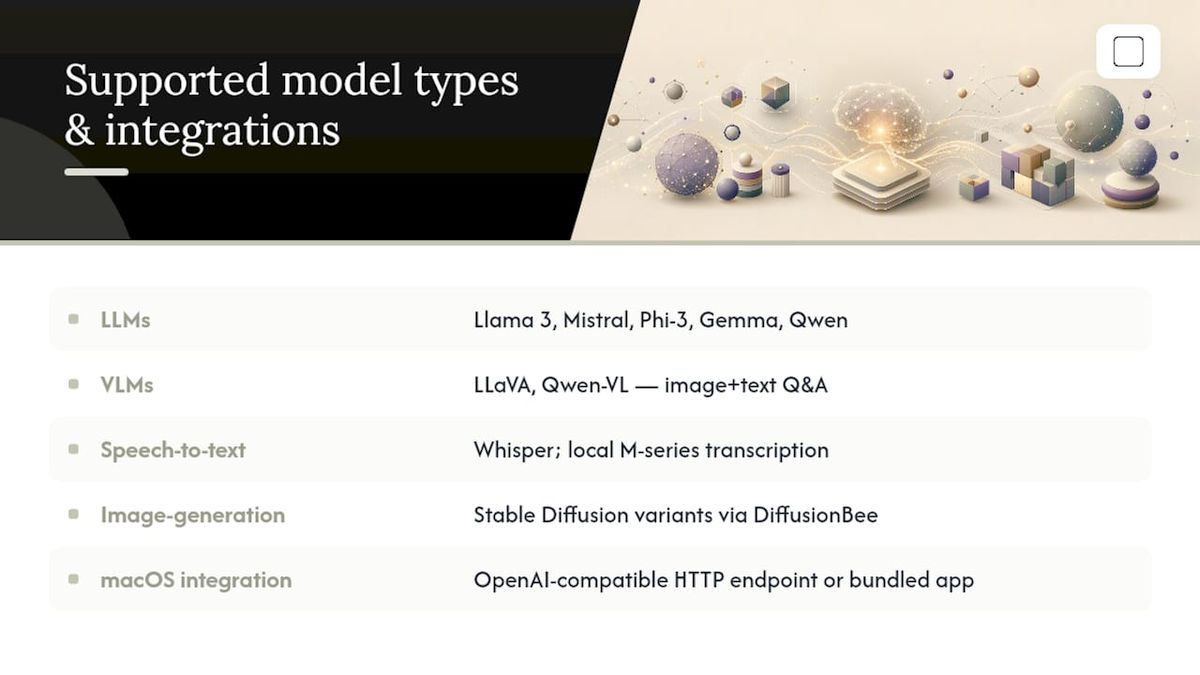
Large language models (LLMs): The most common type. Llama 3, Mistral, Phi-3, Gemma, and Qwen are all available locally via Ollama, MLX-LM, or Rapid-MLX. These handle chat, summarization, document Q&A, and code generation.
Vision-language models (VLMs): Models like LLaVA and Qwen-VL accept images as input alongside text. Tools that support VLMs let you drop in a screenshot or photo and ask questions about it. GreenCube's image understanding falls into this category.
Speech-to-text models: Whisper (OpenAI's open-weight model) runs locally on M-series Macs and powers tools like EmberType. Accuracy on M-series hardware is strong enough for professional transcription.
Image-generation models: Stable Diffusion variants run locally via DiffusionBee and similar tools. These are separate from LLMs and require their own model weights.
macOS integration options: Several local servers expose an OpenAI-compatible HTTP endpoint, which means any app that supports a custom API base URL can route to a local model. This covers tools like Cursor, Claude Code, and Aider for developers. For non-technical users, a bundled desktop app removes the need for any integration work. The local AI models guide covers model types and how they load on macOS in more detail.
What are the security risks of running AI models offline?
Running AI locally removes the biggest cloud risk: your data never leaves your machine. But local setups introduce a different set of concerns.
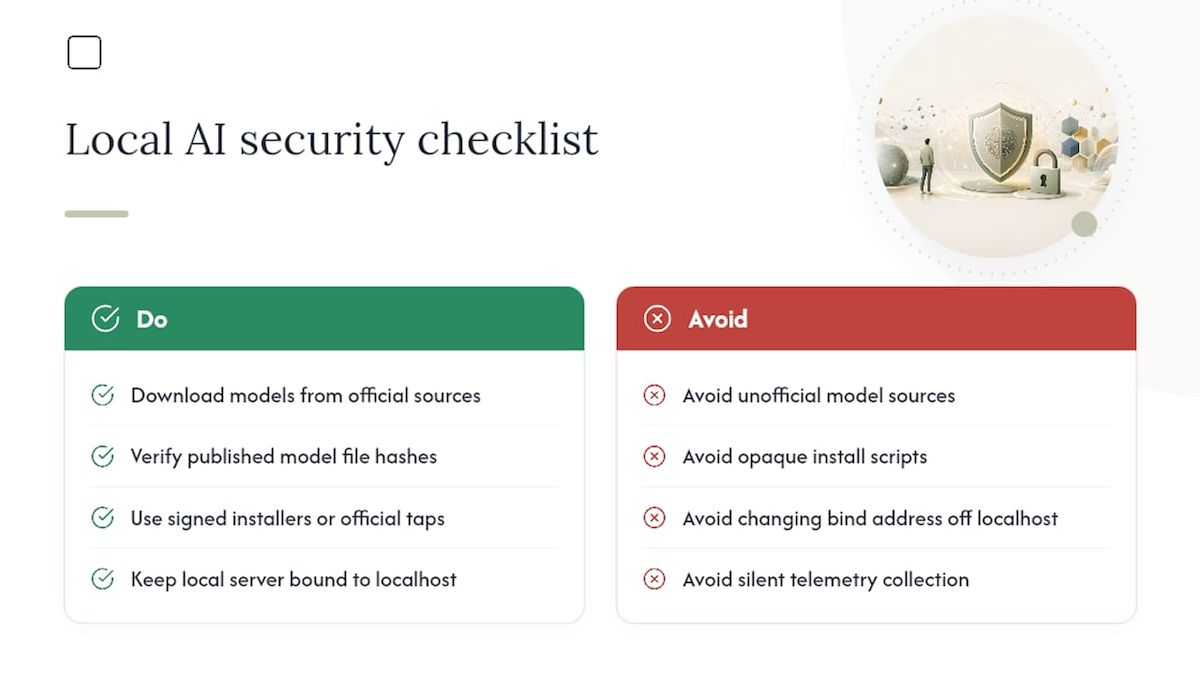
Model provenance. Model weights downloaded from unofficial sources can contain embedded malicious code or backdoored behavior. Always download models from the original Hugging Face repository or the tool's official model registry. Check file hashes when they are published.
Installer trust. An opaque shell script that requests admin privileges is a red flag regardless of what it claims to install. Prefer App Store installs, Homebrew bottles from official taps, or signed DMG installers from the developer's own domain.
Local server exposure. Tools that spin up a local HTTP server (Ollama, Rapid-MLX, MLX-LM Server) bind to localhost by default. If you change the bind address to 0.0.0.0, that server becomes accessible to other devices on your network. Leave it on localhost unless you have a specific reason to expose it.
Silent telemetry. Some tools collect usage data even when the model runs locally. Read the privacy policy and, for open-source tools, audit the network calls. The offline AI security guide covers practical hardening steps for local installations.
Model update risks. Automatic model updates can pull new weights without explicit user consent. Prefer tools that require manual confirmation for model updates, or disable auto-update in settings.
Troubleshooting common issues and where to get help
Most problems with offline AI on Mac fall into a handful of categories.
Slow inference: First, confirm Metal acceleration is active (check the runtime log). If it is, the model is likely too large for your unified memory. Drop to a smaller model or quantized version (Q4 or Q5 quantization cuts memory use significantly with modest quality loss).
App won't open (Gatekeeper block): Go to System Settings > Privacy & Security. If the app is from an identified developer, an "Open Anyway" button appears. For unsigned apps, right-click the app icon and choose Open from the context menu.
Homebrew permission errors: The most common fix is sudo chown -R $(whoami) $(brew --prefix). Run it once and retry the install.
Model download fails mid-way: Check available disk space first. Large models (13B+) need 8–20GB free. If space is not the issue, retry the pull command; most tools resume interrupted downloads.
Community resources:
- Ollama: active Discord and GitHub Issues at github.com/ollama/ollama
- MLX / mlx-lm: Apple's ML Research GitHub and the mlx-community on Hugging Face
- Rapid-MLX: GitHub Issues at the project repo
- GreenCube: help articles and offline setup guides at blog.greencube.app
Local AI on Mac in 2026: what actually matters
Apple Silicon has made local AI genuinely practical for the first time. The M-series unified memory architecture means a 16GB MacBook Pro can run a capable 7B model at conversational speed, something that required a dedicated GPU just two years ago.
The shift that matters most in 2026 is not raw speed. It is the move toward agentic workflows running entirely on-device. Apple's own WWDC 2026 session demonstrated full agent pipelines using MLX-LM Server, with local file access and tool invocation, no cloud dependency. That changes what "offline AI" means: it is no longer just a chatbot that works without Wi-Fi. It is a local system that can reason, retrieve, and act on your files.
Realistic expectations still apply. On an 8GB Mac, you are running small models with limited reasoning depth. On a 16–32GB machine, you get solid general-purpose performance. Agentic workflows with reliable tool calling need 24GB or more. And "fast enough" varies: a 7B model on an M3 Pro feels snappy for chat; the same machine running a 30B model for document analysis will take a few seconds per response.
Update your models and runtimes every few months. The MLX ecosystem moves quickly, and a runtime from six months ago may be missing significant performance improvements.
Private offline AI on your Mac, without the complexity
Most people researching offline AI for Mac end up in one of two places: a developer rabbit hole of model configs and CLI flags, or a cloud AI subscription that quietly sends their documents to a server. GreenCube is neither.

It is a desktop app that runs entirely on your computer. Chat with it, drop in a PDF, hand it an image. Nothing leaves your machine. No account to create, no model to configure, no monthly fee. One payment, and it is yours. For students, professionals, and anyone handling documents they would rather keep private, that is a meaningfully different proposition from renting time on someone else's server.
GreenCube currently runs on Windows, with Mac support in development. If you want to be first in line when the Mac version ships, or if you want to start on Windows now, visit GreenCube or go straight to the purchase page to get started.
Sources
FAQ
How do you run AI offline on a Mac?
Install a local AI app or runtime such as GreenCube (one-click, no setup), Ollama, or Rapid-MLX, then run models entirely on your machine. No internet connection is needed once the app and model are downloaded.
Is there an AI that runs completely offline?
Yes. Tools like GreenCube, Ollama, DiffusionBee, and Rapid-MLX all run inference locally with no cloud dependency. GreenCube requires no model setup and works offline from the first launch.
Can I run AI locally on my Mac with Apple Silicon?
M-series Macs are well-suited for local AI because their unified memory architecture lets the CPU and GPU share RAM efficiently. MLX-based runtimes use Metal to accelerate inference natively, making even a 16GB MacBook Pro capable of running useful 7B models at conversational speed.
Does Apple's built-in AI work offline?
Apple Intelligence features on macOS process some requests on-device, but availability depends on the model and task. For fully private, offline AI with no Apple account requirement and no cloud fallback, a dedicated local AI tool gives you more control and transparency.
Recommended
- Best Offline AI Chatbot Apps in 2026: Full Comparison
- Best LM Studio Alternatives for Local AI in 2026
- Best Private AI Assistant in 2026: Local and Offline
- Top 3 Offline AI Solutions: Ollama Alternatives 2026
Your own AI, on your own PC
GreenCube runs on your computer: no usage limits, no subscription, works without internet. €9.99, paid once.
Get GreenCube