Yes, you can run capable AI without the internet. Local models and offline apps process everything on your own device, with no cloud involved. For non-technical users who want the easiest path, Greencube is a one-time-install desktop app that handles chat, PDF reading, and image analysis entirely offline, no account or subscription required.
The core idea is simple: instead of sending your questions to a remote server, the AI model lives on your hard drive and runs locally. Your data never leaves your machine.
Table of Contents
- What does "AI without internet" actually mean?
- Who actually benefits from offline AI?
- How does offline AI work, in plain language?
- What hardware do you actually need?
- How to get an offline AI running on your laptop
- Privacy and security checklist before you trust an offline AI app
- Greencube: why it's the recommended option for non-technical users
- Practical tips and fixes when offline AI misbehaves
- Key Takeaways
- Why offline AI matters more than most people realize
- Greencube is private AI you own outright
- Useful sources
- FAQ
What does "AI without internet" actually mean?
"AI without internet" means the model runs on your device using local processing. There are no network calls at runtime, no data sent to a server, and no cloud account needed. The term the industry uses is local inference, meaning the AI model and the software that runs it are both installed on your machine.
You'll encounter this in a few different forms:
- On-device mobile apps that bundle a small model directly into the app (works in airplane mode)
- Downloadable desktop apps with a simple interface that handles model management for you
- Portable USB bundles that carry the model and a local server on a drive, like Off-Grid AI, which runs with the network unplugged on Windows 10/11
- Self-hosted model runners for advanced users who want to manage models manually
Pro Tip: If you're not technical, skip the self-hosted route entirely. Packaged desktop apps bundle the model and the interface together, so there's nothing to configure.
Who actually benefits from offline AI?
A few groups find offline AI genuinely useful, not just theoretically appealing.
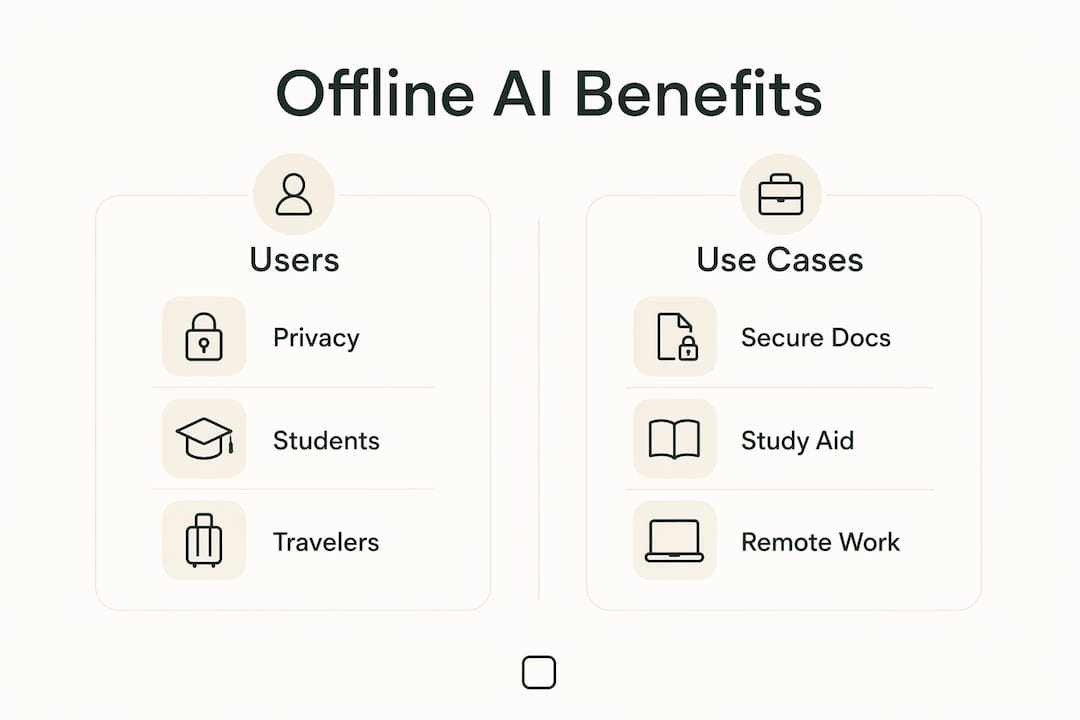
Privacy-conscious individuals are the most obvious fit. If you're uncomfortable with your questions, documents, or photos passing through a company's servers, local processing removes that concern entirely. Everything stays on your machine.
Students get a lot of mileage from offline AI for studying and PDF analysis, especially when working in libraries, dorms, or anywhere with unreliable Wi-Fi. You can upload a research paper and ask questions about it without an internet connection. There's a deeper look at this use case in offline AI for students.

Travelers and remote workers benefit from having a capable assistant that doesn't depend on hotel Wi-Fi or roaming data. Apps like Free AI: Offline ChatBot by Genzopia specifically target this group, advertising voice input and suitability for lower-end phones.

Writers and freelancers use offline AI for private draft editing and brainstorming without worrying about their unpublished work being stored on someone else's infrastructure.
Professionals handling sensitive documents get the clearest security benefit. Legal, medical, and financial documents stay local when you use an offline AI assistant rather than a cloud chatbot.
How does offline AI work, in plain language?
When you use a cloud AI like ChatGPT, your message travels to a data center, gets processed by a massive model, and the response comes back over the internet. Offline AI flips that: the model file sits in your device's storage, and a small runtime library runs it locally when you ask a question.
Think of it as: device storage → model files + runtime → local inference → your app. The whole chain stays on your machine. Local AI models work the same way whether they're on a phone or a laptop.
There are real trade-offs to know about:
- No live web access. The model can't look up today's news or current prices.
- Larger models need more RAM and CPU. A model that gives better answers also demands more hardware.
- Knowledge has a cutoff date. The model only knows what it was trained on, which may be months or years old.
- Quality gap vs. cloud. The best cloud models are still more capable than most locally runnable ones, though the gap is closing fast.
What hardware do you actually need?
Hardware matters more for offline AI than for most apps. The model has to fit in your RAM to run at a useful speed.
For phones, most modern Android or iOS devices handle small models fine. The Local AI app on Google Play highlights a model hub where you pick and download models, which means you can match the model size to your phone's specs.
For laptops and desktops, sufficient RAM is needed for small models, and more RAM improves performance and supports mid-size models. Off-Grid AI's USB solution, for example, recommends a certain RAM capacity for normal use. A dedicated GPU isn't required but speeds things up significantly for larger models.
Storage is the other variable. Small models vary in size and typically require a few gigabytes. Medium-sized models require more storage, and large, high-quality models can be significantly larger. Plan accordingly before you download.
| Setup | RAM | Best for |
|---|---|---|
| Entry-level | — | Basic chat, short text tasks |
| Mid-range | — | PDF analysis, longer conversations |
| High-end (with GPU) | — | Fast responses, image understanding |
Greencube runs on Windows now, with Mac support coming. If you're on a Mac, check the LM Studio alternatives roundup for options in the meantime.
How to get an offline AI running on your laptop
The process is straightforward when you use a packaged app. Here's the general flow:
- Choose a packaged desktop app. For non-technical users, pick one that bundles the model and the interface together. Greencube is built specifically for this.
- Download the installer from the official product page. Verify the URL before downloading anything.
- Run the installer. No special permissions or developer tools needed.
- Let the app download its model on first launch. This is a one-time step and requires a stable internet connection. After that, you're offline.
- Open the app and start using it. Chat, upload a PDF, or drop in an image.
Before your first run, check:
- At least 5–10 GB of free disk space (more for larger models)
- Permission to access local folders if you want PDF or image analysis
- A stable Wi-Fi connection for the initial model download
Common first-run problems:
- Model download stuck: Pause and resume, or check your internet connection. Large files sometimes stall on slower connections.
- App won't launch: Confirm your OS meets the minimum version requirement.
- Low-memory errors: Close other apps before launching. If errors persist, switch to a smaller model.
Privacy and security checklist before you trust an offline AI app
Not every app that calls itself "offline" is actually private. Some send telemetry, require accounts, or make network calls you don't know about. Local AI security hardening covers this in depth, but here's what to check before you hand an app your documents.
Confirm before installing:
- Does the app's privacy policy explicitly state that processing happens locally?
- Is an account required? If yes, ask why an offline app needs one.
- Does the app request unnecessary permissions (microphone, contacts, location)?
Questions worth asking the vendor:
- "Does the app send telemetry or usage data home?"
- "Where are model files stored on my device?"
- "Can I disable automatic updates or at least review what they change?"
Red flags:
- A required persistent internet connection for an app marketed as offline
- Mandatory account creation with no explanation
- Vague privacy policy that doesn't mention local processing
- No way to opt out of data collection
Offline AI reduces cloud-tracking exposure because all processing stays local, but only if the app actually honors that promise. Read the privacy policy, not just the marketing copy.
Greencube: why it's the recommended option for non-technical users
Greencube is built around one idea: AI that works for regular people, not just developers. It runs fully offline on your Windows laptop, handles chat, reads PDFs, and understands images, all without sending anything to the cloud. No model setup, no account, no subscription.
The user flow is about as simple as software gets:
- Buy once and download the installer
- Install it like any other Windows app
- Open it and start asking questions or uploading documents
That's it. There's no model hub to navigate, no configuration file to edit, no terminal commands. Greencube has been recognized as a best private AI assistant pick for 2026, specifically for this kind of no-friction experience.
The one-time purchase model is worth noting. Most AI tools charge monthly. Greencube is a lifetime license, which means you pay once and own it. For anyone who's tired of subscription creep, that's a meaningful difference.
Practical tips and fixes when offline AI misbehaves
Even well-designed offline apps hit snags. Most problems come down to RAM, storage, or a botched model download.
Tips to keep things running smoothly:
- Close browser tabs and background apps before launching a large model. RAM is the main bottleneck.
- Use a smaller model if responses are slow. A 3 GB model that answers in five seconds beats a 12 GB model that takes two minutes.
- Download models over stable Wi-Fi before you travel. Don't rely on hotel internet for a 6 GB download.
- Store large model files on an external SSD if your laptop's internal drive is tight on space.
- Keep a backup copy of your model files. Re-downloading a large model from scratch is annoying.
Pro Tip: Preload your models the night before a trip or a day of offline work. Once the model is on your device, you don't need the internet again until you want to update it.
Quick fixes for common issues:
- Missing file access: Check the app's permissions in your OS settings. On Windows, look under Privacy & Security → File System.
- Model download errors: Delete the partial download file and restart. Partial files cause more problems than starting fresh.
- App crashes on launch: Update your graphics drivers. Some local inference engines use GPU acceleration by default and crash if drivers are outdated.
Key Takeaways
Offline AI is practical, private, and accessible today, even for non-technical users who want a simple install-and-run experience with no cloud dependency.
| Point | Details |
|---|---|
| Offline AI is real and usable | Local models run entirely on your device, with no internet needed after the initial download. |
| Privacy is the core benefit | All processing stays on your machine, so documents and conversations never reach a cloud server. |
| Hardware sets the ceiling | — RAM handles basic chat; more RAM opens up PDF analysis and longer sessions. |
| One-time install beats subscriptions | Packaged desktop apps like Greencube require no account, no monthly fee, and no model setup. |
Why offline AI matters more than most people realize
The mainstream conversation about AI privacy tends to focus on data breaches and policy changes at big tech companies. That's real, but it misses something more immediate: every time you paste a sensitive document into a cloud chatbot, you're making a trust decision you may not have thought through.
Offline AI shifts that calculus entirely. The model runs on your hardware, your data stays in your folders, and no policy update at a cloud provider can change that. For everyday tasks like editing a draft, summarizing a contract, or asking questions about a medical report, that's a meaningful distinction.
The trend worth watching is how much easier this has gotten. A year ago, running a local model meant command-line tools and manual configuration. Now packaged apps handle everything, and the gap between "offline AI" and "cloud AI" in terms of ease of use has nearly closed for common tasks. The quality gap is narrowing too. That combination, easier setup and better models, is what makes 2026 a reasonable time to actually make the switch rather than just consider it.
Greencube is private AI you own outright
If this article convinced you that offline AI is worth trying, Greencube is the most direct path to get there. It's a Windows desktop app that runs chat, PDF reading, and image analysis entirely on your machine. No cloud, no account, no monthly bill.
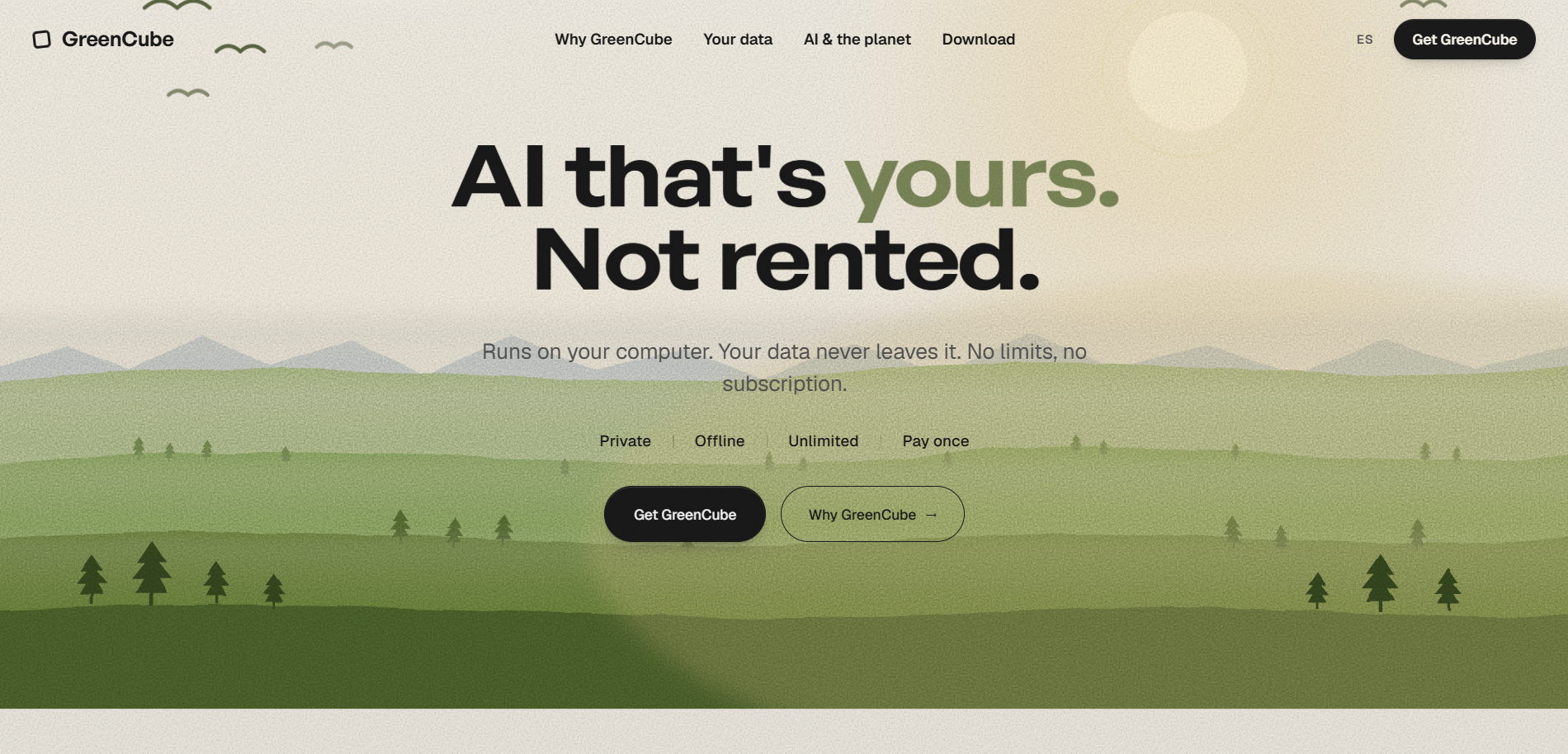
The purchase is a one-time lifetime license, so you pay once and it's yours. For anyone who wants capable AI without handing their data to a subscription service, that's the deal. Head to greencube.app to download and get started.
Useful sources
These are the most relevant sources for verifying privacy claims, hardware requirements, and app availability.
| Source | What it's useful for |
|---|---|
| Greencube product page | Verify offline operation, feature list, and privacy claims directly from the vendor |
| Off-Grid AI | Hardware requirements (RAM, GPU) for USB-based offline AI; useful for portable use cases |
| Locally AI by LM Studio (App Store) | iOS/Apple Silicon offline app with no-login privacy claims; good for Mac and iPhone users |
| Local AI on Google Play | Android offline chatbot with model hub; useful for Android hardware guidance |
| Hakunamatata Tech: Offline AI overview | Independent editorial on privacy benefits of local processing |
For privacy verification specifically, always check the vendor's own privacy policy page rather than relying on marketing copy. Independent reviews and community discussions (such as the Reddit thread on fully downloaded AI) are useful for real-world experience reports.
FAQ
Can AI really run without an internet connection?
Yes. Local AI models run entirely on your device using stored model files and a local runtime. No network connection is needed after the initial model download.
Is there an offline AI app for non-technical users?
Greencube is designed specifically for non-technical users on Windows: install it, and it works with no model setup, no account, and no subscription required.
Does offline AI keep my data private?
When the app genuinely runs locally, yes. Your documents and conversations never leave your device. Always verify this by checking the app's privacy policy for explicit local-processing statements and watching for unexpected network activity.
Can I use offline AI on my laptop in airplane mode?
Yes. Once the model is downloaded, apps like Greencube and mobile tools like OfflineGPT work fully in airplane mode for chat, PDF reading, and image analysis.