How Local AI Works on Your Laptop: Run Models with 2–5GB Free

Local AI runs because the model file and the math that powers it both live on your device instead of a remote server. Three things make that possible: models small enough to fit in your computer's memory, a compression technique called quantization that shrinks those models without gutting their quality, and runtimes built specifically to squeeze fast performance out of ordinary CPUs and GPUs. The trade-off is real: you get privacy and offline access, but you give up some of the raw power that massive cloud data centers can throw at a problem.
TL;DR:
- Small language models with quantization enable AI to run efficiently on consumer hardware, handling tasks like chat and summarization without cloud reliance.
- RAM is the main limit for local AI performance, with 8GB sufficient for small models and 16GB needed for mid-size options; GPU acceleration significantly improves speed.
- Privacy benefits of local AI are significant, but some setup steps and updates still require internet access and careful management of sensitive files.
- Local models are suitable for sensitive data, offline use, and predictable costs, while cloud AI remains better for high-scale, complex reasoning, or the latest models.
- Simplified tools like GreenCube streamline setup, offering one-time purchase options for local AI without requiring technical expertise or ongoing subscriptions.
Table of Contents
- How Does Local AI Work: The Core Components
- Models and Formats: Why Smaller Models Make Local AI Practical
- Runtimes and Engines That Power On-Device Models
- Hardware and Performance: What RAM and Chips Actually Limit
- Privacy and Offline Behavior: What Local Processing Really Protects
- Common Use Cases and Realistic Expectations vs. Cloud AI
- Quick Steps to Get a Local Model Running on Your PC
- What to Expect After Setup: Costs and Maintenance
- GreenCube as a Real-World Example
- Update Mechanisms for Local AI Models
- When Should a Beginner Actually Choose Local AI?
- Try Local AI Without the Learning Curve
- Sources
- FAQ
How Does Local AI Work: The Core Components
Every local AI setup has three moving parts: the model, the runtime, and the interface you actually type into. The model is a file sitting on your hard drive, usually somewhere between 2GB and 8GB, containing the weights (billions of numbers) that encode what the AI "knows." Nothing happens until a runtime loads that file into memory and starts running calculations on your CPU, GPU, or in some phones, a dedicated NPU chip.
Here's what happens when you hit enter on a prompt:
- Your text gets broken into tokens (word fragments the model understands)
- The runtime feeds those tokens through the model's layers, using a KV-cache to avoid recomputing earlier context
- The model predicts the next token, then the next, streaming words back to you one at a time
- A local vector database may pull in relevant snippets from your own documents first, a setup called retrieval-augmented generation, or RAG
A model manager app usually sits on top of all this, handling downloads, switching between models, and giving you a chat window so you never have to touch a command line.
Models and Formats: Why Smaller Models Make Local AI Practical
You can't run a 400 billion parameter model on a laptop, and you don't need to. Small language models, or SLMs, are compact versions built specifically to run on consumer hardware instead of server racks, and they're the real reason local AI adoption has taken off rather than staying a niche hobby for people with expensive GPUs.
Statistic Callout: Industry observations from Hugging Face point to SLMs as the primary driver letting high-performing AI run on aging PCs and phones that could never handle a full-scale frontier model.
Quantization is the other half of the story. It reduces the precision of a model's numbers, typically from 16-bit down to 8-bit (int8) or even 4-bit (int4), cutting file size roughly in half or more with only a modest quality hit. You'll see this packaged in a few common formats:
- GGUF: the standard format for llama.cpp-style runtimes, popular because it bundles everything a runtime needs in one file
- Safetensors: a format favored for its speed and safety when loading weights, common in the Hugging Face ecosystem
The trade-off is straightforward: a 4-bit quantized model runs faster and fits in less memory, but it can stumble slightly on nuanced reasoning compared to its full-precision original. For chat, summarizing, and drafting, most people never notice the difference.
Runtimes and Engines That Power On-Device Models
The runtime is the software that actually executes the model, and the type you use shapes both speed and compatibility. Broadly, there are two styles.
- In-process SDK runtimes embed directly into an app, handling model loading and hardware detection behind the scenes with no separate server to manage
- Server-style stacks run as a background process and expose an API, useful when multiple apps need to talk to the same model
Foundry Local is a good example of the first approach: it ships as an SDK with automatic hardware acceleration and a curated model catalog, so a developer doesn't need to manually detect what chip is available. LocalAI illustrates the second, composing multiple backends like llama.cpp, vLLM, and whisper.cpp under one roof while supporting acceleration paths including CUDA, Metal, and Vulkan.
That acceleration detection matters more than most people realize. A runtime that correctly identifies your GPU and routes computation through it can run several times faster than one that falls back to CPU alone. Many local tools also expose an OpenAI-compatible API, which lets developers swap a cloud model for a local one without rewriting their code.
Hardware and Performance: What RAM and Chips Actually Limit
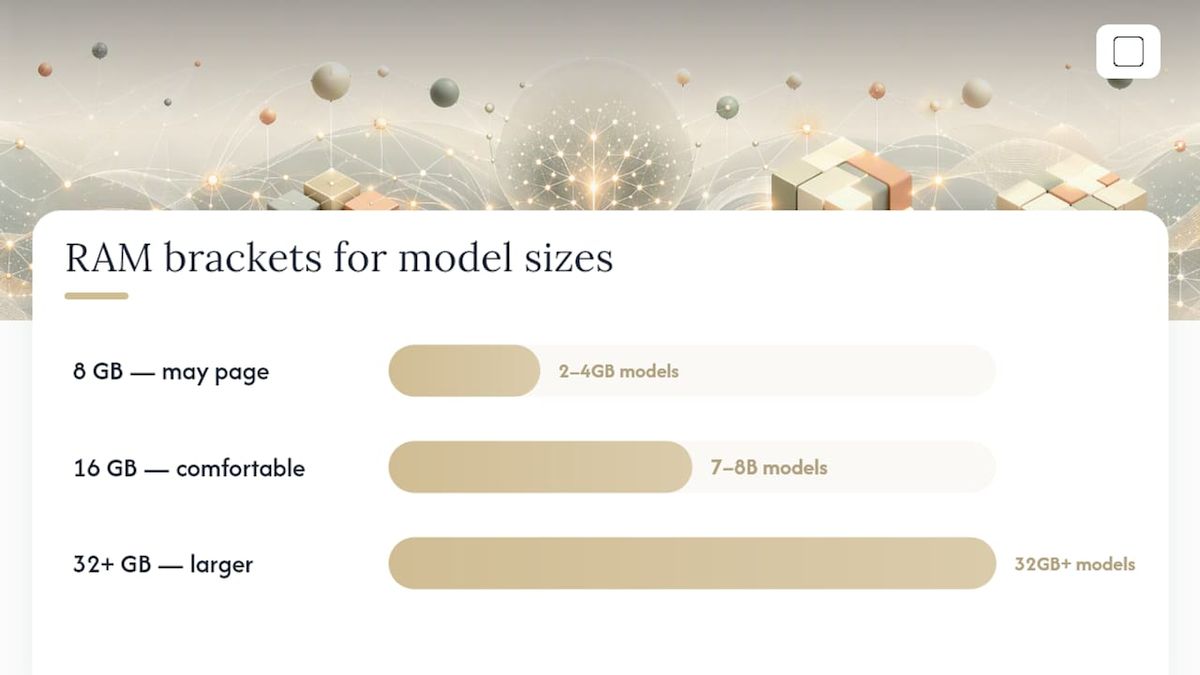
RAM is usually the hard ceiling on what you can run, more than CPU speed. As a rough guide: 8GB of RAM handles small quantized models in the 2 to 4GB range; 16GB comfortably runs mid-size models around 7 to 8 billion parameters; 32GB or more opens the door to larger, higher-quality models. Going below these brackets doesn't mean failure. It means slower generation, or the operating system paging memory to disk, which can turn a snappy chat into a sluggish one.
CPU-only inference works, but it's the slowest path. A dedicated GPU speeds things up dramatically because it handles the matrix math models rely on far more efficiently than a general-purpose processor. Phones increasingly ship with NPUs, chips built specifically for AI workloads, which is why a modern smartphone can sometimes outrun an older laptop on the same size model.
When a model is too big for available RAM, some systems use paged inference, streaming weights from disk in chunks rather than loading everything at once. Research on memory-efficient inference shows this technique can let a machine run models larger than its RAM would normally allow, at the cost of noticeably slower responses.
- Close background apps before loading a large model to free RAM
- Choose a 4-bit quantized variant if your machine sits near the minimum bracket
- Watch Task Manager or Activity Monitor for memory pressure during your first run
Pro Tip: If your laptop has 8GB of RAM, start with the smallest model variant available rather than the "recommended" one. You can always upgrade once you've confirmed your hardware handles it smoothly.
Privacy and Offline Behavior: What Local Processing Really Protects
Running AI locally means your prompts and documents get processed on your machine, not uploaded to a company's server for analysis. That's the entire appeal for anyone handling sensitive contracts, medical notes, or personal journals.
But "local" doesn't always mean "nothing ever touches the internet." A few things commonly still require a connection:
- One-time license or account verification, often through a Google or Microsoft sign-in
- Downloading the initial model file and any future updates
- Optional cloud backup features, if you choose to enable them
Regulators addressing health data note that local processing reduces routine data transfers, but organizations still have to document their controls and access policies. HIPAA rules in the U.S. work the same way: keeping data on-device lowers exposure, but it doesn't erase your compliance responsibilities if you're handling protected health information professionally. If you're storing model files or a local vector database of embeddings, back them up the same way you'd back up any other sensitive file, ideally encrypted.
Common Use Cases and Realistic Expectations vs. Cloud AI
Local AI earns its keep on specific jobs: private document Q&A where a contract or medical file never leaves your laptop, offline assistants for travel or fieldwork with no signal, and basic image analysis on models built to handle it.
Cloud AI still wins on raw horsepower. It offers the highest-end reasoning, the fastest throughput at scale, and the ability to serve thousands of simultaneous users, none of which a personal laptop can match. Comparisons between local and cloud options suggest local models now handle plenty of everyday tasks capably, but frontier cloud systems still lead on the hardest reasoning problems and high-volume workloads.
The real decision comes down to four factors: how sensitive your data is, how much latency you can tolerate, whether you'd rather pay once or by subscription, and how demanding your actual task is. A deeper breakdown of these trade-offs between offline and cloud AI can help you weigh your specific situation.
Quick Steps to Get a Local Model Running on Your PC
Getting your first local model working takes less time than most beginners expect.
- Check your hardware. Confirm available RAM and free disk space; most starter models need 2 to 5GB free.
- Pick a model variant. Choose a quantized version if you're near the minimum RAM bracket, or a full-precision one if you have headroom.
- Install a local runtime or app. This is the software that will load and run the model file.
- Download the model file. Formats like GGUF or safetensors are standard; the download itself can take several minutes depending on file size.
- Launch and test. Open the app, load the model, and try a simple prompt to confirm everything works.
- Troubleshoot if needed. If responses are painfully slow, drop to a smaller quantized variant, confirm GPU acceleration is enabled in settings, and check the app's error log for missed dependencies.
A full walkthrough with screenshots is available if you want to install local AI step by step rather than working from a checklist, and a hardware-tier model guide can help you pick the right variant for your machine before you even start downloading.
What to Expect After Setup: Costs and Maintenance
There's no per-message bill with local AI, but it isn't free to run. Your electricity meter still spins while your CPU or GPU works, and data center energy research is a useful reminder that AI computation always costs energy somewhere, whether that's a server farm or your own desk.
- You're responsible for updating the model and runtime yourself
- Security patches for the runtime software matter just as much as they do for any other app
- Occasional re-downloads happen when a better model version is released
Cloud AI still makes more sense when you need massive scale, many simultaneous users, or the single most capable reasoning model available. Local AI wins when privacy, offline access, and predictable one-time costs matter more than raw ceiling performance.
GreenCube as a Real-World Example
GreenCube shows what these mechanics look like in a finished product. It's a Windows desktop app that runs entirely offline, but setup still requires downloading one model: the smaller model (Gemma 4 E2B, about 2.6 GB, fast, text only) or the bigger model (Gemma 4 E4B, about 4.2GB, reads images and builds study guides, needs at least 8GB RAM, and runs slower).
Signing in with Google or Microsoft is required once, purely to verify your license; your actual chats and document processing never leave your machine. GreenCube costs €9.99 / $9.99, a one-time purchase with no subscription, which is a fair reflection of the ownership model local AI makes possible rather than a claim that it out-thinks cloud AI on hard reasoning tasks.
Update Mechanisms for Local AI Models
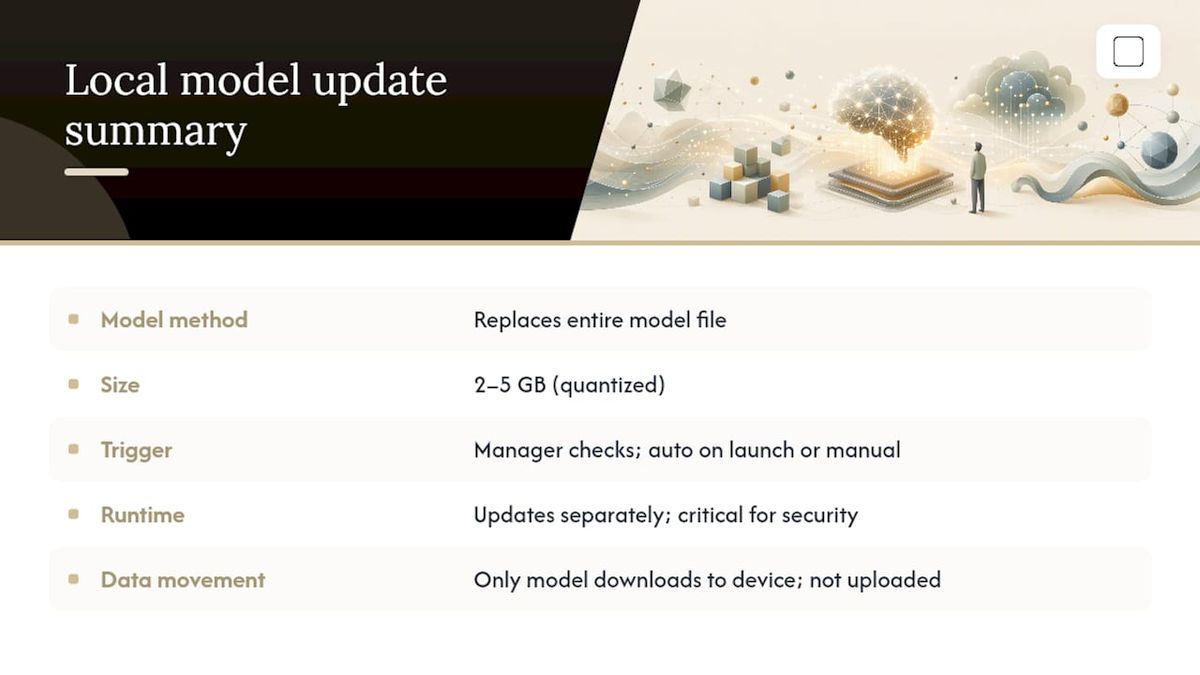
Local models don't patch themselves the way a cloud service silently updates behind an API. Somebody, usually you, has to trigger the process. Most local AI apps handle this through a model manager that checks for a newer version of the file you're using and prompts a fresh download when one is available, the same way you'd update any other piece of software.
The update itself typically replaces the entire model file rather than patching it incrementally. Because a quantized model might be 2 to 5GB, updating means downloading that whole file again, which is why many people stick with a working version rather than chasing every new release. Runtime software (the engine that loads and executes the model) updates separately from the model itself, and keeping that current matters more for security than the model file does, since the runtime is the piece actually talking to your hardware and, during setup or license checks, the internet.
Some apps automate this update check on launch; others require you to manually visit a model catalog and pull a new file yourself. Either way, nothing about the update requires your prompts or documents to be uploaded anywhere. Only the model file itself moves, and it moves in the same direction every time: down to your device, never up from it.
When Should a Beginner Actually Choose Local AI?
The people who benefit most from local AI aren't hobbyists chasing benchmarks. They're students working with sensitive research notes, professionals handling client documents, and anyone who's tired of wondering where their conversations end up. If that's you, ask three questions: does your task involve data you'd rather not upload anywhere, can your hardware handle at least a small quantized model, and can you tolerate a slightly less polished answer than a frontier cloud model gives you?
Start small. Try a compact model on unimportant, non-sensitive text before you trust it with anything that matters, and scale up only once you've confirmed your hardware keeps up.
— GreenCube
Try Local AI Without the Learning Curve
If everything above sounds appealing but the idea of manually managing runtimes and model files feels like too much, that's the exact gap GreenCube was built to close. It handles the model download, the runtime, and the interface in one package, so you pick the smaller or bigger model, sign in once to verify your license, and start chatting entirely offline afterward.
It costs a one-time €9.99 / $9.99, with no subscription and no per-message limits, and it comes with a 15-day refund window if it doesn't fit your workflow. You can also read more about local AI models and their trade-offs before deciding, or head straight to buy GreenCube if you already know local AI is what you want. For anyone exploring how AI fits into broader creative or business work, resources on building a brand with AI-driven strategies are worth a look too.
Sources
- Small language model blog (Hugging Face)
- Foundry Local (Microsoft GitHub)
- European Data Protection Supervisor — health data page
FAQ
Is local AI as good as ChatGPT?
For everyday tasks like drafting, summarizing, and private document Q&A, a well-chosen local model holds up well. For the hardest reasoning problems and largest-scale throughput, frontier cloud models still lead.
How does local AI work without internet?
Once the model file is downloaded and the runtime is installed, the entire chat process, tokenizing your prompt, running it through the model, and generating a response, happens on your device's own CPU, GPU, or NPU with no network connection required.
Is it worth running AI locally?
It's worth it if privacy, offline access, and a predictable one-time cost matter more to you than having access to the single most powerful reasoning model available; if you need massive scale or cutting-edge reasoning, cloud AI is the better fit.
Is local AI free?
The software itself can be free or low-cost depending on the tool, but running it isn't cost-free: you're paying in electricity and, eventually, time spent managing updates and model downloads yourself.
Recommended
- Best Local AI Models by Hardware Tier in 2026
- Install Local AI: Get a Working Offline LLM on Your PC
- Offline AI Setup on Windows: Private, Local, and Easy
- AI Without Internet: Run Local AI Privately on Any Laptop
Your own AI, on your own PC
GreenCube runs on your computer: no usage limits, no subscription, works without internet. €9.99, paid once.
Get GreenCube