Offline AI Setup on Windows: Private, Local, and Easy
Yes, you can run AI fully offline on Windows. Download a local runner or a turnkey app while you still have internet, pull the model files, then cut the connection and run your first prompt. Everything stays on your machine.
Two paths get you there:
- Turnkey app (GreenCube): Install once, open, and chat. No model management, no terminal, no accounts. Reads PDFs and images too. Best for non-technical users who want privacy without the setup overhead.
- Local LLM runner (Ollama or LM Studio): More control, model choice, and a local API. Requires a few manual steps but runs entirely offline once configured.
Verification in one step: Disconnect Wi-Fi or enable airplane mode, send a test prompt, and confirm you get a response. If it works offline, you're done.
Pro Tip: Before downloading any model, run llmfit to scan your hardware and see exactly which model sizes will fit your RAM and VRAM. It saves you from a 20-minute download that crashes on load.
Key Takeaways
Running AI fully offline on Windows is straightforward once you match your hardware to the right model size and confirm all cloud connectors are disabled before cutting the network.
| Point | Details |
|---|---|
| Two clear paths | GreenCube for zero-setup privacy; Ollama or LM Studio for model flexibility and a local API. |
| Hardware floor | 8 GB RAM handles small models; 16 GB is recommended for 7–8B parameter models. |
| Cloud connectors | Disabling optional cloud integrations is the step that makes a setup truly private, not just offline. |
| Offline verification | Enable airplane mode, run a test prompt, and watch Resource Monitor for zero outbound traffic. |
| GreenCube | One-click install, offline PDF and image reading, one-time purchase, no model management needed. |
Table of Contents
- What do you need before starting your offline AI setup on Windows?
- Which approach fits you: GreenCube or a local LLM runner?
- How to install and run a local LLM runner on Windows
- How to match model size and quantization to your Windows hardware
- How do you confirm your Windows AI setup is truly private?
- Quick fixes for common Windows offline AI problems
- Why GreenCube is the recommended turnkey option for Windows users
- The honest take on offline AI for Windows users
- GreenCube: private offline AI with nothing to configure
- Sources
- FAQ
What do you need before starting your offline AI setup on Windows?
Get these confirmed before you download anything. A failed install mid-way is almost always a skipped prerequisite.
Windows version: WSL2 requires Windows 10 21H2 (build 19045.3208+) or Windows 11 21H2 (build 22621+). NVIDIA AI Workbench documents these exact build numbers alongside admin privileges and container runtime requirements (Docker Desktop or Podman). GreenCube and LM Studio run on standard Windows 10/11 without WSL2.
Hardware minimums vs. what actually works:
| Spec | Minimum | Recommended |
|---|---|---|
| RAM | At least 8 GB | More RAM is recommended |
| VRAM (GPU) | Moderate VRAM required | Higher VRAM recommended |
| CPU | AVX2-capable | Modern multi-core CPUs preferred |
| Disk space | Sufficient free space needed | More free space improves experience |
| OS | Windows 10 (21H2) or later | Windows 11 recommended |
Before you begin:
- Admin rights on the machine (required for driver installs and some runners)
- GPU drivers updated (NVIDIA preferred; AMD works with caveats)
- Decide: turnkey app or local runner? That choice determines everything below.
Pro Tip: Run llmfit before picking a model. It scans your system and tells you which GGUF sizes will load without crashing — far faster than trial and error.
Which approach fits you: GreenCube or a local LLM runner?
The honest split: GreenCube is for people who want private AI working in five minutes. Ollama and LM Studio are for people who want to choose their own models, run a local API, or experiment with configurations.
| Dimension | GreenCube | Ollama / LM Studio |
|---|---|---|
| Ease of setup | One-click install | Moderate (CLI or GUI) |
| Cloud integrations | None by default | Must be disabled manually |
| GPU support | Automatic | NVIDIA CUDA preferred |
| PDF / image reading | Built-in | Not built-in (plugins vary) |
| Local API | No | Yes (localhost:11434) |
| Technical skill | None required | Low to moderate |
| Cost | One-time purchase | Free / open source |
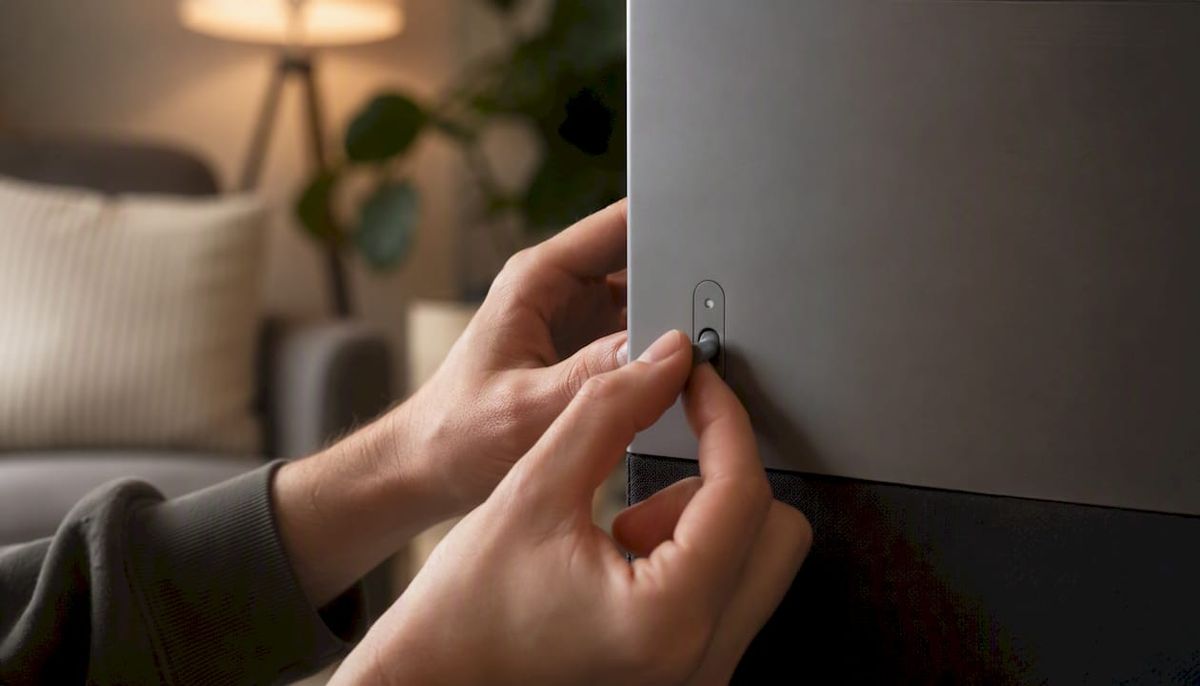
Pick GreenCube if you handle sensitive documents, want offline PDF and image analysis, and have no interest in managing model files. Students, freelancers, and professionals with confidential data fit this profile well. Read more on local AI models explained if you want background before deciding.
Pick a local runner if you need a local API for integrations, want to swap between models, or enjoy the technical side. Beginner-friendly guides recommend Ollama for CLI users and LM Studio for anyone who prefers a GUI. Use llmfit as a pre-download hardware fit check before pulling large model files.
How to install and run a local LLM runner on Windows
This workflow follows the Ollama offline installation guide and the air-gapped LLM setup approach for machines that will eventually go fully offline.
- On a connected machine: Download the Ollama Windows installer (
OllamaSetup.exe) and the LM Studio installer if you prefer a GUI. Pull the model you want while online:ollama pull llama3. The model blobs land inC:\Users\<user>\.ollama\models. - Transfer to the offline machine: Copy the installer, the full
.ollama\modelsfolder (blobs and manifests), and any Python wheels or Docker images you need onto an encrypted USB drive or SSD. - Install and place files: Run
OllamaSetup.exeon the offline machine. Restore the models folder toC:\Users\<user>\.ollama\models. For LM Studio, place GGUF files in its models directory (shown in the app's settings). - Start the runner: Open a terminal and run
ollama serve, thenollama run llama3. Confirm the model loads. For LM Studio, select the model from the sidebar and click Load. - Disable cloud integrations: In Ollama, no cloud connectors are active by default, but check for any optional plugins or update-check settings. In LM Studio, go to Settings and turn off telemetry and auto-update checks. Disabling optional cloud-integration features is the step most people skip — and it's the one that determines whether your setup is truly private.
- Verify offline: Enable airplane mode or disconnect ethernet. Send a test prompt. Check
ollama listto confirm models are present. Hithttp://localhost:11434in a browser — if you get a response, inference is local.
Pro Tip: Bundle your installer, model blobs, and manifests into a single zip archive before transferring. Manifests without their matching blobs will cause a load error that looks like a driver problem.
How to match model size and quantization to your Windows hardware
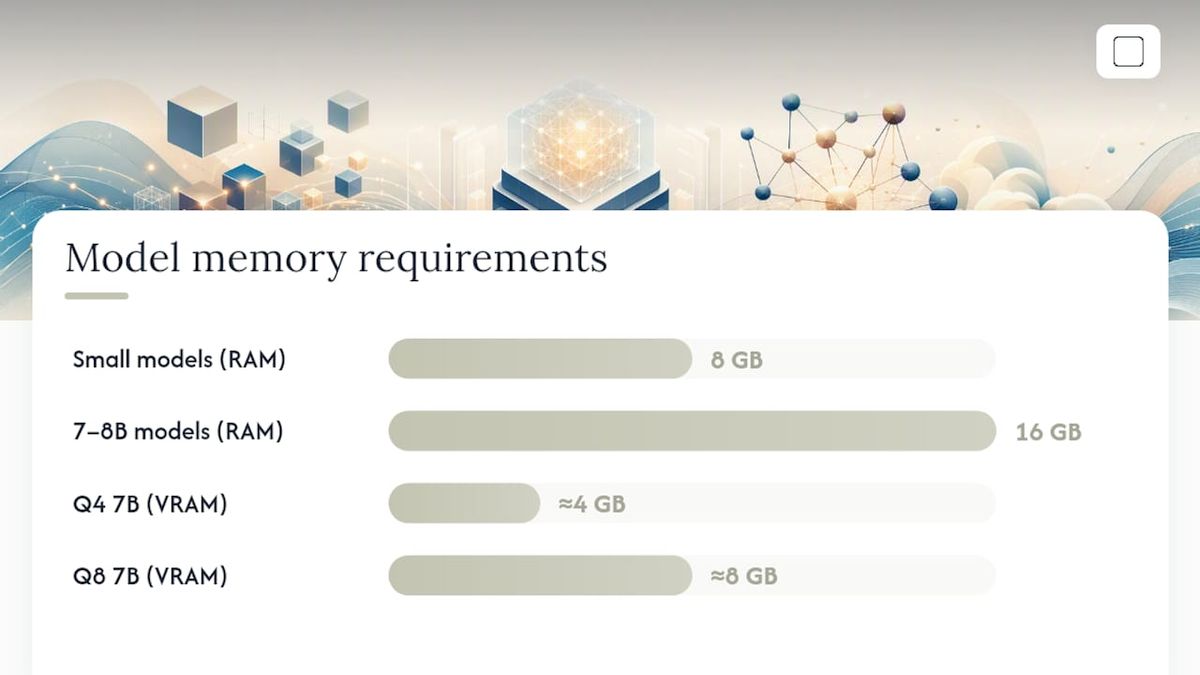
Hardware guidance for local models is consistent: 8 GB RAM handles small models, 16 GB is the practical floor for 7–8B parameter models, and 32 GB or more opens up larger models. GPU acceleration makes a real difference in response speed, and NVIDIA CUDA drivers are the most stable option on Windows.
- Q4 quantization cuts a 7B model to roughly 4 GB VRAM. Response quality drops slightly but it's the right call for 8 GB cards.
- Q8 quantization is closer to full precision and needs about 8 GB VRAM for a 7B model. Use it when you have headroom.
- CPU-only mode works but is slow. Expect 5–15 tokens per second on a modern CPU versus 50+ on a mid-range GPU.
- AMD GPUs work via ROCm, but driver support on Windows is less consistent than NVIDIA. If you hit GPU detection failures, falling back to CPU mode is the fastest fix.
- Increase your Windows page file (virtual memory) if you're running close to your RAM limit. Go to System Properties > Advanced > Performance Settings > Virtual Memory and set a custom size of at least 1.5× your physical RAM.
Pro Tip: Prefer GGUF builds from Hugging Face's TheBloke or bartowski collections — they're pre-quantized, well-tested, and labeled clearly by VRAM requirement.
How do you confirm your Windows AI setup is truly private?
Installing the software is half the job. The other half is confirming nothing leaves your machine. Here's the checklist:
Disable cloud connectors and telemetry:
- In Ollama: no cloud account is required; verify no update-check or analytics flags are set in your config.
- In LM Studio: Settings > Privacy — disable telemetry and crash reporting.
- In Windows itself: Settings > Privacy & Security > Diagnostics & Feedback — set to Basic or off.
- Check Windows Firewall rules and block outbound connections for runner executables if you want hard enforcement.
Verify no outbound traffic during inference:
- Open Resource Monitor (search in Start) and go to the Network tab.
- Start a model inference session.
- Watch for any outbound connections from
ollama.exe,lmstudio.exe, or your app process. There should be none during a prompt. - Alternatively, enable airplane mode before running a prompt. A successful response confirms local inference.
Secure your files:
- Model files and chat logs sit in
C:\Users\<user>\.ollama\or the LM Studio data folder. Set folder permissions to your user account only. - Enable BitLocker on the drive holding your models and chat history if the machine could be accessed by others.
- Delete chat logs manually after sensitive sessions, or configure the runner to not persist history.
For a deeper hardening walkthrough, the offline AI security guide covers Windows Firewall rules and telemetry-disabling steps in detail.
Pro Tip: Run a quick Wireshark capture during your first inference session. Filter by your runner's process name. Zero packets out means you're clean.
Quick fixes for common Windows offline AI problems
WSL2 errors: Confirm your Windows build meets the minimum (19045.3208 for Windows 10, 22621 for Windows 11). Run wsl --install as administrator. If UAC prompts are blocking it, right-click the terminal and choose "Run as administrator."
GPU not detected:
- Update NVIDIA drivers from the GeForce Experience app or the NVIDIA website directly.
- Run
nvidia-smiin a terminal. If it returns GPU info, CUDA is present. If not, reinstall drivers. - AMD users: verify ROCm is installed and check the runner's documentation for Windows ROCm support status.
Out-of-memory / model won't load:
- Switch to a smaller quantized model (Q4 instead of Q8, or a 3B model instead of 7B).
- Increase the Windows page file as described in the performance section above.
- Close other applications before loading a large model.
App still making network calls:
- Check for optional plugins or extensions inside the runner — some install with network-dependent features enabled.
- Uninstall any third-party plugins, restart the runner, and re-test with airplane mode active.
- Review Windows Firewall outbound rules and add a block rule for the runner executable.
Why GreenCube is the recommended turnkey option for Windows users
GreenCube is built for the reader who wants private AI without any of the above complexity. It runs entirely offline on your Windows machine, with no cloud account, no model downloads to manage, and no terminal commands.
Key features:
- One-click install: Download, install, open. The model is bundled.
- Offline PDF and image reading: Analyze documents and images locally. Nothing leaves your machine, as confirmed by Corsair's local LLM privacy guidance.
- No cloud account required: No sign-in, no subscription, no data sent anywhere.
- One-time purchase: Pay once, use forever. No monthly fee.
Students handling research papers, freelancers with client documents, and professionals in regulated industries are the natural fit. For more on the no-setup promise, see what makes GreenCube different from subscription AI tools.
The honest take on offline AI for Windows users
Most people overthink this. If you want private AI and you're not a developer, GreenCube is the answer. Install it, use it, done. The runner path (Ollama, LM Studio) is genuinely good, but it asks you to manage model files, monitor config settings, and manually verify that cloud connectors are off. That's fine if you enjoy it. If you don't, it's friction that adds no privacy benefit over a well-built turnkey app.
One thing worth setting straight on performance: a local model on consumer hardware is slower than a cloud API. A 7B model on a mid-range GPU gives you a capable, private assistant. It won't match GPT-4 on reasoning benchmarks, but for document analysis, drafting, and private Q&A, it's more than enough.
Start with GreenCube if privacy and simplicity are the goal. Start with Ollama and run llmfit first if you want flexibility.
GreenCube: private offline AI with nothing to configure
Most offline AI setups ask you to manage model files, toggle cloud settings, and verify network logs. GreenCube skips all of that. It's a one-time purchase that installs like any Windows app and works immediately, with no accounts and no internet required after download.
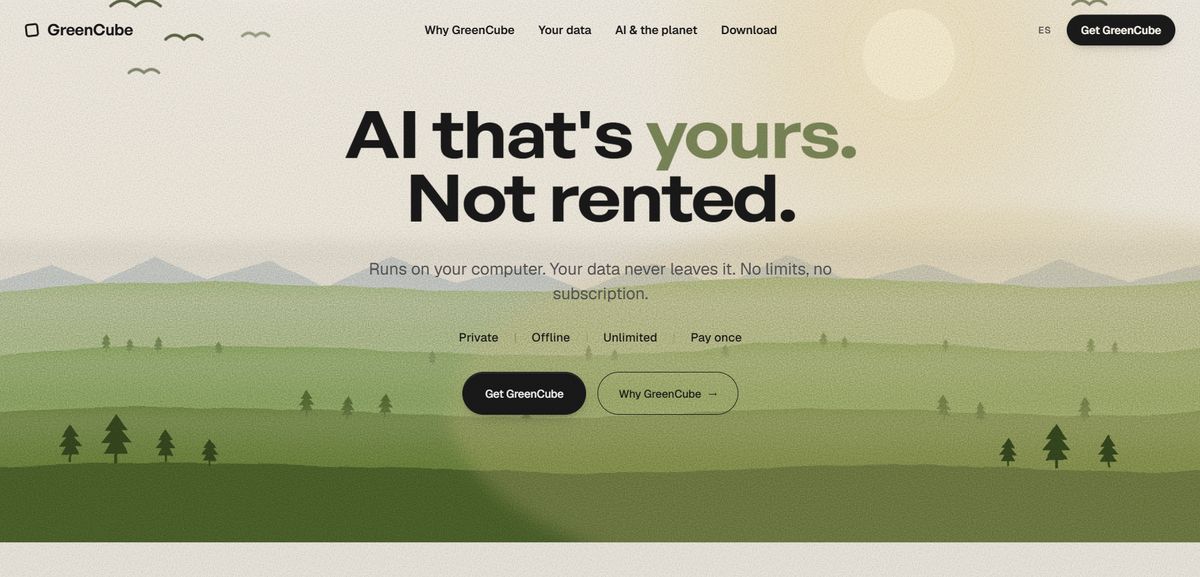
- Chat privately with a capable local AI
- Read and analyze PDFs and images, fully offline
- No subscriptions, no cloud, no model management
- One-time payment, yours permanently
If you've read this far and the runner path sounds like more work than you want, get GreenCube now and skip straight to using private AI.
Sources
- How to run a local LLM on Windows — no cloud required | CORSAIR
- Install AI Workbench on Windows — NVIDIA documentation
- How to Install Ollama Offline: Run AI Models in Air-Gapped Environments (2026) | Markaicode
- Run AI Offline: Air-Gapped LLMs, No Internet (2026) | InsiderLLM
- Run AI Offline: Complete Guide to Local LLMs Without Internet (2026) | ModelFit
- How to Run AI Locally on Windows in 2026: A Complete Beginner’s Guide | Techtippr
FAQ
Can you run AI completely offline on Windows?
Yes. Download a local runner like Ollama or a turnkey app like GreenCube while online, then disable your network connection. All inference runs locally with no data leaving your machine.
What are the minimum hardware requirements for local AI on Windows?
You need sufficient RAM for your model size, typically at least 8 GB for small models and more for larger models, an AVX2-capable CPU, and adequate free disk space. A dedicated GPU speeds things up significantly but is not required.
How do I verify my offline AI setup isn't sending data to the cloud?
Enable airplane mode before running a prompt. If you get a response, inference is local. For a harder check, open Resource Monitor, go to the Network tab, and confirm zero outbound connections from your runner during a session.
What is the easiest way to set up AI offline on Windows without technical knowledge?
GreenCube installs like any Windows app, requires no model downloads or configuration, and runs fully offline with built-in PDF and image reading. It's a one-time purchase with no accounts or subscriptions required.
Do I need WSL2 to run AI offline on Windows?
Not always. GreenCube and LM Studio run without WSL2. Ollama's Windows installer also runs natively. WSL2 is required for containerized tools like NVIDIA AI Workbench, which needs Windows 10 build 19045.3208 or Windows 11 build 22621 at minimum.
Recommended
- No Setup AI: Private, Offline, One-Time Purchase
- AI Without Internet: Run Local AI Privately on Any Laptop
- Local AI Models Explained: Privacy, Use Cases, How to Start
- Offline AI Security: A Practical Hardening Guide
Your own AI, on your own PC
GreenCube runs on your computer: no usage limits, no subscription, works without internet. €9.99, paid once.
Get GreenCube