Install Local AI: Get a Working Offline LLM on Your PC
You can have a local AI model answering prompts on your own machine in under fifteen minutes, using one command and one downloaded model file. The fastest reliable path right now is a single Docker invocation that pulls a runtime image and starts serving on localhost, or a standalone desktop binary if you'd rather skip the terminal entirely.
Here's the one-line proof it works. Run this if you already have Docker installed:
docker run -p 8080:8080 --name local-ai -ti localai/localai:latest
That command pulls the LocalAI runtime and exposes it on port 8080. Once it's running, you know it worked when three things are true:
- The terminal shows the server has started and is listening on port 8080.
- Visiting
http://localhost:8080in a browser returns a response instead of a connection error. - A test prompt sent to the API returns actual generated text, not an error message.
That's the whole bar for "working." Nothing fancier is required at this stage.
A few quick requirements before you start:
- At least 8GB of RAM, though 16GB makes everything smoother.
- A modest amount of free disk space for a runtime plus one small model is recommended.
- One model file downloaded during setup. There's no version of local AI that skips this step. Even the simplest desktop apps require pulling a model, typically small to moderate in size depending on capability.
- If you're going the desktop-app route instead of Docker, expect a one-time sign-in step (Google or Microsoft) to verify a software license, separate from the model itself running offline.
Pro Tip: Don't judge a runtime by your first prompt's speed. The first response after loading a model is almost always slower because the model is being read into memory. Send a second prompt before deciding if performance is acceptable.
Key Takeaways
Running a local AI model requires one runtime, one downloaded model file, and roughly fifteen minutes, regardless of which installation method you choose.
| Point | Details |
|---|---|
| Pick your method first | Choose Docker for reproducibility, a standalone app for simplicity, or an SDK if you're building on top of a model. |
| Prepare hardware honestly | Treat 8GB RAM as a floor, not a comfortable target; 16 to 32GB handles larger models much better. |
| Download while connected | Grab installers, drivers, and model files before going offline if true air-gapped use matters to you. |
| Verify before trusting it | Run a health check and a sample prompt to confirm the server responds with real text. |
| Consider GreenCube for a guided path | A Windows desktop app requiring one model download (~2GB or ~4.2GB) and a one-time €9.99 / $9.99 license, with offline chat and document analysis after setup. |
Table of Contents
- What Do You Need Before Installing Local AI?
- Which Installation Method Should You Choose?
- How Do You Install Local AI Step by Step?
- Where Do You Get Models and How Do You Load Them?
- How Does GPU Acceleration and Quantization Speed Things Up?
- How Do You Verify Your Local AI Is Actually Working?
- How Do You Manage and Update Local Models?
- Why Do Local AI Installs Fail, and How Do You Fix Them?
- What Does "Local" Actually Guarantee About Privacy?
- Why Are People Installing Local AI Now?
- What's the Right First Move for a Beginner?
- Get a Private Desktop AI Without Learning a Single Command
- Sources
- FAQ
What Do You Need Before Installing Local AI?
Most failed local AI installs trace back to one of three things: not enough RAM, the wrong GPU drivers, or file permission issues nobody warned you about. Sorting these out before you install saves you an evening of confusing error messages.
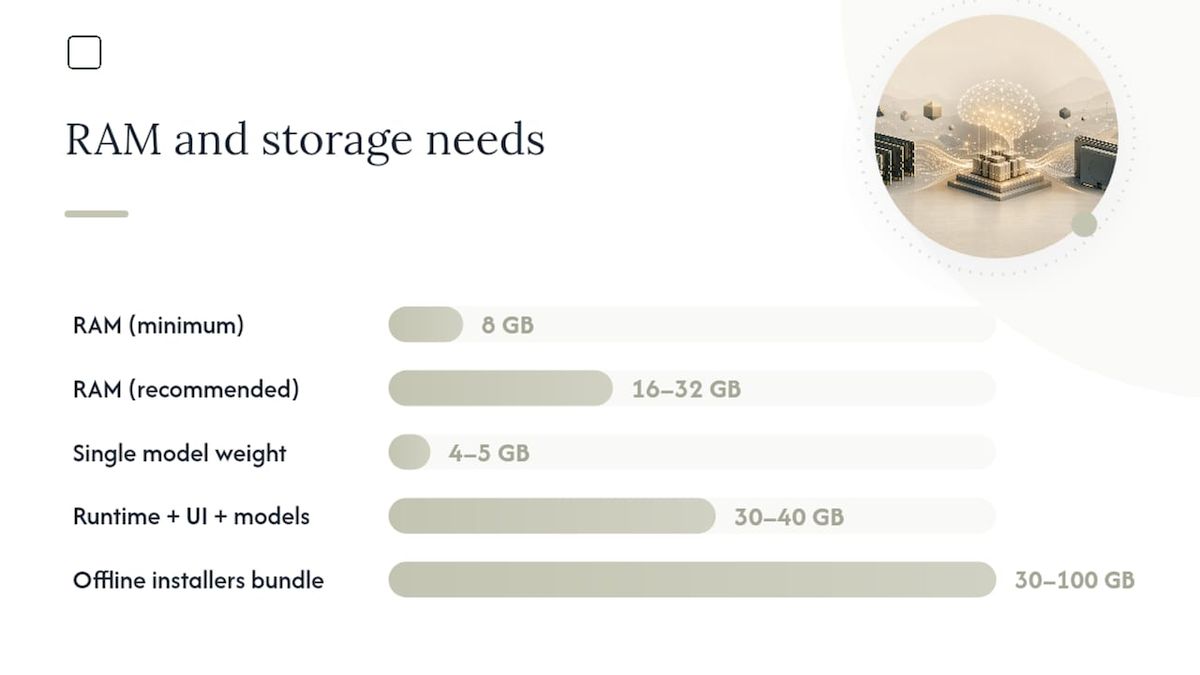
RAM is the real gatekeeper. Technically, 8GB is the floor for running a small quantized model, but treat that as a bare minimum, not a comfortable target. On 8GB systems, expect slower responses and occasional stalls if you have a browser with thirty tabs open at the same time. For anything beyond basic text chat, including document analysis or larger models, 16 to 32GB is the realistic recommendation.
Storage adds up faster than people expect. A single 7-billion-parameter quantized model runs 4 to 5GB. A runtime plus a UI layer plus two or three models you're testing can easily eat 30 to 40GB. If you're prepping for a fully offline setup, budget even more: one offline-install guide recommends grabbing all your installers, CUDA packages, and Python wheels in advance, which can add up to 30 to 100GB depending on your model choices.
Operating systems each bring their own quirks:
- Windows users sometimes hit installer failures tied to missing Visual C++ redistributables, and Docker Desktop requires WSL2 to be enabled first.
- macOS flags unsigned or downloaded binaries with Gatekeeper, which blocks the app until you clear the quarantine flag manually.
- Linux is generally the smoothest experience, though you'll need to manage Docker group permissions so you're not running everything with
sudo. - If you're on Windows using WSL, Microsoft's own filesystem guidance recommends storing large files, including model weights, inside the Linux filesystem rather than on the Windows host drive. Files placed on the Windows side through
/mnt/c/run noticeably slower and can trigger permission mismatches.
GPU support varies by hardware vendor, and matching the right driver stack matters more than people assume:
| Hardware | Driver stack | Notes |
|---|---|---|
| NVIDIA GPU | CUDA toolkit | Best-supported path; check driver version matches your CUDA version |
| AMD GPU | ROCm | Supported on fewer distros; check compatibility before buying hardware for this |
| Intel GPU | oneAPI | Newer support, works best on recent integrated and discrete Intel chips |
| Apple Silicon | Metal | Built into macOS, no separate driver install needed |
| No dedicated GPU | CPU-only | Works, just slower. Fine for small models and casual use |
NVIDIA's own developer documentation recommends matching your GPU drivers to your CUDA toolkit version explicitly, since a mismatch is one of the most common reasons a GPU-enabled install silently falls back to CPU-only performance without telling you.
Pro Tip: Before installing anything, run a quick check for existing GPU drivers. On Windows, open Device Manager. On Linux, run nvidia-smi for NVIDIA cards. If that command doesn't exist or returns an error, you don't have working drivers yet, and no local AI runtime will fix that for you.
Which Installation Method Should You Choose?
Four routes get you to a working local AI setup, and picking the wrong one for your comfort level is the fastest way to get discouraged. Match the method to how much terminal work you're willing to do.
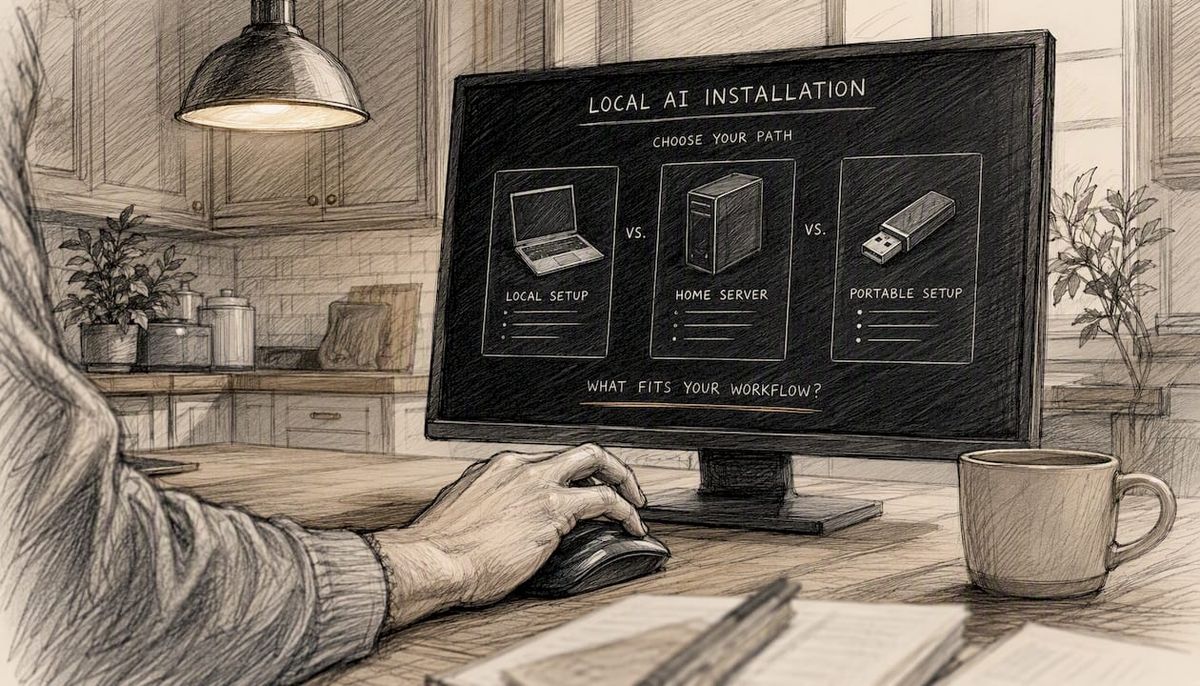
Standalone binaries and desktop apps are the easiest entry point. You download an installer, run it, and get a graphical interface. This is the right call if you've never touched a terminal and don't plan to. The tradeoff is less flexibility if you later want to swap runtimes or run multiple models side by side.
Package managers (Homebrew on macOS, apt on Linux) suit people who already live in a terminal for other reasons. A single brew install or apt install command handles dependencies for you, though you're relying on whoever maintains that package to keep it current.
Containers, specifically Docker or Podman, are what most experienced users land on for a reason: they isolate dependencies completely, work near-identically across Windows, macOS, and Linux, and make it trivial to tear down a broken setup and start fresh. The cost is a slightly steeper learning curve if Docker itself is new to you.
SDKs (Python or Node packages) are for people who want to build something on top of a local model rather than just chat with it. If you're writing scripts that call a model programmatically, this is the route, though it assumes you're comfortable with pip or npm already.
Run through this checklist before committing to one:
- Do you want a graphical interface, or are you fine with a command line? GUI points you to a standalone app; CLI comfort opens up package managers and containers.
- Do you need this to run without internet access after setup? If so, avoid installer routes that fetch dependencies live during installation, and favor portable installers you download in full ahead of time.
- Do you have a GPU you want to use? Containers make GPU passthrough more predictable across different systems than a bare package manager install often does.
- How much disk space can you spare? Containers duplicate some dependencies across images, which uses more storage than a lean standalone binary.
Avoid picking a container-based route if you specifically need a portable, air-gapped install; Docker images still need to be pulled from the internet at least once, which defeats the purpose if your target machine never touches a network.
How Do You Install Local AI Step by Step?
Here's a set of commands you can copy directly, organized by platform and method. Pick the one matching your setup from the previous section.
Docker quickstart (works on Windows, macOS, Linux with Docker Desktop installed):
docker run -p 8080:8080 --name local-ai -ti localai/localai:latest
For GPU acceleration on an NVIDIA card, add the GPU flag:
docker run -p 8080:8080 --gpus all --name local-ai -ti localai/localai:latest-gpu-nvidia-cuda12
Homebrew install on macOS:
brew install localai
Python/SDK install for developers:
pip install llama-cpp-python
If you need this to work without internet access later, download the wheel file in advance and install it with pip install --no-index --find-links=/path/to/wheels llama-cpp-python instead. That avoids pip reaching out to PyPI at install time.
Follow these steps in order once you've picked your method:
- Install your chosen runtime using one of the commands above.
- Start the service and watch the terminal output for a line confirming it's listening on its port.
- Open a browser or send a curl request to confirm the server responds.
- Download a model (covered in the next section) and point the runtime at it.
- Send a test prompt and confirm you get generated text back.
A few platform notes worth knowing before you hit a wall:
- On macOS, if you download a standalone binary or DMG outside the App Store, Gatekeeper quarantines it automatically. You'll need to clear that flag before the app opens (details in the troubleshooting section below).
- On Windows, some installers fail silently if the Visual C++ Redistributable isn't already present. Installing it separately first resolves most of these cases.
- On Linux, if Docker commands require
sudoevery time, add your user to thedockergroup so containers run without elevated permissions constantly.
Pro Tip: Run your health check (covered later in this guide) immediately after install, before you download a large model. Confirming the runtime itself works first isolates whether a later problem is the model or the install.
Where Do You Get Models and How Do You Load Them?
Once your runtime is running, it's an empty shell until you point it at an actual model file. This is where most beginners get confused, because model names, formats, and sources all sound similar but behave differently.
Format matters more than name. You'll mostly encounter GGUF (the current standard for quantized models, replacing the older ggml format), safetensors, and occasionally raw checkpoint files. GGUF is what most beginner-friendly runtimes expect, and it's specifically designed to run efficiently on regular consumer hardware rather than requiring a data-center GPU.
Hugging Face is the dominant model source. Its search results for GGUF-format models show file sizes and quantization levels directly on each model page, which makes comparing options straightforward. Model URIs typically follow a pattern like huggingface://TheBloke/ModelName-GGUF, which most local runtimes accept directly as a download target. Some setups also pull from OCI-style container registries, using a syntax like oci://registry/model:tag.
The models you'll run into most often fall into a handful of families:
- Llama (Meta's model family) is the most widely supported across every runtime, with quantized versions available in nearly every size.
- Gemma (Google's open model line) tends to punch above its parameter count on reasoning tasks relative to its size.
- Qwen (Alibaba's model family) has strong multilingual performance and comes in a wide range of sizes.
- Phi-style models (Microsoft's small model line) are built specifically to run well on modest hardware while staying capable at core tasks.
Here's how model size maps to what you can realistically expect:
| Model size (quantized) | Recommended RAM | Usable features |
|---|---|---|
| ~2GB (e.g., Llama 3B class) | 8GB | Fast, text-only responses |
| ~4GB (7B class) | 16GB | Text plus more nuanced reasoning |
| ~4.2GB image-capable (e.g., Gemma-class multimodal) | 8GB minimum, 16GB better | Text plus image understanding, slower per response |
| 8GB+ (larger-model class) | 32GB | Higher quality output, noticeably slower on CPU |
Notice the pattern: bigger isn't automatically better for your setup. A 2GB text-only model that responds instantly often beats an 8GB model that makes you wait thirty seconds per answer, especially if your actual use case is quick drafting or Q&A rather than complex reasoning.
How Does GPU Acceleration and Quantization Speed Things Up?
The single biggest performance lever most beginners ignore is quantization, not hardware. Understanding it before you buy a new GPU can save you money.
Quantization compresses a model's numerical precision, shrinking a model that would normally need 16GB of memory down to 4 or 5GB with a modest, often barely noticeable, hit to output quality. You'll see quantization levels labeled things like Q4_K_M or Q8_0 on Hugging Face model pages. As a rough rule, Q4_K_M is the sweet spot most people land on: meaningfully smaller than the full model, without the quality drop you'd get from more aggressive compression.
GPU acceleration stacks differ by hardware vendor, and using the wrong one means your GPU sits idle while the CPU does all the work:
- NVIDIA cards use CUDA, and Docker images need the
--gpus allflag plus a CUDA-specific image tag to actually use the card. - AMD cards use ROCm, which has narrower distro support, so check compatibility before assuming it'll work out of the box.
- Apple Silicon uses Metal automatically through macOS, no extra flags typically needed.
- CPU-only is genuinely fine for smaller quantized models; you just trade speed for zero setup complexity.
A short performance tuning checklist worth running through once your model loads:
- Set thread count to match your CPU's physical cores, not logical threads, for CPU-only setups.
- Increase batch size cautiously; larger batches speed up throughput but use more memory.
- Confirm your runtime is actually using the GPU by checking
nvidia-smiwhile a prompt is running, rather than assuming the--gpusflag worked.
Pro Tip: A driver and CUDA version mismatch is the single most common reason a GPU install "works" but runs at CPU speed. If your GPU utilization stays at 0% during inference, reinstall drivers matching your exact CUDA toolkit version rather than troubleshooting the model itself.
How Do You Verify Your Local AI Is Actually Working?
A runtime that starts without errors isn't proof it's working. You need to confirm the server responds and the model actually generates text.
- Run a health check against the local endpoint:
curl http://localhost:8080/v1/models. A working setup returns a JSON list showing your loaded model's name. - Send a minimal inference request:
curl http://localhost:8080/v1/chat/completions \
  -H "Content-Type: application/json" \
  -d '{"model": "your-model-name", "messages": [{"role": "user", "content": "Say hello in one sentence."}]}'
- Check that the response includes actual generated text in a
contentfield, not an error object.
Run through this quick checklist if anything looks off:
- Confirm the runtime process is still running in your terminal or task manager.
- Confirm port 8080 (or whichever port you configured) isn't blocked by another application or your firewall.
- List loaded models through the runtime's model-list command to confirm the model actually loaded into memory, not just downloaded to disk.
- Confirm the sample response contains readable text rather than an empty string, which usually means the model loaded but the prompt format was wrong.
How Do You Manage and Update Local Models?
Model files pile up fast, and cleaning up after yourself now saves a scramble later when your drive fills up.
Store models on your fastest available drive, ideally an internal SSD or external NVMe rather than a spinning hard drive, since read speed directly affects how quickly a model loads into memory. Organize by format in separate folders (a gguf/ folder, a safetensors/ folder) so you're not hunting through one giant directory later. If you're testing multiple runtimes against the same model file, a symlink lets you point two tools at one file instead of duplicating a multi-gigabyte download.
A few practical commands and habits worth adopting:
- Remove an unused model by deleting its file directly from your models folder; most runtimes don't need a special uninstall command for the model itself, just the file.
- Pre-download models you'll need later while you have internet access, especially if you're planning any offline stretch of use.
- Before updating your runtime, back up your configuration file. Updates occasionally change config syntax, and you'll want the old version to compare against if something breaks.
The safest update flow is: back up configs, stop the running service, apply the update, then run your health check again before trusting the new version with real work. If the update breaks something, roll back to the previous binary or image tag rather than troubleshooting live.
Why Do Local AI Installs Fail, and How Do You Fix Them?
Most local AI problems fall into a short list of repeat offenders. Here's what to do when you hit each one.
macOS says the app is damaged or from an unidentified developer. This is Gatekeeper quarantining an unsigned binary, not an actual problem with the file. Clear it with:
xattr -cr /Applications/YourApp.app
Windows installer fails partway through with a vague error. Nine times out of ten this traces back to a missing Visual C++ Redistributable. Install the latest redistributable from Microsoft directly, then retry.
The model loads but the runtime crashes or hangs (out-of-memory error). Your model is too large for available RAM. Switch to a more aggressively quantized version of the same model, like moving from Q8_0 down to Q4_K_M, which cuts memory needs substantially.
GPU shows 0% usage during inference despite a --gpus flag. This is almost always a CUDA and driver version mismatch. Check your installed CUDA version against your driver version and align them.
Docker container can't access a mounted folder. Usually a permissions issue on the host system. On Linux, confirm your user has read and write access to the folder before mounting it; on Windows, confirm Docker Desktop has been granted drive access in its settings.
What Does "Local" Actually Guarantee About Privacy?
"Local" and "offline" get used loosely, and the fine print matters if privacy is your actual reason for doing any of this.
Once a runtime and model are installed, chat inference and document processing genuinely happen on your machine, with no data leaving for that specific task. What "local" does not automatically mean is that the entire software lifecycle never touches a network. Installers often need internet the first time to download dependencies. Some desktop apps require a one-time sign-in to verify a purchased license, which is a separate action from your actual conversations with the model.
GreenCube is a concrete example of how this distinction plays out. The desktop app runs chat and document analysis fully offline on Windows 10 or 11 after setup, but getting there requires downloading one model, either the roughly 2GB "Quick" option (text-only, fast) or the roughly 4.2GB the bigger model option (reads images, needs 8GB RAM minimum, slower). A one-time sign-in through Google or Microsoft verifies the €9.99 / $9.99 license; that check-in step doesn't transmit your chats or documents anywhere. If you're piecing together a fully custom setup instead, the same offline installation checklist applies: grab every installer, driver, and model file you'll need while you still have a connection.
Pro Tip: If true air-gapped operation matters to you, whitelist the license-verification endpoint only during the setup window, then block outbound traffic for that app afterward. This keeps the one-time check functional without leaving a standing connection open.
Why Are People Installing Local AI Now?
The shift toward running models locally isn't just a hobbyist trend. It reflects real, practical tradeoffs against sending every prompt to a cloud service.
The case for local AI comes down to a handful of durable advantages:
- Privacy: your conversations and documents don't leave your device once the model is loaded.
- Low latency: no round trip to a remote server means faster responses for many tasks, particularly short exchanges.
- Offline reliability: a local setup keeps working on a plane, in a basement office, or anywhere your connection drops.
- No usage caps: once installed, you're not metered by a subscription tier or rate limit.
The tradeoffs are just as real. Local models update less frequently than cloud services, since you have to manually download a new version rather than getting silent server-side upgrades. Decent performance requires hardware you may need to invest in, particularly RAM and, for larger models, a capable GPU. And you're responsible for your own maintenance, driver updates, and troubleshooting instead of a vendor handling it invisibly.
NVIDIA's developer documentation frames this shift plainly: the push toward local AI is driven by demand for privacy, low latency, and full user control over accelerated, open-weight models running on personal hardware, rather than any single killer feature.
What's the Right First Move for a Beginner?
If you're brand new to this and privacy is your actual motivation, don't start with Docker. Start with a portable, GUI-based desktop app that handles the runtime and model download for you behind a simple interface. The command-line approach is genuinely more flexible once you know what you're doing, but it's also where most beginners give up, not because the technology is bad, but because a failed docker run command with no GUI feedback is a discouraging first experience.
Set your expectations correctly on hardware, too. If you're running on the 8GB RAM floor, a small text-only model will work, but don't expect it to feel like a cloud chatbot. Responses will be slower, and asking it to analyze a lengthy PDF on minimum hardware will test your patience. That's not a bug in whichever tool you pick. It's the physical reality of running inference on consumer hardware instead of a data center.
GreenCube is worth calling out specifically here because it's built around exactly this beginner path: a guided Windows installer, a choice between the smaller, faster model and the slower but image-capable the bigger model, and no command line involved at any point. It still requires downloading one model file and a one-time sign-in to verify the license, same as described earlier in this guide. Nobody skips that step, no matter which tool they choose. But for someone who wants working local AI today without learning Docker syntax first, it's a reasonable place to start.
Get a Private Desktop AI Without Learning a Single Command
If everything above sounds like more setup than you want to handle, GreenCube skips the terminal entirely: install the desktop app, pick a model, and you're chatting privately within minutes, no Docker syntax required.
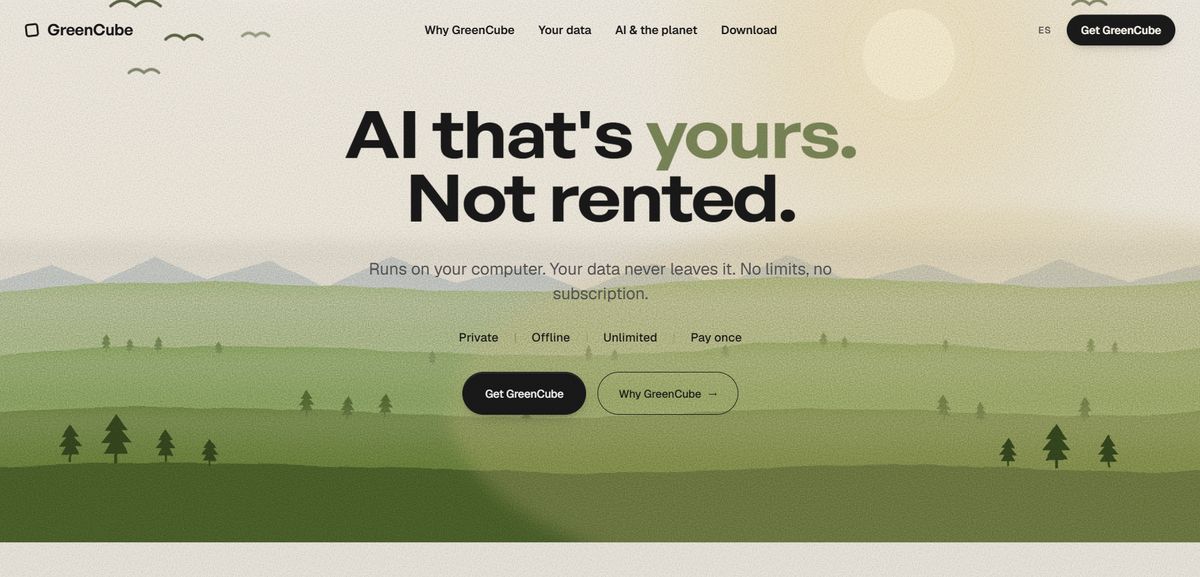
GreenCube runs on Windows 10 and 11, and setup means choosing one of two models to download: the roughly 2GB the smaller model for chat, or the roughly 4.2GB the bigger model, which also reads images and helps build study guides, and needs at least 8GB of RAM. A one-time sign-in with Google or Microsoft verifies your license; it doesn't touch your conversations or documents, which stay fully offline once setup finishes. There's no subscription. The whole thing is a one-time purchase of €9.99 / $9.99, backed by a 15-day refund window. It's not pitched as more powerful than a cloud model. It's pitched as yours: no monthly bill, no usage limits, and no chat history sitting on someone else's server. If that fits what you're after, get GreenCube for a one-time €9.99 / $9.99 and have a private assistant running on your own laptop before the end of the day.
Sources
- Build Local AI With NVIDIA GPUs | NVIDIA Developer
- How to Run AI Without Internet (Full Offline Setup)
- WSL filesystems — Microsoft Learn
For more on model formats and memory requirements, see this breakdown of local AI models and how to start, and for a closer look at what stays private versus what requires a network check, read how offline AI actually works on a laptop.
FAQ
Which AI Can Be Installed Locally?
Popular options include Llama-family models, Gemma, Qwen, and Phi-style models, all commonly distributed in GGUF format through sources like Hugging Face. Desktop apps like GreenCube bundle a specific model choice (the smaller or bigger model) so you don't have to pick a format yourself.
How Do You Get AI to Run Locally?
Install a runtime through Docker, a package manager, or a standalone binary, then download a compatible model file and point the runtime at it. A single docker run command or a guided desktop installer both get you to a working setup.
How Do You Install a Local AI Model?
Download the model file, usually in GGUF format, from a source like Hugging Face, place it where your runtime expects models, and load it through the runtime's model-list or config file. Desktop apps handle this step automatically during setup.
Is a Locally Installed AI App Free?
It depends on the tool. Some runtimes are free and open source, while apps like GreenCube charge a one-time fee of €9.99 / $9.99 with no subscription, rather than being free or billed monthly.
Recommended
- Best LM Studio Alternatives for Local AI in 2026
- AI Without Internet: Run Local AI Privately on Any Laptop
- Offline AI for Students: Study Privately on Your Laptop
- Offline AI Security: A Practical Hardening Guide
Your own AI, on your own PC
GreenCube runs on your computer: no usage limits, no subscription, works without internet. €9.99, paid once.
Get GreenCube