Own It for €9.99: Best Private PDF AI for Privacy-First Users

The best private PDF AI is a local, offline desktop app that processes your files entirely on your own hardware. For most privacy-first readers, that means an app like GreenCube, which handles chat, summarization, and document analysis without ever sending a file to a server. The one real trade-off: setup requires downloading a model file (roughly 2GB to 4.2GB) and enough RAM to run it comfortably.
TL;DR:
- Local desktop apps like GreenCube require downloading a model between 2GB and 4.2GB and need at least 8GB of RAM for optimal performance.
- Cloud-based AI tools process files on servers and are capped by file size and page limits, unlike local apps that rely solely on hardware capacity.
- Browser-local tools offer genuine privacy by running entirely inside the browser without uploading files, but they have limited AI capabilities compared to local models.
- For sensitive tasks such as redaction or handling confidential documents, a local or self-hosted AI model reduces the risk of data exposure significantly.
- Verifying offline operation by disconnecting from Wi-Fi is the best way to confirm if an AI app truly processes files locally.
Table of Contents
- What Are the Best Private PDF AI Tool Categories?
- How Does Each PDF AI Job Change Your Privacy Risk?
- What Should You Check Before Trusting a Privacy Claim?
- How Does GreenCube Handle Private PDF AI?
- Which Private PDF AI Should You Actually Pick?
- What Privacy-First Buyers Get Wrong About PDF AI
- Get Private PDF AI Without the Subscription
- Sources
- FAQ
What Are the Best Private PDF AI Tool Categories?
Before you pick a specific app, you need to know what category you're actually shopping in. "Private PDF AI" gets used loosely, and four very different architectures hide behind that label.
Private, offline desktop apps install on your machine and run AI inference locally, usually through a downloaded language model. Nothing leaves your device once the model is running, though most require a one-time sign-in to verify a license. Browser-local tools use WebAssembly (WASM) to run PDF processing directly inside your browser tab. Your file technically never uploads to a server, but you're limited to whatever a browser sandbox can handle. Cloud PDF AI is the default most people already use, from Adobe's AI Assistant to various SaaS chat-with-PDF products, and it processes your document on the vendor's servers regardless of how "secure" the marketing sounds. BYOK (bring your own key) or hybrid setups let you connect your own API key to a self-hosted interface, giving you some control over which cloud model handles your data without locking you into one vendor's app.
Here's how they stack up on the things that actually matter for privacy:
- File location during processing: Desktop apps and browser-local tools keep files on-device; cloud AI and most BYOK setups send file content to a remote server for inference.
- Offline capability: Desktop apps work with zero internet connection after setup; browser-local tools often work offline after the first page load; cloud AI and BYOK setups require a live connection every time.
- Pricing shape: Desktop apps tend toward one-time purchases; browser-local tools mix free tiers with small one-time unlocks; cloud AI is almost always subscription-based.
- File size and volume limits: Cloud tools cap file size and page count by plan; desktop and browser-local tools are usually limited only by your own hardware.
Adobe's own documentation is a good illustration of what "cloud processing" really means in practice. Adobe Acrobat's AI Assistant handles files up to 100MB and 600 pages, and while Adobe states it doesn't train models on your inputs, the document interaction itself still happens on Adobe's servers. That's not a criticism of Adobe specifically. It's the standard architecture for nearly every cloud PDF AI product, and it's worth understanding before you assume "secure" means "private."
Quick stat: Most consumer PDF AI tools on the market today are cloud-based by default, meaning your document content is transmitted to a remote server for every single AI operation, even a simple summary.
Browser-local tools solve the upload problem differently. Products like RectoPDF run entirely inside the browser using WebAssembly, so files never leave the device, and basic tools continue working offline once the page has loaded once. OxygenPDF takes a similar approach, advertising more than 60 PDF utilities that run on-device with zero uploads and no account requirement. These are genuinely private in the sense that matters (the file bytes stay local), but they trade some heavy-duty AI capability for that speed and simplicity, since a browser sandbox has less horsepower than a dedicated local model running with real system RAM.
If your job involves anything sensitive, a legal contract, medical records, unpublished research, or financial statements, the category you choose determines your actual risk exposure far more than any privacy policy language does.
How Does Each PDF AI Job Change Your Privacy Risk?
Not every PDF task carries the same privacy stakes, and the AI architecture behind each job matters differently depending on what you're doing.
1. Editing
Editing a PDF with AI (rewriting a clause, restructuring a section, fixing formatting) can happen entirely on-device with the right local tool, or it can require a round-trip to a server if the app's AI features are cloud-dependent even when the base editor is local. Check whether the AI-assisted edit function specifically runs offline. Some apps market themselves as "offline PDF editors" while quietly routing the AI features through an API call.
2. Chat, Summarize, and Question Answering
This is where the local versus remote distinction matters most. When you ask an AI to summarize a 40-page report or answer questions across multiple PDFs, a locally-run model processes that entire request on your machine. A cloud-based assistant sends the extracted text (and often the full document) to a remote server, gets a response, and streams it back. Both approaches can ground answers in your actual document and cite the source page, but only the local approach guarantees the content never left your hard drive. Multi-file chat, where you query across a folder of documents at once, tends to be more common in desktop apps with local models than in lightweight browser tools, simply because it requires holding more context in memory.

3. Conversion, Batch Processing, and OCR
Converting PDFs to Word, extracting tables, or running optical character recognition (OCR) on scanned documents is where browser-local WebAssembly tools genuinely shine. PDFsuite, for example, runs 28 PDF tools directly in the browser and offers an installable progressive web app for offline batch work, claiming files never reach a server. For high-volume conversion jobs where you're processing dozens of files, this architecture avoids both upload time and per-file cloud costs.
4. Redaction and Compliance
Redaction is the job with the highest stakes and the least room for error. A naive "find and black out" approach can miss hidden text, metadata, or clipped elements that a document's rendering layer conceals from simple text extraction. Enterprise-grade redaction tools like pdftools' AI Smart Redact address this by combining deterministic rule matching for structured identifiers (Social Security numbers, account numbers) with named-entity recognition models, then wrapping the whole process in per-file encryption and audit trails. That combination gives you something a basic redaction tool can't: a provable record of what was removed and when, which matters enormously if you're in a regulated industry facing an audit.
Numbered checklist for handling large or sensitive files:
- Confirm the tool's stated file size and page limits before you start, since cloud tools like Adobe's cap out at 100MB and 600 pages.
- Check the model size and RAM requirement if you're using a local desktop app. A larger model (4GB+) needs more system memory to run without slowing to a crawl.
- Split extremely large PDFs into smaller sections if your local model struggles with context length.
- For redaction jobs, verify the tool checks the rendering layer, not just extracted text, for hidden content.
- Keep a local backup before any AI-assisted edit or redaction pass, regardless of which tool you use.
Pro Tip: If you're unsure whether an app's AI features are actually local, disconnect from Wi-Fi and try running a summary or chat query. If it still works, the processing is happening on your device.
What Should You Check Before Trusting a Privacy Claim?
"Private" is one of the most overused words in software marketing, and it rarely means what you'd assume. Use this checklist before you trust any vendor's privacy claim, cloud or local.
- Processing location: Ask directly where the AI inference happens. Local device, browser sandbox, or remote server.
- Model hosting: Is the AI model downloaded and run on your machine, or is every query hitting an external API?
- Logging policy: Does the vendor retain chat history, document content, or usage metadata on their servers?
- BYOK support: If it's a hybrid tool, can you supply your own API key rather than routing through the vendor's account?
- Encryption at rest: Are your local files and any cached data encrypted on disk?
- Offline mode: Does the core AI functionality work with no internet connection, or does it silently fail without one?
- Auditability: Can you verify the privacy claim yourself, for example by testing offline as described above, rather than taking marketing copy at face value?
Ask any vendor these questions directly: Do files ever leave my device during normal use? Is the AI processing local, or does it call a remote API? Is sign-in required only to validate my license, or does it also transmit document data? Is there a written data retention policy, and how long is content kept if any does reach a server?
Watch for these red flags, each of which should make you walk away: a tool that requires a mandatory server upload for its core AI features but calls itself "private" because the base editor works offline; privacy language that's vague about where processing happens ("secure" and "encrypted" are not the same as "local"); and any hidden sharing of extracted text or usage analytics buried in a terms-of-service document nobody reads.
There's a real trade-off buried in all of this. Stronger privacy guarantees generally mean a bigger resource footprint, more disk space for a downloaded model, more RAM to run it, and a slower initial setup. Researchers at institutions like Stanford HAI have pushed for exactly this kind of verifiable behavior over marketing assurances, and it's the right standard to hold every tool to, including ones that call themselves private.
How Does GreenCube Handle Private PDF AI?
GreenCube is built around a straightforward premise: your documents and your conversations about them stay on your Windows PC, full stop, aside from the license check at setup. It runs on llama.cpp for local inference, wrapped in a lightweight Tauri and Rust application with a React interface, and it never routes your chats or PDFs through a remote server.
Setup requires picking one of two models and downloading it once. The smaller model (Gemma 4 E2B) is about 2GB, fast, and handles plain text well, but it can't read images embedded in a PDF. The bigger model (Gemma 4 E4B) is roughly 4.2GB, reads images, and can generate study guides or structured documents from what it reads, but it runs slower and needs at least 8GB of RAM, which is a floor, not a comfort zone; older laptops with exactly 8GB may feel sluggish under real workloads.
Once a model is downloaded, GreenCube handles PDF summarization, multi-document chat, and question answering entirely offline. Sign-in through Google or Microsoft is required, but only to verify your one-time license. It doesn't transmit chat content or document data. Checkout runs through Stripe, same as any standard software purchase.
| Feature | the smaller model | the bigger model |
|---|---|---|
| Download size | ~2GB | ~4.2GB |
| Reads images | No | Yes |
| Minimum RAM | 8GB | 8GB (can be slow at the floor) |
| Speed | Faster | Slower |
| Best for | Text-only PDFs, quick summaries | Scanned documents, image-heavy files, study guides |
Before installing, confirm the basics:
- Windows 10 or 11 (Mac support is in development, not yet available).
- At least 8GB of RAM, more if you plan to run the bigger model alongside other applications.
- Enough free disk space for whichever model you choose, plus normal app overhead.
- A Google or Microsoft account for one-time license verification.
Pricing is a one-time payment of €9.99 / $9.99, with no subscription and a 15-day refund window. There's no per-file limit and no monthly cap on usage once it's installed. For a deeper look at how local model sizing and hardware requirements work across tools generally, the primer on local AI models covers the mechanics in more detail.
Which Private PDF AI Should You Actually Pick?
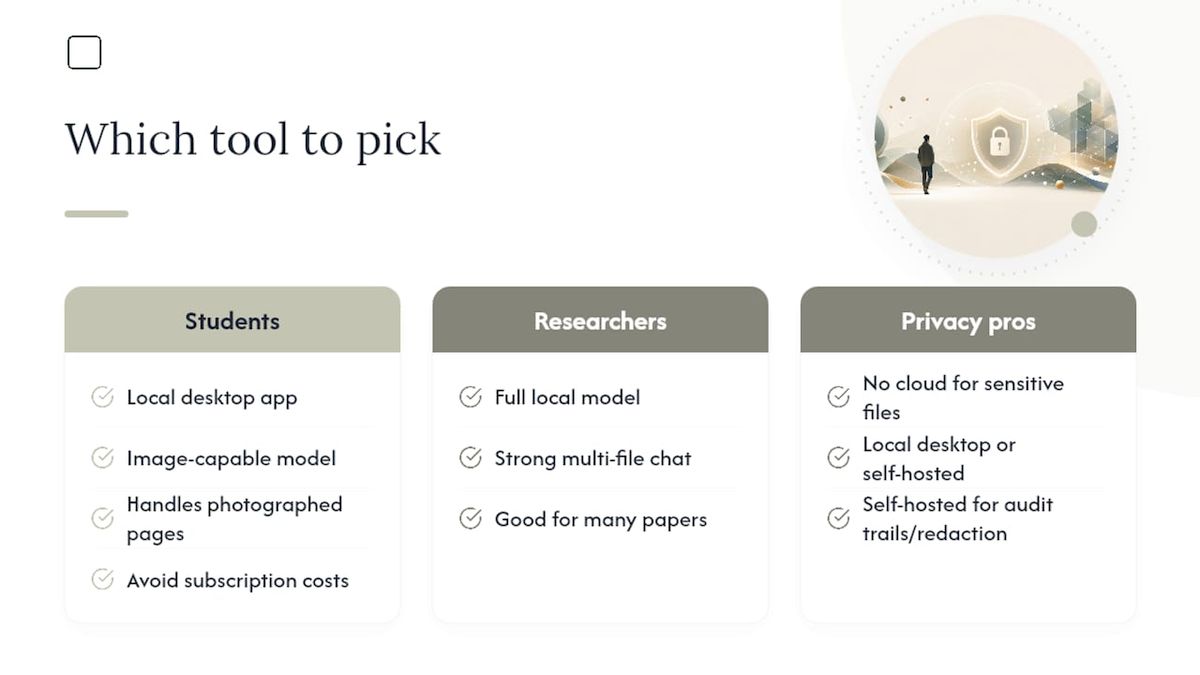
Students working through long readings or scanned lecture notes get the most out of a local desktop app with an image-capable model, since it handles both text and photographed pages without a subscription eating into a tight budget. Researchers juggling multiple papers at once need strong multi-file chat, which favors a full local model over a lightweight browser tool. Privacy-conscious professionals handling contracts, financial records, or client data should treat cloud AI as a non-starter for anything sensitive and lean on local desktop apps or, for compliance-heavy redaction work, a self-hosted tool built for audit trails.
Cloud tools still make sense for low-stakes, high-volume public documents where speed and zero setup matter more than privacy. Browser-local tools are the right call for quick, occasional conversions or OCR jobs where you don't want to install anything. But when the document is sensitive and the plan is repeated use, a downloaded model and a one-time purchase beat a subscription that keeps sending your files somewhere else. Just remember: any local option, GreenCube included, needs that one-time model download and enough RAM to run smoothly.
What Privacy-First Buyers Get Wrong About PDF AI
Most guides to this topic treat "private" as a marketing checkbox instead of a testable claim. That's backwards. The right approach is to verify behavior, not read policy language, because a vendor calling something "secure cloud processing" and a vendor running inference on your own chip are describing two fundamentally different risk profiles, even when their websites use nearly identical reassuring phrases.
The overrated factor here is raw AI capability. Readers assume a private, local model must be a downgrade from a cloud frontier model, and technically it is; cloud AI still wins on large-scale reasoning. But for reading, summarizing, and chatting with your own PDFs, the gap matters far less than most buying guides suggest. What actually matters is ownership: no recurring fee, no server dependency, no usage cap.
If you take one thing from this guide, test the offline claim yourself before trusting it. Turn off your Wi-Fi and see what still works.
— GreenCube
Get Private PDF AI Without the Subscription
Every recurring PDF AI subscription is a bet that you'll use it forever. GreenCube flips that: pay once, own it forever, and never send another document to someone else's server. It's built specifically for the reader this article describes, someone who wants real chat and summarization power over their PDFs without trusting a vendor's privacy policy to hold up.
Setup takes downloading one model (the smaller or bigger model, depending on whether you need image reading) and signing in once through Google or Microsoft to activate your license. From there, everything, chats, document analysis, summaries, runs offline on your own Windows 10 or 11 machine with no monthly bill and no usage cap. If you're preparing documents you also want AI systems to be able to reference accurately elsewhere, the guide to PDF SEO for AI citability is worth a look too.
The full picture on how GreenCube compares to other local and cloud assistants is on the GreenCube product page. Ready to stop paying monthly for something you can own outright? Get GreenCube for €9.99 / $9.99, a one-time purchase with a 15-day refund if it's not the right fit.
Sources
- Adobe community: AI Assistant details
- RectoPDF — Private PDF tools in your browser
- OxygenPDF — The Fast, Private PDF Toolkit
- AI Smart Redact | Pdftools Developer Documentation
FAQ
Which AI is best for private use?
A local, offline AI app that runs inference on your own device is the most private option, since your data never reaches a third-party server. GreenCube is built specifically around this model for PDF and document work on Windows.
Which AI works best with PDFs?
It depends on the job: local desktop apps with a downloaded model handle chat and summarization privately, while browser-local tools like RectoPDF and OxygenPDF are strong for quick, offline conversions and basic edits without installing software.
Which AI PDF generator is the best?
For generating study guides or structured documents from a PDF's content, a local model that can also read images, such as GreenCube's bigger model, produces useful output without uploading the source file anywhere.
Is there a private version of AI?
Yes. Local desktop AI apps and browser-local WebAssembly tools both keep file processing on-device, unlike most cloud AI assistants, which send document content to a remote server even when marketed as secure.
Recommended
- The Best Private AI for People Who Actually Care About Privacy
- The Best PDF Summarizer for People Who Won't Upload Sensitive Files
- The Best Local AI Chatbot for Windows: Private, Simple, Yours
- Secure AI on Your PC: A Private, Offline Buyer's Guide
Your own AI, on your own PC
GreenCube runs on your computer: no usage limits, no subscription, works without internet. €9.99, paid once.
Get GreenCube