The Best PDF Summarizer for People Who Won't Upload Sensitive Files
If you need a private, offline way to summarize PDFs without a subscription, GreenCube is the pick worth your money. It runs entirely on your Windows PC, uses a model you download once, and costs a flat $9.99 (€9.99), no recurring fees.
Choose a cloud summarizer only if you need the largest possible model for complex reasoning or you can't install anything on the machine you're using. For everyone else, especially anyone handling contracts, medical records, or research they'd rather not upload, local processing wins on the metric that actually matters: nobody but you sees the document.
Two numbers to keep in mind before you commit:
- Price: $9.99 / €9.99, one time, with a 15-day refund window.
- Setup step: You pick and download one AI model of moderate size before the first summary runs.
Key Takeaways
Local, offline PDF summarization protects sensitive documents and costs one flat fee, while cloud tools trade that privacy for access to larger models.
| Point | Details |
|---|---|
| Match architecture to document sensitivity | Use local tools for contracts, medical files, or unpublished research; cloud for broad, non-sensitive research. |
| Citation anchoring is non-negotiable for verification | Choose a summarizer that cites page numbers so you can check claims in seconds. |
| Check image handling before trusting figures | Text-only summarizers miss charts and tables; confirm image support if your PDF relies on visuals. |
| Know your file limits | Some cloud tools cap files around 100MB and 600 pages; local tools avoid upload caps entirely. |
| GreenCube fits the privacy-first use case | One-time $9.99 / €9.99 purchase, offline processing on Windows, with the bigger model reading images if you need that. |
Table of Contents
- What Matters When Choosing an AI PDF Summarizer
- Cloud vs. Local Summarizers: Which Fits Your Documents?
- How to Summarize a PDF Effectively
- GreenCube Spotlight: What It Actually Provides
- Cost, Requirements, and a Security Checklist Before You Buy
- The Case for Leading With Privacy, Not Power
- Get GreenCube and Start Summarizing Privately
- Sources
- FAQ
What Matters When Choosing an AI PDF Summarizer
Most people compare PDF summarizers on speed or price and miss the factor that actually determines whether the tool works for their use case: where the processing happens.
Cloud vs. local processing is the first fork in the road. Cloud tools send your document to a remote server, run it through a large model, and return the result. That means better access to frontier-scale models, but it also means your file leaves your machine, and you need an internet connection every time you want a summary. Local tools keep the document and the model on your hard drive. Nothing to upload, nothing to wait on if your Wi-Fi drops, and no server-side copy of your tax return sitting on someone else's infrastructure. Data-residency and privacy rules are already pushing professionals in regulated fields toward this second category, according to Incountry's analysis of AI data residency challenges.
Citation anchoring is the second thing to check, and it's the one casual users skip until they get burned. A summary that just states conclusions is useless for verification. A summary that says "see page 14" or "section 3.2" lets you check the source in seconds. Experts who work with dense academic and legal material treat citation-backed responses as close to mandatory, because an AI summarizer that can't point back to its source is asking you to trust it blind.

File limits vary more than people expect. Some mainstream tools, including Adobe's AI assistant, accept files up to about 100MB and 600 pages once you're signed in, which covers most single documents but starts to strain if you're working through a stack of technical manuals or a multi-hundred-page dissertation.
Image and figure handling trips up more summarizers than you'd think. A text-extraction-only engine will happily skip the chart that contains your key finding and summarize the surrounding paragraphs instead. If your PDF leans on tables, diagrams, or scanned figures, you need a model built to read images, not just pull text.

Pricing structure splits three ways: free tiers with caps, subscriptions with recurring charges, and one-time licenses. Free tiers usually throttle how many pages or documents you can process per day. Subscriptions add up fast if you're only summarizing occasionally.
Hardware requirements matter for local tools specifically. A downloadable model needs disk space and RAM, and the model size dictates both the quality ceiling and how fast it runs on your machine.
Here's a quick way to run through the decision:
- Decide if the document is sensitive enough that upload is a nonstarter.
- Check the tool's stated file size and page limits against your typical document.
- Confirm whether it reads images and figures, or text only.
- Compare the pricing model against how often you'll actually use it.
- Check the RAM and disk space a local model needs on your machine.
Pro Tip: Before trusting any summary, open the source PDF to the page it cites and read that section yourself once. It takes thirty seconds and it's the fastest way to catch a summarizer that's hallucinating page references.
Cloud vs. Local Summarizers: Which Fits Your Documents?
The honest answer is that neither architecture wins outright. Each is built for a different kind of risk and a different kind of workload, and the smart move is matching the tool to the document, not picking one lane and forcing everything through it.
Cloud summarizers earn their place with:
- Access to the largest, most frequently updated models available.
- Zero installation, so you can summarize a PDF from any browser in seconds.
- Better fit for broad research that pulls from many public, non-sensitive documents at once.
Local summarizers earn their place with:
- Documents that never leave your device, which matters for legal review, medical notes, or unpublished research.
- A flat one-time cost instead of a monthly charge that scales with how much you use it.
- No upload caps or session timeouts, which lets you work through a 400-page technical manual without the tool choking halfway through. Local pipelines are already the practical answer for processing very large documents without repeated retries.
A law firm reviewing a client's contract, a graduate student annotating an unpublished thesis draft, or a therapist summarizing case notes all have the same problem: the document can't leave the building, figuratively or literally. That's a local job. A marketing team summarizing fifty publicly available competitor whitepapers doesn't have that constraint, and a cloud tool with a bigger model might get through the pile faster.
Cloud-based summarizers also share one structural limitation worth naming plainly: they need an active internet connection to work at all, which turns into a real problem the moment you're on a flight, in a secure facility with no Wi-Fi, or dealing with an IT policy that blocks uploads to third-party servers.
If your workload is mixed, a hybrid approach makes sense. Keep a cloud tool for the low-stakes, high-volume research pile, and keep a local tool like GreenCube for anything you'd hesitate to hand to a stranger. Most professionals who deal with both types of documents end up running exactly this split, rather than trying to force one tool to cover every case.
How to Summarize a PDF Effectively
The tool matters less than the process. A great summarizer fed a messy prompt still gives you a mediocre summary, and a decent one used well will outperform it.
- Prepare the file first. Run OCR if the PDF is a scan rather than searchable text, strip out irrelevant appendices or boilerplate pages, and confirm any charts or figures you care about are legible, not blurry scans.
- Decide the summary format before you ask for it. A bullet-point summary works for a quick skim. An executive summary works for sharing with someone who won't read the source. Section-by-section breakdowns work for anything you'll need to reference later, like a contract or a research paper with distinct methodology and results sections.
- Use a prompt pattern that forces specificity. Something like: "Summarize this document in five bullet points, cite the page number for each claim, and flag anything that looks like a number, date, or obligation." Vague prompts get vague summaries.
- Verify before you trust it. Ask for page references on every major claim, then actually open those pages and check them. This is the single habit that separates people who get burned by AI summaries from people who don't. Save the annotated PDF alongside the summary so you have a reproducible record if anyone asks how you reached a conclusion.
- Export and archive with a simple version label. A file name like "ContractSummary_v1_2026-03-12" beats a folder full of "final_final_summary" documents when you need to find the right one six months later.
Pro Tip: Keep the original PDF, the summary, and your verification notes in the same folder. If you ever need to defend a decision you made based on that summary, you want the paper trail sitting right next to it, not scattered across three apps.
Most modern PDF AI tools support multiple formats beyond PDF, including DOCX, PPTX, and plain text, and let you follow up with clarifying questions or ask for a different tone or length after the first pass. Treat the first summary as a draft, not a final answer, and use the follow-up turn to push for the specificity the first response missed.
GreenCube Spotlight: What It Actually Provides
GreenCube is a downloadable desktop AI assistant built for one job: giving you a private chat and document reader that never sends your files anywhere. It runs on Windows 10 and 11, built with Tauri, Rust, and React, using llama.cpp to run the AI model locally on your own hardware.
GreenCube picks one of two local models for your PC:
- the smaller model (Gemma 4 E2B, about 2.6 GB): Fast, text-only. It cannot read images, so a PDF full of charts and scanned figures isn't its strength.
- the bigger model (Gemma 4 E4B, about 4.2GB): Slower, but it reads images and can build study guides and structured documents from what it reads. It needs at least 8GB of RAM, which is the minimum floor, not a comfortable target, and older laptops will feel it.
The pricing is a one-time $9.99 (€9.99) purchase, tax included, with no subscription and a 15-day refund window if it isn't the right fit. You sign in with a Google or Microsoft account, but that step exists only to verify your license, not to sync your documents or chats anywhere. Checkout runs through Stripe. Your PDFs, your chat history, and your summaries stay on your machine the entire time, with no cloud copy created.
Owning your AI setup outright, at a fixed cost, with your documents never leaving your laptop, is a different value proposition than chasing the most powerful model available. GreenCube isn't claiming to out-reason a frontier cloud model. It's claiming you'll never get a bill for it again, and nobody else ever sees your files.
Who this fits: privacy-conscious professionals who handle client documents, students working through sensitive or unpublished research papers, and anyone who's tired of monthly AI subscriptions piling up. Who it doesn't fit: anyone who needs a Mac right now (it's in development) or anyone whose documents are exclusively image-heavy and who only downloaded the smaller model.
Cost, Requirements, and a Security Checklist Before You Buy
Before installing anything, check these numbers against your own machine and workflow.
GreenCube's numbers:
- $9.99 / €9.99, one-time purchase, no subscription, 15-day refund.
- Google or Microsoft sign-in required, solely to verify your license.
- Model download required at setup: the smaller model (~2.6 GB) or the bigger model (~4.2GB).
- the bigger model needs a minimum of 8GB RAM; expect it to run slower on older hardware near that floor.
- Windows 10 or 11 only; a Mac version is in development, not yet available.
Generic checklist for any cloud tool you're considering:
- What's the free tier's daily or monthly page cap, and what happens when you hit it?
- Does the provider's policy say documents are used for model training, and can you opt out?
- How long does the provider retain uploaded files after you're done with them?
- Is there a stated file size and page limit, and does it match your typical document?
Security questions worth asking any vendor, local or cloud:
- Does the document ever leave my device, and under what conditions?
- What's actually required for account sign-in, and is it separate from document processing?
- Is there a clear, published refund or cancellation policy?
- Who has access to the payment processor's data, and is it separate from the app's own data handling?
The Case for Leading With Privacy, Not Power
The conventional advice on picking a PDF summarizer treats "biggest model" as the tiebreaker. That's backward for most of the people actually asking this question. If you're summarizing a client contract or a paper you haven't published yet, the model's reasoning ceiling matters less than whether the document ever left your laptop.
What gets underweighted in most comparisons is the file-limit problem. Cloud tools capping at 600 pages sounds generous until you're three chapters into a dissertation and hit a wall. Local tools sidestep that ceiling entirely, and that's worth more than a marginally smarter model to anyone working with long documents.
Prioritize privacy and predictable cost first. Chase the largest model only when the document genuinely has nothing to hide.
Get GreenCube and Start Summarizing Privately
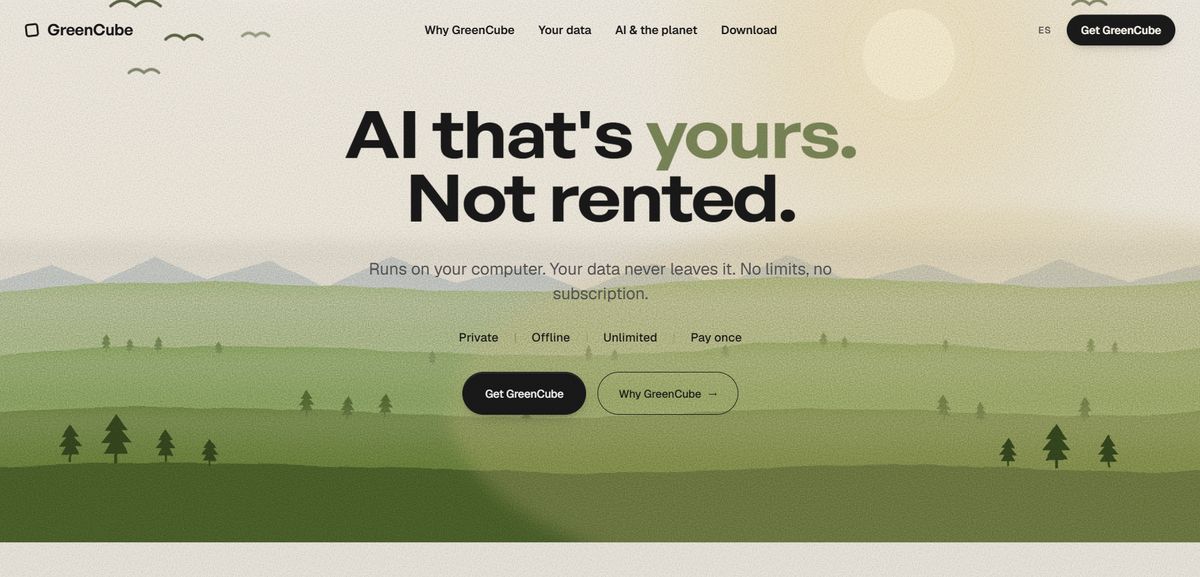
Every alternative in this article routes your document through someone else's server at some point. GreenCube's whole pitch is that it doesn't: you pay once, download a model, and everything from that point runs on your own laptop with no recurring bill and no upload step. Get it at GreenCube's product page, where the license is a flat $9.99 (€9.99) with a 15-day refund if it's not for you.
Setup takes a few minutes:
- Download and install GreenCube for Windows 10 or 11.
- Pick the smaller model (~2.6 GB, text-only, fast) or the bigger model (~4.2GB, reads images, needs at least 8GB RAM).
- Sign in with Google or Microsoft to verify your one-time license, no documents involved in that step.
Once it's running, treat the first few summaries as a trust-building exercise: ask for page references, check them against the source PDF, and keep the annotated file alongside each summary you plan to rely on later.
Sources
- Incountry — AI data residency regulations and challenges
- Provalis Research — choosing the right engine for secure text analysis
FAQ
Can ChatGPT summarize a PDF?
Yes, if you paste the text or upload a supported file, but it runs in the cloud, meaning the document leaves your device and you need an internet connection every time.
Is there a free AI PDF summarizer available?
Free tiers exist across several cloud tools, but they typically cap page counts or daily usage and may use uploaded content to improve their models, so check the retention policy before uploading anything sensitive.
Which free AI summarizer is the best?
There's no single best free option since caps and privacy policies vary by provider; for one-time, unlimited use without ongoing uploads, a local tool like GreenCube avoids the cap question entirely for a flat $9.99 (€9.99).
Which AI tool is best for PDF analysis?
The best fit depends on your document: cloud tools handle large-scale research across many non-sensitive files well, while local tools like GreenCube fit contracts, medical records, or unpublished research where the file can't leave your machine.
Does a local PDF summarizer handle images and figures?
It depends on the model. GreenCube's bigger model reads images and figures, while its the smaller model is , so check which model a local tool ships before trusting it with a visually dense PDF.
Recommended
- The Best Grammarly Alternatives in 2026: Honest Picks
- Best Humata AI Alternatives for Private Offline Use
- No Rate Limit AI for Privacy-First Users: GreenCube
- Best AI for Lawyers: Practical Picks for Every Practice
Your own AI, on your own PC
GreenCube runs on your computer: no usage limits, no subscription, works without internet. €9.99, paid once.
Get GreenCube