The Best Local AI Chatbot for Windows: Private, Simple, Yours

GreenCube is the answer. It's a downloadable Windows desktop app that runs entirely offline, reads your PDFs and images, chats with you about your documents, and never sends a single word to the cloud. One payment, no subscription, no account required.
Who this is for:
- Privacy-conscious Windows users who don't want their documents or conversations stored on someone else's server
- Non-technical people who want to install an app and use it immediately, without configuring models or APIs
- Anyone tired of paying monthly for AI they don't fully own
Key Takeaways
A local AI chatbot for Windows that runs fully offline, handles PDFs and images, and requires no technical setup is the most reliable way to keep your documents and conversations private.
| Point | Details |
|---|---|
| Offline inference protects privacy | Local processing prevents provider access to your prompts and eliminates feedback-loop data reuse. |
| CPU-only machines work, with trade-offs | Structured Q&A holds up well; generative summarization is slower on CPU-only hardware. |
| Verify before you trust | Run the airplane-mode test after install to confirm no outbound traffic during inference. |
| One-time license, no subscription | Check what models are bundled, the refund window, and commercial use rights before buying. |
| GreenCube for non-technical users | Installs like a standard Windows app, pre-configured model included, chat-ready within the hour. |
Table of Contents
- What does a local AI chatbot for Windows actually mean?
- Why running AI locally protects your privacy
- Features to check before you buy any offline AI app
- Windows system requirements and compatibility checklist before you buy
- How to install and run your first chat
- How to use chatting, PDF reading, images, and document Q&A
- How to verify the app really stays local
- What offline apps can't do
- What a one-time purchase license covers
- Common problems and quick fixes
- Why GreenCube fits this brief better than the alternatives
- GreenCube: private, offline AI for Windows at a one-time price
- Sources
- FAQ
What does a local AI chatbot for Windows actually mean?
Not developer tools. Not a server you spin up in a terminal. A local AI chatbot for Windows, in the sense that matters here, is a downloadable desktop app you install like any other program. After the initial download, it runs entirely on your own machine. No internet connection required. No accounts. No API keys.
The typical workflow looks like this:
- Chat: Ask questions, brainstorm ideas, draft text, all processed locally on your PC
- Summarize PDFs: Import a contract, report, or research paper and ask the app to pull out key points
- Analyze images: Drop in a photo or screenshot and get a description or answer based on what's in it
- Search your documents: Ask questions grounded in files you've imported, without those files ever leaving your computer
The initial model download does require an internet connection. After that, everything runs offline.
Why running AI locally protects your privacy
Cloud AI tools process your prompts on remote servers. That creates two risks most users don't think about: data leakage and feedback-loop exposure. IBM's AI privacy research explains how local inference eliminates the feedback-loop risk entirely, because your data and any learning from it stay on your machine. Your prompts never reach a provider's servers, so they can't be reused to train future models.

The European Data Protection Board's analysis of LLM privacy risks makes a related point: risk assessments for LLM systems need to account for the full stack, including the UI, storage, and integration components, not just the model weights. Offline desktop apps reduce that system-level exposure significantly compared with cloud-integrated alternatives.
For anyone handling sensitive documents, whether these are freelance contracts, medical records, or student research notes, that's not a minor detail.
Features to check before you buy any offline AI app
A good offline AI assistant for Windows should cover these bases:
- Offline-only inference: Confirm no prompts or documents are transmitted after setup
- Built-in PDF and image reader: No third-party plugin required
- Local document Q&A: Ask questions grounded in your own files, with retrieval handled on-device. Research on fully local RAG architectures confirms this is technically viable without any external API
- Locally stored conversation history: Chat logs saved on your machine, deletable by you
- One-click installer: No command line, no model configuration
- Clear privacy settings: Visible controls for telemetry and data export
Pro Tip: After installing any offline AI app, switch your PC to airplane mode and send a test message. If the app responds normally, inference is genuinely local. If it throws a connection error, your prompts are going somewhere online.
Windows system requirements and compatibility checklist before you buy
| Spec | Minimum | Recommended |
|---|---|---|
| RAM | 8 GB | 16 GB or more |
| Disk space | 10 GB free | 10 GB free |
| Windows version | Windows 10 | Windows 11 |
| GPU/NPU | Not required | Helpful for speed |
| CPU | Modern quad-core | Recent Intel/AMD |
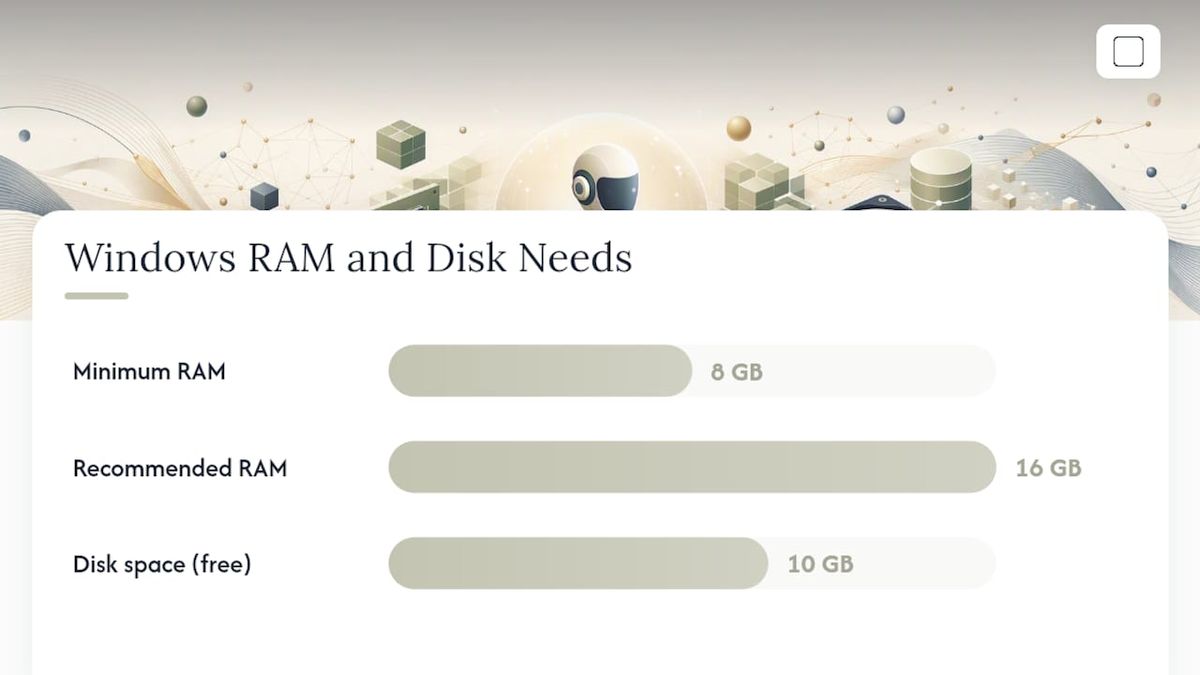
PCWorld's hardware guidance explains that a dedicated NPU handles AI-specific operations more efficiently than a CPU alone, which helps keep the system responsive and quiet during long sessions. An NPU-enabled laptop may improve AI responsiveness, while CPU-only machines can still run local AI with potentially slower responses on intensive tasks.
Before you buy, confirm:
- At least 10 GB of free disk space
- Windows 10 or 11 with recent updates installed
- Administrator rights to run the installer
How to install and run your first chat
The whole process typically completes quickly, depending on your internet speed for the model download.
- Download the installer from the GreenCube website (a standard .exe file, roughly the size of a typical desktop app)
- Run the installer — Windows may show a User Account Control prompt; click "Yes" to allow it
- Open the app — it launches like any other Windows program
- Allow the initial model download — this is the one step that needs internet; it runs automatically in the background
- Start your first chat — type any question in the chat box and press Enter
Common hold-ups: If your antivirus flags the installer, add it to your exceptions list or temporarily pause real-time scanning during install. If the model download stalls, check your disk space and restart the app.
How to use chatting, PDF reading, images, and document Q&A
Chatting is the simplest starting point. Type a question or paste text you want rewritten, summarized, or explained. The app responds in seconds on most modern hardware.
Importing a PDF takes one click. Once the file is loaded, try a prompt like: "Summarize the main findings in section 3 of this document." The app reads the file locally. Research on offline RAG pipelines confirms that document-grounded question answering works end-to-end without any external network call, which is exactly how GreenCube handles it.

Image analysis works by dropping an image into the chat window. A useful prompt: "Describe what you see in this image and list any text visible."
Pro Tip: When asking questions about a long PDF, reference the section name or page number in your prompt. It narrows the retrieval window and produces sharper answers.
How to verify the app really stays local
Three quick checks confirm genuine offline behavior:
- Airplane-mode test: Enable airplane mode after setup and send a message. A truly local app responds without hesitation
- Network monitor check: Open Windows Task Manager, go to the Performance tab, and watch network activity while the app processes a prompt. Local inference produces zero outbound traffic
- Firewall block test: Block the app's executable in Windows Firewall and confirm it still works normally
When reviewing the privacy policy before purchase, look for two things: no mandatory account creation, and no default telemetry opt-in. If the installer asks you to create an account before you can use the app, that's a signal that some processing may be happening remotely.
IBM's research on AI privacy risks and the EDPB's LLM risk framework both point to the same conclusion: keeping the full stack local, app, model, storage, and retrieval, is the most reliable way to prevent unintended data exposure. For deeper hardening steps, GreenCube's offline AI security guide covers firewall rules and storage hygiene in plain language.
What offline apps can't do
Local AI is genuinely good. It's also not cloud AI, and pretending otherwise would waste your time.
- Model size is limited by your RAM and disk. Smaller models are capable but won't match the raw output quality of the largest cloud models on open-ended creative tasks
- Knowledge cutoff is fixed at whenever the model was trained. The app won't know about last week's news
- CPU-only machines are slower on generative tasks. A feasibility study on CPU-only local inference found that structured question-answering performs reliably on CPU-only machines, while summarization tasks can be more variable.
- Updates are app-driven, not automatic. New model versions typically come as optional downloads through the app itself
The honest decision question: how often do you need real-time web knowledge versus absolute local privacy? For most document work, study, drafting, and analysis of files you already have, local AI covers the job well.
What a one-time purchase license covers
One-time-purchase AI software typically includes the app, a bundled model or models, and access to future app updates. What varies between products is whether major model upgrades cost extra and whether commercial use is permitted under the base license.
Before buying any offline AI app:
- Confirm what's included: Is a capable model bundled, or do you download it separately?
- Check the refund window: A 14- to 30-day money-back guarantee is a reasonable baseline
- Verify commercial use rights: If you plan to use the app for client work, confirm the license allows it
- Ask about major upgrades: Some products offer lifetime app updates but charge for significant new model releases
GreenCube's no-setup AI page explains its own licensing terms in plain language.
Common problems and quick fixes
Model download fails: Check available disk space first. Restart the app and let the download resume. If it stalls repeatedly, temporarily disable your VPN.
App runs slowly: Close other memory-heavy programs. On CPU-only machines, smaller quantized models respond faster with acceptable quality trade-offs.
File import doesn't work: Confirm the PDF isn't password-protected. Most local apps can't decrypt locked files without the password entered first.
Antivirus blocks the app after install: Add the app's folder to your antivirus exclusion list. Local AI executables are sometimes flagged by heuristic scanners because they load large model files.
Pro Tip: If you contact support, include a screenshot of any error message and note your Windows version and available RAM. That information cuts troubleshooting time significantly.
A practical setup guide notes that most local AI installs resolve within the first session once disk space and antivirus conflicts are addressed.
Why GreenCube fits this brief better than the alternatives
Most local AI options aimed at privacy-conscious users still require technical setup: downloading a model manager, picking a model file, configuring a local server. That's fine if you're comfortable in a terminal. For everyone else, it's a barrier that turns a promising tool into an abandoned folder on the desktop.
GreenCube skips all of that. Install it, let the model download finish, and you're chatting within the hour on typical hardware. The PDF and image features work from the same interface, no plugins, no extra steps. The one-time price means you're not recalculating whether the tool is worth keeping every month.
For readers who want a deeper comparison of offline AI options, GreenCube's full offline chatbot comparison covers the field in more detail.
GreenCube: private, offline AI for Windows at a one-time price
GreenCube is built for exactly this situation: you want a capable AI on your Windows PC, you handle documents you'd rather keep private, and you don't want another monthly subscription.
Everything runs on your machine. PDFs, images, and conversations never leave your computer. The installer is straightforward, the model is pre-configured, and the interface is clean enough that you don't need a tutorial to get started.
What you get:
- Fully offline inference after setup
- Built-in PDF and image analysis
- Local document Q&A with no external API calls
- Lifetime license, no recurring fees
- Windows support now, Mac coming
Pick up GreenCube at greencube.app/buy for a one-time purchase. If you want to read more before deciding, the full product overview is at GreenCube.
Sources
- IBM — AI privacy insights
- EDPB — AI privacy risks and mitigations in LLMs
- PCWorld — Running AI locally on your laptop: what you need to know
FAQ
What is a local AI chatbot for Windows?
A local AI chatbot for Windows is a desktop app that runs its AI model directly on your PC, with no internet connection required after setup. It processes your prompts, PDFs, and images entirely on your own hardware.
Does GreenCube require an account or subscription?
No. GreenCube is a one-time purchase with no account required and no recurring fees. After the initial model download, it runs fully offline.
How do I know the app isn't sending my data to the cloud?
Enable airplane mode after setup and send a test message. If the app responds normally, inference is local. You can also watch network activity in Windows Task Manager during a session; local processing produces no outbound traffic.
Will a local AI chatbot work on an older Windows laptop?
Yes, with trade-offs. A feasibility study on CPU-only inference found that question-answering tasks work well on modest hardware; longer summarization tasks are slower. Aim for at least 8 GB of RAM and 10 GB of free disk space.
Can I use a local AI chatbot to read and analyze my PDFs privately?
Yes. Apps like GreenCube include built-in PDF import and local document Q&A. Your files are processed on-device using a local retrieval approach, with no file content transmitted externally.
Recommended
- Best Offline AI Chatbot Apps in 2026: Full Comparison
- Best Private AI Assistant in 2026: Local and Offline
- Best Microsoft Copilot Alternatives for Privacy in 2026
- Top 3 Offline AI Solutions: Ollama Alternatives 2026
Your own AI, on your own PC
GreenCube runs on your computer: no usage limits, no subscription, works without internet. €9.99, paid once.
Get GreenCube