Secure AI on Your PC: A Private, Offline Buyer's Guide

Yes, running a private, fully offline AI on your PC is practical right now. GreenCube is the recommended one-time-purchase option for non-technical users who want to chat with documents and analyze PDFs without anything leaving their computer. Before you install, check two things: at least 50 GB of free disk space and that you're running Windows (Mac support is coming). Model files for a capable 7B AI run about 4.5 GB, and the whole setup works with no cloud account, no subscription, and no data ever sent anywhere.
Key Takeaways
A fully offline desktop AI is practical for personal document work right now, and a one-time-purchase app like GreenCube is the lowest-friction path to get there.
| Point | Details |
|---|---|
| VRAM is the key limit | Match your GPU VRAM to your model size; a 7B Q4 model needs about 4.5 GB. |
| NVMe storage matters | NVMe Gen3/4 cuts model load times to 1–5 seconds versus 30 seconds on an HDD. |
| CPU offload is a last resort | Expect only 1–5 tokens/sec when offloading; choose a model that fits your VRAM instead. |
| Harden with two steps | Block the app in Windows Firewall and encrypt your model drive with BitLocker. |
| GreenCube removes the setup barrier | One-time purchase, no accounts, no model configuration — install and start chatting with your PDFs. |
Table of Contents
- What does "secure AI on PC" actually mean for privacy?
- Who actually benefits from running offline AI on a PC?
- What hardware and storage do you actually need?
- How do model size, quantization, and CPU offload affect performance?
- How to install and run your first offline AI session
- Offline security hardening checklist for your PC
- Why GreenCube fits this audience better than a DIY stack
- The part most people underestimate about offline AI
- GreenCube: private offline AI with no setup required
- Sources
- FAQ
What does "secure AI on PC" actually mean for privacy?
"Secure AI on PC" in this context means a desktop AI app that runs inference entirely on your own hardware. No API calls, no cloud backend, no account login. Your prompts stay on your machine because there is nowhere else for them to go.
That architecture matters more than any privacy policy. As offline AI research explains, when inference runs on-device, prompts never reach a server, so there is no server-side storage or training pipeline to worry about. Privacy becomes a property of the design, not a promise from a company.
The concrete benefits of this model:
- No data egress. Nothing you type or upload leaves your PC.
- No training leaks. Your documents can't be used to improve a vendor's model.
- No policy surprises. A cloud provider can change its data-retention terms overnight. Your local model can't.
- Local export control. You decide what gets saved and where.
- Full auditability. You can inspect what the app does on your machine.
The honest limitations: your hardware caps the model size you can run, larger models need more storage, and applying updates requires a deliberate manual step rather than an automatic background sync.
Pro Tip: Before installing any offline AI app, check your OS firewall logs after the first launch. A well-built offline app should show zero outbound connections during normal use. If it phones home, that's a red flag.
One-time-purchase offline apps like GreenCube also sidestep the subscription-free privacy model problem entirely: you own the software, so there's no recurring relationship with a vendor's servers.
Who actually benefits from running offline AI on a PC?
Not everyone needs this. But for a specific group of people, it's the only setup that makes sense.
Primary audiences:
- Privacy-conscious individuals who don't want their personal writing, medical notes, or financial documents processed by a third party
- Students who need a private PDF study tool that works without Wi-Fi
- Freelance writers and creatives who draft locally and want AI assistance without a subscription
- Business professionals handling NDAs, contracts, or client files that shouldn't touch a cloud
- Teachers and tutors who analyze student work and need confidentiality
The practical use cases map directly to what offline AI does well: private PDF Q&A (ask questions about a contract or research paper), image analysis and OCR, local memo summarization, offline coding notes, and study-aid generation from uploaded course materials. Local document indexing lets the model answer questions grounded in your own files without any network call.
Pro Tip: If you're a student, try loading a textbook chapter as a PDF and asking the AI to generate practice questions. It works entirely offline and the content never leaves your laptop. More on this workflow in GreenCube's offline AI for students guide.
This setup is a poor fit for users who need the very largest frontier models (GPT-4-class scale requires cloud infrastructure), or for teams that need shared multi-user workflows. For solo personal use, though, mid-range hardware handles the job well.
What hardware and storage do you actually need?
GPU VRAM is the binding constraint. Everything else is secondary. According to LLM system requirements guidance, a 7B Q4 model needs about 4.5 GB of VRAM, a 14B Q4 needs roughly 9 GB, a 32B Q4 around 20 GB, and a 70B Q4 around 42 GB. Match your GPU to the model you want to run before buying anything else.
Minimum vs. comfortable specs:
- GPU VRAM: 6 GB minimum (runs 7B models); 12–16 GB for 14B models; 24 GB+ for 32B
- CPU: A mid-range Core i5 or Ryzen 5 is sufficient for GPU-accelerated inference; AVX2 support is required for some runtimes, and AVX-512 can give a 20–30% boost for CPU-only inference
- RAM: 16 GB minimum; 32 GB comfortable, especially if you run other apps alongside
- Storage: 50 GB free minimum; 500 GB recommended if you plan to keep a model library
- PSU: Size for GPU TDP + CPU TDP + 100W headroom; inference is a sustained full-load workload and an undersized PSU will shut the system down mid-session
Storage speed changes the experience significantly. Here's what to expect when loading a 7B model:
| Storage Type | Load Time (7B Model) |
|---|---|
| HDD | 30 seconds |
| SATA SSD | 5 seconds |
| NVMe Gen3 | 2–5 seconds |
| NVMe Gen4/5 | 1–2 seconds |
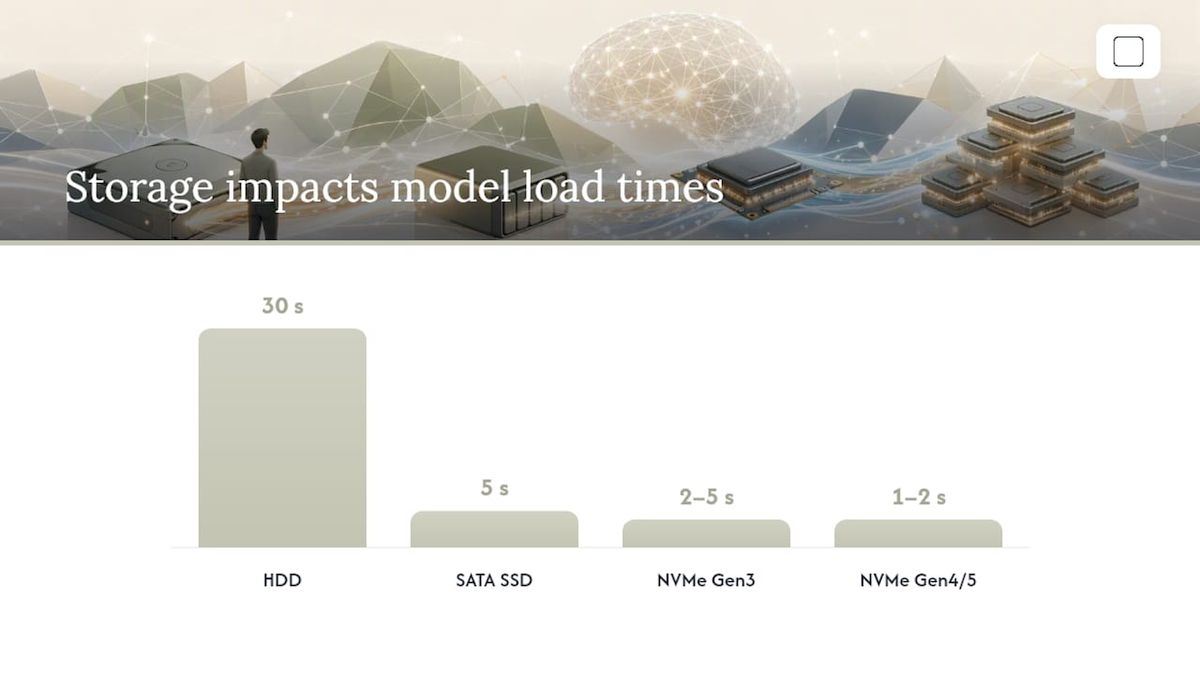
Pro Tip: NVMe Gen3 or better is the single cheapest upgrade that makes offline AI feel fast day-to-day. A 1 TB NVMe drive costs under $80 and cuts model load times from minutes to seconds.
On Apple Silicon Macs, unified memory pools GPU and system RAM together, which changes the math: a MacBook with 16 GB unified memory can fit a 7B model comfortably where a PC with 16 GB system RAM but only 6 GB VRAM cannot.
How do model size, quantization, and CPU offload affect performance?
Quantization compresses a model's weights so they take less VRAM and storage, at a small cost to accuracy. Q4 quantization (4-bit) is the practical sweet spot for most PC users: it cuts file size roughly in half compared to Q8, and the quality difference is minor for everyday document tasks.
For most personal document workflows, quantized 7B–14B models give a strong balance of speed and capability on mid-range hardware. A 7B Q4 model on a GPU with 8 GB VRAM typically delivers 20–50 tokens per second, which feels conversational. A 14B Q4 on 12 GB VRAM runs somewhat slower but handles more nuanced reasoning.
CPU offload is the fallback when a model is larger than your VRAM. The runtime pushes overflow layers to system RAM, and performance drops to roughly 1–5 tokens per second. That's readable but not interactive. Waiting 30 seconds for a paragraph is tolerable once; it's exhausting as a daily workflow. The right fix is a smaller model or a GPU upgrade, not routine offloading.
Pro Tip: To check if a model truly fits your VRAM, watch GPU memory usage in Task Manager (Windows) during the first inference call. If it spikes and then system RAM climbs too, you're offloading. Drop to a smaller quantization or a smaller model.
A simple rule of thumb: pick the largest model that fits entirely in VRAM with 1–2 GB to spare for the runtime overhead.
How to install and run your first offline AI session
This sequence works for non-technical users starting from scratch.
- Purchase and download GreenCube from GreenCube. Confirm your OS (Windows) and note the download size.
- Check free disk space. You need at least 50 GB free before downloading a model.
- Run the installer and follow the on-screen prompts. No account creation required.
- Download a model inside the app. GreenCube handles this step for you; no manual file management needed.
- Index your local documents. Point the app at a folder of PDFs. The app builds a local index so you can ask questions about your files without any network call.
- Start a test chat. Drop a single PDF into the chat and ask a simple question about it.
First-run checklist:
- Disable Wi-Fi after the model downloads and confirm the app still works
- Check that model files are stored in a local folder you control
- Take a backup copy of the model file to an external drive
- Confirm no outbound connections in your firewall or Task Manager network tab
Quick troubleshooting: if the model fails to load, the most common cause is insufficient VRAM or disk space. Slow responses usually mean CPU offloading is active. "Not enough disk" errors are self-explanatory: free up space or move models to a larger drive.
The full offline setup workflow follows the same pattern: download while online, verify integrity, then operate fully offline.
Offline security hardening checklist for your PC
Running AI locally is already more private than cloud alternatives, but a few extra steps close the remaining gaps.
Core hardening steps:
- Restrict the app's network access in Windows Firewall (block outbound for the app executable)
- Store model files in an encrypted folder using BitLocker or VeraCrypt
- Enable full-disk encryption on the drive holding your documents and models
- Set file permissions so only your user account can read the models folder
- Keep sensitive source documents in an isolated folder, separate from general downloads
- Use local-only indexes; never sync your document index to a cloud drive
Model integrity: When you download a model, verify its checksum against the published hash. Cryptographic signature verification and checksums reduce the risk of model poisoning via tampered weights, which is a real supply-chain threat for users who pull models from unverified sources.
Update policy: Apply software and model updates manually. Download the update, verify the hash, then install. Never configure the app to auto-update over a persistent network connection if you're handling sensitive documents. The GreenCube offline security guide covers this in detail.
Threats worth knowing: Physical access to an unlocked machine bypasses all software controls. Malware that exfiltrates files can still reach your documents even if the AI app itself is offline. Full-disk encryption and a screen lock are your first defenses.
Pro Tip: The two highest-impact, lowest-effort moves: enable BitLocker on your model drive and block the app in Windows Firewall. Both take under five minutes and cover the most likely attack surfaces.
Why GreenCube fits this audience better than a DIY stack
Building your own local AI stack (runtime, model manager, document indexer, UI) takes hours and assumes comfort with command-line tools. GreenCube skips all of that.
- Fully offline by design. No cloud dependency, no account, no telemetry.
- One-time purchase. Pay once at GreenCube and own it permanently, no subscription.
- No model setup. The app handles model download and configuration internally.
- Local document chat. PDF and image analysis built in, no plugins or manual RAG configuration.
- Non-technical UI. Designed for people who want results, not a terminal.
The cost model is straightforward: a one-time purchase gives you full data control and a predictable total cost, versus a cloud subscription that charges monthly and processes your documents on someone else's server. For privacy-conscious users, that's not a minor distinction.
The part most people underestimate about offline AI
Most commentary on local AI focuses on what you can't do: you can't run GPT-4-scale models, you can't get real-time web search, you can't match the raw capability ceiling of the largest cloud systems. That framing misses the point for personal document work.
For reading a contract, summarizing a research paper, or drafting a private memo, a well-quantized 7B or 14B model on mid-range hardware is genuinely good enough. The gap between a local model and a frontier cloud model is large in benchmarks and nearly invisible in everyday document tasks. What you gain in return is complete, architectural privacy: no one can change the terms of service on a model sitting on your hard drive.
The surprise, for most people who try it, is how little hardware it actually takes. A laptop with 16 GB RAM and a discrete GPU handles the workload most personal users actually have. The friction is in setup, not in capability, and that's exactly the problem GreenCube was built to solve.
GreenCube: private offline AI with no setup required
If you've read this far and you want to act, the path is short. GreenCube gives you a fully offline AI for document chat and PDF analysis with a single one-time payment, no account, and no configuration beyond the install.
Buy once at GreenCube, download, and you're running a private AI on your PC in under ten minutes. No subscription, no cloud, no model wrangling. Check that you have 50 GB free, confirm you're on Windows, and the app handles everything else. Your documents stay yours.
Sources
GreenCube guides (author E-E-A-T):
- LLM system requirements
- Local LLM hardware guide 2026
- Run AI offline: Complete guide to building an offline AI
External references:
FAQ
What does "secure AI on PC" mean for a personal user?
It means running an AI app entirely on your own computer, with no cloud connection, no account, and no data leaving your machine. Privacy is built into the architecture, not promised by a policy.
How much VRAM do I need to run offline AI comfortably?
A 7B Q4 model needs about 4.5 GB of VRAM; a 14B Q4 model needs roughly 9 GB. Six GB of VRAM is a workable minimum, and 12 GB gives you noticeably more model headroom.
Is GreenCube suitable for non-technical users?
Yes. GreenCube requires no command-line setup, no manual model configuration, and no account creation. Install it, and it works — that's the design intent for users who want results without a technical learning curve.
What happens if my model is too large for my GPU?
The runtime offloads layers to system RAM, dropping performance to roughly 1–5 tokens per second. For daily use, that's too slow. The fix is a smaller or more quantized model, not more patience.
Do I need an internet connection after the initial setup?
No. Download the app and model while online, verify the model file's integrity, then disconnect. Everything after that runs fully offline, including document indexing and PDF chat.
Recommended
- Offline AI Security: A Practical Hardening Guide
- AI Without Internet: Run Local AI Privately on Any Laptop
- Offline AI for Students: Study Privately on Your Laptop
- Best Microsoft Copilot Alternatives for Privacy in 2026
Your own AI, on your own PC
GreenCube runs on your computer: no usage limits, no subscription, works without internet. €9.99, paid once.
Get GreenCube