Pay €9.99 Once for GreenCube, a Private Local AI UI for Windows

GreenCube is the best local AI UI for Windows users who want a private, offline assistant without a subscription. It runs local AI model inference entirely on your PC, costs a one-time fee, and asks for nothing but a single model download and a quick sign-in to verify your license.
TL;DR:
- GreenCube requires at least 8GB of RAM and a modern CPU for optimal performance, especially with the bigger model that handles images and larger files.
- It is best suited for privacy-conscious users dealing with sensitive documents or those needing offline access in environments with unreliable or no internet connection.
- Expect slower response times on CPU-only setups, with the bigger model taking longer to process large PDFs or build detailed study guides.
- The software does not automatically update models, meaning users must manually download any improved versions to maintain optimal functionality.
- For complex reasoning tasks or cross-device use, cloud AI remains the better option, as local models are less capable in multi-step reasoning and speed.
Table of Contents
- What Does GreenCube Actually Do?
- Who Actually Needs a Local AI UI?
- What Hardware Do You Need to Run It Well?
- How Do You Install and Set Up GreenCube?
- What Actually Stays Private, and What Doesn't?
- When Should You Use Cloud AI Instead?
- Why Won't GreenCube Install or Start Correctly?
- How Do Updates and Maintenance Work?
- The Real Trade-Off Nobody Says Out Loud
- Get GreenCube and Start Working Offline Today
- Sources
- FAQ
What Does GreenCube Actually Do?
GreenCube gives you a private chat window and a document reader that both run on your own hardware, not on someone else's server. You can ask questions, draft text, or hand it a PDF for analysis, and none of that content travels anywhere during normal use.
At setup, you pick one of two local models, and that choice shapes what the app can do:
- the smaller model (Gemma 4 E2B, about 2.6 GB): fast responses, plain text only, no image reading.
- the bigger model (Gemma 4 E4B, about 4.2GB): reads images, builds study guides and documents, but runs slower and needs more memory.
Only the bigger model handles images. If you need GreenCube to look at a scanned page or a photo of a whiteboard, choose the bigger model, as the smaller model will not do it. The engine behind both models is llama.cpp, a runtime built so the inference itself never touches the network once the model file is on disk.
GreenCube's price is €9.99 / $9.99, one time, tax included — no subscription, no recurring charge. If it doesn't fit your workflow, the 15-day refund window covers you.
Who Actually Needs a Local AI UI?
A local AI UI makes the most sense for a specific set of people, not everyone who touches AI tools.
- Privacy-first users who don't want chat logs sitting on someone else's server.
- Students working with confidential notes, thesis drafts, or research they aren't ready to share.
- Professionals handling client files, medical notes, or contracts that carry real confidentiality obligations.
- Non-technical users who want something that installs and just works, without command lines.
Local tools fit best when the material is sensitive, the internet connection is unreliable, or you simply want an assistant that works on a plane or in a building with no Wi-Fi. Cloud tools still win when you need frontier-level reasoning on a hard problem, or you're switching between a phone, tablet, and laptop throughout the day. Research comparing local and cloud AI for student use backs this split: local is the safer default for confidential documents, cloud is the easier default for raw reasoning power and cross-device convenience.
GreenCube runs on Windows 10 and 11 only, with a Mac version in development.
Pro Tip: If you split your work between a desktop and a phone, keep drafts local in GreenCube for the sensitive parts and finish polish or research in a cloud tool on other devices.
What Hardware Do You Need to Run It Well?
The two models have different appetites, and your hardware decides which one makes sense for you.
- The smaller model needs about 2.6 GB of disk space and runs fine on modest machines.
- the bigger model needs about 4.2GB of disk space and at least 8GB of RAM, which is a floor, not a comfort zone — on older laptops, expect noticeably slower responses.
- Both models live in a local folder on your drive; if that folder sits inside an encrypted volume or a synced cloud folder like OneDrive or Dropbox, it's worth moving the model cache out of the sync path to avoid needless uploads of large files.
Speed depends heavily on your processor. CPU-only setups running a model in the 3B range typically produce somewhere between 2 and 6 tokens per second, which feels acceptable for a chat conversation but slow for anything you'd call instant. A dedicated GPU speeds things up considerably, but GreenCube is built to run without one. Batch document processing, like summarizing a long PDF, will always take longer than a short chat reply, so plan for that if you're processing a large file.
If your machine has 8GB of RAM and an older CPU, the smaller model is the more realistic daily driver. Save the bigger model for when you actually need it to read images or build longer study guides.
How Do You Install and Set Up GreenCube?
Getting GreenCube running takes a handful of steps, and none of them require technical knowledge.
- Download the Windows installer and run the setup file on Windows 10 or 11.
- When prompted, choose between the smaller model and the bigger models. This triggers the one-time model download, roughly 2GB or 4.2GB depending on your pick.
- Sign in with your Google or Microsoft account. This step exists only to verify your one-time license, not to sync or upload your conversations.
- Once setup finishes, turn off your Wi-Fi or unplug your ethernet cable and open a new chat to confirm the model responds without an internet connection.
- Try feeding it a PDF if you chose the bigger model, to make sure document analysis loads correctly offline.
That last step matters more than people think. After the initial download, local inference should run completely disconnected from the network, and testing that yourself is the only way to know your setup actually works the way it's supposed to.
Pro Tip: Run your offline test right after installing, while you still remember which network settings you changed. It's much easier to troubleshoot a fresh install than one you set up three weeks ago and forgot about.
For a walk-through with screenshots, the step-by-step install guide covers the same process in more visual detail.
What Actually Stays Private, and What Doesn't?
Chat conversations and document processing happen entirely on your device. That's the core promise, and it holds for normal use of GreenCube's local AI model inference features.
What doesn't stay purely local: signing in through Google or Microsoft to verify your license, and checkout, which runs through Stripe. Neither of those touches your chat content or the files you analyze, but they are real network requests, so it's fair to be precise about it rather than claim nothing ever leaves your machine.
A few habits reduce your exposure further:
- Exclude the GreenCube model and chat folders from automatic cloud sync (OneDrive, Dropbox, iCloud).
- Turn on full-disk encryption (BitLocker on Windows) if your laptop could be lost or stolen.
- Set a retention or auto-delete habit for old chat logs if you're processing anything sensitive.
| What stays local | What doesn't |
|---|---|
| Chat conversations | License sign-in (Google/Microsoft) |
| Document (PDF) analysis | Checkout (Stripe) |
| Model inference | None of your chat or document content |
None of this protects you from someone with physical access to an unlocked, unencrypted device. Local AI removes the server as an attack surface, but it doesn't replace basic device security. Privacy guides for local AI setups consistently point to the same gap: the software can be airtight and still leak through an unencrypted laptop left on a train.
When Should You Use Cloud AI Instead?
Local-first tools like GreenCube win on three things: you own the software outright, it works with no internet connection, and you pay once instead of monthly. For a student writing a thesis on a laptop with spotty dorm Wi-Fi, or a professional who can't risk a client contract touching a third-party server, that combination is hard to beat.
The honest trade-offs run the other way too. Local models are weaker at complex, multi-step reasoning than the largest cloud models, and running on CPU alone is simply slower than a data center GPU cluster. You also manage your own model updates instead of a service doing it invisibly in the background.
- Choose local for private files, early drafts, and offline work.
- Choose cloud for the hardest reasoning problems or when you need the same conversation on your phone and laptop within seconds.
A sensible rule: draft and analyze anything confidential locally first, then move a scrubbed or already-shared version to a cloud tool if you need heavier lifting later.
Why Won't GreenCube Install or Start Correctly?
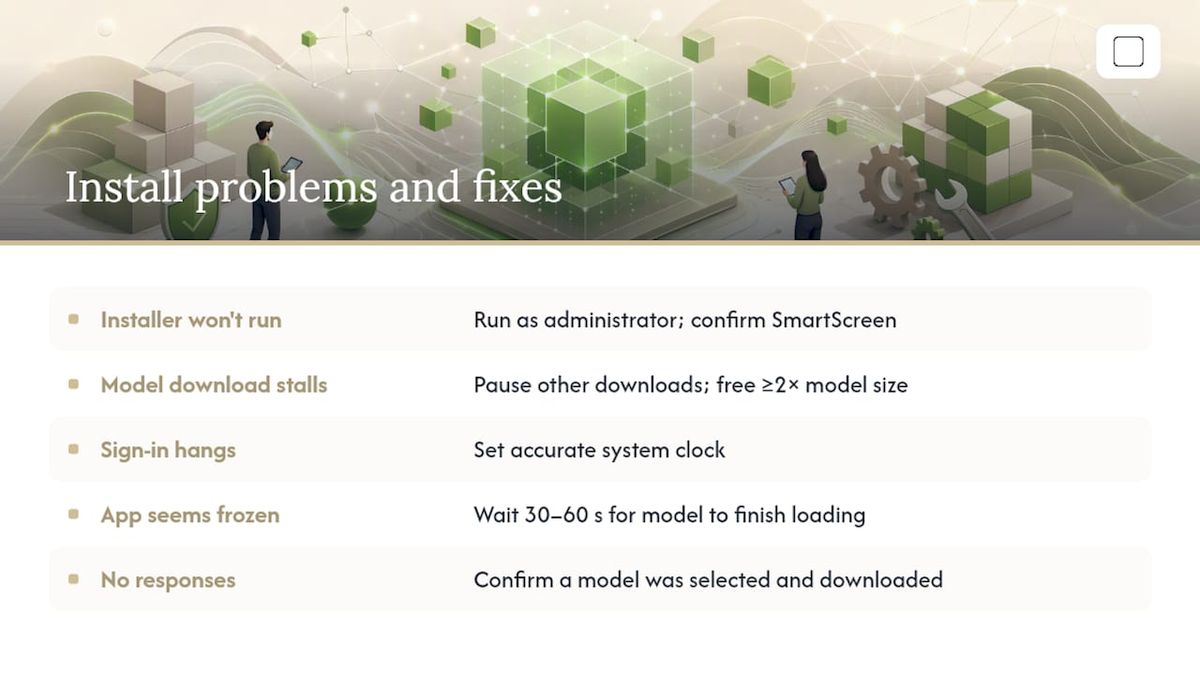
Most installation problems trace back to one of a few predictable causes, and each has a quick fix.
Installer won't run. Windows sometimes flags new installers as unrecognized. Right-click the file, choose "Run as administrator," and confirm through any SmartScreen warning if you downloaded it directly from GreenCube's site.
Model download stalls or fails. A 2GB or 4.2GB download can stall on an unstable connection. Pause any other heavy downloads, check you have enough free disk space (double the model size is a safe buffer), and restart the download from the setup screen rather than the whole installer.
Sign-in won't complete. If the Google or Microsoft sign-in window hangs, check that your system clock is accurate. A clock that's drifted breaks the security handshake most sign-in flows rely on.
App feels frozen after launch. This usually means the model is still loading into memory, especially on machines near the 8GB RAM floor. Give it 30 to 60 seconds before assuming it's stuck, particularly with the bigger model.
Responses never appear even after loading. Confirm you selected a model during setup. GreenCube needs one of the two downloaded before it can generate anything at all.
If none of that resolves it, a clean reinstall after deleting the old model folder solves the majority of remaining edge cases, since a partially downloaded model file is the most common root cause of odd behavior.
How Do Updates and Maintenance Work?
GreenCube doesn't need constant babysitting, but a few habits keep it running smoothly over time.
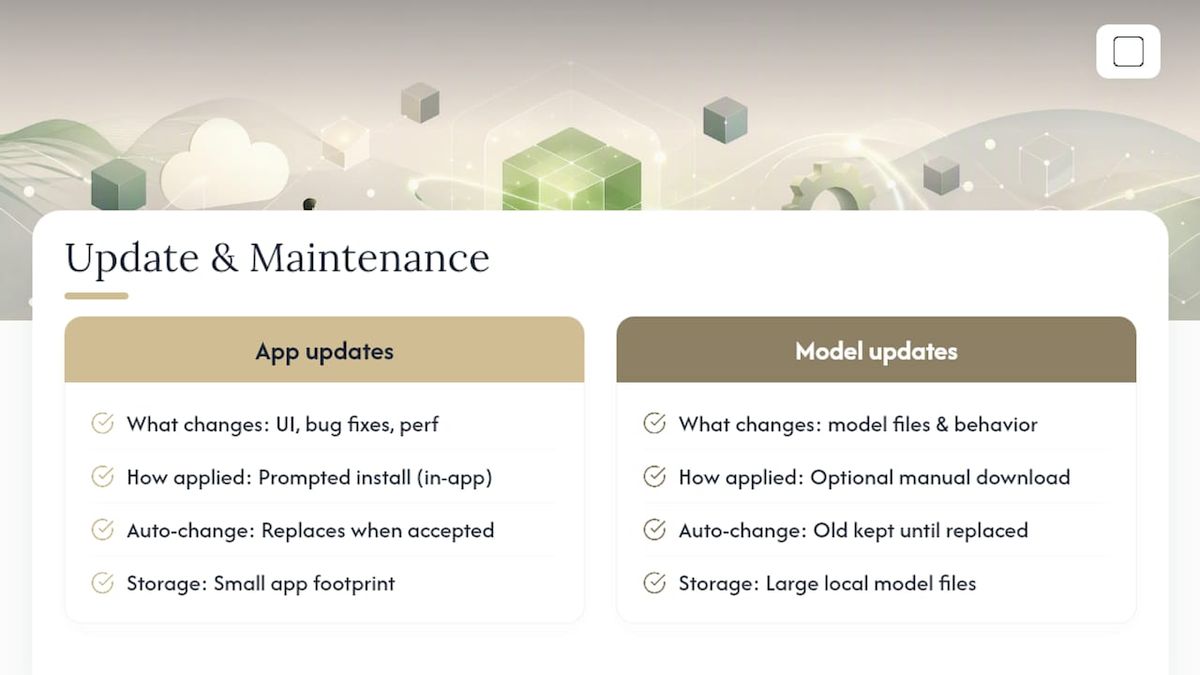
App updates cover the interface, bug fixes, and performance improvements, separate from the AI models themselves. When a new version is available, GreenCube will prompt you inside the app rather than forcing a background install you didn't ask for.
Model updates are a different matter. Because the smaller model and the bigger model are downloaded once and stored locally, they don't silently change on their own. If GreenCube releases an improved version of a model, you'll be offered the option to download it, and the old version stays put until you choose to replace it. That's a deliberate trade-off: you get stability and predictability instead of a model that behaves differently overnight.
A little disk hygiene goes a long way. Periodically check how much space your model files and chat history are using, especially if you installed both the smaller model and the bigger model to compare them. Clearing out old chat exports or unused model versions keeps your drive from filling up unnoticed. If you ever move to a new PC, you'll need to reinstall and re-download your chosen model since nothing is stored in the cloud to restore automatically.
For deeper background on how the underlying models differ and when to switch between them, the guide to local AI models breaks down the resource and capability differences in more detail.
The Real Trade-Off Nobody Says Out Loud
Most advice on local AI treats it like a straight upgrade over cloud tools, ownership and privacy with none of the downsides. That's not honest, and readers deserve better than marketing dressed up as analysis.
The truth is more useful: you're trading raw capability for control. GreenCube won't out-reason the largest cloud models on a genuinely hard problem, and it shouldn't claim to. What it does is remove the two things people actually worry about when they hesitate to use AI for sensitive work: a subscription they can't predict, and a server they don't control.
The conventional advice to "just use whichever AI is free" ignores that free cloud tools monetize your data one way or another. GreenCube's one-time price flips that equation. If you're a student drafting something you're not ready to share, or a professional with files you're contractually obligated to protect, that trade is worth making even if the AI itself is less powerful.
Prioritize matching the tool to the job, not chasing the most impressive model. For most everyday writing and document work, "good enough and private" beats "impressive and exposed."
— GreenCube
Get GreenCube and Start Working Offline Today
GreenCube is built for exactly the situation this guide has walked through: a Windows desktop assistant that works offline, keeps your chats and documents on your own machine, and costs a one-time fee instead of billing you every month. You pick the smaller or bigger model at setup, download that one model, and you're running.
Sign-in through Google or Microsoft only confirms your license, and if GreenCube doesn't fit your workflow within 15 days, the refund policy has you covered. Head to the GreenCube product page to see both models compared side by side, or go straight to the purchase page to get your one-time license and start the download. Once it's installed, test it with your Wi-Fi off, exactly like the install steps above walk through, so you know your private assistant actually works the way it's supposed to.
Sources
- Local AI for Privacy: Running a Completely Offline AI Assistant in 2026 - ML Journey
- Local AI vs Cloud AI for Private Student Research
- Local AI for privacy — what you actually get (May 2026) | RunLocalAI
FAQ
Is GreenCube Really Free to Use After Purchase?
GreenCube costs a one-time fee with no subscription. After that single payment, local AI model inference carries no recurring fees.
Does GreenCube Work Without an Internet Connection?
Yes, after the initial setup and one-time model download, GreenCube's chat and document analysis run fully offline with no internet required.
Which GreenCube Model Should I Choose, the smaller or bigger model?
Choose the smaller model (about 2.6 GB) for fast, text-only chat on modest hardware, and the bigger model (about 4.2GB, needs at least 8GB RAM) if you need it to read images or build study guides.
Can GreenCube Read Images and Scanned Documents?
Only the bigger model reads images. The smaller model is and cannot process image content.
Does Signing In With Google or Microsoft Expose My Chats?
No. Sign-in verifies your one-time license only, while your chat conversations and document analysis stay on your device.
What Happens if GreenCube Doesn't Work for Me?
GreenCube offers a 15-day refund policy, so you can request a refund if the app doesn't meet your needs within that window.
Recommended
- Save $200+ a Year Choosing GreenCube vs Claude for Private Offline AI
- Keep Chats Local on Windows: ChatGPT or GreenCube (€9.99 One-Time)
- No Rate Limit AI for Privacy-First Users: GreenCube
- Offline AI Setup on Windows: Private, Local, and Easy
Your own AI, on your own PC
GreenCube runs on your computer: no usage limits, no subscription, works without internet. €9.99, paid once.
Get GreenCube