Best AI for Teachers: Teacher-Tested Picks by Priority
If privacy is your top concern, pick a local, offline desktop app. If you need faster lesson drafts, a general-purpose assistant like ChatGPT or Gemini works fine. If the grading load is crushing you, a rubric-aware grading tool is worth the setup time. If you want personalized student practice, a curriculum-integrated tutor beats a generic chatbot every time.
That is the whole map. The right answer to "best ai for teachers" depends entirely on which problem hurts most right now, not on finding one app that does everything.
On grading specifically, the reliability bar is lower than most teachers assume. Independent tests of a local grading tool called OpenMarker found its untuned scores deviated from human grading by an average of about 7%. That is not perfect, but it is close enough to use as a first pass before a teacher does final review. For privacy, GreenCube runs entirely offline on a Windows laptop and never sends chat content or documents anywhere.
- Privacy/local: Best for sensitive student work and district policy limits; setup requires a one-time model download; cost is a flat one-time fee.
- Lesson planning: Fastest for first drafts; cloud-based; free tiers exist but often cap usage.
- Grading automation: Cuts first-pass grading time; needs rubric setup; accuracy varies by tool and subject.
- Student practice: Best for differentiation; usually subscription-based; some require LMS integration.
Start with the checklist below to match your constraints (device, budget, IT policy) to the right category before you commit to a tool.
Key Takeaways
The most reliable approach to classroom AI matches the tool category to your top priority, privacy, planning speed, grading load, or student practice, rather than searching for one universal app.
| Point | Details |
|---|---|
| Match tool to priority | Privacy, planning, grading, and practice each call for a different category of AI tool. |
| Grading tools aren't perfect | Local grading tests show roughly a 7% average deviation from human scores, useful as a first pass, not a final grade. |
| Pilot before you commit | Run a one-week trial on one class with clear success metrics before scaling any tool. |
| Check IT constraints early | RAM minimums, sign-in requirements, and district privacy policy can block a tool that otherwise fits. |
| GreenCube fits privacy-first needs | A one-time €9.99 / $9.99 Windows app that processes chats and documents locally, requiring only a license sign-in. |
Table of Contents
- What Do Teachers Actually Need From AI Tools?
- Teacher-Tested Classroom Use Cases You Can Try This Week
- How Do You Choose the Right AI Tool for Your Classroom?
- Why Consider a Privacy-First Local Option Like GreenCube?
- A 6-Step Pilot Plan to Try AI in One Class This Week
- What Teachers Get Wrong About Choosing Classroom AI
- Try GreenCube for Private, Offline Classroom AI
- Sources
- FAQ
What Do Teachers Actually Need From AI Tools?
Most classroom AI tools fail teachers not because they lack features, but because they ignore how schools actually operate. A tool that generates brilliant lesson plans is useless if it cannot export to your gradebook or if your district's IT office blocks it outright.
The core requirements repeat across every teacher-tested list: fast lesson drafts that still require your judgment, rough alignment to state or Common Core standards, grading support that respects your rubric instead of inventing its own, and differentiation options for mixed-ability classrooms. Sharing output with co-teachers or students needs to be simple, and any tool touching student work should meet basic accessibility standards.
Then come the constraints nobody puts in the marketing copy. Older classroom laptops often sit at 4GB or 8GB of RAM, which rules out some local AI tools entirely. School IT departments increasingly require a privacy review before any new software touches student data, and license verification through a Google or Microsoft sign-in has become standard even for otherwise offline apps.
Pricing shapes matter too:
- Free tier: Fine for occasional use, but usage caps and ads make daily reliance risky.
- Subscription: Good for ongoing planning and grading support if the district is footing the bill.
- One-time purchase: Best for individual teachers who want a fixed cost with no recurring fees, especially for privacy-sensitive local tools.
Look for tools with documented evaluation criteria, a clear privacy statement, and system requirements stated plainly, not buried in a support article.
Teacher-Tested Classroom Use Cases You Can Try This Week
These come from real classroom workflows, not hypothetical demos. Each one takes under 30 minutes and produces something you can grade, hand out, or send home today.
- Lesson planning draft. Feed the AI your unit topic, grade level, and time slot. Ask for a 45-minute lesson with a warm-up, main activity, and exit ticket. Check the output against your actual standards document before using it. This is one of the most common teacher-tested workflows because it turns a blank page into an editable starting point.
- Formative assessment questions. Give the AI a reading passage or concept and ask for five multiple-choice and two short-answer questions at a specific difficulty level. Spot-check for trick wording or ambiguous answer keys.
- Rubric-based grading pass. Upload student writing along with your rubric criteria. Ask for scores per category, not just an overall grade. Local tools that use deterministic settings and score clamping produce more repeatable results than tools that let the model freely assign points.
- Differentiated practice sets. Ask for three versions of the same worksheet at different reading levels. Compare vocabulary and sentence complexity across versions before printing.
- Parent communication drafts. Describe the situation (missed assignment, behavior note, praise) and ask for a two-paragraph email in a warm, professional tone. Always personalize the student's name and specifics before sending.
- Substitute plans. Give the AI your weekly objectives and ask for a self-contained lesson a non-specialist sub could run. Test it by reading it as if you know nothing about your own class.
Quick example: Prompt: "Write a 5-question exit ticket on photosynthesis for 7th grade, mixed multiple choice and short answer." Output: five questions with an answer key. Edit checklist: verify vocabulary matches your unit, remove any question relying on outside knowledge you have not taught yet.
Pro Tip: Never share AI-generated content with students before reading it yourself line by line. Bias, factual errors, and mismatched reading levels slip through more often than most teachers expect, especially in science and history content.
How Do You Choose the Right AI Tool for Your Classroom?
Run through this checklist before you commit to anything, in priority order:
- Privacy first. Does student data leave the device? If yes, under what policy, and does your district allow it?
- Ease of use. Can you produce usable output in your first 15 minutes, without a training session?
- Integration. Does it export to your LMS or gradebook, or do you retype everything manually?
- Cost structure. Is it free with caps, subscription-based, or one-time? Match this to who is paying, you or the district.
- Support and training. Is there documentation, a support inbox, or teacher onboarding material?
- System requirements. Does it run on the hardware you actually have, not the hardware in the demo video?
Questions worth putting directly to a vendor or your IT lead:
- "Does student data leave the device, and if so, where does it go?"
- "What sign-in is required, and what does it verify?"
- "Can output be exported to our existing gradebook or LMS?"
- "What happens to data if we cancel or stop using the tool?"
Watch for these red flags: a privacy policy that is vague about data retention, mandatory cloud uploads for basic features, or a "free" tool that paywalls the one feature you actually need. If you get to pilot a tool for a week, judge it on four things: how fast it delivered value, how much extra effort it demanded from you, whether students noticeably benefited, and how much friction IT raised along the way.
Why Consider a Privacy-First Local Option Like GreenCube?
For teachers handling sensitive student writing, IEP notes, or anything a district privacy officer would flag, a local desktop app changes the calculus entirely. GreenCube runs chat and document analysis directly on a Windows PC, with no cloud processing involved in the actual AI work. It costs €9.99 / $9.99 as a one-time purchase, not a subscription, with a 15-day refund window.

Setup is not instant: you choose between two local models and download one. the smaller model (Gemma 4 E2B, about 2.6 GB) handles fast text tasks but cannot read images. the bigger model (Gemma 4 E4B, about 4.2GB) reads images and builds study guides, but runs slower and needs at least 8GB of RAM, which is a floor, not a comfortable target on older laptops.
One clarification worth stating plainly: chats and documents stay on the device, but signing in through Google or Microsoft is still required to verify the one-time license, and checkout runs through Stripe. No lesson content or student work is transmitted during that step, but it is not a fully anonymous, sign-in-free product.
| Best for | Ease of setup | Privacy / data handling | Cost | Platform | System requirements |
|---|---|---|---|---|---|
| Sensitive student documents, offline classrooms | Moderate, one model download required | Local chat and document processing; sign-in only verifies license | €9.99 / $9.99 one-time | Windows desktop app | 8GB RAM minimum for the bigger model |
Choose local when you are grading student writing you cannot legally upload to a cloud vendor, when your school bans third-party data sharing, or when your classroom internet is unreliable. Cloud-first tools remain a reasonable choice for lower-stakes tasks like drafting a generic worksheet with no student data involved. For more on how local models handle memory and speed tradeoffs, see this breakdown of local AI models.
Pro Tip: If you're pitching a local AI pilot to your IT department, ask them to confirm three things upfront: whether the app's license verification step is acceptable under district data policy, whether the minimum RAM matches your issued devices, and whether a 15-day refund window is enough time to run a real trial.
A 6-Step Pilot Plan to Try AI in One Class This Week
- Pick the job (20 minutes): Choose one task, grading, lesson drafts, or practice sets, not all three at once.
- Pick the privacy mode (10 minutes): Decide if the task involves student data that needs to stay local.
- Set success metrics (15 minutes): Define what "worked" looks like: time saved, quality improvement, or student engagement.
- Run the pilot (one 30-minute class session): Use the tool live or with real student work, not a demo dataset.
- Evaluate outcomes (15 minutes): Compare against your success metrics honestly, including what went wrong.
- Iterate or scale: Adjust prompts and rubrics, then expand to a second class or drop the tool if it added more friction than value.
Pro Tip: Save your best prompts in a shared doc with your grade-level team. A prompt that worked for one unit usually works for the next, with small edits. For IT approval packets and offline setup guides, see this practical hardening guide.
What Teachers Get Wrong About Choosing Classroom AI
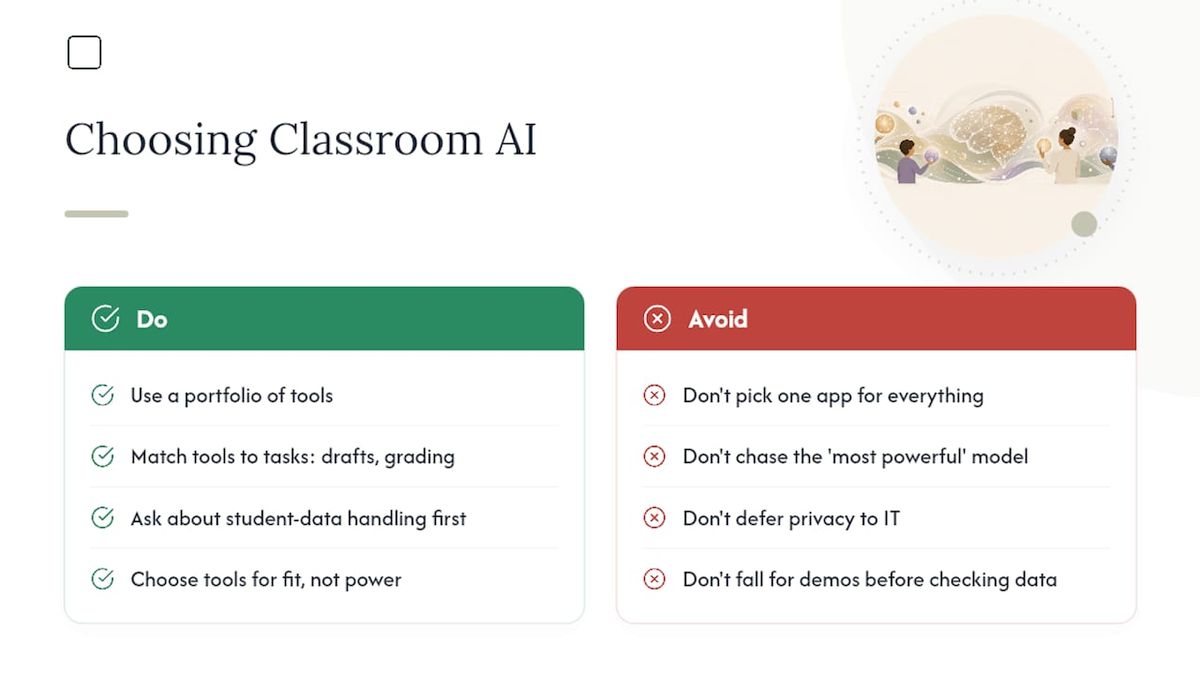
Most advice on this topic treats "best AI for teachers" as a single-winner question, as if one app should replace your entire workflow. It shouldn't. The research backs a portfolio approach: one tool for fast drafts, a different one for grading, and a privacy-first option for anything involving real student data.
The overrated advice is chasing the most "powerful" model. Power matters far less than fit.
What gets underrated is the privacy conversation. Teachers often treat data handling as an IT problem to solve later, after they've fallen in love with a tool's output. Flip that order. Ask what happens to student data before you fall for the demo. Local tools like GreenCube exist precisely because that question deserves an answer up front, not as an afterthought during a district audit.
Try GreenCube for Private, Offline Classroom AI
GreenCube gives you a way to grade, draft, and analyze student documents without sending any of that content to a cloud server, a real advantage when you're handling IEP notes, sensitive writing, or anything your district would rather keep off third-party servers. Unlike subscription-based classroom AI tools, it's a one-time purchase of €9.99 / $9.99 with no recurring fees and a 15-day refund window if it doesn't fit your workflow.
Setup takes a few minutes: install the Windows app, choose between the smaller, faster model or the bigger model, and sign in once through Google or Microsoft to verify your license. After that, your chats and documents process entirely on your own laptop. If you're ready to try it on your own grading pile or lesson drafts this week, get GreenCube here and start your first pilot session tonight.
Sources
Start with the Purdue Libraries guide on AI tools for teaching for a neutral evaluation framework built for educators. Edutopia's roundup of teacher-tested AI tools covers beginner-friendly workflows that actually save prep time. EdWeek's reporting on how teachers are using AI gives a balanced look at both benefits and risks in real classrooms. For the technical side of local grading, the OpenMarker project and the ai-assignment-grader documentation show how deterministic scoring and score clamping work in practice. If you want to trial a private, offline option, GreenCube's landing page explains setup and pricing in full.
- Artificial Intelligence (AI): AI Tools for Teaching and Learning
- 5 Teacher-Tested AI Tools for Beginners
FAQ
Which Is the Best AI for Teachers?
There's no single best option. Privacy-focused classrooms should try a local tool like GreenCube, while teachers prioritizing speed on lesson drafts often prefer a general-purpose cloud assistant.
Is There a Version of ChatGPT Built for Teachers?
ChatGPT itself is general-purpose, but education-focused assistants like Khanmigo build curriculum-aligned features on top of similar underlying technology for classroom use.
Which AI Model Is Best at Teaching-Related Tasks?
No single model dominates every task. Cloud models tend to handle complex lesson design better, while local, rubric-aware tools often produce more consistent grading, with tested tools showing around a 7% average deviation from human scores.
Is a Local AI Tool Like GreenCube Good for Grading Papers?
It can handle a rubric-aware first pass on written work entirely offline, though teachers should still review scores manually since local grading tools carry a measurable margin of error.
Do I Need Internet Access to Use an Offline AI Tool?
No, the AI chat and document analysis run without an internet connection once the app and model are installed, though the initial license sign-in requires connectivity.
Recommended
- Offline AI for Students: Study Privately on Your Laptop
- Best Perplexity Alternatives in 2026 for Research and Work
- The Best Bard Alternatives in 2026: Ranked and Compared
- Best Private AI Assistant in 2026: Local and Offline
Your own AI, on your own PC
GreenCube runs on your computer: no usage limits, no subscription, works without internet. €9.99, paid once.
Get GreenCube