Best AI Desktop Apps for Productivity in 2026
The best AI desktop apps right now, ranked by use case: GreenCube (best offline/privacy-first), Cursor (best for developers), Claude desktop (best cloud-native desktop client), Descript (best for audio/video), Automatic1111 (best for local image generation), and Google Labs (best free ecosystem for experimentation). For most privacy-conscious professionals who want a capable AI they actually own, GreenCube is the clearest recommendation: it runs fully offline, requires no subscription, and requires no account or cloud connection.
- Best overall for privacy and offline use: GreenCube
- Best for developers: Cursor
- Best cloud-native desktop client: Claude (Anthropic)
- Best for audio, transcription, and video: Descript / ElevenLabs
- Best for local image generation: Automatic1111
- Best free/experimental ecosystem: Google Labs
Table of Contents
- What are the best AI desktop apps in 2026?
- How were these apps selected and tested?
- How do you choose the right AI desktop app for your workflow?
- Key Takeaways
- The case for owning your AI, not renting it
- GreenCube: private desktop AI you own outright
- Useful sources
- FAQ
What are the best AI desktop apps in 2026?
The market has fractured into distinct categories, and the right pick depends almost entirely on what you actually need the app to do on your machine. Below is a detailed breakdown of each major category and the named apps within it.
GreenCube: the private, offline desktop AI
GreenCube is the only mainstream desktop AI that ships as a true one-time purchase with zero cloud dependency. Install it on Windows, open it, and it works: chat, read PDFs, analyze images, all without sending a single byte to a remote server. There is no account creation, no subscription renewal, and no model configuration required.
That last point matters more than it sounds. Most "offline" AI tools still require you to pull model weights manually, configure a local server, or manage dependencies. GreenCube handles all of that internally. The target user is a privacy-conscious professional or student who wants a capable AI assistant without the ongoing cost or data exposure of a cloud subscription.
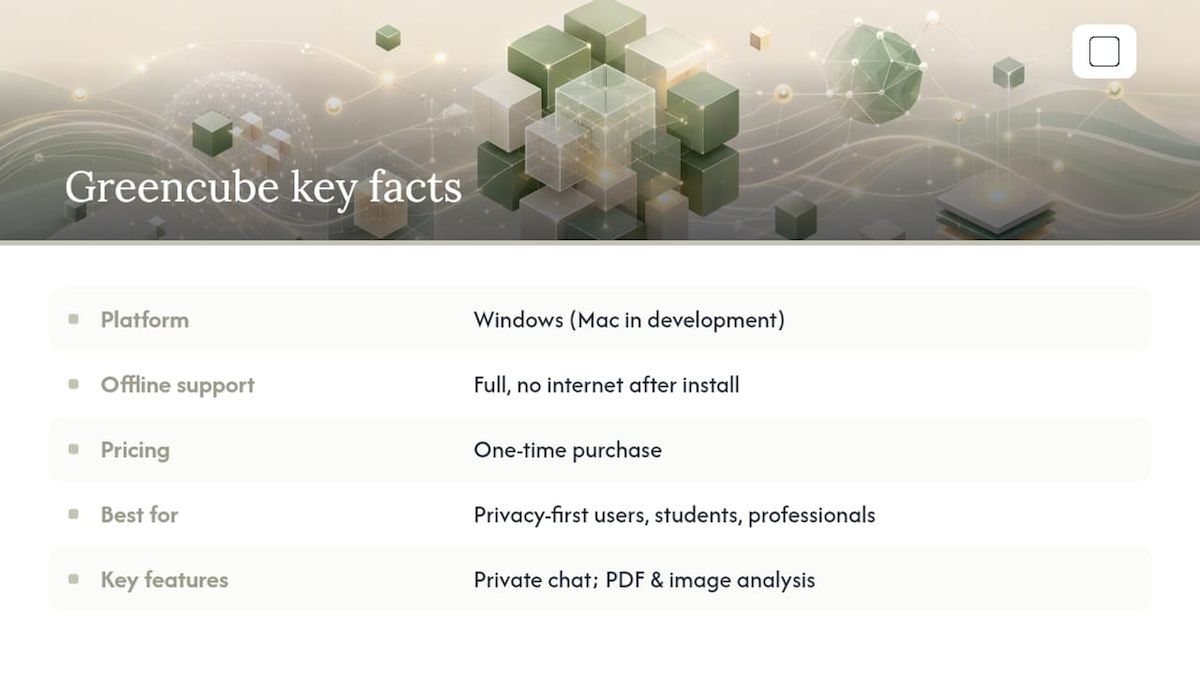
Best for: Privacy-first users, students with sensitive documents, professionals handling confidential files. Platform: Windows (Mac in development). Offline support: Full, no internet required after installation. Pricing: One-time purchase. Key features: Private chat, PDF reading and analysis, image understanding.
Pros: No subscription, no data collection, no setup friction, works in airplane mode. Cons: Windows-only for now, reasoning ceiling is lower than the largest cloud models.
For a deeper look at how offline AI compares across tools, the offline AI chatbot comparison covers the trade-offs in detail.
Claude (Anthropic): the desktop-capable cloud client
Claude's desktop app is one of the more polished native clients available for a cloud-hosted model. It supports desktop extensions that connect to local files and apps, drag-and-drop file access, and enterprise deployment installers for both Windows and Mac. Claude Code and Claude Cowork extend the desktop client into coding and app-level integrations.
Best for: Professionals who want a capable cloud model with a native desktop feel and file access. Platform: Windows, Mac. Offline support: No (cloud-dependent). Pricing: Free tier; Pro subscription for higher usage. Key features: Chat, file access, coding agent (Claude Code), enterprise installer.
Pros: High reasoning quality, polished UI, strong enterprise support. Cons: All data processed server-side; requires internet; subscription for full capability.
ChatGPT (OpenAI): the most recognized cloud desktop app
OpenAI's desktop app for ChatGPT brings the familiar interface to Mac and Windows with native shortcuts, file drag-and-drop, and voice mode. It connects to GPT-4o and the broader OpenAI model family. The desktop client is essentially a wrapper around the web product, but it integrates more cleanly with system-level shortcuts than a browser tab.
Best for: Users already in the OpenAI ecosystem who want a faster, shortcut-driven interface. Platform: Windows, Mac. Offline support: No. Pricing: Free tier (GPT-3.5); ChatGPT Plus subscription for GPT-4o. Key features: Chat, voice, image generation (DALL-E), file analysis, plugin ecosystem.
Pros: Widest model access, strong plugin library, frequent updates. Cons: Cloud-only, subscription required for the best models, data processed by OpenAI.
Cursor: the developer coding agent
Cursor is the standout tool for software engineers who want AI woven directly into their editor. It runs in the terminal and IDE, reviews pull requests, collaborates in Slack, and can launch parallel fleets of agents to handle long-running build and test jobs. The autonomous agent mode is what separates it from a simple autocomplete tool: Cursor can plan, execute, and iterate across a codebase without constant prompting; some features require cloud access.
Best for: Software engineers automating code tasks, tests, and CI workflows. Platform: Windows, Mac, Linux (native IDE). Offline support: Partial (editor works offline; agent features require cloud). Pricing: Free tier; Pro subscription for extended agent use. Key features: Code generation, autonomous agents, PR review, terminal integration, multi-model support.
Pros: Deep IDE integration, agent fleet capability, supports multiple underlying models. Cons: Overkill for non-developers; agent features are cloud-dependent.
Desktop executor and automation apps
Apps like Desktop Commander and Knapsack Desktop represent a different category: they don't just chat, they act. Desktop Commander runs agents locally that can organize files, execute shell commands, fill forms, and report results back to the user. Knapsack Desktop goes further by driving both native apps and browsers like a human operator, with user-controlled API keys and local data handling.
Best for: Users who need cross-app automation and real desktop actions, not just conversation. Platform: Varies by app; most support Windows and Mac. Offline support: Partial (execution is local; model calls may be cloud-routed). Pricing: Varies; most offer free tiers with usage caps. Key features: File automation, form filling, browser control, app driving, action logs.
Pros: Genuine task execution rather than chat-only; visible action logs; model-agnostic. Cons: Requires careful permission management; sandboxing varies by app; not suitable for sensitive environments without review.
Pro Tip: Before granting any desktop executor app full file-system access, read its data-flow documentation. Some route commands through vendor servers even when execution is local.
Descript and ElevenLabs: audio, video, and transcription
Descript is the go-to desktop app for content creators who need multitrack transcription, non-destructive audio editing, and AI-powered overdub. It handles podcast production, video editing, and screen recording in one native app with local GPU acceleration where available.
ElevenLabs focuses on voice: voice cloning, text-to-speech generation, and dubbing. Its desktop workflow is tighter than Descript's video suite but unmatched for voice quality and multilingual output.
Best for: Podcasters, video editors, and anyone who needs high-quality voice or transcription output. Platform: Windows, Mac (Descript); web-first with desktop export (ElevenLabs). Offline support: Limited; most processing is cloud-assisted. Pricing: Subscription-based; free tiers available for both. Key features: Transcription, overdub, voice cloning, video editing, screen recording.
Runway and Higgsfield: AI video generation
Runway is the leading desktop-capable AI video tool, offering text-to-video, image-to-video, and motion brush features. Higgsfield focuses on cinematic AI video with character consistency and scene control. Both are primarily cloud-rendered but offer desktop clients or browser-based workflows optimized for creative professionals.
Best for: Video creators, filmmakers, and motion designers. Platform: Web-first with desktop-optimized interfaces. Offline support: No. Pricing: Subscription; credits-based usage.
Automatic1111 and local Stable Diffusion frontends
Automatic1111 is the most widely used open-source frontend for running Stable Diffusion locally. It gives artists and designers fine-grained control over model weights, seeds, samplers, and LoRA configurations, all on their own GPU hardware. No cloud, no usage fees, no content filters beyond what the user sets.
Best for: Artists and designers who want offline image generation with full model control. Platform: Windows, Mac, Linux. Offline support: Full (runs on local GPU). Pricing: Free and open source. Key features: Text-to-image, image-to-image, inpainting, ControlNet, model repository.
Cons: Setup requires technical comfort (Python, CUDA); not for non-technical users.
Productivity and workflow tools: Perplexity, Gamma, Motion, Lindy AI, and more
Several tools in the broader AI desktop ecosystem serve specific productivity niches:
- Gumloop is a no-code AI workflow builder. The Gumloop best AI apps roundup covers its positioning among automation tools well.
- Sai by Simular — is an AI agent that can operate your computer autonomously, similar to desktop executor apps.
Comparison table
| App / Category | Best for | Platform | Offline support | Pricing model | Primary features |
|---|---|---|---|---|---|
| GreenCube | Privacy-first, offline productivity | Windows (Mac coming) | Full | One-time purchase | Chat, PDF, image analysis |
| Claude (Anthropic) | Cloud-native desktop with file access | Windows, Mac | No | Free + subscription | Chat, coding, file connectors |
| ChatGPT (OpenAI) | Broad cloud AI with plugin ecosystem | Windows, Mac | No | Free + subscription | Chat, voice, image, plugins |
| Cursor | Developer coding agents | Windows, Mac, Linux | Partial | Free + subscription | Code, agents, PR review |
| Desktop executors (Commander, Knapsack) | Cross-app automation and task execution | Windows, Mac | Partial | Free tier + paid | File ops, browser control, agents |
| Descript | Audio/video editing and transcription | Windows, Mac | Limited | Subscription | Transcription, overdub, video |
| ElevenLabs | Voice cloning and TTS | Web/desktop export | No | Free + subscription | Voice cloning, TTS, dubbing |
| Runway / Higgsfield | AI video generation | Web-first | No | Subscription/credits | Text-to-video, motion, scene control |
| Automatic1111 | Local image generation | Windows, Mac, Linux | Full | Free (open source) | Text-to-image, ControlNet, LoRA |
| Google Labs | Free experimental AI toolkit | Web/desktop | No | Free | Prototyping, image, productivity |
| Perplexity | Sourced research and Q&A | Web + desktop app | No | Free + subscription | Research, citations, web search |
| Gamma | Presentation and doc generation | Web-first | No | Free + subscription | Deck creation, document AI |
| Motion | AI calendar and task scheduling | Web + desktop | No | Subscription | Auto-scheduling, task prioritization |
| Lindy AI | Workflow automation agents | Web + integrations | No | Free + subscription | Email, CRM, meeting agents |
| Microsoft Copilot | Windows-integrated AI assistant | Windows (built-in) | No | Free + Microsoft tools | Chat, Office integration, search |
| Google Gemini | Google Workspace AI assistant | Web + Android/iOS | No | Free + subscription | Chat, Workspace integration |
How were these apps selected and tested?
The selection process followed a consistent set of criteria applied across every app in this roundup.
Selection criteria:
- Platform coverage: Does the app offer a genuine native desktop client, or is it a browser wrapper? Native apps with system-level integration scored higher.
- Offline and local capability: Can the app function without an internet connection? Full offline support was weighted heavily for privacy-sensitive use cases.
- Agent and automation features: Does the app go beyond chat to execute tasks, write and run code, or drive other applications?
- Performance and resource use: How does the app behave on mid-range hardware (8–16 GB RAM, no dedicated GPU for non-image tools)? Install size and startup time were noted.
- Integrations and model support: Does the app support multiple underlying models (OpenAI, Anthropic, Gemini, local models), or is it locked to one vendor?
- Pricing model and license type: One-time purchase, subscription, or free tier. Subscription fatigue is real among professionals managing multiple SaaS tools.
- Security and privacy posture: Where does data go? Is there a clear data retention policy? Does the vendor publish a privacy policy that addresses local processing?
- User experience and installation: How many steps from download to first useful output? Non-technical users were considered alongside developers.
Testing notes:
Each app was evaluated through a short hands-on check covering: install flow (time from download to first response), offline behavior (disconnect from Wi-Fi and attempt a task), a sample task matching the app's primary use case (chat response, code generation, transcription, or image output), and system resource usage during that task. Testing was performed on a Windows 11 machine with 16 GB RAM and an Intel Core i7 processor, without a discrete GPU for non-image tools.
Signal sources included vendor documentation, hands-on checks, and industry review patterns from sources like Zapier's 2026 AI productivity roundup and the Gumloop best AI apps list.
How do you choose the right AI desktop app for your workflow?
The single most important question is whether you need the app to work offline. Everything else follows from that.
Decision checklist (in priority order):
- Privacy and data residency. Will the app process your files on your machine or send them to a vendor server? For sensitive documents, legal files, or personal data, local processing is non-negotiable. Check the privacy policy before installing.
- Offline requirement. Do you work in environments without reliable internet? Air-gapped offices, field locations, and airplane-mode workflows all require a fully local app. Cloud-dependent tools fail here completely.
- Platform compatibility. Windows, Mac, or Linux? Not every app supports all three. GreenCube is Windows-first; Cursor supports all three; Claude and ChatGPT cover Windows and Mac.
- Hardware availability. Local image generation (Automatic1111) and large local language models need a capable GPU. Chat-focused offline apps like GreenCube are designed to run on standard laptops without dedicated graphics hardware.
- Integration needs. Do you need the app to connect to Slack, GitHub, Google Drive, or your CRM? Cloud-based tools generally win on integrations; offline tools trade that breadth for privacy.
Questions to ask before you install:
- Does it run the model locally, or does it call a remote API?
- What data does it store, and where? Is there a clear deletion policy?
- What are the system requirements? Will it slow down your machine?
- How frequently does the developer release updates, and is there a support channel?
- Is the pricing model sustainable for your budget over two to three years?
Red flags to watch for:
- The app requires you to upload sensitive files to a vendor cloud with no local processing option.
- No published privacy policy or data retention documentation.
- Opaque update cadence with no changelog.
- Permissions requests that exceed what the app's stated features require (e.g., a chat app requesting full contacts access).
- No offline mode or local fallback when the internet drops.
For a practical guide to hardening your offline AI setup, GreenCube's offline AI security guide covers the key steps.
Quick-picks by user profile:
| User profile | Recommended category | Why |
|---|---|---|
| Privacy-first professional | Offline desktop AI (GreenCube) | No cloud exposure, one-time cost, works offline |
| Software developer | Developer coding agent (Cursor) | IDE integration, autonomous agents, multi-model |
| Content creator | Creative suite (Descript, ElevenLabs) | Media-specific features, local GPU acceleration |
| Visual artist / designer | Local image frontend (Automatic1111) | Full offline, GPU-native, open-source model control |
| Budget-conscious experimenter | Free ecosystem (Google Labs) | No cost, broad tool variety, easy to try |
| Calendar-heavy professional | AI scheduler (Motion) | Auto-prioritization, meeting and task integration |
Key Takeaways
The most important decision in choosing an AI desktop app is whether you need it to run offline: that single factor determines your entire shortlist.
| Point | Details |
|---|---|
| Offline vs. cloud is the core split | Apps that run locally protect your data; cloud apps offer more reasoning power but send your files to vendor servers. |
| One-time purchase vs. subscription | GreenCube is the only mainstream offline desktop AI with a one-time license; most cloud tools require ongoing subscriptions. |
| Match the app to the task | Developers need Cursor; creators need Descript or ElevenLabs; artists need Automatic1111; privacy-first users need GreenCube. |
| Red flags to avoid | No published privacy policy, mandatory cloud file uploads, and opaque update cadence are the three clearest warning signs. |
| GreenCube for privacy-first users | GreenCube runs fully offline on Windows, requires no account, and is available as a one-time purchase: the strongest fit for sensitive-document workflows. |
The case for owning your AI, not renting it
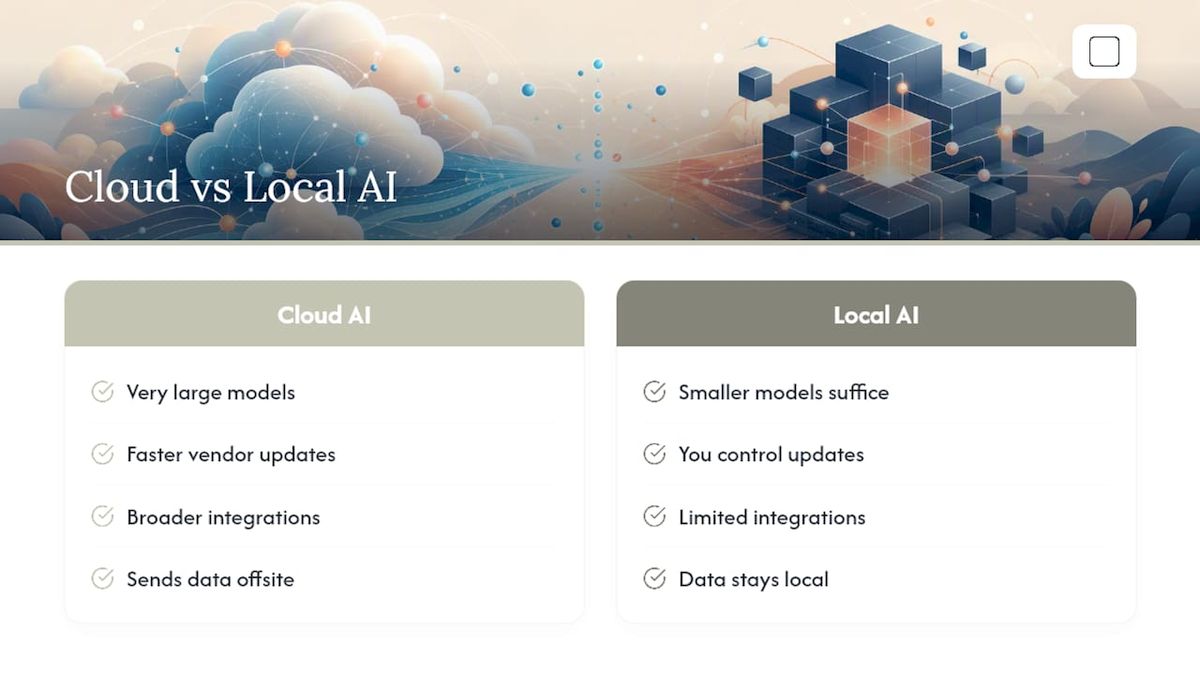
The conventional wisdom in AI tooling is that cloud always wins: bigger models, faster updates, more integrations. That framing is correct for a narrow set of use cases and quietly wrong for a large one.
Think about what most professionals actually do with an AI assistant day to day: they draft emails, summarize documents, answer questions about files they already have on their machine. None of those tasks require a model with 200 billion parameters. None of them require sending your documents to a server in another state. The cloud model's advantage is real but often irrelevant to the actual task.
The subscription model compounds this. Paying monthly for a tool you use daily is reasonable. Paying monthly for a tool you use occasionally, across three or four different AI subscriptions, adds up to a significant annual cost for capabilities that a well-designed local app could handle at a fraction of the price.
What gets underestimated is the friction cost of cloud dependency. When the API is down, your workflow stops. When the vendor changes its pricing, you adapt or leave. When the model is updated in a way that changes its behavior, you have no recourse. A local app that you own does not have those failure modes.
The strongest argument for starting with a native desktop AI is not privacy, though that matters. It is control. You decide when it updates, what it can access, and how it behaves. That predictability is worth more than most users realize until the cloud version fails them at the wrong moment.
GreenCube: private desktop AI you own outright
Most AI tools ask you to trust a vendor with your data and pay them every month for the privilege. GreenCube takes the opposite position: your data stays on your machine, and you pay once.
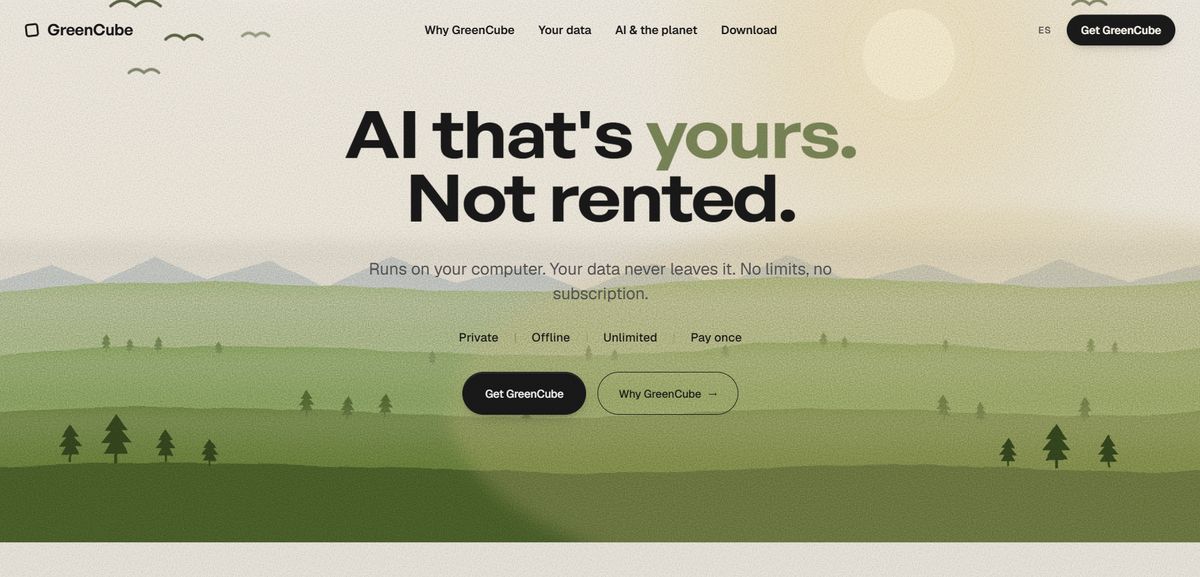
GreenCube runs fully offline on Windows. Chat with it, drop in a PDF, hand it an image: it reads, analyzes, and responds without sending data externally. No account creation, no model configuration, no ongoing subscription. The install takes minutes and works on standard laptops without a dedicated GPU.
For professionals handling sensitive documents, students who need a private study tool, or anyone tired of paying monthly for AI they use occasionally, GreenCube is the practical alternative to cloud-first subscriptions. It is not trying to compete with GPT-4o on raw reasoning. It is trying to be the AI that is always there, always private, and always yours.
Download GreenCube and own it outright for a one-time fee.
Useful sources
- The best AI productivity tools in 2026
- Cursor: AI coding agent
- Download Claude | Claude by Anthropic
- Arg desktop
- Desktop Commander - AI that executes
- Knapsack Desktop | AI That Actually Does Things
- Cortis — Private AI Chat That Works Offline | NERON
- 15 best AI apps I can't live without
- labs.google
FAQ
What is the best AI desktop companion for privacy?
GreenCube is the strongest option for privacy-first users: it runs fully offline on Windows, processes nothing in the cloud, and requires no account or subscription. For users who need cloud model quality alongside privacy controls, Claude's desktop app offers local file access with enterprise-grade data handling.
What are the top three AI desktop apps right now?
GreenCube (offline/privacy), Cursor (developer agents), and Claude (cloud-native desktop client) cover the three most distinct use cases. ChatGPT's desktop app is a close fourth for users already in the OpenAI ecosystem.
Is there a better AI than ChatGPT for desktop use?
For offline and privacy-sensitive work, yes: GreenCube runs entirely on your machine with no cloud dependency, which ChatGPT's desktop app cannot match. For developer workflows, Cursor's autonomous coding agents go well beyond what ChatGPT's desktop client offers. "Better" depends entirely on your use case.
Which AI desktop app works on Windows without a subscription?
GreenCube is the primary option: a one-time purchase, Windows-native, fully offline. Automatic1111 is free and open source for local image generation on Windows. Most other capable desktop AI tools, including ChatGPT and Claude, require a subscription for their best features.
Recommended
- Best Microsoft Copilot Alternatives for Privacy in 2026
- Best Private AI Assistant in 2026: Local and Offline
- Best Offline AI Chatbot Apps in 2026: Full Comparison
- Best Perplexity Alternatives in 2026 for Research and Work
Your own AI, on your own PC
GreenCube runs on your computer: no usage limits, no subscription, works without internet. €9.99, paid once.
Get GreenCube