Keep PDFs Local: Offline AI Study Planner for Students, 2GB–4.2GB
Yes, fully offline AI study planners exist, and they work as advertised, but only as desktop applications. You need a compatible Windows PC, and you need to download one local AI model before anything runs. The tradeoff is real: a smaller text-only model installs fast and runs on modest hardware, while a larger image-capable model needs more disk space and a higher amount of RAM. GreenCube fits this category as a privacy-first option built around exactly this compromise.
TL;DR:
- Offline AI study planners are limited to desktop applications, with smaller text-only models suitable for lower-RAM devices and larger models requiring more storage and memory.
- True offline operation is confirmed only with standalone installer apps, not web-based PWAs, and requires disabling online features after initial setup to ensure privacy.
- The scheduling algorithms rely on honest input about available hours and subject difficulty, as they run on local inference and have reduced reasoning power compared to cloud models.
- Critical setup steps include downloading the appropriate model size, verifying document parsing capabilities, and establishing local backups in ICS or CSV formats.
- Privacy is maintained by performing all AI reasoning locally, with minimal online activity limited to license verification, which can be disabled for complete offline use.
Table of Contents
- What Do Offline AI Study Planners Actually Do?
- Checklist: What to Prioritize When Choosing an Offline Planner
- How Do Scheduling Algorithms Build a Realistic Study Plan?
- Setup Checklist: Installer, Model Download, and Backups
- What Does "Offline" Actually Protect, and Where Are the Limits?
- How to Turn a PDF Into a Study Schedule and Flashcards Offline
- When Is a Local Offline Planner the Right Choice?
- GreenCube's Perspective on Building for Students
- How to Get GreenCube
- Sources
- FAQ
What Do Offline AI Study Planners Actually Do?
An offline AI study planner takes your deadlines, your available hours, and the difficulty of each subject, then builds a session-by-session calendar without touching a server. That distinguishes it from a plain calendar app, which just holds dates you type in yourself. The AI layer does the reasoning: it applies algorithmic back-planning and spaced repetition to decide when you should first encounter material and when you should revisit it before it fades from memory.
Not every tool that says "offline" means the same thing, though. There are two implementation types, and the difference matters more than most reviews admit.
- Native installer apps run entirely on your machine after setup. No browser tab, no server ping, no dependency on a live connection once the model is downloaded.
- Progressive web apps (PWAs) running in a browser can cache data locally using Service Workers and IndexedDB, but they typically need an initial secure online load before offline mode kicks in, and background reminders tend to be less reliable than a native app's system notifications.
Beyond scheduling, expect a consistent baseline feature set across serious offline planners: PDF import for turning a syllabus or textbook chapter into structured content, flashcard generation from that same material, local export to formats like ICS or CSV, built-in timers, and basic analytics on how much you actually studied versus what was planned.
Checklist: What to Prioritize When Choosing an Offline Planner
Before you commit to any tool, run it through a short list of practical questions. Marketing copy says "offline." Your job is to confirm what that word is actually doing.
- Confirm the offline claim with a standalone installer. If the tool requires you to be signed into a website to load its interface every time, it isn't offline in the way you need it to be.
- Check which model tier you're getting and what it costs in size. A smaller model favors speed and works on lower-RAM machines; a larger multi-modal model reads images and builds richer documents but demands more storage and memory.
- Verify document support matches your coursework. PDF parsing is standard, but image and diagram understanding is not; only some models handle it.
- Test whether the schedule adapts honestly. A planner that lets you drag a session without breaking the rest of the week is worth more than one with flashier graphics.
- Look for local backup and export options. ICS, CSV, or JSON export means your plan survives a computer crash or a fresh install.
Pro Tip: Before you commit to a planner, download it and try importing a single chapter PDF first. If the parsing looks messy or the schedule it generates ignores your input hours, you'll know within five minutes instead of after a semester of frustration.
Security deserves a line of its own. Look for apps that document how they store your data locally, ideally with some form of database encryption, and that make exporting a backup a one-click action rather than something buried three menus deep.
How Do Scheduling Algorithms Build a Realistic Study Plan?
Back-planning works in reverse. The algorithm starts at your exam date, counts backward, and slots in sessions based on how much material you have left and how difficult you've told it that material is. Most sophisticated planners apply a difficulty curve, ramping up workload in the first third of your available time, peaking in the middle, then tapering off before the exam so you walk in rested instead of burned out.
Spaced repetition sits on top of that structure. Instead of studying a topic once and moving on, the planner schedules short return visits: a day later, then a few days later, then a week later. The exact intervals vary by app, but the principle holds across all of them, because forgetting is fast in the first 24 to 48 hours and slows down after that.
- Sessions cluster near deadlines when you tell the planner a topic is hard.
- Easy topics get spread thinner, with longer gaps between reviews.
- Blocked time (classes, work shifts, sleep) gets protected automatically once you enter it.
Local inference is the part most people overlook. The AI reasoning behind your plan runs on a language model sitting on your hard drive, typically through an engine like llama.cpp, not in a data center. That keeps everything private, but it also means the model has less raw horsepower than a cloud system with server farms behind it. Developer notes on offline planning tools consistently point to one failure mode above others: schedules only work when you're honest about your available hours and subject difficulty. Feed the algorithm fantasy numbers, and it hands back a fantasy schedule.
Setup Checklist: Installer, Model Download, and Backups
Getting an offline planner running takes maybe fifteen minutes if you follow a sequence instead of clicking around.
- Pick your format. A native installer gives you full offline capability; a browser-based PWA gives you portability but needs that initial online load and generally weaker background notifications.
- Download your model. A text-only model around 2GB installs quickly and runs on older laptops. A multi-modal model around 4.2GB reads images and builds study documents but takes longer to download and needs more memory to run smoothly.
- Check your RAM before you commit to the bigger model. Eight gigabytes is the practical floor for the image-capable tier, not a comfortable cushion. Below that, or on aging hardware, expect noticeably slower responses.
- Set up your backup routine on day one, not after you lose data. Export your schedule to ICS for calendar syncing and JSON or CSV for the raw plan data, then store a copy somewhere other than your main drive.
A few troubleshooting basics save time later:
- If the app seems to hang on first launch, check that your firewall isn't blocking the initial license check.
- If you want proof the app isn't quietly phoning home during a study session, a network monitor will show you exactly what, if anything, tries to leave your machine.
- Keep the installer's documentation bookmarked. Legitimate offline tools publish setup guides rather than hiding behind vague FAQ pages, and GreenCube's local AI model breakdown is a useful reference point for understanding size and RAM tradeoffs before you download anything.
What Does "Offline" Actually Protect, and Where Are the Limits?
Here's where a lot of privacy claims get sloppy, so let's be precise. Local model inference, meaning the actual thinking the AI does when it builds your schedule or answers a question about your notes, happens entirely on your device. That part never touches a server, and developers who build privacy-first desktop planners document this explicitly rather than asking you to take it on faith.
License verification is a separate step, and it does use the internet. Signing in through Google or Microsoft confirms you paid for the software; it does not send your chats, your PDFs, or your study schedule anywhere. Checkout itself runs through a payment processor like Stripe. Once you're past setup, your actual study sessions, document analysis, and chat history stay on your machine.
- Disable any optional online features you don't need (like automatic update checks) if you want the leanest possible offline footprint.
- Use a network monitoring tool once to confirm nothing unexpected reaches out during a normal study session.
- Keep your exported backups encrypted if they contain anything sensitive, since a plain CSV file sitting on a USB drive has no protection of its own.
- Review the app's permissions occasionally, the same way you'd check permissions on your phone.
Pro Tip: Turn off your Wi-Fi entirely after the initial model download and license check, then use the app for a full day. If everything still works, chat, PDF import, flashcard generation, and scheduling, you've confirmed the offline claim yourself instead of trusting a product page.
How to Turn a PDF Into a Study Schedule and Flashcards Offline
Most students start with a textbook chapter or a professor's slide deck, not a blank calendar. Here's the sequence that actually produces a usable plan.
- Gather your deadlines first. List every exam date, then note chapter headings and page ranges for what needs covering before each one.
- Assign rough difficulty weights. Mark topics you already understand as easy and topics that confuse you as hard; this single input shapes the entire back-plan.
- Import the PDF and confirm parsing. If your material includes diagrams or handwritten notes photographed on your phone, you need image-capable parsing, which only a multi-modal model provides.
- Generate the plan and review it critically. Let the planner build sessions automatically, then scan for anything unrealistic, like three hard topics scheduled the same evening, and adjust manually.
- Export and back up. Push the calendar out to ICS so it lands in whatever calendar app you already use, generate flashcards from the same source material, and save a local backup before you close the app.
For a worked example of the PDF-to-flashcard step specifically, GreenCube's flashcard walkthrough covers the tagging and review process in more depth than a quick checklist can.
When Is a Local Offline Planner the Right Choice?
The honest answer depends on what you're optimizing for, not on which tool has the flashiest interface.
What offline planners deliver well:
- Genuine privacy, since your notes and schedule never leave your laptop.
- Reliability with no internet at all, which matters on a train, in a library basement, or during a campus network outage.
- A single upfront payment instead of a recurring subscription eating into a student budget.
Where they fall short:
- Local models are smaller than cloud frontier models, so raw reasoning power has a ceiling.
- Older or lower-RAM machines will feel the drag, especially with image-capable models.
- Cross-device sync and third-party integrations are limited or absent, since there's no cloud database tying your devices together.
Students who benefit most are the ones dealing with unreliable internet, handling sensitive coursework they'd rather not upload anywhere, or simply tired of subscription fatigue. If you need heavyweight reasoning across massive integrated systems, or seamless syncing across five devices without ever thinking about backups, a cloud service is the better fit for that specific job. For everyone else, a weekly planning framework paired with a local AI tool covers most of what a semester actually demands.
GreenCube's Perspective on Building for Students
We built GreenCube around a simple bet: students don't need the most powerful AI in existence, they need one they can trust and afford. That means a one-time price of €9.99 / $9.99, no subscription, and a choice between two models instead of one-size-fits-all.
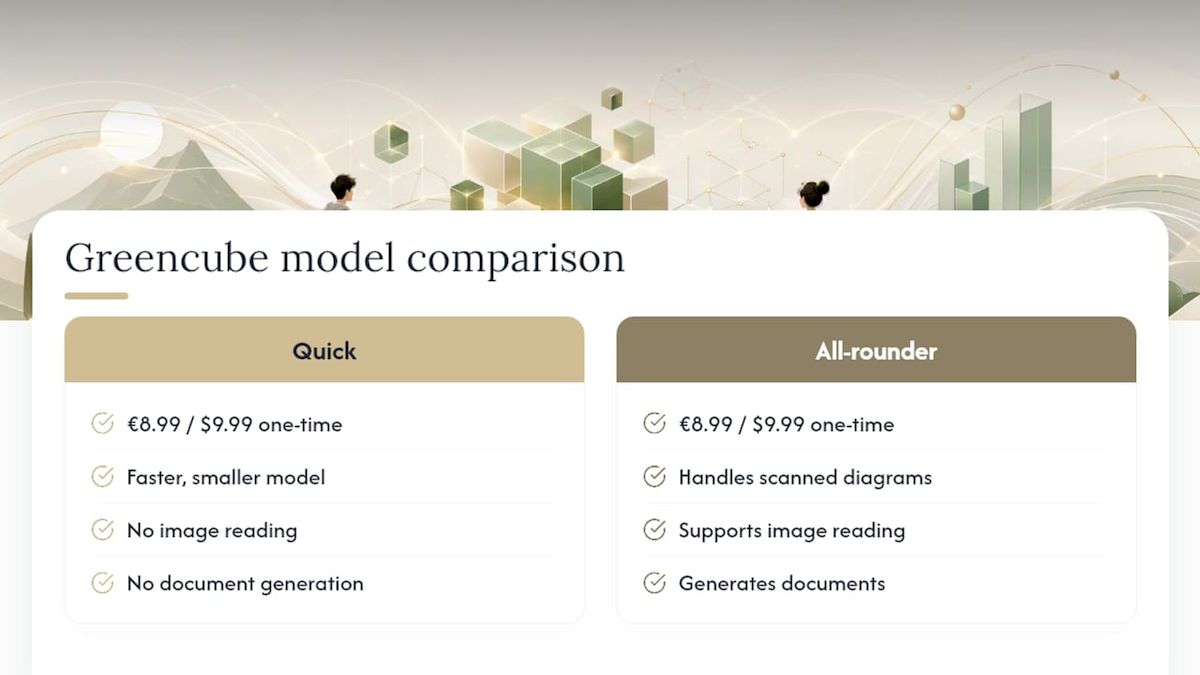
We're not going to pretend the tradeoffs disappear. You get the smaller model if you want speed and don't need image reading, or the bigger model if you're working with scanned diagrams and want document generation, knowing that means a bigger download and an 8GB RAM minimum that some older laptops will feel. Neither model matches a cloud frontier system for raw reasoning depth, and we'd rather say that plainly than oversell it.
What we think we got right is the privacy model: your chats and documents stay on your machine, full stop. For the PDF-to-flashcard workflow specifically, our blog post on studying offline walks through it in more detail than we have room for here.
— GreenCube
How to Get GreenCube
GreenCube gives you a desktop AI assistant that handles chat and document analysis entirely on your own PC, with no subscription and no cloud dependency for your actual work. That matters most when you're studying from a shared textbook PDF you'd rather not upload to someone else's server, or working somewhere the Wi-Fi is unreliable anyway.
Setup is straightforward: download the installer for Windows 10 or 11, GreenCube picks the model that fits your PC, and sign in once with Google or Microsoft to verify your license. That sign-in step confirms your purchase; it doesn't touch your chats or documents. If it isn't the right fit after you've tried it on real coursework, GreenCube offers a refund window after purchase. Get GreenCube for €9.99 / $9.99 and see how the PDF-to-flashcard workflow holds up against your own syllabus, or read more about the full feature set before you commit.
Sources
For readers who want to see the underlying mechanics themselves, the open-source EkagraFocus project documents a local-first study assistant built with desktop-native architecture. The Kaggle capstone writeup on AI-powered scheduling shows back-planning logic in practice. GreenCube's own private AI assistant guide covers the broader privacy tradeoffs of local software.
- AI-powered study planner writeup (Kaggle capstone project)
- FocusFlow (GitHub) — offline-capable Study Planner PWA
FAQ
Which AI is best for offline study planning?
There's no single universal answer, since it depends on whether you need image parsing or just text scheduling; GreenCube's bigger model handles both documents and images locally, while lighter text-only tools work fine for straightforward calendar planning.
Which app is best for studying offline?
A native installer app beats a browser-based PWA for reliable offline studying, since installers don't need an initial online load and handle background reminders more consistently.
What is the best free AI planner?
Free offline AI planners tend to be open-source projects like FocusFlow or smart-study-planner on GitHub, which offer solid scheduling and export features but require more technical setup than a polished commercial installer.
What is the best free study planner app without AI features?
Plenty of free calendar-based planner apps exist, but they require you to manually schedule sessions rather than generating a back-planned, difficulty-weighted schedule automatically.
Does an offline AI study planner ever need internet access?
Only briefly, for the one-time model download and, in tools like GreenCube, for signing in to verify your license; your actual chats, document analysis, and study sessions run locally with no ongoing connection required.
Recommended
- Offline AI for Students: Study Privately on Your Laptop
- Best AI for Students in 2026: Private, Offline, and Affordable
- Best Offline AI for Mac: Top Local Tools in 2026
- Turn Any PDF Into a Ready-to-Study Flashcard Deck
Your own AI, on your own PC
GreenCube runs on your computer: no usage limits, no subscription, works without internet. €9.99, paid once.
Get GreenCube