Ollama vs LM Studio: A Developer's Comparison Guide

Pick Ollama for headless deployment and CI/CD pipelines. Pick LM Studio for visual model exploration and Apple Silicon MLX speed. Pick GreenCube when you want a polished, offline desktop assistant with a one-time license and no runtime configuration required.
Here is the supporting logic:
- Ollama runs a background daemon, exposes an OpenAI-compatible API on
localhost:11434, installs in one line, and ships an official Docker image. It is built for scripted, reproducible workflows. - LM Studio is a GUI desktop app with a built-in Hugging Face model browser, visual VRAM estimates, and a chat playground. It starts on
localhost:1234. Best for exploration, prototyping, and Apple Silicon MLX throughput. - GreenCube is neither a runtime nor a developer tool. It is a downloadable Windows desktop assistant that runs fully offline after a one-time model download, priced at €9.99 / $9.99 with no subscription.
Quick picks:
- Run
ollama pull llama3.2andollama run llama3.2to test Ollama in under two minutes. - Download the LM Studio installer from lmstudio.ai, open the model browser, and pull a Q4_K_M 7B model.
- Visit GreenCube if you want a local desktop assistant without any runtime setup.
Key Takeaways
The choice between Ollama and LM Studio is a workflow question, not a speed contest — Ollama wins on deployment and reproducibility, LM Studio wins on visual exploration and Apple Silicon MLX throughput, and GreenCube serves a different need entirely as a turnkey offline desktop assistant.
| Point | Details |
|---|---|
| Ollama for deployment | CLI-first, MIT-licensed, Docker-ready daemon with Modelfile configs for reproducible server workflows. |
| LM Studio for exploration | Visual Hugging Face browser with VRAM estimates and MLX support makes model evaluation faster on Apple Silicon. |
| Shared inference engine | Both tools use llama.cpp under the hood, so raw speed for the same GGUF model often converges. |
| Hybrid pattern works | Run both simultaneously on different ports (11434 vs 1234); avoid loading the same large model in both at once. |
| GreenCube for desktop offline use | One-time purchase at €9.99 / $9.99, Windows-only, no API — the right pick for private offline chat without runtime setup. |
Table of Contents
- Ollama vs LM Studio: at-a-glance comparison
- Core technical differences: interface, workflow, and configuration
- Measured performance: tokens/sec, memory overhead, and variance drivers
- How to reproduce the benchmarks
- Install, run, and deploy: one-liners, installers, Docker, and ports
- Where models come from and how each tool handles GGUF
- APIs, SDKs, and ecosystem integrations
- How each tool manages VRAM and fitting models on limited hardware
- When to pick Ollama, LM Studio, or GreenCube
- Moving models, configs, and workflows between the tools
- License, pricing, and commercial considerations
- Final recommendation by reader role
- GreenCube: what it is, when it fits, and what to know before installing
- The real question developers keep getting wrong about Ollama vs LM Studio
- A local desktop alternative to runtime tooling
- Sources
- FAQ
Ollama vs LM Studio: at-a-glance comparison
| Dimension | Ollama | LM Studio | GreenCube |
|---|---|---|---|
| Interface | CLI / API daemon | GUI desktop app | GUI desktop app |
| Install & packaging | One-liner (curl), Homebrew, Docker | DMG / EXE / AppImage installer | Windows EXE installer |
| Model source | Curated registry + GGUF import | Hugging Face browser + local GGUF | Bundled (Gemma 4 E2B or E4B) |
| API & default port | OpenAI-compatible, localhost:11434 | OpenAI-compatible, localhost:1234 | No external API |
| Modelfile / declarative config | Yes (Modelfile) | No | No |
| Docker / server support | Official image, headless-first | Limited headless (lms CLI, llmster) | Not applicable |
| GPU & VRAM management | Auto-detects CUDA / Metal / ROCm | Visual VRAM estimates, MLX support | Automatic via llama.cpp |
| Resource usage (idle) | ~100 MB daemon | several hundred megabytes GUI overhead | Varies by model loaded |
| Multi-model handling | Sequential by default | Sequential, visual model switching | Single model at a time |
| SDKs & integrations | Python, JavaScript, LangChain, LlamaIndex | JavaScript SDK, LangChain, LlamaIndex | None (standalone app) |
| Structured output / JSON mode | Yes | Yes | No |
| Pricing & license | Free, MIT open source | Free for personal/internal business use | €9.99 / $9.99, one-time purchase |
Pro Tip: Many developers run both simultaneously. Use LM Studio on localhost:1234 for interactive model browsing and Ollama on localhost:11434 as a persistent backend. Just avoid loading the same large model in both at once — you will exhaust VRAM fast.
For deeper coverage of any dimension, the sections below break each one down with commands, benchmarks, and concrete guidance.
Core technical differences: interface, workflow, and configuration
The most important difference between Ollama and LM Studio is not speed. It is the mental model each tool asks you to adopt.
Ollama is CLI-first with a Modelfile declarative config system and official Docker support; LM Studio is GUI-first with a built-in chat playground and Hugging Face model browser; both expose OpenAI-compatible local servers. That distinction shapes everything downstream: how you version models, how you share configs with teammates, and how you deploy.
Ollama's configuration model
Ollama uses a Modelfile — a plain-text declarative file that specifies the base model, system prompt, parameters, and template. It looks like a Dockerfile and works like one: commit it to version control, share it across machines, and reproduce the exact same model behavior anywhere Ollama runs.
A minimal example:
FROM llama3.2
SYSTEM "You are a concise technical assistant."
PARAMETER temperature 0.2
PARAMETER num_ctx 4096
Run ollama create my-assistant -f Modelfile and you have a named, reproducible model variant. That is the core of Ollama's appeal for teams: configuration lives in files, not in a GUI state that is hard to diff or share.
LM Studio's workflow
LM Studio takes the opposite approach. You browse models visually, adjust parameters through sliders and dropdowns, and test in a chat playground before enabling the local server. There is no config file to commit. What you gain is speed of exploration: you can pull a Q4_K_M 7B model, compare it against a Q5_K_S variant, and see projected VRAM usage before downloading anything.
The trade-off is reproducibility. A teammate cannot clone your exact setup from a file. They need to replicate your GUI choices manually, which matters less during prototyping and more during handoff.
Model discovery differences
LM Studio provides a visual model browser that fetches directly from Hugging Face, showing quantization options and estimated VRAM fit before download; Ollama uses a curated registry and manages quantization defaults (typically 4-bit) unless explicitly tagged. Ollama's registry is smaller but more curated — models are tested and tagged before appearing. LM Studio's Hugging Face integration gives you access to nearly every public GGUF, which is powerful but also means you can pull a poorly quantized or untested file.

Pro Tip: Use LM Studio for model discovery and Ollama for deployment. Find the right model and quantization in LM Studio's browser, then reference that exact GGUF file in an Ollama Modelfile for reproducible production use.
Measured performance: tokens/sec, memory overhead, and variance drivers
Raw speed between these two tools is often closer than benchmarks suggest. Both tools run the same llama.cpp inference lineage, but MLX on Apple Silicon can produce substantial throughput and efficiency gains where available and where the runtime integration is mature. That single variable — MLX availability — explains most of the Apple Silicon performance gaps you will see in third-party tests.
Typical token/sec ranges
On an M2 MacBook Pro running a Q4_K_M 7B model, expect roughly 30–50 tokens/sec on either tool. The range widens when MLX is active: LM Studio's MLX integration has historically been more mature, though Ollama added MLX previews. On NVIDIA hardware using CUDA, both tools perform similarly for the same GGUF model because they share the same llama.cpp inference engine underneath.
Memory and idle overhead
LM Studio's desktop UI adds several hundred megabytes of idle usage, while Ollama's daemon tends to use less idle RAM. Informal testing reports LM Studio has a higher idle overhead compared to Ollama in similar conditions. For a developer running multiple services locally, that gap matters. For someone using a single tool on a dedicated machine, it rarely does.
Benchmark snapshot: Q4_K_M 7B on M2 MacBook Pro — approximately 30–50 tokens/sec on both tools under llama.cpp; MLX-enabled runs in LM Studio can push above that range depending on model support.
Pro Tip: Cold starts skew benchmarks significantly. Always run at least one warm-up generation before recording tokens/sec. Context length also compresses throughput — a 4,096-token context will run slower than a 512-token one on the same model.
How to reproduce the benchmarks
Reproducible numbers require fixed conditions. Here is the exact setup used as a reference baseline for the figures in this article.
Hardware tested:
- Apple M2 MacBook Pro, 16 GB unified memory, macOS Sonoma
- Linux workstation, NVIDIA RTX 3080 (10 GB VRAM), Ubuntu 22.04, CUDA 12.2
Models and quantizations:
- Llama 3.2 3B — Q4_K_M GGUF
- Llama 3 7B (Meta-Llama-3-8B) — Q4_K_M GGUF
- Mistral 7B v0.3 — Q5_K_S GGUF
Ollama commands:
ollama pull llama3.2
ollama run llama3.2 "Explain GGUF in one sentence"
# For API-based measurement:
curl http://localhost:11434/api/generate \
  -d '{"model":"llama3.2","prompt":"Explain GGUF","stream":false}'
LM Studio measurement:
- Load model via GUI, enable local server, send POST to
http://localhost:1234/v1/completions - Record
eval_ratefrom the response stats panel
Measurement notes:
- Two warm-up runs discarded before recording
- Context length fixed at 512 tokens for all throughput tests
- Tokens/sec taken from the tool's own reported
eval_rateortokens_per_secondfield - GPU layers set to maximum available for both tools
Pro Tip: Pin the exact model digest in Ollama with ollama pull model:tag@sha256:... to guarantee you are benchmarking the same weights across machines. LM Studio users should note the exact filename and quantization tag from the Hugging Face browser.
Install, run, and deploy: one-liners, installers, Docker, and ports
Getting either tool running takes under five minutes on any supported platform.
Ollama
# macOS / Linux one-liner
curl -fsSL https://ollama.com/install.sh | sh

# Homebrew (macOS)
brew install ollama

# Docker
docker run -d -v ollama:/root/.ollama -p 11434:11434 ollama/ollama
After install, the daemon starts automatically. Pull and run a model:
ollama pull llama3.2
ollama run llama3.2
The API is live at http://localhost:11434. To change the port, set OLLAMA_HOST=0.0.0.0:8080 before starting the daemon.
LM Studio
- Download the installer from lmstudio.ai (DMG for macOS, EXE for Windows, AppImage for Linux).
- Install and launch. Open the model browser, search for a model, select a quantization, and download.
- Switch to the "Local Server" tab and click Start. The server runs at
http://localhost:1234/v1.
To change the port, use the server settings panel in the GUI.
Platform and GPU runtime support
- Ollama auto-detects CUDA (NVIDIA), Metal (Apple Silicon), and ROCm (AMD). No manual configuration needed.
- LM Studio supports Metal natively on macOS and CUDA on Windows/Linux. MLX is available for Apple Silicon models that have MLX builds.
Key deployment note: Ollama's official Docker image makes it the stronger choice for containerized or CI/CD environments. LM Studio's headless options (
lmsCLI, llmster) are growing but are not yet as mature for scripted deployments. For any server or pipeline context, Ollama is the default recommendation.
Where models come from and how each tool handles GGUF
Model sourcing is where the two tools diverge most visibly in day-to-day use.
LM Studio connects directly to Hugging Face. The model browser lets you filter by quantization (Q4_K_M, Q5_K_S, Q8_0, and others), see estimated VRAM requirements before downloading, and sort by file size. That visual fit-check before a multi-gigabyte download is genuinely useful when you are working with limited VRAM.
Ollama maintains a curated registry at ollama.com/library. Models are pre-tested and tagged. The default pull behavior selects a 4-bit quantization unless you specify a tag explicitly (e.g., ollama pull llama3.2:8b-instruct-q8_0). The registry is smaller than Hugging Face but more predictable.
Importing a custom GGUF into Ollama
- Download the GGUF file from Hugging Face or export it from LM Studio's local model directory.
- Create a Modelfile:
FROM ./models/mistral-7b-v0.3.Q4_K_M.gguf - Run
ollama create my-mistral -f Modelfile. - Verify with
ollama list.
Safetensors to GGUF conversion
Neither tool accepts safetensors natively. To convert:
- Clone the llama.cpp repo and install Python dependencies.
- Run
python convert_hf_to_gguf.py --model /path/to/model --outtype q4_k_m. - Use the output
.gguffile in either tool.
Ollama defaults to 4-bit quantization on registry pulls. If you need a specific quantization for reproducibility, always pin the tag or use a Modelfile FROM with an exact file path. For LM Studio alternatives that handle model sourcing differently, the GreenCube blog covers several options.
APIs, SDKs, and ecosystem integrations
Both tools expose OpenAI-compatible REST APIs, which means any code already talking to OpenAI's API needs only a base URL change to point at a local server.
Default base URLs:
- Ollama:
http://localhost:11434/v1 - LM Studio:
http://localhost:1234/v1
Switching an existing OpenAI client
from openai import OpenAI

# Point at Ollama
client = OpenAI(base_url="http://localhost:11434/v1", api_key="ollama")

# Point at LM Studio
client = OpenAI(base_url="http://localhost:1234/v1", api_key="lm-studio")

response = client.chat.completions.create(
    model="llama3.2",
    messages=[{"role": "user", "content": "Hello"}]
)
That is the entire migration for most existing integrations.
SDK and framework support
- Ollama ships dedicated Python and JavaScript SDKs (
pip install ollama,npm install ollama). Both LangChain and LlamaIndex have native Ollama integrations. - LM Studio provides an official JavaScript SDK and integrates with LangChain and LlamaIndex via its OpenAI-compatible endpoint. The
lmsCLI adds headless scripting options.
Ollama ships SDKs for Python and JavaScript and is built to be scriptable for CI/CD and Docker, while LM Studio provides a GUI and official JavaScript SDK with growing headless options. For LangChain specifically, the ChatOllama class in langchain-community wraps the Ollama API directly, while LM Studio users typically use the standard ChatOpenAI class pointed at the local port.
Pro Tip: For LlamaIndex, set llm = Ollama(model="llama3.2", base_url="http://localhost:11434") in your service context. The same pattern works for LM Studio with OpenAI(api_base="http://localhost:1234/v1").
Understanding local AI models and OpenAI-compatible endpoints in depth helps when wiring these integrations into larger pipelines.
How each tool manages VRAM and fitting models on limited hardware
VRAM is the hard constraint for local LLM work. A 7B model at full 16-bit precision needs roughly 14 GB of VRAM — more than most consumer GPUs have. Quantization is how you fit it.
Quantization impact in practice:
- Q4_K_M (4-bit): roughly 4–5 GB for a 7B model. Noticeable quality loss on complex reasoning, acceptable for most chat and code tasks.
- Q5_K_S (5-bit): roughly 5–6 GB. Better quality, modest VRAM increase.
- Q8_0 (8-bit): roughly 7–8 GB. Near-full quality, requires a GPU with 8+ GB VRAM.
Tool-specific VRAM behavior
LM Studio shows estimated VRAM usage per quantization in the model browser before you download. That visual estimate is one of its most practical features — you see immediately whether a model fits before committing to a 4 GB download.
Ollama handles GPU offloading automatically. It detects available VRAM and offloads as many layers as possible to the GPU, with the remainder running on CPU. You can override with OLLAMA_NUM_GPU=0 to force CPU-only, or set num_gpu in the Modelfile. There is no visual indicator; you check utilization with nvidia-smi or sudo powermetrics on macOS.
For low-memory setups (8 GB VRAM or less):
- Prefer Q4_K_M for 7B models.
- Avoid loading two models simultaneously.
- On Apple Silicon with 8 GB unified memory, a 3B Q4_K_M model leaves enough headroom for the OS and other apps; a 7B Q4_K_M is tight and may page to swap.
Pro Tip: On NVIDIA GPUs, run nvidia-smi dmon -s mu in a terminal while generating tokens. Watch the memory utilization column — if it hits 100% and stays there, you are paging to system RAM and throughput will drop sharply. Drop to a lower quantization before that happens.
When to pick Ollama, LM Studio, or GreenCube
The choice follows a natural workflow arc: explore, prototype, deploy.
Decision flow:
- Exploring models — Start with LM Studio. The Hugging Face browser, visual VRAM estimates, and chat playground make it the fastest way to evaluate whether a model suits your task. No command line needed.
- Prototyping an integration — Either tool works. LM Studio's local server is fast to enable. Ollama's Python SDK is cleaner for scripted tests. Many developers run both at this stage.
- Deploying to a server or CI/CD — Ollama. Its Docker image, Modelfile configs, and headless daemon are built for this. LM Studio's headless options are improving but not yet production-grade for scripted pipelines.
- Non-technical users or offline desktop use — GreenCube. No CLI, no model registry, no configuration. Download the app, pick a model, and it works offline.
Persona-to-tool mapping:
- Solo developer building a local chatbot or RAG pipeline: Start in LM Studio to find the right model, then lock it in with an Ollama Modelfile.
- Team deploying a shared local inference endpoint: Ollama with Docker, Modelfile in version control, pinned digest.
- Prototype team evaluating multiple models quickly: LM Studio for its visual comparison and VRAM estimates.
- Production multi-user serving: Neither tool. For multi-user production-scale serving, both lack continuous batching and paged KV cache systems required for efficient high-concurrency serving — look at vLLM or Triton-based stacks instead.
- Non-technical user who wants private, offline AI on Windows: GreenCube.
Running both simultaneously:
Developers commonly run both: LM Studio for model discovery/visual testing and Ollama as a persistent backend service; they can run simultaneously on different ports but should avoid loading the same large model twice. The ports do not conflict (11434 vs 1234), but your VRAM does. Keep one large model active at a time.
For a broader look at offline AI chatbot apps and how runtime tools compare to desktop assistants, the GreenCube blog covers the full spectrum.
Moving models, configs, and workflows between the tools
Switching between Ollama and LM Studio, or running both, is straightforward if you know where each tool stores its files.
Exporting a GGUF from LM Studio to Ollama:
- In LM Studio, find the downloaded model in the "My Models" tab and note the file path (typically
~/Library/Application Support/LM Studio/models/on macOS orC:\Users\<user>\.lmstudio\models\on Windows). - Copy or symlink the
.gguffile to a location Ollama can reach. - Create a Modelfile:
FROM ./models/mymodel.gguf SYSTEM "Your system prompt here." - Run
ollama create mymodel -f Modelfileand verify withollama list.
Directory and port conflict notes:
- Ollama stores models in
~/.ollama/models/. LM Studio uses its own directory. They do not share storage by default, so the same model downloaded in both tools occupies disk space twice. - Running both servers simultaneously is safe — ports
11434and1234do not conflict. The risk is VRAM: if both tools have the same large model loaded, you are doubling memory usage for no gain. - To avoid duplicate active loads, stop the LM Studio server before running a heavy Ollama model, or use smaller quantizations in one tool.
Compatibility gotchas:
- Ollama's registry models are pre-packaged and may use slightly different tokenizer configs than the raw Hugging Face GGUF. If outputs differ between tools for the same model family, check the tokenizer and chat template settings.
- Modelfile
FROMpaths must be absolute or relative to where you runollama create. A relative path that works on your machine may break in a Docker build context.
For a broader view of Ollama alternatives and offline runtimes, including how they handle model portability, the GreenCube blog has a dedicated comparison.
License, pricing, and commercial considerations
Ollama is MIT-licensed. The source is on GitHub, the daemon is auditable, and you can redistribute it freely. For enterprise procurement teams, MIT is the easiest license to clear — no usage restrictions, no "personal use only" clauses, no binary-only distribution concerns.
LM Studio ships as a proprietary binary. It is free for personal use and internal business use, but the closed-source distribution means you cannot audit the inference stack directly or redistribute it as part of a commercial product. For teams with strict open-source procurement policies, that is a meaningful constraint. Check the current LM Studio license terms before deploying in a regulated environment.
GreenCube is a one-time purchase at €9.99 / $9.99, tax-inclusive, with no subscription. License verification requires a sign-in via Google or Microsoft — that authentication step is the only moment any data touches an external server. The AI chat and document processing run entirely offline after setup. A 15-day refund policy applies.
Pricing snapshot: Ollama — free, MIT. LM Studio — free for personal/internal business use, proprietary binary. GreenCube — €9.99 / $9.99 one-time, lifetime license.
Procurement considerations:
- Ollama: MIT license, full auditability, Docker-deployable. Cleanest path for enterprise open-source review.
- LM Studio: Free but closed-source. Suitable for individual developers and internal teams; less suitable for redistribution or regulated environments.
- GreenCube: Consumer-grade one-time license. Suited for individuals and small teams wanting a turnkey desktop assistant, not for server deployment or API integration.
Final recommendation by reader role
The right tool depends on what you are building, not which tool scores higher in a benchmark.
Role-based first actions:
- Backend developer / DevOps: Run
ollama pull llama3.2 && ollama run llama3.2and hithttp://localhost:11434/v1/chat/completionsfrom your existing OpenAI client. You are done in two minutes. - Frontend / full-stack developer prototyping: Install LM Studio, pull a Q4_K_M 7B model, enable the local server, and point your app at
http://localhost:1234/v1. Switch to Ollama when you are ready to lock in a model version. - ML engineer evaluating models: Run both. LM Studio for visual comparison and VRAM budgeting; Ollama Modelfile for pinning the winner.
- Non-technical user or privacy-focused individual on Windows: Install GreenCube. One download, one model choice, offline from that point forward.
- Team deploying a shared local endpoint: Ollama with Docker (
docker run -d -p 11434:11434 ollama/ollama), Modelfile in version control, pinned digest for reproducibility.
Quick verification steps:
- Ollama:
curl http://localhost:11434/api/tagsreturns your loaded models. If it responds, the daemon is running. - LM Studio: The server status indicator in the "Local Server" tab shows green when active. Test with a
curlPOST tolocalhost:1234/v1/models. - GreenCube: After install and model download, open the app with no internet connection. If the chat responds, local inference is confirmed.
Always benchmark on your own hardware before committing to a model or quantization. The 30–50 tokens/sec range on M2 is a reference point, not a guarantee — your specific model, context length, and system load will shift those numbers.
GreenCube: what it is, when it fits, and what to know before installing
GreenCube sits in a different category from Ollama and LM Studio. It is not a runtime you configure or a server you deploy. It is a finished desktop application for Windows that runs AI locally, built with Tauri, Rust, and React, using llama.cpp for inference.
What it includes:
- Offline chat that never leaves your machine after setup
- PDF and document reading (the bigger model only)
- Image analysis (the bigger model only — the smaller model is )
- One-time price of €9.99 / $9.99, no subscription, 15-day refund
Mandatory limitations to know before installing:
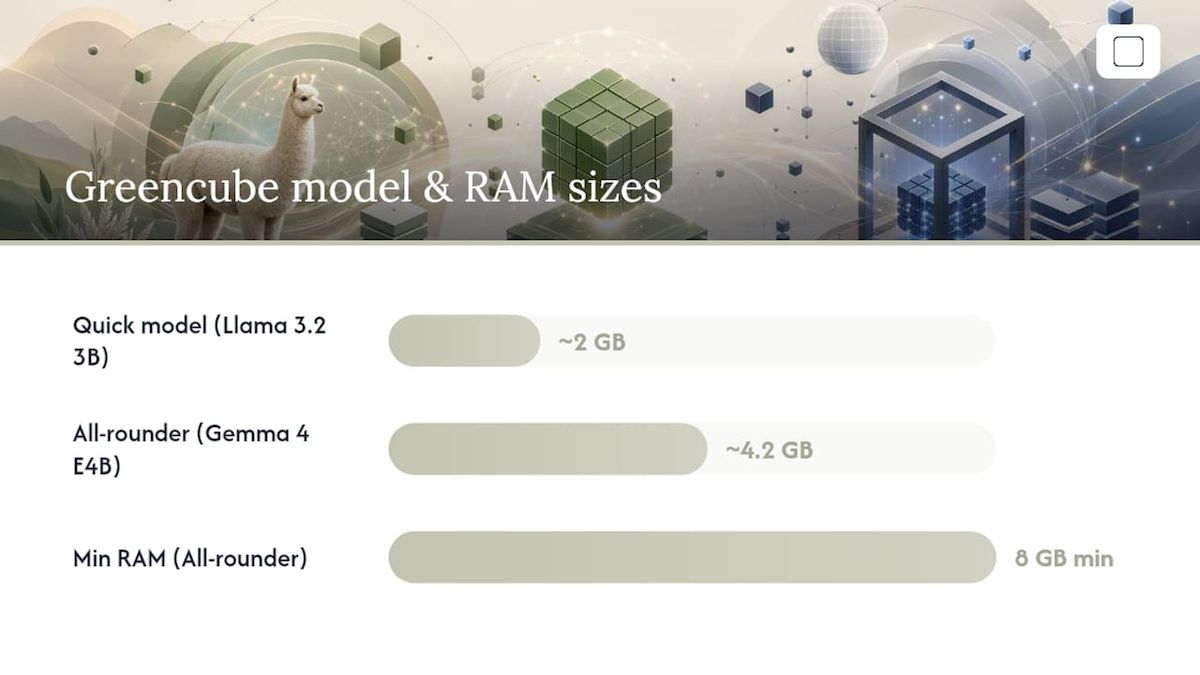
- Setup requires downloading one model: the smaller model (Gemma 4 E2B, about 2.6 GB) or the bigger model (Gemma 4 E4B, about 4.2 GB)
- Sign-in via Google or Microsoft is required once to verify the license. Only that step touches an external server — chat and document processing are fully local
- 8 GB RAM is the minimum floor for the bigger model, and performance may be slow on older hardware
- Windows 10/11 only; macOS support is in development
- No external API, no SDK, no CLI. It is a standalone app, not a runtime
When GreenCube is the right pick:
- You want private, offline AI on Windows without any command-line setup
- You handle sensitive documents (PDFs, images) and need certainty that content never leaves your machine
- You want a one-time cost with no ongoing subscription
- You are not a developer and do not need API access or model customization
When to choose Ollama or LM Studio instead:
- You need API access, scripting, or Docker deployment
- You want to experiment with many different models
- You are on macOS or Linux (GreenCube is Windows-only for now)
Pro Tip: If you are evaluating GreenCube alongside Ollama or LM Studio, install it on a machine without an internet connection after the initial setup. That single test confirms the offline claim better than any documentation.
For more on running AI privately without internet access, the GreenCube blog covers the practical setup in detail.
The real question developers keep getting wrong about Ollama vs LM Studio
Most comparisons treat this as a performance question. It is not. The choice is a workflow decision, not a raw speed contest: both tools often run the same model on the same engine, so interface, deployment model, and license usually matter more than single-run throughput.
Here is what that means in practice: if you spend an afternoon benchmarking tokens/sec between Ollama and LM Studio on the same GGUF file, you will mostly be measuring noise. The inference engine is the same. The numbers will be close. What you will not be measuring is the thing that actually costs you time six months later — whether your model configuration is in a file you can version-control, or locked inside a GUI state that is invisible to your teammates.
The conventional advice is to pick one tool and stick with it. That advice is wrong for most developers. The hybrid pattern — LM Studio for exploration, Ollama for deployment — is not a compromise. It is the correct architecture. Each tool does one thing better than the other, and they run on different ports without conflict. There is no reason to choose.
The one place the conventional advice does hold: do not use either tool for production multi-user serving. Neither implements continuous batching or paged KV caching. At meaningful concurrency, you need vLLM or a similar system. Treating Ollama as a production inference server because it has a Docker image is a common mistake that shows up as latency spikes under load.
For Apple Silicon users specifically: MLX matters, and LM Studio's MLX integration has been more mature for longer. If you are on an M-series Mac and your target models have MLX builds, test LM Studio's MLX path before assuming llama.cpp is your ceiling.
A local desktop alternative to runtime tooling
Ollama and LM Studio are excellent tools for developers who want control over model selection, API access, and deployment configuration. But that flexibility comes with setup overhead: CLI commands, model registries, port management, and quantization decisions.
GreenCube takes a different route. It is a private offline desktop assistant for Windows that runs fully local after a one-time model download. No terminal, no config files, no subscription. You pick a model at setup — the smaller model (Gemma 4 E2B, about 2.6 GB) for fast text chat, or the bigger model (Gemma 4 E4B, about 4.2 GB) for document reading and image analysis — and the app works offline from that point forward. Sign-in via Google or Microsoft is required once to verify the license; after that, your chats and documents never leave your machine.
At €9.99 / $9.99 as a one-time purchase with a 15-day refund, it is built for people who want private local AI without the runtime configuration. Get GreenCube and own it outright.
Sources
The following sources back the technical claims in this article and are worth bookmarking for your own verification:
- LM Studio vs Ollama: Complete Comparison for Local LLM Development — SitePoint
- Ollama vs LM Studio: Picking a Local LLM Runtime in 2026 — Groundy
- ggml-org/llama.cpp — GitHub
FAQ
Which is better, LM Studio or Ollama?
Neither is universally better. Ollama is better for headless deployment, scripting, and Docker-based workflows; LM Studio is better for visual model exploration and Apple Silicon MLX performance. Most power users run both.
Is there anything better than Ollama for local LLM deployment?
For production multi-user serving, vLLM outperforms Ollama because it implements continuous batching and paged KV caching. For single-developer or small-team use, Ollama's combination of MIT license, Docker support, and Modelfile configs is hard to beat. GreenCube is a better fit if you want a turnkey desktop app rather than a runtime.
Can LM Studio use Ollama models?
Not directly — the two tools use separate model directories and registries. However, you can download a GGUF file via Ollama, locate it in ~/.ollama/models/blobs/, and import it into LM Studio as a local GGUF file. The reverse (LM Studio GGUF to Ollama Modelfile) works the same way with a FROM ./path/to/model.gguf reference.
What is better than LM Studio for non-technical users?
GreenCube. It is a Windows desktop app with a one-time price (€9.99 / $9.99), no CLI, no model registry, and offline operation after the initial model download. LM Studio is designed for developers comfortable with model selection and quantization; GreenCube removes those decisions entirely.
Do Ollama and LM Studio conflict when running simultaneously?
No. They use different default ports — Ollama on localhost:11434 and LM Studio on localhost:1234 — and can run at the same time. The only conflict is VRAM: loading the same large model in both tools simultaneously doubles memory usage, which will exhaust GPU memory on most consumer hardware.
Recommended
- Best LM Studio Alternatives for Local AI in 2026
- Top 3 Offline AI Solutions: Ollama Alternatives 2026
- The Best Bard Alternatives in 2026: Ranked and Compared
- Top 5 ChatGPT Alternatives for 2026
Your own AI, on your own PC
GreenCube runs on your computer: no usage limits, no subscription, works without internet. €9.99, paid once.
Get GreenCube