Ollama in 6 Commands for Developers: Run a Local LLM and Avoid Pitfalls
Ollama is a free, open-source runtime that lets you download and run large language models like gpt-oss, Qwen, and Gemma directly on your own computer, through a command-line tool, a desktop app, or a local REST API. It's the right pick when you want private, offline access to open-weight models without per-token fees. It's the wrong pick if you need frontier-level reasoning or don't own hardware with enough RAM or GPU memory to run models locally.
TL;DR:
- Models like 20B size are typically impractical for most consumer hardware due to high memory and GPU requirements, making cloud deployment preferable for such sizes.
- Quantized versions of models reduce their size significantly, allowing 3B and 7B models to run comfortably on common laptops with 8 to 16GB of RAM.
- The memory footprint of a 20B model varies depending on the quantization method, so users should check specific model sizes before downloading.
- Ollama's local REST API is compatible with OpenAI's format, enabling easy integration into coding assistants, automation, and deployment pipelines.
- For optimal day-to-day use, users should regularly remove unused models, be cautious of background resource consumption, and prefer cloud options for larger models requiring more hardware power.
Table of Contents
- What Ollama Offers: Core Features and Concepts
- How to Install and Run Your First Model
- Picking a Model That Fits Your Hardware
- Building on the API: Scripts, Agents, and Integrations
- Running It Day to Day: Resource Habits and Housekeeping
- When Ollama Fits, and Where It Doesn't
- An Editor's Take on Getting Started With Ollama
- Where to Read the Official Docs Next
- Sources
- FAQ
What Ollama Offers: Core Features and Concepts
Ollama's design is command-line first, but that's only the entry point. The project ships a native desktop app for people who'd rather chat through a window than a terminal, plus a local REST API that mirrors OpenAI-compatible endpoints so existing tools can talk to it with minimal rewiring. That API detail matters more than it sounds: it means code written for OpenAI's chat completions format often runs against Ollama with only a base URL change, according to the official Ollama repository.
Every model in Ollama follows a name:tag convention, similar to Docker images. The registry organizes models this way so you can grab a specific variant, like a smaller quantized build, without downloading the full-precision version by accident.
Ollama also splits models into two behaviors:
- Local models run entirely on your machine's CPU or GPU, with prompts never leaving your device.
- Cloud models offload execution to Ollama's own cloud service for larger models your hardware can't handle, and they require an Ollama account and API key to authenticate, per the cloud models documentation.
The whole project is open source under an MIT license, with its full command reference and model-management tools published on its Wikipedia entry and GitHub repo.
How to Install and Run Your First Model
Getting from a blank terminal to a working local chatbot takes about five commands. Here's the sequence:
- Install Ollama. Download the installer for your platform from the official site, or run the install script on Linux-compatible systems. Windows and Mac users get a guided installer; the setup process also installs the background service that powers the API.
- Pull a model. Run
ollama pull qwen2.5:7b(or whichever name:tag you want). Check the model's listed size on the registry page before pulling. A 7B model can easily run 4 to 5GB, and a slow connection or a full disk will stall the download. - Run it. Type
ollama run qwen2.5:7bin your terminal to start chatting immediately, or open the desktop app if you'd rather use a graphical window. - List what you have.
ollama listshows every model currently downloaded, with size and modification date. - Inspect a model.
ollama show qwen2.5:7bprints its parameters, template, and license details. - Remove what you don't need.
ollama rm qwen2.5:7bdeletes the model files and frees disk space.
If a command fails, check two things first: file permissions on the install directory, and whether your disk actually has room. Model files are large enough that a nearly full drive is the most common cause of a failed pull, and the AMD AI Playbook on Ollama walks through this exact install and run sequence with screenshots for people setting up their first machine.
Pro Tip: Before you pull a 20B or larger model, run a small 3B quantized model first. It downloads in minutes, confirms your setup works end to end, and tells you whether your machine's fan spins up like a jet engine before you commit to a multi-gigabyte download.
Picking a Model That Fits Your Hardware
The registry's most requested models right now include gpt-oss, Qwen, and Gemma, each published under multiple size tags such as gpt-oss:20b, qwen2.5:7b, or gemma2:9b. The number in the tag usually refers to parameter count in billions, not file size, and quantized variants of the same model can be a fraction of the full-precision footprint.
Quantization is what makes any of this realistic on a laptop. It compresses a model's weights so it needs less memory and compute to run, which is why 3B and 7B models work fine on typical consumer hardware while a 70B model demands serious GPU memory or a beefy workstation, a tradeoff community guides on local versus cloud deployment commonly flag when recommending a starting point.
Rough guidance for sizing your setup:
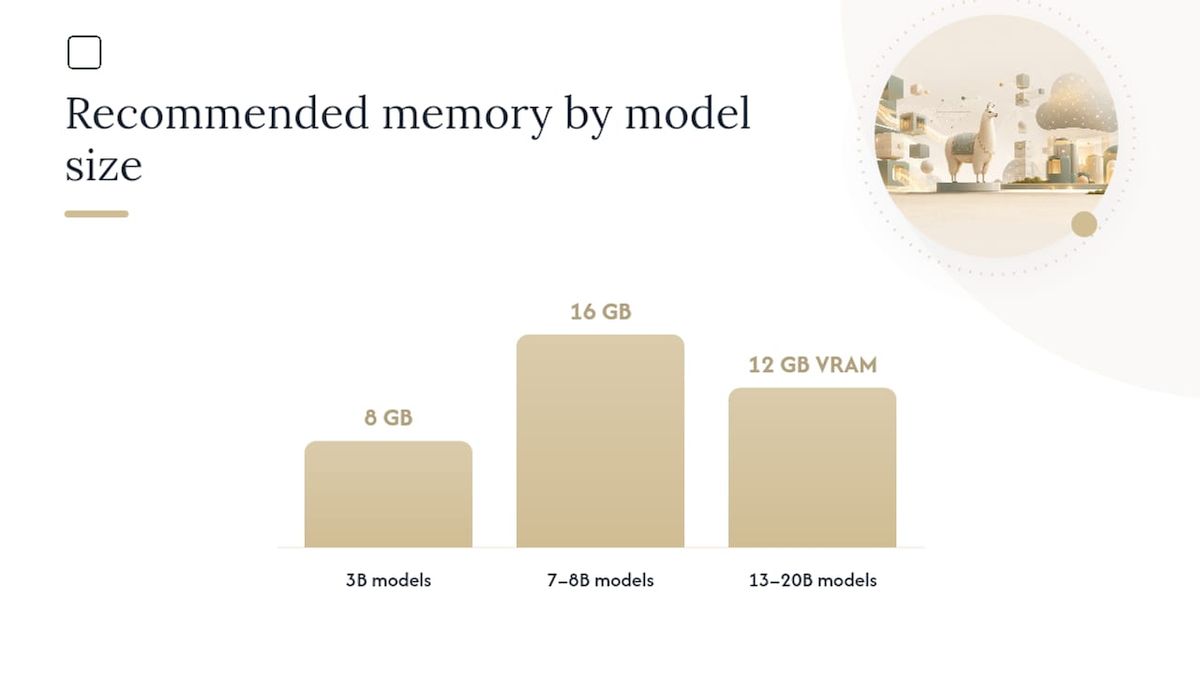
- 3B models: run comfortably on most modern laptops with 8GB of RAM, no dedicated GPU required.
- 7B to 8B models: want 16GB of RAM; a GPU speeds things up noticeably but isn't strictly mandatory.
- 13B to 20B models: benefit heavily from a dedicated GPU with 12GB or more of VRAM.
- 70B and larger: generally impractical on consumer hardware, which is exactly the gap cloud models are built to fill.
One detail catches people off guard: a 20b tag doesn't always mean the same memory footprint across models, since quantization strategy varies by release. It pays to check the specific tag's listed size on the Ollama GitHub repo before assuming two "20B" models behave identically. If your hardware can't clear these numbers, cloud models offload the heavy lifting while keeping the same command-line workflow.
Building on the API: Scripts, Agents, and Integrations
Ollama's local REST API runs on localhost by default, exposing endpoints like /api/generate for single-shot completions, /api/chat for multi-turn conversations, and /api/tags to list installed models programmatically. Because the surface is OpenAI-compatible, most client libraries in Python or JavaScript that already speak the OpenAI chat completions format need only a base URL swap to point at your local instance, a design choice confirmed in the Ollama repository's own documentation.
This makes Ollama a natural backend for:
- Coding assistants that need a local model for autocomplete or refactoring suggestions without sending code to a third party.
- Agent runtimes that chain multiple model calls together for research or automation tasks.
- Docker-based deployments, where Ollama runs in a container alongside your application stack.
- Cloud model calls, which require setting an
OLLAMA_API_KEYenvironment variable to authenticate against the hosted service.
If you're scripting prompts for a local model, the way you write instructions still matters. Guides on structuring instructions for AI text output apply just as well to local models as they do to cloud ones.
Running It Day to Day: Resource Habits and Housekeeping
Ollama runs as a background service the moment it's installed, which means it's sitting in memory even when you're not actively chatting. On a laptop, that service can pull noticeably on CPU or GPU usage and drain battery faster than expected, and the AMD AI Playbook specifically calls out stopping the service from the system tray when you're not using it.
A few habits keep things tidy:
- Clear out unused models with
ollama rmregularly. Model files add up fast, and a handful of 7B and 13B downloads can eat tens of gigabytes without you noticing. - Quit the service when idle if you're on battery power or need every CPU cycle for something else.
- Start small before scaling up. Test quantized tags before pulling the largest version of a model.
- Keep cloud in reserve. For heavier workloads than your machine can handle, cloud models exist specifically for that gap.
Pro Tip: If you're embedding Ollama into a script that spins up and tears down repeatedly, add an explicit step to unload the model when the task finishes. Otherwise it can sit resident in memory long after your script has exited.
On privacy, local mode keeps every prompt and response on your device with nothing transmitted anywhere. Cloud models flip that: they need an account and an API key, and your prompts travel to Ollama's servers for processing.
When Ollama Fits, and Where It Doesn't
Ollama earns its place for privacy-sensitive work, offline scripting, and any workflow where you'd rather not pay per token or send data off your machine. It struggles where raw capability matters most: local 7B or 13B models simply don't match frontier cloud models on complex reasoning, and latency on modest hardware can be rough.
- Good fit: private note analysis, offline coding help, local automation scripts.
- Poor fit: production-scale reasoning, tasks needing the largest available models.
- Sensible middle ground: run private, everyday tasks locally, and reach for the cloud only when a job genuinely needs more horsepower, echoing how developers commonly split work between local and cloud tools.
An Editor's Take on Getting Started With Ollama
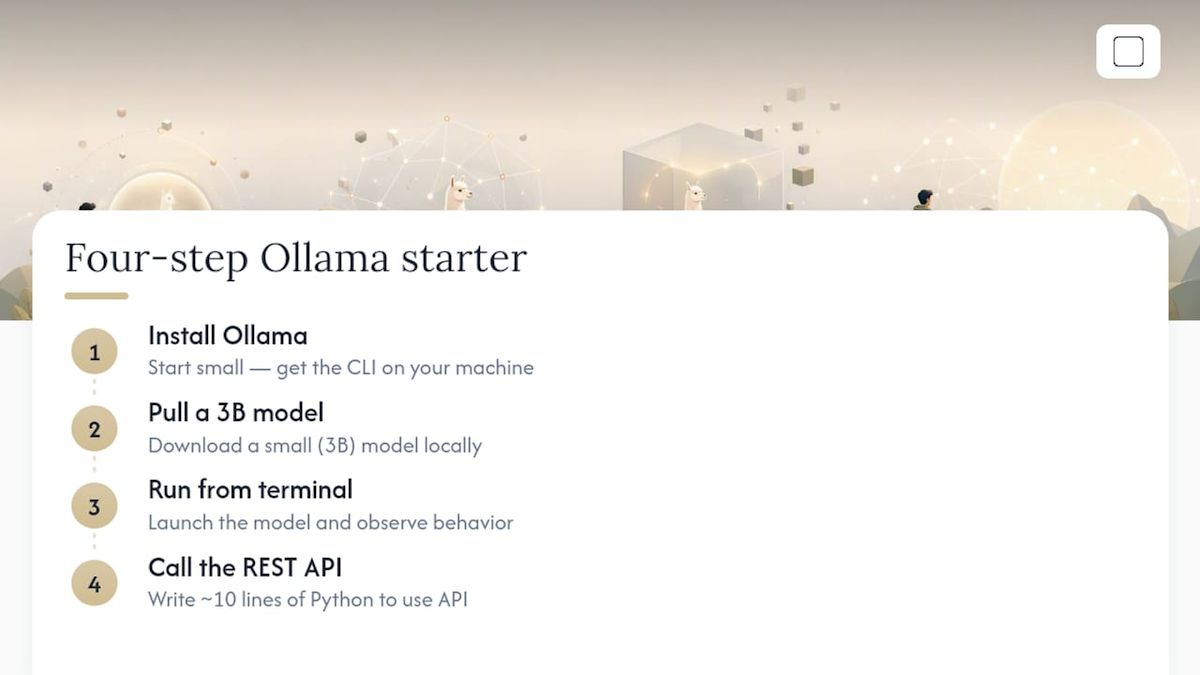
Start small. Install Ollama, pull a 3B model, run it from the terminal, then write ten lines of Python that call the REST API instead of typing prompts by hand. That single exercise teaches you more about how Ollama actually behaves than any amount of reading.
Watch your disk and battery for the first week. Back up any model configuration you customize, since re-pulling large files is tedious. When something breaks, the GitHub discussions around the project tend to have already solved it, and the AMD playbook is worth bookmarking for concrete, step-by-step examples rather than abstract advice.
If you decide command-line tools aren't for you, or you want document reading and image analysis without touching a terminal, GreenCube offers a packaged offline desktop alternative built for that exact gap. It runs on Windows and Mac, with setup that downloads one AI model a single time. GreenCube's tiers, named Seed, Sprout, Bloom, and Thrive, simply describe what your computer handles comfortably, not a subscription ladder. A slower machine will still answer and build documents, just at a slower pace. You unlock it with a one-time Google or Microsoft sign-in, and your chats and files stay on your computer. Only the features you switch on ever go online. It costs $9.99, paid once, with everything included, no subscription, and it's built for people who want the privacy of local AI without learning a command line.
— Hector Gras
Where to Read the Official Docs Next
For hands-on installation steps and the full command reference, the Ollama GitHub repository is the primary source. The AMD AI Playbook offers a guided getting-started walkthrough with practical examples, and the Wikipedia entry gives a concise overview and release history.
Sources
- GitHub - ollama/ollama: Get up and running with Kimi-K2.6, GLM-5.2, MiniMax, DeepSeek, gpt-oss, Qwen, Gemma and other models.
- Getting Started with Ollama | AMD AI Playbooks
- ChatGPT alternatives for Linux: cloud vs local (Layer3 Labs)
FAQ
What Exactly Does Ollama Do?
Ollama runs open-weight large language models directly on your computer through a command-line tool, a desktop app, and a local REST API. It handles downloading, quantizing behind the scenes, and serving models like gpt-oss, Qwen, and Gemma so you can chat with them or call them from your own scripts.
What Is Ollama vs ChatGPT?
Ollama runs models locally on your own hardware, while ChatGPT is a cloud service running on OpenAI's servers. Ollama trades some raw model capability for privacy and no per-token cost, since your prompts never leave your device unless you opt into Ollama's own cloud models.
Is Ollama Fully Free?
Ollama itself is free and open source under an MIT license, and local models cost nothing beyond your own electricity and hardware, according to its Wikipedia entry. Cloud models require an Ollama account and may carry their own usage terms since they run on Ollama's hosted infrastructure rather than your machine.
What Are the Disadvantages of Ollama?
The biggest drawbacks are hardware limits and a capability gap versus top cloud models: large models need serious RAM or GPU memory, and even well-tuned local models trail frontier cloud systems on complex reasoning. Running Ollama's background service continuously can also drain battery and use CPU or GPU resources you'd rather save, per AMD's own setup guidance.
Recommended
- Ollama vs LM Studio: A Developer's Comparison Guide
- Choose by Hardware, Not Leaderboards: Best Small LLM for Local Use
- Install Local AI: Get a Working Offline LLM on Your PC
- Top 3 Offline AI Solutions: Ollama Alternatives 2026
Your own AI, on your own PC
GreenCube runs on your computer: no usage limits, no subscription, works without internet. €9.99 (US$9.99), paid once.
Get GreenCube