Yes, you can ask an AI question right now without creating an account, using guest or logged-out web chat, demo playgrounds, or multi-model aggregator sites. Sessions like these are typically bound to your browser tab and limited in memory, so anything you want to keep should be copied out before you close it. For private, repeatable, or file-based work, an offline desktop option like GreenCube is the safer long-term route.
TL;DR:
- Guest chats usually keep one conversation in the current browser session; copy useful answers immediately because closing the tab or clearing cookies can erase them.
- No account does not mean private: providers still process prompts on their servers, and logged out conversations may improve models unless users can opt out.
- Avoid guest chat for passwords, client records, or sensitive documents; most guest tools lack reliable file handling, and uploaded files still reach a provider's server.
- GreenCube runs offline on Windows or Mac after downloading a model; its $9.99 lifetime fee covers a Google or Microsoft license check, not cloud processing.
Table of Contents
- Practical ways to use AI instantly without creating an account
- How no-login AI sessions actually work
- Quick how-to: get an answer now and keep it if it matters
- Privacy and practical limits: when to use guest mode and when not to
- Why local, offline AI changes the privacy equation
- How I choose between guest chat and an offline app
- GreenCube: a private, offline alternative for work that needs to stick around
- FAQ
- Sources
Practical ways to use AI instantly without creating an account
You have several real options when you want an answer right now and have no interest in signing up for anything.
- Guest or logged-out web chat: most major providers let you type a question and get a response in your browser with no account, though the conversation usually lives in that one session only.
- Demo or model playgrounds: many research labs and AI companies host playground pages where you can switch between models without logging in, which is handy for comparing how different models answer the same prompt.
- Aggregator or multi-model sites: some sites let you try several model types from one page with minimal barriers, useful when you just want a quick second opinion.
- Browser extensions or device previews: some tools offer a lightweight, temporary chat composer built into a browser toolbar or device preview, meant for a single quick exchange rather than ongoing use.
- Local or offline desktop apps: these sit a little apart from the rest because they require an install and a one-time model download, but in exchange they keep your data on your own machine and remember your conversation history.
Each of these gets you an answer fast. The trade-off is memory and privacy: the more convenient the no-login option, the less likely it is to remember anything once you close the tab.
How no-login AI sessions actually work
"No login" does not mean "no record of what you typed." It means the provider is not tying your activity to a personal account, which is a different thing entirely.
- Session storage: guest chats typically live in your browser tab, a cookie, or local storage, and closing the tab or clearing your browser data erases them.
- Server-side processing still happens: the provider's servers still receive your prompt and generate the answer. No account does not mean your text never leaves your device.
- Model-improvement defaults may apply: a practical how-to guide on using ChatGPT without an account notes that logged-out chats can be used to improve the underlying model by default, unless the provider gives you a way to opt out.
- Availability varies by platform: some no-login paths exist only on the web and not in a mobile app, and Microsoft's own documentation on configuring end-user authentication explains that a "No authentication" setting lets anyone with a link chat with an agent, though it then can't use tools that require credentials.
Guest chat sessions are session-bound by design. The same how-to guide on using ChatGPT without an account found that the logged-out web experience supports a single ongoing conversation in that browser, with no persistent history once you leave.
Quick how-to: get an answer now and keep it if it matters
If you just need an answer, here's the fastest path, plus how to make sure you don't lose anything useful.
- Open a provider's web chat or a demo page and skip any sign-in prompt if one is offered as optional.
- Type a clear, specific prompt. Vague questions get vague answers, and you won't get a second chance to build context if the session resets.
- Send it and read the response, then immediately copy the text you want to keep into a notes app, document, or email draft.
- Stay in the same tab for follow-up questions. Clicking "New Chat" or reopening the page usually wipes the thread you were building.
Pro Tip: Copy your answer the moment you get it, not after you've asked three more questions, since closing the tab or an idle timeout can erase the whole thread without warning.
If your task involves a PDF, a scanned document, or a photo you need analyzed, guest mode is the wrong tool. Most no-login web chats are not built for file uploads, and even when they are, you're sending that file to a server with no account protections around it. That kind of task fits better with a local, offline app that keeps the file and the analysis on your own computer.
Privacy and practical limits: when to use guest mode and when not to
Guest chat is great for quick, low-stakes tasks. It's the wrong choice the moment the content matters.
- Never paste passwords, private client data, or legally sensitive material into a guest chat. The provider's servers still process that text even without an account attached to it.
- Don't count on history sticking around. Guest sessions generally don't save your conversation past the browser session, so there's nothing to come back to later.
- Browser-only history is fragile. Clearing cookies, switching browsers, or moving to a new device can wipe a guest conversation instantly, and practitioner guidance on data boundaries recommends exporting or copying anything important before you close the tab.
- Use guest mode for one-off brainstorming, quick facts, or testing a model, and save longer projects or anything involving sensitive documents for a sign-in path or a local tool instead.
Why local, offline AI changes the privacy equation
Running an AI assistant locally flips the default. Instead of your prompt traveling to a server somewhere, the model runs on your own hardware and the conversation never leaves the machine.
- Data stays on the device, which removes server-side retention by default and limits how much, if any, of what you type could feed into a model-improvement process.
- Setup requires an install and a model download, and the size of that model affects both speed and memory needs. Smaller models handle plain text quickly, while larger ones that read images or build documents need more RAM and run slower.
- The practical move is to combine both approaches: guest chat for quick, disposable questions, and a local app for sensitive, repeatable, or file-based work. Our guide to running AI without internet access walks through what that setup looks like on a laptop.
For organizations weighing authenticated versus no-login deployments at scale, a partner breakdown of Microsoft Copilot's safety for small businesses is a useful look at how authentication choices affect security posture in a managed environment.
How I choose between guest chat and an offline app
My own rule is simple: guest chat for anything I'd be fine losing, and a local desktop app for anything I'd want to find again next week. The moment I catch myself repeating a sensitive or lengthy task in guest mode, that's the signal to stop forcing it and move to an offline tool built for exactly that.
— Hector Gras
GreenCube: a private, offline alternative for work that needs to stick around
When a question is worth keeping, or involves a document you'd rather not hand to a server, we built GreenCube as a downloadable desktop app that runs entirely on your own Windows or Mac computer. There's no cloud involved: your chats, PDFs, and images stay on your machine, and the only online step is a one-time Google or Microsoft sign-in to verify your license, not to transmit anything you've typed or uploaded.
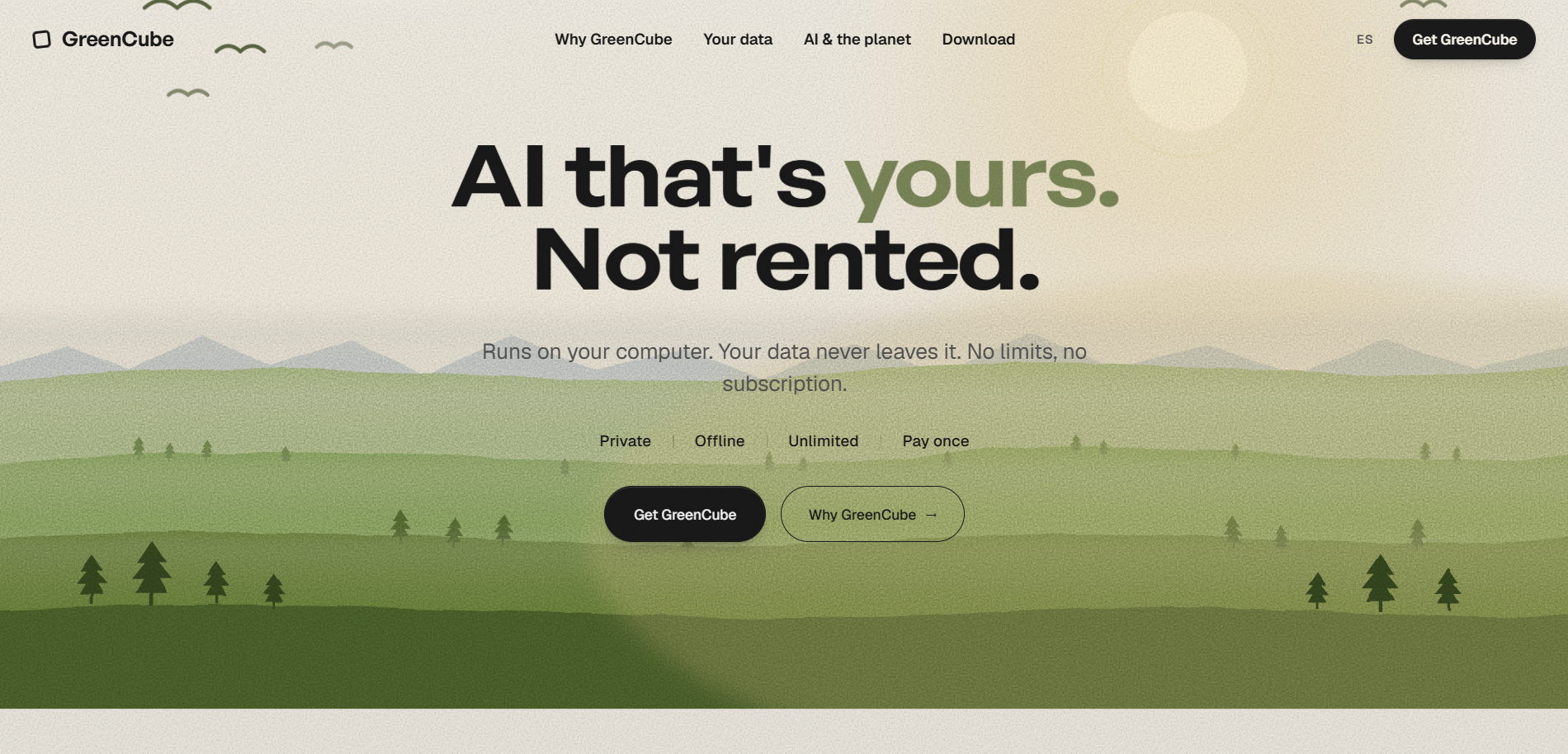
This fits privacy-conscious users, students working through PDFs for a class, and anyone who wants persistent chat history or document analysis without a subscription. Setup takes a one-time model download, and we're upfront that large cloud models still have an edge for heavy reasoning tasks. What we offer instead is privacy, ownership, and a single payment of €9.99 ($9.99), covering everything with no recurring fee.
If that sounds like what you need, you can get GreenCube Lifetime and start keeping your own history on your own machine today.

FAQ
Can I use ChatGPT or similar tools without creating an account?
Yes, many providers offer a logged-out web chat that lets you type a question and get an answer without signing up. A practical guide to using ChatGPT without an account confirms this works for a single browser-bound conversation, though it won't save your history once you leave.
Does a no-login AI chat still see what I type?
Yes. Skipping sign-in only means the provider isn't linking your activity to a personal account, not that your prompt stays off their servers. The text still travels to a server to generate a response, and some providers use logged-out conversations to improve their models by default.
Will I lose my conversation if I close the browser tab?
Most likely, yes. Guest sessions typically live in browser storage or cookies, and closing the tab, clearing site data, or switching devices can erase the whole conversation. Copy or save anything important before you leave the page.
What's the safest option for private or recurring tasks?
A local, offline app that keeps your data on your own device is the safer choice for sensitive or repeated work, since nothing has to leave your machine. GreenCube is built around exactly that approach, running fully offline after a one-time setup and model download.
Is offline AI harder to set up than a web chat?
It takes a bit more effort upfront: you install the app and download a model one time. After that, it works without an internet connection, which is a fair trade for privacy-conscious users and anyone handling documents they'd rather not upload anywhere.
Sources
- Configure user authentication - Microsoft Copilot Studio | Microsoft Learn
- How to Use ChatGPT Without an Account on the Web
- M365