Run AI Image Analysis Fully Offline: A Practical Guide
Yes, AI image analysis can run completely offline. No cloud account, no API key, no data leaving your machine. The fastest path depends on who you are: if you want something that works the moment you install it, GreenCube is a one-click private desktop app that handles image understanding, OCR, and PDF reading with zero model configuration. If you need developer control, a local runner like Ollama paired with a vision model gives you a full REST-accessible stack you can wire into any pipeline.
Offline image analysis covers more ground than most people expect:
- OCR (extract text from images and scanned documents)
- Image captioning (auto-describe photo contents)
- Object detection (identify and locate items in a scene)
- Semantic search (find photos by natural-language query)
- Visual Q&A (ask questions about what's in an image)
Every task above runs locally. No outbound traffic, no telemetry, no vendor seeing your data. That privacy guarantee is the core reason to run local AI in the first place, and it holds whether you choose a turnkey app or a developer stack.
Key Takeaways
Offline AI image analysis is fully feasible today: the right choice is a turnkey app for simplicity or a developer stack for control, sized to your hardware using quantized models.
| Point | Details |
|---|---|
| Offline is fully feasible | AI image analysis runs locally with no cloud calls using tools available today. |
| Turnkey vs. developer stack | Choose GreenCube for zero-config privacy; choose Ollama + vision model for REST and automation. |
| RAM drives model choice | Under 8 GB: Q4 GGUF small VLMs; 8–24 GB: 13B models; 24+ GB: large unquantized models. |
| ONNX and GGUF speed up CPU | ONNX export delivers 3–5× faster CPU inference for embedding models; GGUF Q4 cuts VLM memory roughly in half. |
| GreenCube | One-time purchase desktop app: offline image analysis, OCR, and chat with no setup or telemetry. |
Table of Contents
- What components does offline AI image analysis actually need?
- Which path should you pick: turnkey app, developer stack, or DIY pipeline?
- GreenCube: the dead-simple private option for image analysis
- What developer tools and models power offline image analysis?
- How much RAM, GPU, or NPU do you actually need?
- Minimal commands to run a model and analyze an image locally
- How to speed up CPU inference: quantization, ONNX, and batching
- How to call offline image analysis from your app
- Privacy, licensing, and data-handling checklist before you deploy
- Common pitfalls and how to fix them fast
- When should you choose a turnkey app vs. self-hosting models?
- GreenCube gives you private offline image analysis without the setup
- Sources
- FAQ
What components does offline AI image analysis actually need?
Three layers make up any working offline vision stack: a runtime, a model, and an application layer. Understanding them takes five minutes and saves hours of debugging later.
The inference runtime is the engine that loads model weights and runs computation. Common runtimes include llama.cpp (which reads GGUF-format weights), ONNX Runtime (reads .onnx files), and PyTorch (reads .pt checkpoints). Each has different hardware support and memory behavior. GGUF runtimes handle quantized models well on CPU; ONNX Runtime is the go-to for cross-platform CPU inference with vectorized acceleration.
The vision model sits on top of the runtime. There are three practical categories:
- CLIP/SigLIP encoders: convert images into embedding vectors for semantic search (used by Archivist-AI and OffGallery)
- Vision-language models (VLMs): multimodal models like LLaVA, Qwen-VL, or Llama3.2-Vision that accept an image plus a text prompt and return a natural-language answer
- Specialized OCR engines: Tesseract, EasyOCR, or BLIP for captioning
The application layer is whatever the user or developer touches: a desktop UI, a CLI command, a FastAPI REST endpoint, or a Python SDK call. This layer sends the image to the runtime, receives structured output (usually JSON), and presents or stores the result.
Data flows like this: raw image → preprocessing (resize, encode to base64 or tensor) → runtime inference → structured output (JSON with captions, detected objects, OCR text, or embedding vectors). Embedding indices and caches live in local storage, typically SQLite or FAISS vector stores, never a remote database.
Pro Tip: Decouple your inference engine from your UI from day one. If you hard-wire a specific runtime into your application code, swapping models later means rewriting the integration. Keep the runtime behind a thin interface, and model upgrades become a one-line config change.
Which path should you pick: turnkey app, developer stack, or DIY pipeline?
Three practical routes exist, and the right one depends on your skills and what you need to build.
Turnkey desktop apps (like GreenCube) install in under two minutes, bundle or auto-download models, and expose a drag-and-drop UI. No terminal required. The tradeoff: you get the features the app ships with, not custom model chains or REST endpoints.
Developer stacks (Ollama + vision model + offgrid-vision or image-analyser) give you full control over which model runs, how images are batched, and how results are consumed. Setup takes 15–30 minutes the first time. You get a local REST API, CLI access, and the ability to chain models or build agents.
DIY pipelines (composing PyTorch, ONNX Runtime, Tesseract, and FAISS yourself) are for production edge deployments or research workflows where you need every component hand tuned. Expect days of setup and ongoing maintenance.
| Dimension | Turnkey desktop app | Developer stack | DIY pipeline |
|---|---|---|---|
| Best for | Non-technical users, quick analysis | Developers, automation, agents | Edge production, research |
| Ease of setup | One-click install, ~2 min | CLI install, 15–30 min | Days, custom build |
| Hardware required | 8+ GB RAM, CPU-only fine | 8+ GB RAM, GPU optional | Varies by components |
| Offline features | OCR, captioning, chat, PDF | OCR, detection, captioning, search, VQA | Fully custom |
| Privacy / telemetry | No cloud, no telemetry | No cloud if configured correctly | Fully controlled |
| Cost / licensing | One-time purchase or open-source | Open-source (model licenses vary) | Open-source + dev time |
| Integration options | Local files, clipboard, export | CLI, REST, Python/JS SDK | Any |
Usage scenarios worth naming: a photographer indexing 50,000 vacation photos wants semantic search without uploading anything to Google Photos. A developer building a document-processing agent needs a REST endpoint that returns structured JSON for each image. An enterprise deploying edge devices in a factory needs a pipeline that runs on 4 GB ARM boards with no network access. Each scenario maps to a different row in that table.
Pro Tip: Start with the turnkey app to validate that your images produce the outputs you actually need. Once you know the output schema and edge cases, graduating to a developer stack for automation is straightforward. Skipping straight to a DIY pipeline before you understand your data is the most common time sink in local vision projects.
GreenCube: the dead-simple private option for image analysis
GreenCube is a desktop app that runs entirely on your own computer. It handles image understanding, PDF reading, and AI chat with no cloud connection, no account creation, and no subscription. You pay once and own it. The privacy guarantee is absolute: no telemetry, no external API calls; nothing leaves your machine during analysis.
Getting started takes four steps:
- Download the installer from GreenCube and run it (Windows; Mac is in development).
- Open the app. On first launch, it prompts you to download the bundled model files, which cache locally.
- Drag an image into the chat window or use the file picker.
- Type a question ("What text is in this image?" / "Describe what you see" / "List all objects") and get a response.
The UI is intentionally minimal. There is no configuration panel to navigate before you can analyze an image. OCR results appear inline; you can export them as plain text or JSON. Captioning and visual Q&A work the same way: drop the image, ask the question, read the answer.
After install, two checks are worth running: confirm the model download completed (the app shows a status indicator), and run one test image to verify the runtime is active. Both take under 30 seconds.

Integration options for power users include analyzing local files directly from the file system, pasting images from the clipboard, and exporting structured results. For non-technical users, none of that is required. The no-setup design is the point.
What developer tools and models power offline image analysis?
The open-source ecosystem for local vision is more mature than most developers realize. Here is the practical toolset, organized by layer.
Model runners and CLI tools:
- offgrid-vision: a zero-dependency Node.js CLI that routes images to a locally running Ollama host and returns compact structured JSON. It includes model suggestions by RAM tier and a
doctorcommand that checks system readiness before you run anything. - image-analyser: a Python CLI and FastAPI server that returns metadata, SHA-256 and perceptual hashes, EXIF data, blur/quality metrics, and optionally runs object detection (DETR), captioning (BLIP), and OCR (Tesseract/EasyOCR) via local ML components.
- Archivist-AI: uses SigLIP embeddings and FAISS for natural-language photo search entirely offline. ONNX export gives 3–5× faster CPU inference versus the default PyTorch path. CLI commands:
archivist indexandarchivist search. - mq-image-analyze: a visual reasoning toolkit that produces structured JSON for screenshots, UI states, and diagrams. It supports
local-fastandlocal-deepbackend modes (BakLLava, Llama3.2-Vision) and includes its owndoctorreadiness check. - picoVLM: an on-device VLM from Picovoice that runs CPU-only across Android, iOS, Python, and web targets. It handles visual Q&A, OCR, and multi-step reasoning without any cloud calls, making it practical for constrained or embedded environments.
Vision model categories:
CLIP-style encoders (CLIP, SigLIP) convert images to embedding vectors. They are fast, memory-efficient, and ideal for semantic search and similarity matching. They do not generate text.
VLMs (LLaVA, Qwen-VL, Llama3.2-Vision) accept an image plus a text prompt and return natural language. They are larger and slower but handle open-ended Q&A, captioning, and OCR in a single model call. Running LLaVA locally with Ollama requires a single pull command and works on any machine with 8+ GB RAM.
Specialized OCR engines (Tesseract, EasyOCR) are deterministic, fast, and accurate on printed text. Pair them with a VLM when you need both text extraction and semantic understanding.
Model packaging formats: GGUF (llama.cpp-compatible, quantized), .onnx (cross-platform, ONNX Runtime), .pt (PyTorch checkpoints). GGUF is the most practical for CPU-first offline use.
Model-to-RAM sizing:
| RAM tier | Practical model options | Notes |
|---|---|---|
| Under 8 GB | LLaVA 7B (Q4), moondream2, picoVLM | Quantized GGUF only; CPU inference |
| 8–24 GB | LLaVA 13B (Q4/Q5), Qwen-VL 7B, Llama3.2-Vision 11B | GPU optional; Q4/Q5 GGUF recommended |
| 24+ GB | LLaVA 34B, unquantized 13B+ | GPU strongly recommended |
Pro Tip: For local model management and discovery, the local AI models overview is a useful starting point before you commit to a specific model family.
A minimal Python flow looks like this:
# Pseudocode: load runtime, pass image, parse output
client = OllamaClient(host="http://localhost:11434")
with open("photo.jpg", "rb") as f:
    image_b64 = base64.b64encode(f.read()).decode()
response = client.chat(model="llava:7b", messages=[
    {"role": "user", "content": "Describe this image.", "images": [image_b64]}
])
result = response["message"]["content"]
How much RAM, GPU, or NPU do you actually need?
The single biggest mistake in local vision setups is loading a model that exceeds available RAM. The system either crashes, swaps to disk (making inference 10–50× slower), or refuses to load the weights at all.
Practical RAM rules:
- Under 8 GB: You are limited to quantized small models. LLaVA 7B at Q4 quantization fits in roughly 5–6 GB. moondream2 is designed specifically for this tier. picoVLM runs CPU-only and targets even more constrained environments. Expect 10–30 seconds per image on a modern CPU.
- 8–24 GB: The most useful range for developers. LLaVA 13B at Q4/Q5, Qwen-VL 7B, and Llama3.2-Vision 11B all fit here. A mid-range GPU (RTX 3060 12 GB or equivalent) drops inference to 2–5 seconds per image.
- 24+ GB: Large unquantized models and 34B+ VLMs. Requires a GPU with sufficient VRAM or a high-RAM workstation. Inference is fast but the hardware cost is significant.
When a GPU materially helps: for VLMs above 7B parameters, a GPU cuts latency by 5–10× compared to CPU. For CLIP/SigLIP embedding generation (used in Archivist-AI), ONNX Runtime on CPU is already fast enough for most batch indexing jobs. NPU acceleration (Apple Neural Engine, Qualcomm NPU) helps on supported hardware but requires platform-specific runtime builds.
Quantization and ONNX gains: Archivist-AI's ONNX export delivers 3–5× faster CPU inference for embedding generation compared to the default PyTorch path. For VLMs, int8 dynamic quantization typically cuts memory by roughly half with a modest accuracy drop on most vision tasks. GGUF Q4 models run at roughly 2–4× the speed of their unquantized equivalents on CPU, with accuracy loss that is usually imperceptible for captioning and OCR.

Pro Tip: Start with a Q4 GGUF model on CPU. If latency is acceptable for your use case, you are done. Only add GPU complexity when you have measured that CPU inference is the actual bottleneck, not I/O, preprocessing, or application code.
Minimal commands to run a model and analyze an image locally
These are copy-paste ready. Adjust model names and file paths for your setup.
Ollama + LLaVA (CLI):
# Pull the model once (cached locally after this)
ollama pull llava:7b

# Analyze a single image
ollama run llava:7b "Describe this image" --image ./photo.jpg
offgrid-vision (Node.js CLI):
# Install globally
npm install -g offgrid-vision

# Check system readiness
offgrid-vision doctor

# Analyze an image, return JSON
offgrid-vision analyze ./photo.jpg --json

# Specify mode
offgrid-vision analyze ./photo.jpg --mode ocr --json
offgrid-vision analyze ./photo.jpg --mode alt-text --json
The offgrid-vision CLI supports --mode values including general, ocr, alt-text, and ui. The doctor command checks that Ollama is running, a compatible model is available, and RAM is sufficient before you commit to a full analysis run.
Batch analysis (folder):
# Analyze every image in a directory
for f in ./images/*.jpg; do
  offgrid-vision analyze "$f" --json >> results.jsonl
done
Python minimal example (Ollama REST):
import requests, base64, json

with open("photo.jpg", "rb") as f:
    img_b64 = base64.b64encode(f.read()).decode()

payload = {
    "model": "llava:7b",
    "messages": [{"role": "user", "content": "What objects are in this image?",
                   "images": [img_b64]}]
}
r = requests.post("http://localhost:11434/api/chat", json=payload)
result = json.loads(r.text)
print(result["message"]["content"])
Example JSON output from offgrid-vision:
{
  "file": "photo.jpg",
  "mode": "general",
  "objects": ["laptop", "coffee cup", "notebook"],
  "caption": "A desk with a laptop, a coffee cup, and an open notebook.",
  "ocr": "",
  "confidence": 0.91,
  "errors": []
}
Key fields: objects (detected items), caption (natural-language description), ocr (extracted text, empty if none), confidence (model certainty score), errors (runtime or model issues).
How to speed up CPU inference: quantization, ONNX, and batching
CPU inference is slower than GPU inference, but several optimizations close the gap meaningfully.
int8 dynamic quantization reduces model weight precision from 32-bit or 16-bit floats to 8-bit integers at inference time. Memory drops by roughly half; throughput on CPU typically improves by 1.5–2×. Accuracy loss on captioning and OCR tasks is usually small enough to ignore.
ONNX export converts a PyTorch model to a cross-platform format that ONNX Runtime can execute with CPU-vectorized kernels (AVX2, AVX-512). For embedding models like SigLIP, this is where the 3–5× speedup cited by Archivist-AI comes from. The export is a one-time step; after that, the ONNX model loads faster and runs faster than the original.
GGUF Q4/Q5 quantization (used by llama.cpp and Ollama) applies 4-bit or 5-bit quantization to VLM weights. Compared to unquantized FP16, inference speed on CPU improves by roughly 2–4×, and memory use drops proportionally. Q4 is the practical default for under-8 GB machines; Q5 gives slightly better accuracy for machines with 10–12 GB available.
Batching sends multiple images through the model in a single forward pass. For embedding models, this is almost always faster than sequential single-image calls. For VLMs, batching is less common because prompt lengths vary, but it is worth testing for uniform workloads like batch captioning.
Concurrency vs. single-threaded inference: running two inference processes simultaneously on a CPU usually hurts both, because they compete for memory bandwidth. Better to run one process with all available threads, then pipeline the next image while the current result is being post-processed.
Pro Tip: Export to ONNX for any embedding or classification model you run repeatedly on CPU. For VLMs, stick with GGUF Q4/Q5 via llama.cpp or Ollama. Measure latency with a 10-image sample before committing to a production batch size.
How to call offline image analysis from your app
Three integration patterns cover most use cases.
Pattern 1: call a local CLI and parse JSON. Spawn offgrid-vision or image-analyser as a child process, capture stdout, and parse the JSON result. This works in any language and keeps the inference runtime completely separate from your application process.
Node.js example:
const { execSync } = require("child_process");
const result = JSON.parse(
  execSync("offgrid-vision analyze ./photo.jpg --json").toString()
);
console.log(result.caption);
Pattern 2: call a local REST service. image-analyser exposes a FastAPI endpoint. Start it once, then POST images to it from any HTTP client.
Python example:
import requests
with open("photo.jpg", "rb") as f:
    r = requests.post("http://localhost:8000/analyze",
                      files={"image": f})
print(r.json())
The image-analyser FastAPI tool returns metadata, quality metrics, and optional ML outputs (objects, captions, OCR) in a single response.
Pattern 3: embed the runtime in-process. For Python applications, you can load an ONNX model directly via onnxruntime and run inference inside your own process. No separate server required.
Security notes: bind all local REST services to 127.0.0.1, not 0.0.0.0. If you need to expose the endpoint beyond loopback (e.g., within a local network), add token-based authentication and use Unix sockets where possible. For hardening steps beyond this, the offline AI security guide covers the practical checklist.
Pro Tip: Wrap the doctor command from offgrid-vision or mq-image-analyze in your application's startup health check. It detects insufficient RAM, missing model files, and runtime mismatches before your first real image hits the pipeline, which is far better than discovering those failures mid-batch.
Privacy, licensing, and data-handling checklist before you deploy
Running offline does not automatically mean compliant or legally clean. Work through this list before processing real user data.
Model license verification:
- Locate the
LICENSEfile in the model's repository or Hugging Face model card. - Confirm the license permits your use case: local use, redistribution (if you bundle the model), and commercial use if applicable.
- Common permissive licenses: Apache 2.0, MIT. Restrictive ones: Meta's Llama community license (non-commercial restrictions above certain user counts), Stability AI's non-commercial licenses.
Telemetry and network traffic:
- On first launch of any new tool, run a network monitor (Wireshark, Little Snitch, or
netstat) and confirm zero outbound connections during image analysis. - Disable any optional analytics or crash-reporting flags in config files.
- GreenCube's privacy-first design means no telemetry by default; verify the same for any open-source runner you add.
Storage and access controls:
- Confirm that embedding indices (FAISS files, SQLite databases) are stored in a location with appropriate access controls.
- Record the model file checksum (SHA-256) at download time and verify it on each load to detect tampering.
- Set retention rules for derived data: embeddings, captions, and OCR text are derived from source images and may carry the same sensitivity.
US compliance considerations:
- For datasets containing faces or biometric data, review state-level biometric privacy laws (Illinois BIPA, Texas CUBI, Washington My Health MY Data Act) before running detection or recognition models.
- For healthcare images, HIPAA applies regardless of whether processing is local. Local processing reduces breach surface but does not eliminate compliance obligations.
- Document your data flow: image source → local model → output storage. That documentation is the foundation of any audit response.
Common pitfalls and how to fix them fast
Out of memory (OOM): the model weights exceed available RAM. Fix: switch to a smaller quantized model (Q4 GGUF instead of FP16), close other applications to free RAM, or increase swap space as a temporary measure. Do not rely on swap for production inference; it is 10–50× slower than RAM.
Model file missing or corrupt: the runner reports it cannot find or load the model. Fix: re-pull the model (ollama pull llava:7b or equivalent), verify the file checksum, and confirm the path in your config matches the actual download location.
Driver or runtime mismatch: CUDA version mismatch between PyTorch and the installed driver, or ONNX Runtime built for a different opset version. Fix: check the runtime's documented CUDA compatibility matrix, match versions explicitly, and prefer CPU-only builds if GPU setup is causing friction.
Permission errors on model files: the runner cannot read weight files. Fix: chmod 644 on model files, confirm the process user has read access to the model directory.
Slow inference on CPU: you are running an unquantized model or a model too large for your RAM. Fix: switch to GGUF Q4/Q5, export to ONNX for embedding models, and reduce the VLM context window to the minimum your task requires.
Quick diagnostics:
# Check available RAM (Linux/macOS)
free -h

# Check offgrid-vision system readiness
offgrid-vision doctor

# Check Ollama model list
ollama list
Pro Tip: Keep a tiny quantized fallback model (moondream2 or a Q4 7B) in your pipeline. When a larger model fails to load in a constrained environment, route to the fallback for degraded-mode processing rather than failing the entire job.
When should you choose a turnkey app vs. self-hosting models?
The conventional wisdom in developer circles is that self-hosting gives you more control, so it is always the better choice. That is wrong for most use cases, and the maintenance cost is what people consistently underestimate.
A self-hosted local vision stack requires you to manage runtime versions, model compatibility, driver updates, and dependency conflicts. None of that is hard individually, but it accumulates. A CUDA update breaks your ONNX Runtime build. A new model format requires a llama.cpp update. A dependency conflict surfaces six months after the initial setup. For a developer building a production pipeline, that maintenance is part of the job. For anyone else, it is pure overhead.
GreenCube eliminates that overhead entirely. The runtime, model management, and UI are bundled and maintained together. You get offline image analysis, OCR, and AI chat without touching a terminal. For privacy-conscious individuals, students, and business professionals handling sensitive documents, that tradeoff is not even close.
The scenarios where self-hosting wins are specific: you need custom model chains, REST endpoints for automation, batch processing of thousands of images, or integration into an existing application. Those are developer problems. If your goal is to analyze images privately on your own machine without building infrastructure, a turnkey app is the right answer and the private AI assistant comparison covers that landscape well.
One practical rule: start with the turnkey app. If you hit a ceiling (a feature it does not support, a scale it cannot handle, an integration it cannot make), that is the signal to graduate to a developer stack. Starting with a developer stack to avoid hitting a ceiling you may never reach is the most common way to spend a weekend on setup instead of on actual work.
GreenCube gives you private offline image analysis without the setup
Most people researching offline image analysis end up spending more time on model management than on actual analysis. GreenCube is built around the opposite premise: you should be analyzing images within two minutes of downloading the app, not configuring runtimes.
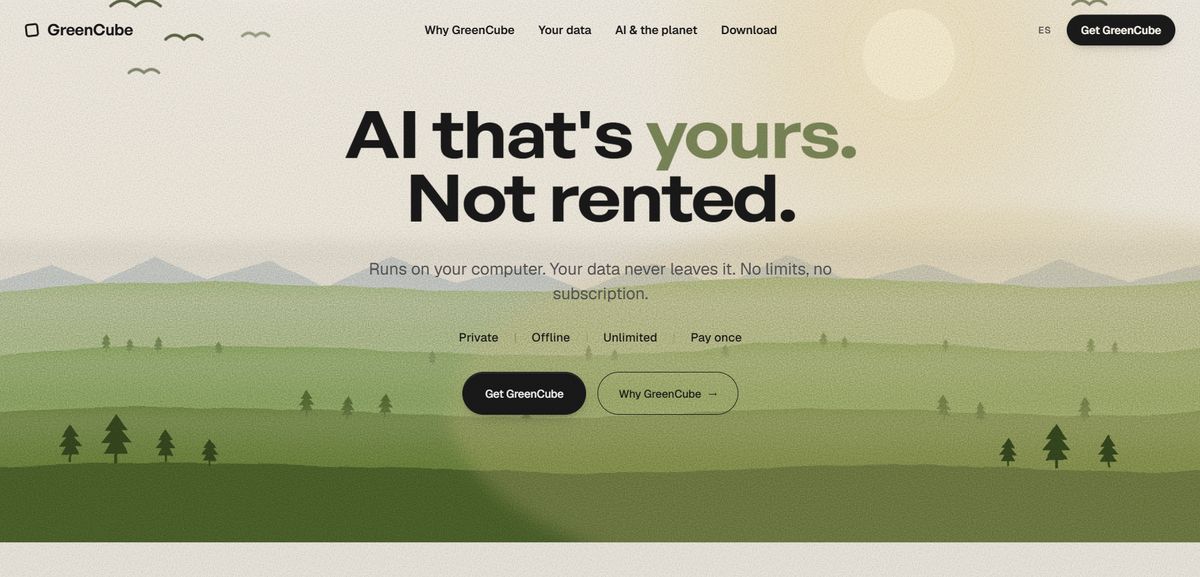
GreenCube runs entirely on your computer. Drag in an image, ask a question, get an answer. OCR, captioning, and visual Q&A work out of the box. No cloud connection, no telemetry, no subscription renewing every month. One payment, yours permanently.
- One-time purchase, no recurring fees
- Fully offline: models cached locally after first download
- Works on Windows today (Mac in development)
- No accounts, no API keys, no configuration
Download GreenCube and run your first image analysis in under two minutes. Or go straight to the purchase page if you are ready to own it.
Sources
- offgrid-vision
- Offline AI Vision with Ollama. Building on my previous guide about… | by Mendoza | Medium
- lens-analysers / image-analyser
- picoVLM On-Device Vision-Language Model for Mobile, Web, and IoT
FAQ
Is there an AI image analysis tool that works completely offline?
Yes. GreenCube is a one-click desktop app that runs image analysis, OCR, and captioning fully offline with no cloud connection. Developer options include Ollama with LLaVA, offgrid-vision, and image-analyser, all of which run locally.
Can you run a vision-language model without internet access?
Yes. Models like LLaVA 7B, Qwen-VL, and Llama3.2-Vision run locally via Ollama or llama.cpp after a one-time model download. Once cached, they operate with no network access required.
Can ChatGPT do image analysis offline?
No. ChatGPT requires an internet connection and sends your images to OpenAI's servers. For private, offline image analysis, local tools like GreenCube or Ollama with a vision model are the alternatives.
How much RAM do you need for offline AI image analysis?
A quantized 7B VLM (Q4 GGUF) fits in roughly 5–6 GB of RAM and runs on CPU. For larger models (13B), 8–16 GB is the practical minimum. Systems with 24+ GB can run large unquantized models or multiple models simultaneously.
What offline tasks can a local vision model handle?
Local vision models support OCR, image captioning, object detection, visual question answering, and semantic image search. Tools like image-analyser add metadata extraction and quality metrics on top of those ML capabilities.
Recommended
- AI Without Internet: Run Local AI Privately on Any Laptop
- Offline AI Security: A Practical Hardening Guide
- Offline AI for Students: Study Privately on Your Laptop
- Local AI Models Explained: Privacy, Use Cases, How to Start
Your own AI, on your own PC
GreenCube runs on your computer: no usage limits, no subscription, works without internet. €9.99, paid once.
Get GreenCube