Offline AI: Why It Matters and How to Get Started
Use offline AI when privacy, instant responses, or reliable operation without connectivity matter more than access to the largest cloud model. The tradeoff is real: on-device models trade some raw reasoning power for control, speed, and a bill that never changes. For most everyday tasks, that trade is worth making.
TL;DR:
- Offline AI models run entirely on local devices, providing privacy, faster responses, reliability during outages, and cost savings from one-time purchases.
- Storing quantized models in formats like GGUF allows efficient deployment on modest hardware, with requirements ranging from 8GB RAM on small models to more for larger ones.
- Offline AI is ideal for privacy-sensitive tasks, education in low-connectivity regions, and remote work in fields like agriculture, inspection, and emergency response.
- Cloud AI remains necessary for complex reasoning, large context windows, and tasks demanding extensive resources, requiring downloads of sizable models and ongoing maintenance.
- Selecting an offline AI setup involves choosing appropriate models, verifying hardware fit, securing the environment, and manually managing updates for continuous, secure operation.
Table of Contents
- Why Offline AI Is Gaining Ground Now
- What Do You Actually Gain by Running AI Offline?
- Where Offline AI Beats a Cloud Connection
- How Do Offline Models Actually Run on Your Device?
- When Should You Still Reach for Cloud AI?
- How to Make AI Work Offline: A Practical Checklist
- GreenCube: A Factual Example of a Windows Offline Assistant
- Where Offline AI Should Go Next
- How to Try a Private Offline Assistant Today
- Sources
- FAQ
Why Offline AI Is Gaining Ground Now
Offline AI means the inference itself, the actual process of generating a response, happens on your device using a model file stored locally, with no round trip to a remote server. That's the core distinction that matters: an app can technically "work offline" by caching old results, but if it needs a live connection to generate anything new, it isn't offline AI in the sense professionals mean.
Cloud-capable apps that merely tolerate spotty connections are a different category from offline-first tools built around local inference from day one. The difference shows up the moment your Wi-Fi drops.
Signals that this shift is real, not niche:
- Google's TensorFlow Lite exists specifically to run trained models on phones, laptops, and embedded chips without a server.
- Open-source projects on GitHub package small language models for constrained hardware, proving the pattern scales down.
- Developer write-ups increasingly describe "zero network permission" as a design goal, not a limitation.
What Do You Actually Gain by Running AI Offline?
The benefits cluster around four things: privacy, speed, reliability, and cost.
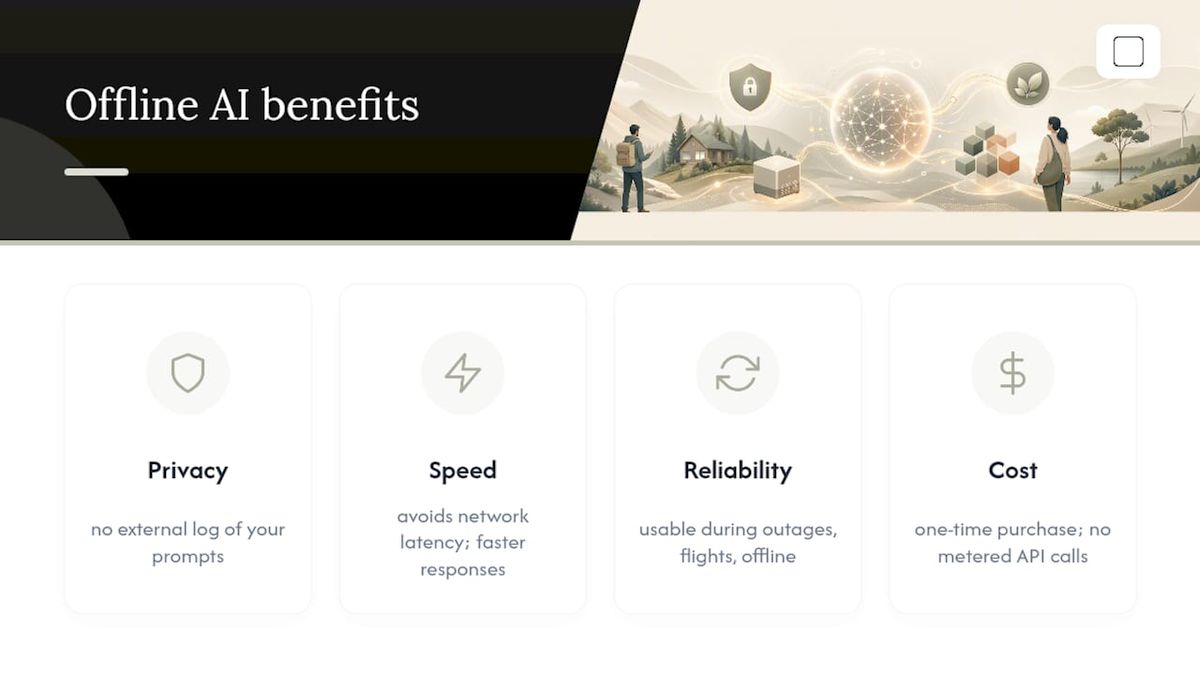
Privacy comes first because it's structural, not promised. When inference runs locally, there's no external log of your prompts, no server that could be subpoenaed, breached, or sold to a data broker. You're not trusting a privacy policy; you're removing the party the policy would apply to.

Speed follows naturally. A local model doesn't wait on network latency, so responses often feel more immediate than a cloud round trip, especially on a stable connection where the bottleneck becomes model size rather than bandwidth.
Reliability is the one people underestimate until they lose it. Offline-first design keeps a tool usable during outages, on flights, in basements, or in regions where connectivity is inconsistent by default rather than by accident, a point developers building for the Global South have made forcefully.
Cost rounds it out. A one-time purchase or a bundled model means no metered API calls piling up as usage grows.
Pro Tip: If you're evaluating an offline tool, test it in airplane mode before you buy. That single check reveals whether it's genuinely offline-first or just cloud-dependent with a cache.
Offline access also matters for education; see this guide on how to build an AI strategy for local service business that emphasizes deployment and architecture choices compatible with offline AI. Learning tools that run without a live connection can reach students in regions where connectivity is unreliable, closing a gap that cloud-only apps can't touch by design.
Where Offline AI Beats a Cloud Connection
Some jobs don't just prefer offline AI, they need it.
- Education in low-connectivity regions. Local tutoring tools keep working in classrooms where broadband is unreliable or expensive, letting students get consistent help regardless of network status.
- Field work in agriculture, inspection, and emergency response. A crop diagnostic tool or structural inspection assistant that requires signal is useless in the exact conditions it's built for, remote farmland, disaster zones, basements.
- Privacy-sensitive document review. Lawyers reading contracts, doctors reviewing patient notes, and accountants handling tax files all have a professional obligation to keep that content off third-party servers.
- Everyday drafting and code help. Writers summarizing research, students studying from PDFs, and developers debugging a function offline all benefit from an assistant that doesn't require an open browser tab to a paid API.
The common thread isn't that cloud AI fails at these tasks. It's that the connectivity requirement itself is the liability, whether that's a dead zone, a compliance rule, or a client who'd rather their documents never left the building.
How Do Offline Models Actually Run on Your Device?
Offline inference depends on three layers working together: the model file, the runtime that executes it, and the hardware underneath.
Models ship in compact formats like GGUF, which store quantized weights, meaning the numbers that define the model's behavior get compressed from 16 or 32-bit precision down to 4 or 8-bit, shrinking file size dramatically with a modest accuracy tradeoff. Pruning and distillation push this further, trimming redundant parameters or training a smaller "student" model to mimic a larger one.
Runtimes are what actually execute the model on your machine. llama.cpp is the reference project most local AI toolss build on; local gateway layers sit on top to manage requests and fallbacks.
Hardware requirements vary by model size:
- Small models (2–3 billion parameters, roughly 2GB) run on modest laptops with 8GB RAM.
- Larger models (4B+ parameters, 4GB or more) need more RAM and benefit from a dedicated NPU or GPU.
- MLPerf's inference benchmarks show real throughput differences across this hardware spectrum, which is useful when judging whether a given laptop can hit usable latency.
Pro Tip: Check a model's RAM requirement against your system's total, not available, memory. Background apps eat into headroom fast, and a model that "fits" on paper can still stutter in practice.
Update strategy matters too. Well-designed offline apps use tiered fallbacks, a capable model for good hardware, a lighter one or rule-based logic for constrained devices, so the same install works across a range of machines.
When Should You Still Reach for Cloud AI?
Offline AI isn't the right call for everything, and pretending otherwise sets you up for disappointment.
- Frontier reasoning and huge context windows. A 3B or 4B parameter model on your laptop won't match a large cloud model on complex multi-step reasoning or tasks that need to hold vast context.
- Storage and download friction. Expect model files in the 2 to 4GB range, sometimes larger, plus the time to download them once, which matters on slow connections or storage-limited machines.
- Maintenance falls on you. Cloud services patch and improve models continuously; offline tools need you to manually check for and download updates.
- Weaker devices feel it. Older laptops without an NPU can run hot, drain battery faster, and respond noticeably slower than the same model would on modern silicon.
None of this erases the case for offline AI. It just means you're choosing predictability and control over raw ceiling.
How to Make AI Work Offline: A Practical Checklist
- Define the use case and pick a model tier. A narrow, domain-specific model handles document review or coding help better than a general assistant, while a general model covers broader drafting needs.
- Download and verify the model. Expect roughly 2 to 4GB depending on the tier; confirm the checksum if the source provides one.
- Choose a runtime. Options include llama.cpp-based apps, local gateways, or platform-specific runtimes with tiered fallback behavior for weaker hardware.
- Harden your setup. Removing unnecessary network permissions and encrypting the storage folder that holds model files reduces your attack surface meaningfully.
- Plan for updates. Favor tools that use signed model bundles and let you trigger downloads manually rather than silently phoning home.
Pro Tip: Bundle a small, compact model directly in your installer so the app works offline from the first launch, then offer a larger model as an optional download for users who want more capability.
GreenCube: A Factual Example of a Windows Offline Assistant
GreenCube is a Windows desktop app built on llama.cpp that runs entirely on your own machine. Setup requires downloading one model: the smaller model (roughly 2.6 GB, fast, text-only) or the bigger model (roughly 4.2GB, reads images, needs at least 8GB RAM, which is a floor, not a comfort zone). Sign-in via Google or Microsoft verifies your license only. It costs a one-time €9.99 / $9.99 with a 15-day refund, and it makes no claim to match cloud-scale reasoning.

Where Offline AI Should Go Next
The near future isn't offline versus cloud, it's hybrid: lightweight local models handling routine, private work while cloud models get called in only for tasks that genuinely need more horsepower. That tiered approach already shows up in production apps built by independent developers, and it's the pattern worth watching.
If you haven't tried an offline workflow yet, time a few real tasks, drafting, summarizing, document review, and compare the experience honestly against your usual cloud tool.
— GreenCube
How to Try a Private Offline Assistant Today
GreenCube gives you local chat and document analysis on Windows, with your choice of two models and inference that runs entirely on your machine once the model finishes downloading. Setup always requires a one-time model download, either the roughly 2GB the smaller model for fast text work or the roughly 4.2GB the bigger model for image reading and study guides, and it needs at least 8GB RAM as a minimum, not a comfort margin.
Signing in with Google or Microsoft verifies your one-time license only; checkout runs through Stripe, and your chats and documents never leave your device. Unlike a subscription tool billed monthly for capped usage, GreenCube is a €9.99 / $9.99 one-time purchase with a 15-day refund and unlimited local use afterward. If reviewing sensitive files or drafting without a data trail matters to you, get GreenCube and pick your model tier during setup.
Sources
For deeper technical grounding, TensorFlow Lite's documentation covers edge-deployment tooling in detail, while MLPerf's inference results offer hardware benchmarking data. On the architecture side, this offline-first design breakdown and this Global South access analysis explain the reliability and access case in more depth.
- TensorFlow Lite
- MLPerf Inference v4.1 results
- Why 'Offline-First AI' Is No Longer Optional for the Global South
FAQ
What Is the 30% Rule in AI?
There's no single, universally recognized "30% rule" for AI; the phrase is sometimes used informally to describe partial task automation, but it isn't a standard technical benchmark you should rely on.
Would AI Work Without Internet?
Yes, if the model file is stored locally and the runtime performs inference on-device, a properly built offline AI tool functions with no internet connection at all.
How Do You Make AI Work Offline?
Download a compatible model (commonly 2 to 4GB), pair it with a local runtime like llama.cpp, and run it on hardware that meets the model's RAM requirements, no server connection needed for inference.
Which AI Tool Works Without Internet?
Several desktop tools built on llama.cpp run fully offline after setup; GreenCube is one example, offering a Windows app with local chat and document analysis once its one required model download completes.
Recommended
- Install Local AI: Get a Working Offline LLM on Your PC
- Offline AI vs Cloud AI: A Practical 2026 Decision Guide
- Offline AI Security: A Practical Hardening Guide
- AI Without Internet: Run Local AI Privately on Any Laptop
Your own AI, on your own PC
GreenCube runs on your computer: no usage limits, no subscription, works without internet. €9.99, paid once.
Get GreenCube