
For privacy-conscious people who just want to chat, read PDFs, and check images without touching the cloud, GreenCube is the better fit. It's built specifically for non-technical users who want to install one app and be done, while offline runtimes like Ollama assume you're comfortable with terminals and configuration files. The one real tradeoff: cloud AI from big tech companies still edges out local models on complex reasoning tasks, so a local assistant works best for everyday chat, document review, and drafting rather than heavy-duty research work.
TL;DR:
- GreenCube is designed for privacy-conscious users, offering a local desktop app that keeps all chats and documents stored on the device with no automatic online uploads.
- It features two models: a fast, lightweight Quick model around 2GB for plain text, and a larger All-rounder model over 4GB capable of reading images and PDFs but requiring more RAM.
- Setup is straightforward, with automatic model download on first launch, and the app works offline, only requiring an internet connection for a one-time license verification.
- GreenCube's privacy claims can be verified through its transparent offline architecture, use of llama.cpp technology, and the absence of data sharing or external API integrations by design.
- It is best suited for individuals handling sensitive personal or professional files, such as students, freelancers, or teachers, who prefer simple, private AI tools without complex configuration.
Table of Contents
- Ollama Vs GreenCube: What Actually Matters Day to Day
- What Can This App Actually Do?
- Who Actually Benefits From a Local AI Assistant?
- How Do You Test Fit on Your Own Laptop?
- What Happens During Setup and First Launch?
- Can You Actually Verify These Privacy Claims?
- Does It Work With Other Apps and Tools?
- Is a Local AI App Actually Secure?
- An Editorial Take on Local AI, Minus the Hype
- Getting Started With GreenCube
- Sources
- FAQ
Ollama Vs GreenCube: What Actually Matters Day to Day
Both tools keep your data off someone else's server, but they get there in very different ways. Ollama is a command-line runtime built for developers who want to pull open-source models and run them locally, often through a terminal window. GreenCube is a finished desktop app: you download it, sign in once, pick a model, and start typing.
That difference shows up immediately in five places non-technical users actually care about.
- Privacy and data residency: Both keep chats and files on your device by default. GreenCube states this outright and never uploads a chat or document unless you flip on an optional online feature yourself.
- Offline behavior: Once a model is downloaded, both can run with no internet connection. Local inference engines like llama.cpp have no network code built in, so the model simply can't phone home even if it wanted to.
- Multimodal support: Ollama's image and document handling depends on which model you manually configure. GreenCube builds this in with its All-rounder model, which reads PDFs and images without any setup.
- Ease of setup: Ollama expects you to use a command line to download and manage models. GreenCube installs like any normal desktop program, with the model download happening automatically the first time you launch it.
- Cost model: Ollama itself is free, but you're on your own for hardware tuning and troubleshooting. GreenCube is a software app available for a one-time purchase without a subscription.
Neither approach is wrong. One just assumes you already know what a model file is.
What Can This App Actually Do?
Before you install anything, it helps to know exactly what you're getting and what you're not. Here's the practical rundown for a local, privacy-first desktop assistant like GreenCube.
- Chats and documents stay stored on your own hard drive, not on a remote server.
- Nothing gets sent anywhere unless you personally switch on an online feature.
- The Quick model (Llama 3.2 3B, about 2GB) handles plain text chat fast, but it can't read images.
- The All-rounder model (Gemma 4 E4B, about 4.2GB) reads images and PDFs and can build study guides, though it runs slower and wants at least 8GB of RAM.
- Older laptops with less RAM will still work, just expect longer response times, especially with the All-rounder model.
- Some local AI frontends quietly save your chat history in local files like SQLite databases, so it's worth checking what any app writes to disk and where.
Pro Tip: Open your app's settings or help page and search for the word "storage" or "data." A privacy-first app should tell you plainly where your chats live, not bury it three menus deep.
The honest limit here is scale. A 2GB or 4.2GB model on your laptop isn't going to out-argue a massive cloud model on a hard research question. What it will do is keep a private diary entry, a tax document, or a photo of your prescription bottle exactly where it belongs. Checking for local, unnamed logs is one of the few ways an average person can verify a privacy claim without needing a computer science degree.
Who Actually Benefits From a Local AI Assistant?
A local desktop assistant isn't for everyone, but for the right person it solves a real problem.
- Privacy-conscious individuals who don't want personal journal entries or messages sitting on a company's server anywhere.
- Students who need to summarize PDFs, quiz themselves from lecture notes, or read a scanned textbook page without an internet connection in a dorm or library.
- Business professionals and freelancers handling contracts, client files, or drafts they'd rather not upload to a third party.
- Teachers and tutors who analyze student documents and need to keep that material private by default.
Where local isn't the right call: if you need a model to write a 40-page legal brief with airtight citations, or you're collaborating live with a remote team inside a shared cloud workspace. In that case, a hybrid habit works well: keep sensitive drafting local, and reserve cloud tools for collaborative or research-heavy tasks that don't involve private files.
How Do You Test Fit on Your Own Laptop?
Don't take anyone's word for it, including this article's. Run your own five-minute trial before deciding.
- Check the basics first: confirm your computer runs Windows or Mac, that you have a few gigabytes of free disk space, and that you're actually willing to install a desktop app rather than use a browser tab.
- Start with the faster model. Pick the Quick text model first and ask it three or four normal questions you'd actually use day to day.
- Test a real document. Feed it a one or two page PDF and a sample photo, then time how long it takes to respond. This is where multimodal-capable models earn their keep.
- Ask yourself four questions afterward: Was it fast enough to feel usable? Did it handle the PDF or image correctly? Was the interface clear without a manual? Would you use this weekly?
If the answers are mostly no, or the app is confusing after ten minutes of poking around, that's your signal to stop and uninstall rather than force it.
Pro Tip: Time your very first response with a stopwatch. If a plain text question takes more than 15 to 20 seconds on the Quick model, your machine is likely underpowered for the All-rounder model too, so plan accordingly.
What Happens During Setup and First Launch?
Setup for a local AI app follows a predictable pattern, and it's worth knowing the steps ahead of time so nothing feels like a surprise.
- Platform support: GreenCube runs on Windows and Mac, with no Linux version. There's no messing with drivers or terminal commands.
- One-time model download: The first time you open the app, it downloads your chosen model once. After that, it runs without needing an internet connection, similar to how most local runtimes work once model weights are on disk.
- Model choice matters: The Quick model (about 2GB) downloads faster and answers quicker; the All-rounder model (about 4.2GB) takes longer to download and wants 8GB of RAM to run comfortably.
- Sign-in is for licensing only. A one-time Google or Microsoft sign-in verifies your purchase. It doesn't touch your chats or files, which stay on your machine either way.
- Slower computers still work, just expect slower replies and longer wait times when reading images or building longer documents. That's a hardware limit, not a bug.
If you're on an older laptop, start with the Quick model and see how it feels before committing to the heavier All-rounder option.
Can You Actually Verify These Privacy Claims?
Trusting a privacy claim is easier when you can check the receipts yourself. A few concrete facts back GreenCube's approach:
- Chats and files stay on your device and the app runs offline, a claim GreenCube states directly in its own documentation.
- The app is built with Tauri, Rust, and React on the front end, and uses llama.cpp for local model inference, the same underlying technology that lets local AI run without any network calls.
- You get two model choices and pay once for the app, with a refund window so you can try it risk-free.
- GreenCube doesn't pretend to out-reason massive cloud models. It trades some raw power for privacy, offline access, and owning the software outright instead of renting it.
Does It Work With Other Apps and Tools?
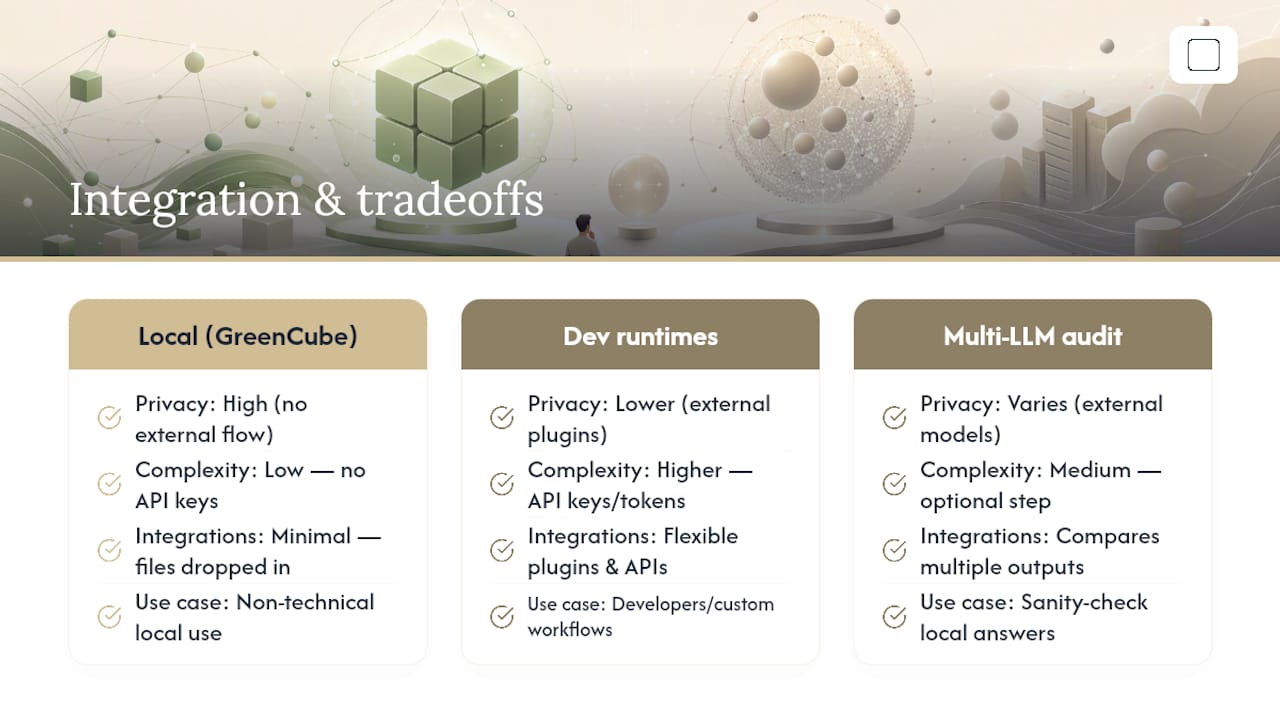
Right now, a local desktop assistant like GreenCube is designed to be self-contained rather than plugged into a chain of other software. That's a deliberate tradeoff, not an oversight. The moment an app starts exporting your chats into third-party services or pulling data from external APIs, you introduce exactly the kind of data flow a privacy-first tool is built to avoid.
For non-technical users, this actually simplifies things. You're not managing API keys, authentication tokens, or worrying about which connected service might store a copy of your conversation somewhere else. You open the app, work inside it, and close it. Documents you want summarized or images you want read get dropped in directly rather than piped through another tool.
If you eventually want to sanity-check answers across different models, tools like BabyLoveGrowth's multi-LLM audit let you compare outputs from multiple AI models side by side, which can be useful if you're curious whether a local answer lines up with what a bigger cloud model would say. That's a separate, optional step though, not something built into the core privacy promise of running locally.
Developer-focused runtimes tend to offer more plugin and API flexibility, since they're aimed at people building custom workflows. That flexibility comes at the cost of the simplicity non-technical users are usually looking for in the first place.
Is a Local AI App Actually Secure?
Running an AI model locally solves one problem: it stops your conversations and documents from sitting on someone else's server. It doesn't automatically solve every security problem you might have. Local AI protects against cloud data exposure, but it can't protect a device that's physically compromised or unlocked for someone else to access.
In plain terms: if your laptop has no password, or you leave it unlocked at a coffee shop, a local AI app's privacy promise doesn't help you. The security of your local data depends just as much on basic habits, a strong device password, full-disk encryption, locking your screen when you step away, as it does on where the AI itself runs.
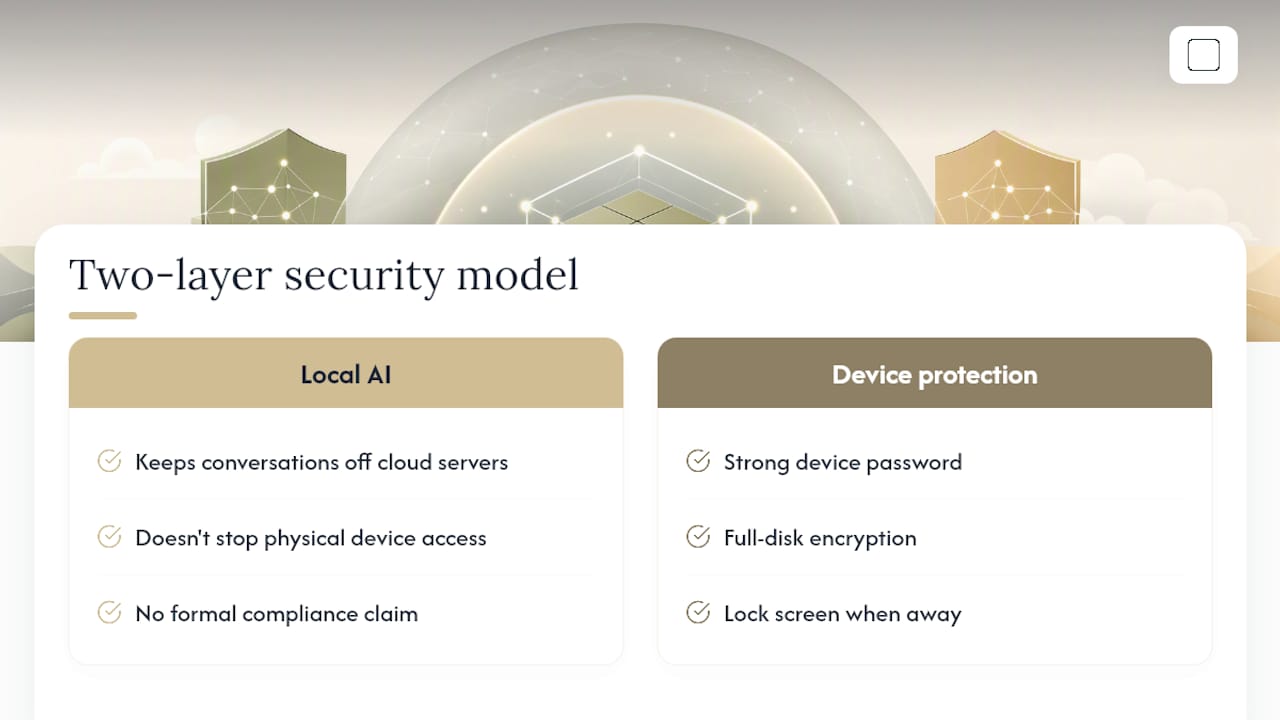
GreenCube doesn't claim any formal compliance certification, and it shouldn't need to for what it's actually built for: private, everyday chat and document review on your own machine. If you're handling regulated data that legally requires a specific certification, that's a conversation for a compliance specialist, not a software review. For everyday personal and professional privacy, keeping your files off a server and locking your own device covers most of what people actually worry about.
An Editorial Take on Local AI, Minus the Hype
The conventional advice on local AI treats it like a technical hobby: install a runtime, learn some command-line flags, tune it yourself. That advice is fine for developers. It's useless for the person who just wants their tax documents and personal messages to stay off someone else's server without becoming a part-time systems administrator.
What gets underestimated is how much friction kills good privacy habits. A tool that's technically private but takes an hour to configure will get abandoned in a week, and the person goes right back to the cloud chatbot that's actually easy to open. The real test isn't raw model capability. It's whether a normal person will actually use the private option consistently.
That's the gap GreenCube is built to close: not by out-reasoning frontier cloud models, but by making the offline choice the easy choice. Prioritize responsiveness and clarity over horsepower when you test any local assistant. A slightly less clever model you'll actually use daily beats a technically superior one gathering dust after one failed setup attempt.
— Hector Gras
Getting Started With GreenCube
This app is designed as an alternative to command-line AI tools for people who want private chat and document reading without using a terminal. It requires a one-time payment with no subscriptions or recurring charges.
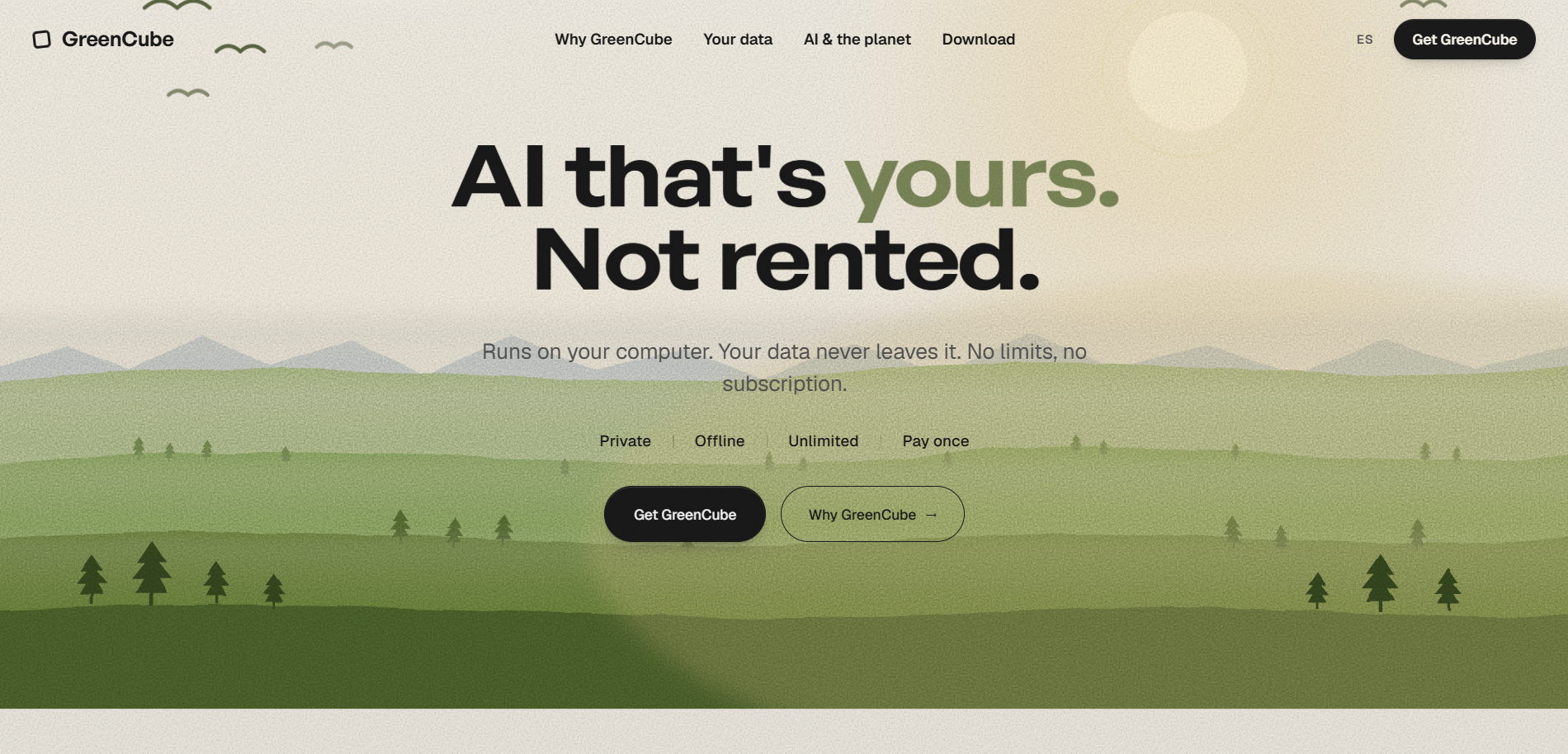
After purchase, the process is simple. Download the app, pick your model (Quick for speed, All-rounder for images and PDFs), and run it against a real document or photo you actually care about. That's the best way to judge fit, not a spec sheet. The one-time Google or Microsoft sign-in confirms license validity; chats and files stay on your computer regardless of model choice. A refund window allows you to try it risk-free. You can start with GreenCube here or check the full feature rundown on the GreenCube landing page first if you want more detail before buying.
Sources
If you want to go deeper on how local AI actually behaves under the hood, these are solid starting points:
- Local AI for privacy — what you actually get (May 2026) | RunLocalAI
- Local First AI vs Cloud AI: Real Trade-Offs — Lapu AI
- Private AI Setup Guide — Run AI Completely Offline in 2026 | Local AI Hub
FAQ
Is GreenCube Really Fully Offline?
Yes. Once you download your chosen model during setup, the app runs without needing an internet connection for chat or document analysis. The only online action is the one-time sign-in used to verify the license.
Which Is Better, Ollama or GreenCube, for a Beginner?
For someone non-technical who wants a working app in minutes, GreenCube is the easier choice since it installs like normal software with no command-line setup. Ollama fits people comfortable managing models and configuration through a terminal.
Can GreenCube Read Images and PDFs?
Yes, but only with the larger model, which requires more RAM to run smoothly. The smaller model is faster but handles plain text only and cannot read images.
Does GreenCube Work on Mac and Windows?
The app supports Windows and Mac, with no Linux version currently available. Both platforms use the same one-time download and setup process.
What Happens to My Data if I Sign In?
Your Google or Microsoft sign-in only checks that your one-time license is valid. Your chats, documents, and images stay on your own machine and are never uploaded as part of that process.