Offline AI for Travelers: The Private, No-Cloud Guide
If you want a fully offline AI that works on your laptop with no subscription and no data leaving your device, GreenCube is the clearest choice for nontechnical travelers right now. It runs entirely on your own computer, keeps your chats and files on it, and costs a one-time fee. No surprise charges mid-trip, no cloud dependency when your hotel Wi-Fi dies.
Before you travel, check these three things:
- Free storage: model files typically run over 1 GB and must be downloaded before you leave
- RAM and OS: confirm the app runs on your Windows machine (GreenCube is Windows only)
- Offline test: put your device in airplane mode and confirm the AI still responds
Table of Contents
- What does offline AI for travelers actually mean?
- What core features should an offline travel AI have?
- How do you verify an app is truly private and secure?
- Why GreenCube fits travelers' needs
- What device specs do you actually need?
- Pre-trip setup checklist
- Five workflows where offline AI earns its keep
- What licensing models should you expect?
- Key Takeaways
- The case for owning your travel AI
- GreenCube is the offline AI built for travelers like you
- Sources and further reading
- FAQ
What does offline AI for travelers actually mean?
"Offline AI" means the model and your data live entirely on your device. No server call, no account ping, no cloud sync. When you open the app at 35,000 feet or on a remote trail, it works the same as it did on your couch.
That distinction matters more than it sounds. Cloud-dependent travel apps fail exactly when you need them most: dead zones, international layovers with expensive roaming, or a flight with no Wi-Fi. An offline-first design removes that failure mode entirely.

Privacy is the second reason. When an app requires no account and stores nothing remotely, there is no vendor-side log of where you searched, what documents you opened, or what questions you asked. Removing the account requirement is the single strongest practical defense against usage tracking.
Pro Tip: Download all model and map assets on stable home Wi-Fi before departure. A 1GB+ seed download on airport Wi-Fi is slow, unreliable, and sometimes blocked by captive portals.
What core features should an offline travel AI have?
Not every "offline" app is built the same. These are the features that actually matter on the road:
- Local AI chat — answers questions, helps draft messages, explains local customs, all without a connection
- Itinerary builder with a visual timeline — day-by-day plans you can edit in airplane mode
- Encrypted document vault — stores passports, visas, and vaccination records locally, biometric-locked and AES-256-GCM protected
- Expense tracker with multi-currency support — logs spending across 23+ currencies without needing a live exchange-rate feed
- OCR for PDFs and images — reads boarding passes, hotel confirmations, and foreign-language signs directly from photos
Quick tests to run before you trust an app:
- Switch to airplane mode, open your itinerary, and confirm it loads fully
- Open an encrypted document and verify biometric unlock works offline
- Drop a photo of a boarding pass into the OCR tool and check that it extracts the flight number correctly
How do you verify an app is truly private and secure?
The marketing claim "offline" covers a wide range. Here is how to verify it actually holds.
Six questions to ask any vendor:
- Does the app require an account or email to function?
- Are model files stored locally, or fetched from a server each session?
- Does the app send telemetry, crash reports, or usage data?
- Is encryption applied at rest, and which standard?
- Does the app use a hardware enclave (Trusted Platform Module or Secure Enclave)?
- Is cloud sync optional and off by default?
Plain-English glossary:
| Term | What it means for you |
|---|---|
| AES-256-GCM | A strong encryption standard; your files are scrambled so only your device can read them |
| Hardware enclave | A locked chip on your device that stores encryption keys separately from the main OS |
| Local-only storage | Your data never leaves your laptop, even when Wi-Fi is available |
| Model seed download | The one-time download of the AI's brain files before you go offline |
GreenCube publishes a plain-language explainer on whether cloud AI trains on your data — the kind of transparency page worth bookmarking before you hand any app your travel documents.
Why GreenCube fits travelers' needs
GreenCube is built for people who want AI that works without fuss. Install it, and it runs. No model configuration, one sign-in at setup, no subscription to manage while you're crossing time zones.
For travel specifically, the relevant features are:
- Offline chat — ask anything, get answers, no connection needed
- PDF and image reading — open a hotel confirmation PDF or photograph a foreign menu and get an instant summary
- Local storage — documents stay on your device, not on a vendor's server
- One sign-in only — your queries stay on your laptop
The pricing model is a one-time purchase, which means no subscription renewal pops up while you're abroad. That alone removes a category of travel stress. GreenCube also publishes resources on AI's environmental impact, a signal that the team thinks carefully about what they're building.
What device specs do you actually need?
Local AI models are heavier than a typical app. Here is what to check before you travel:
| Check | Practical guidance |
|---|---|
| Free storage | Clear at least 2–4 GB; model files alone often exceed 1 GB |
| RAM | 8 GB minimum |
| OS | GreenCube runs on Windows 10 and 11 only |
| Battery | Local model inference drains battery faster than a browser tab; carry a power bank |
Understanding why local AI models demand more from your hardware than cloud apps helps set realistic expectations. The model runs on your CPU rather than a remote server, so a low-power travel laptop will feel the difference.
Pro Tip: Before you pack, run the app for 30 minutes in airplane mode while doing typical tasks. Check battery drain. If it's steep, adjust your power plan to "balanced" and keep a 10,000 mAh power bank in your carry-on.
Pre-trip setup checklist
The single most important step: complete the full model seed download on reliable home Wi-Fi. Everything else builds on that.
- Install the app on your travel laptop and complete first-run setup
- Download all offline assets (model files, any cached data) while connected to fast Wi-Fi
- Grant biometric or secure-enclave permissions so the document vault unlocks with your fingerprint
- Store critical documents in the encrypted vault: passport photo page, visa, travel insurance, vaccination record
- Run offline chat test — switch to airplane mode, ask a question, confirm a response arrives
- Run OCR test — photograph a printed document and verify the text extraction is accurate
- Run vault test — lock and unlock the encrypted vault using biometrics
- Export or print a one-page checklist of your vault PIN and recovery steps, stored separately from your device
A "pass" for each test is simple: the feature works exactly as it did online. If anything fails, troubleshoot on home Wi-Fi before departure, not at the gate.
Five workflows where offline AI earns its keep
An offline travel assistant isn't just a backup plan. Here are five situations where it actively saves you time.
1. Boarding pass OCR and quick-check. Photograph your boarding pass. The app extracts gate, seat, and departure time in seconds. Useful when your phone battery is low and you don't want to open a browser.
2. Itinerary reshuffle mid-flight. Your connection changed. Open your itinerary, ask the AI to suggest a revised day-two plan given the new arrival time. No Wi-Fi needed.
3. Offline language help. Photograph a restaurant menu or a street sign. The PDF/image reader translates it locally. No data roaming, no Google Translate dependency.
4. Expense logging and bill splitting. Log each purchase in your local expense tracker. Multi-currency support means you enter the local amount and the app handles the math.
5. Emergency document access. Border agent asks for your vaccination record. Open the encrypted vault, authenticate with biometrics, hand over the document. The whole thing takes under ten seconds.
Pro Tip: For the language workflow, photograph text before you need it — menus, transit maps, hotel check-in forms — while you still have a moment to spare. OCR on a blurry rushed photo is less reliable than a clean shot taken at your own pace.
What licensing models should you expect?
Three pricing shapes dominate the offline AI space:
- One-time purchase — pay once, own the software. No renewal, no access cut-off if you cancel a card. GreenCube uses this model, which is the most travel-friendly option since there's nothing to expire mid-trip.
- Subscription — monthly or annual fee. Cheaper upfront, but requires active billing and sometimes an account, which reintroduces the privacy exposure you were trying to avoid.
- Enterprise perpetual license — a one-time fee for teams or businesses, often with volume pricing. Overkill for individual travelers.
For updates, offline apps typically deliver new model versions or feature patches as a downloadable update rather than a live server push. Some apps offer optional cloud sync for backup purposes; if yours does, confirm it is off by default and only enable it on a trusted network. Always back up your encrypted vault to a local external drive before a major trip.
Key Takeaways
Fully offline AI for travelers works best when it runs locally, requires no account, encrypts documents with AES-256-GCM, and is purchased once so nothing expires while you're abroad.
| Point | Details |
|---|---|
| Download before you go | Model files exceed 1 GB; complete the seed download on home Wi-Fi, not at the airport. |
| Verify offline operation | Test chat, OCR, and vault access in airplane mode before departure — not after. |
| Encryption standard to look for | AES-256-GCM with hardware-enclave key storage protects documents against theft. |
| One-time license advantage | A one-time license means no subscription renewal can cut off access mid-trip. |
| GreenCube recommendation | GreenCube runs fully offline on Windows after a one-time sign-in, and sells a one-time license. |
The case for owning your travel AI
The conventional wisdom says cloud AI is more capable. That's often true for raw model size. But capability is irrelevant when you're on a 14-hour flight over the Pacific with no Wi-Fi, or standing at a border crossing with a dead signal.
What travelers actually need is reliability and privacy, in that order. A smaller local model that answers every time beats a powerful cloud model that answers only when conditions cooperate. And the privacy argument is not paranoia. Every cloud AI session is a potential data point: your location, your documents, your questions. Removing the account requirement and the server connection removes that exposure entirely.
The tools that get this right are the ones built offline-first from the start, not cloud apps with an "offline mode" bolted on. The always-on AI productivity case is strongest precisely when the connection is gone. That's the version worth owning.
GreenCube is the offline AI built for travelers like you
Most travel AI apps assume you have a connection. GreenCube doesn't. It runs entirely on your Windows laptop, reads PDFs and images, chats with you, and keeps your documents on your laptop — all without a subscription, and without sending your chats or files to the cloud.
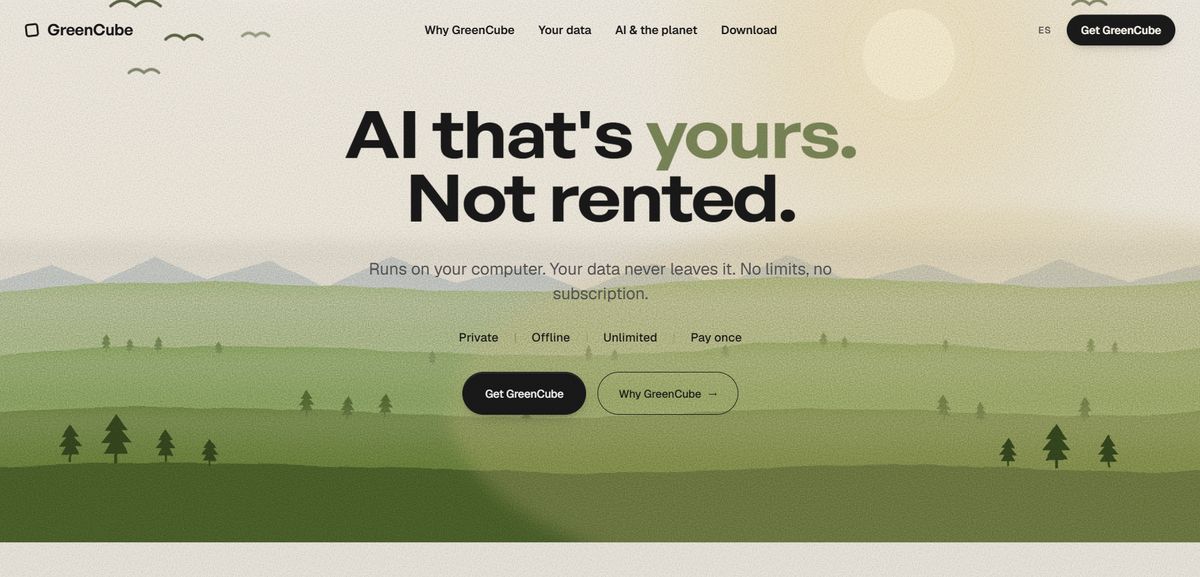
The setup takes minutes. The model is picked for your PC and downloaded at setup, so there's no configuration to wrestle with. One payment — no renewal to forget. For travelers who want a private AI that works on a plane, a trail, or a border crossing, GreenCube is the straightforward answer.
Get GreenCube for a one-time payment and have it installed before your next trip.
Sources and further reading
- GreenCube — AI that's yours, not rented: Primary product page covering offline architecture, privacy model, and feature set.
- Does ChatGPT train on your data?: GreenCube's plain-language explainer on cloud AI data practices — useful for understanding what offline-first protects you from.
- Trip Mate — Plan, Pack, Explore: Source for AES-256-GCM encryption standards, multi-currency expense tracking, and encrypted vault practices.
- TrekCrumbs — Offline Travel Organizer: Background on no-account offline travel apps and the reliability argument for offline-first design.
- Marvel Vista — The private AI travel planner: Source for the 1 GB+ model seed download requirement and no-account privacy model.
FAQ
Does offline AI work with no Wi-Fi at all?
Yes, once the initial model files are downloaded, a fully offline AI like GreenCube runs with no internet connection required — on flights, in remote areas, or anywhere with no signal.
How large are the model files I need to download first?
Model files typically exceed 1 GB and must be downloaded on reliable Wi-Fi before travel; attempting this on airport or hotel Wi-Fi is a common failure point.
Is my data private if I use GreenCube?
GreenCube needs one sign-in at setup and keeps your documents, chats, and queries on your own device.
What encryption protects my stored travel documents?
AES-256-GCM encryption with hardware-enclave key storage is the standard to look for; it protects locally stored passports, visas, and other sensitive files against unauthorized access.
What happens when GreenCube releases an update?
Updates are delivered as downloadable patches rather than live server pushes; install them on Wi-Fi before a trip.
Recommended
- GreenCube — AI that's yours, not rented
- Get GreenCube — €9.99, paid once
- Does ChatGPT train on your data? (2026) — the honest answer
- How much water does AI use? (2026) — the real numbers
Your own AI, on your own PC
GreenCube runs on your computer: no usage limits, no subscription, works without internet. €9.99 (US$9.99), paid once.
Get GreenCube